
How to manage asset contracts in Snad
To record a contract for an asset in Snad, open Assets, then Contracts, and press Add contract. Pick the asset and the Contract type, enter the Provider, Policy no. and Value, set the End date and Alert lead (days), then press Save.
In this guide6
Steps
Step 1: Open the contracts list
In the sidebar, choose Assets, then Contracts. The list shows your current contracts, with the Add contract button above it. Details
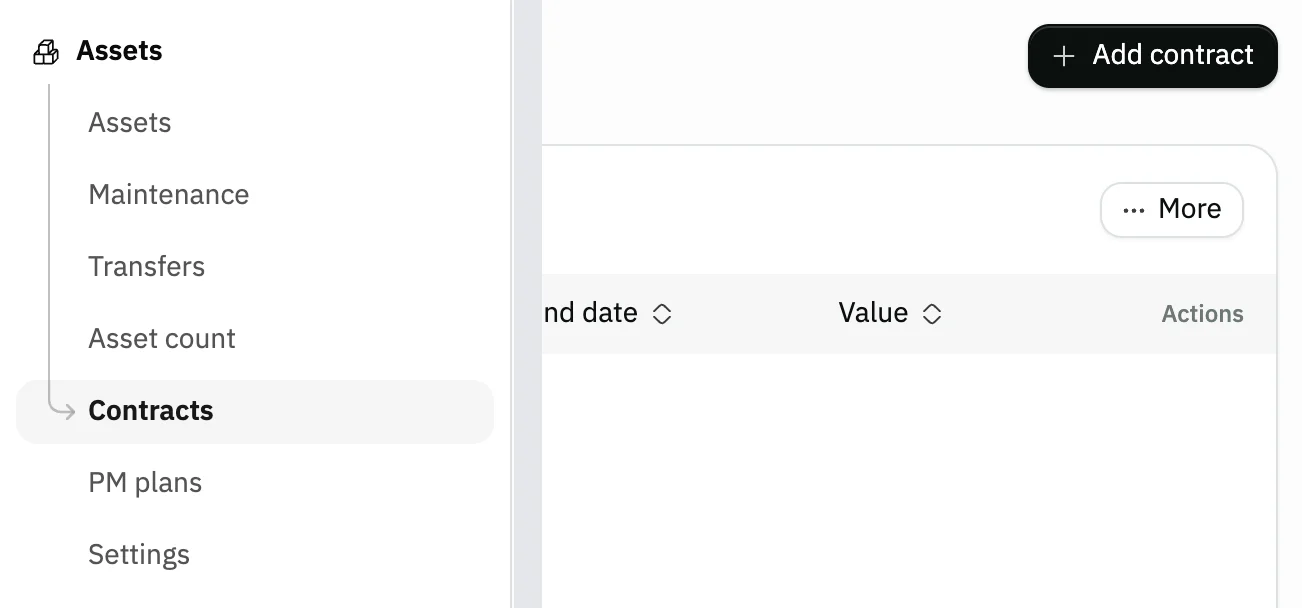
Image key - Contracts in the sidebar
- The Add contract button
Step 2: Choose the asset and the contract type
Press Add contract. From Asset name pick the asset the contract covers, and from Contract type choose Warranty, AMC or Insurance.
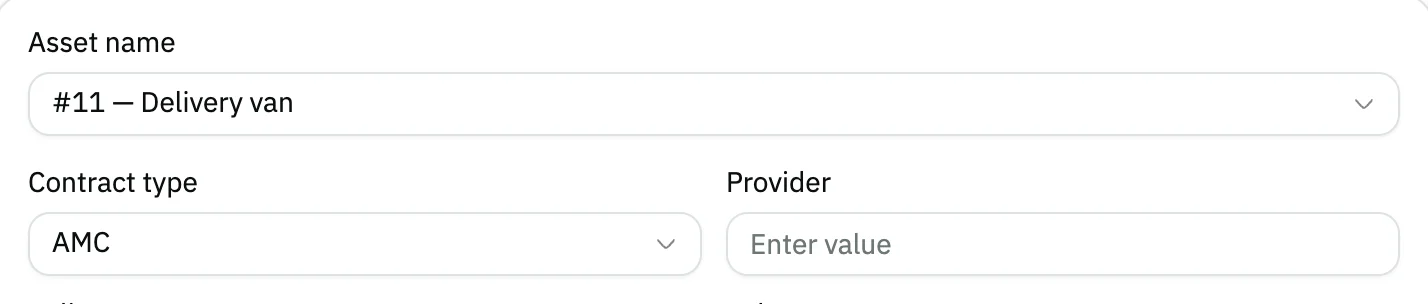
Image key - The Asset name list
- The Contract type list
Step 3: Enter the provider and policy details
Type the company in Provider, the contract or policy number in Policy no., and the contract amount in Value. If you like, add Notes at the end of the form.
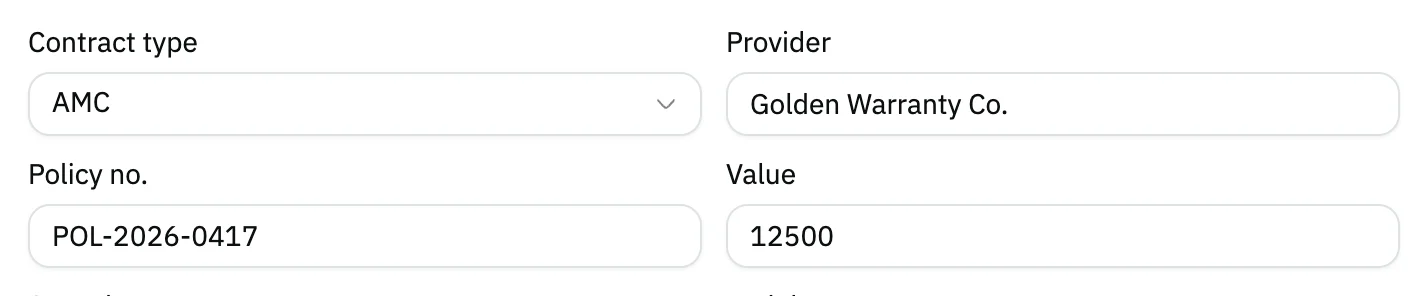
Image key - The Provider field
- The Policy no. field
- The Value field
Step 4: Set the dates and the alert
Pick the Start date, then the End date, which is required. In Alert lead (days) type how many days before the end the alert should come; the default is 30. Details
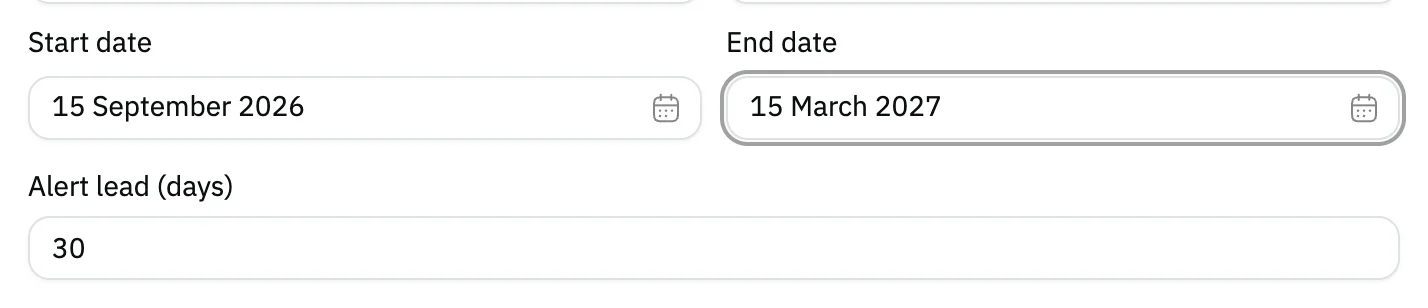
Image key - The End date
- Alert lead (days)
Step 5: Save the contract
Press Save at the top of the form. Snad goes back to the contracts list and the new contract appears in it.

Image key - The Save button
Step 6: Check the contract in the list
The contract's end date shows in a badge: red once the contract has ended, grey when 30 days or fewer remain, and outline only otherwise.

Image key - The End date badge
Messages that block saving
If saving fails, one of these messages shows next to the field. The table gives the cause and the fix.
| Message | Cause | Fix |
|---|---|---|
| «End date is required» | You left the End date empty; it is the one date without which the contract cannot be saved. | Press the field, pick a day in the calendar, then press Save again. |
| «No data» | You did not choose an asset in Asset name, so Snad does not know which asset the contract is for. | Choose the asset from the list, then save. If the list is empty, add the asset first. |
Advanced details
Each section here explains one point from the steps in depth. Every section has a fixed link you can share.
How does the alert before expiry work?
Snad checks contracts every morning. When a contract reaches its alert date, meaning its end date minus the days you set in Alert lead (days), it sends an in-app notification.
The notification goes to the users whose roles allow viewing assets, and it links to the asset. You will find it in follow your notifications.
The alert is sent once per contract. If you edit the contract and save it, the alert is armed again and comes again at its new date.
Edit or delete a contract
Click the contract's row in the list to open the Edit contract form, change what you need, then press Save. This needs the update permission.
Users with delete permission get a Delete action in the row's actions menu and at the bottom of the edit form. It asks for confirmation before it removes the contract.
When a contract is renewed
If you extended the same contract, open it, change the End date, then save; the alert is armed again for the new date.
If you signed a new contract with another provider, add it with Add contract on the same asset. One asset can have more than one contract; for the maintenance work itself see record asset maintenance.
Common questions
- How do I record a warranty or insurance contract for an asset?
- Open Assets, then Contracts, and press Add contract. Pick the asset, choose Warranty or Insurance in Contract type, set the End date, then save.
- Will Snad warn me before a contract ends?
- Yes. It sends an in-app notification the number of days you set in Alert lead (days) before the end, once per contract.
- Who receives the contract expiry notification?
- The users whose roles allow viewing assets. You set that in roles and permissions.
- Do I need a start date for the contract?
- No. The Start date is optional, but the End date is required because the alert is calculated from it.
- How do I extend a contract that ended?
- Click the contract's row, change the End date, then press Save. The alert is armed again for the new date.