
How to use the kitchen display in Snad
To use the kitchen display in Snad ERP, press POS, then Kitchen screen. A card arrives for each order, oldest first. Tap an item when it is cooked, press Ready when the order is complete, then Done once it is served and its card disappears.
In this guide6
Steps
Step 1: Open the kitchen display
Press POS in the sidebar, then choose Kitchen screen. If it is missing, check the business sector in POS settings. Details
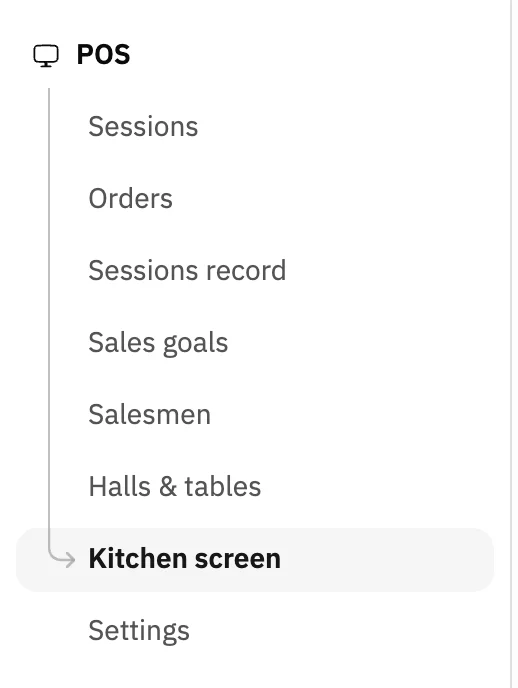
Image key - Kitchen screen in the sidebar
Step 2: Read the board
The top of the board shows today's figures: Cooking, Late, Ready, Avg prep and Done today. Below them is one card per order. Details
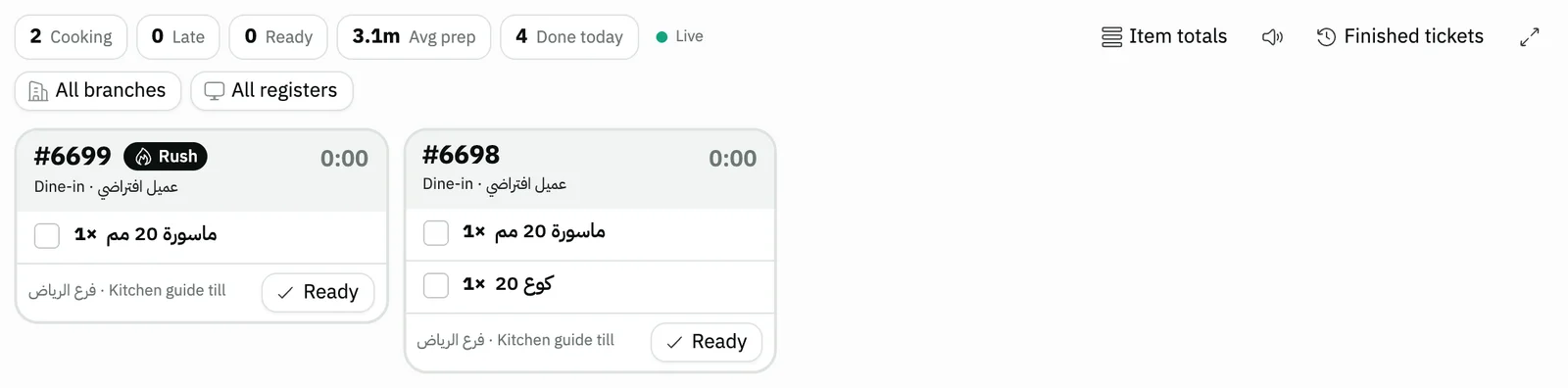
Image key - The Cooking figure
- The Late figure
- Connection state: Live or Auto-refresh
- The All branches filter
- An order card
Step 3: Read an order card
The card shows the Table number or the invoice number, the order type, a clock counting the time since it arrived, then the items with quantities. A rush order carries a Rush badge. Details
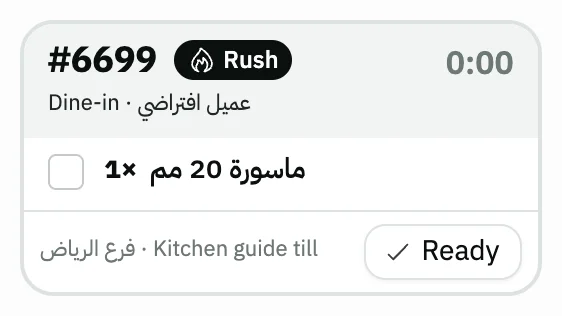
Image key - Invoice (or table) number
- The Rush badge
- The waiting clock
- An item with its quantity
- The Ready button
Step 4: Tick the cooked items
Tap an item when it is cooked and it is struck through and dimmed. It is a reminder while you cook and does not change the order's status. Details
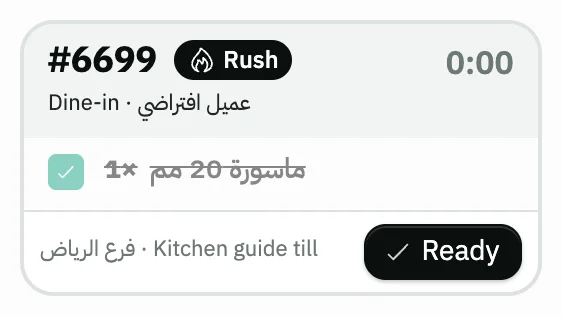
Image key - A ticked item
- The Ready button
Step 5: Press Ready
When the order is complete, press Ready: the card turns green and moves to the end of the board. Pressed by mistake? Press the Back to cooking arrow. Details
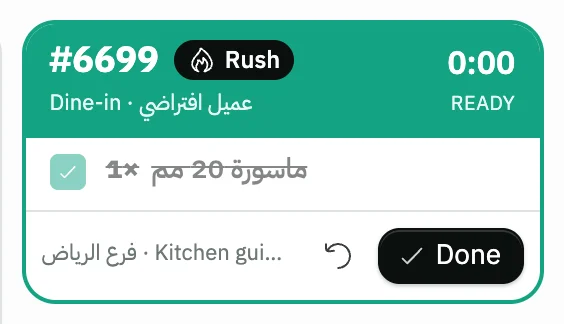
Image key - The green header: Ready
- The Back to cooking arrow
- The Done button
Step 6: Finish or recall the order
Once the order is served, press Done and its card disappears. You find it under Finished tickets at the top, with Recall beside it. Details
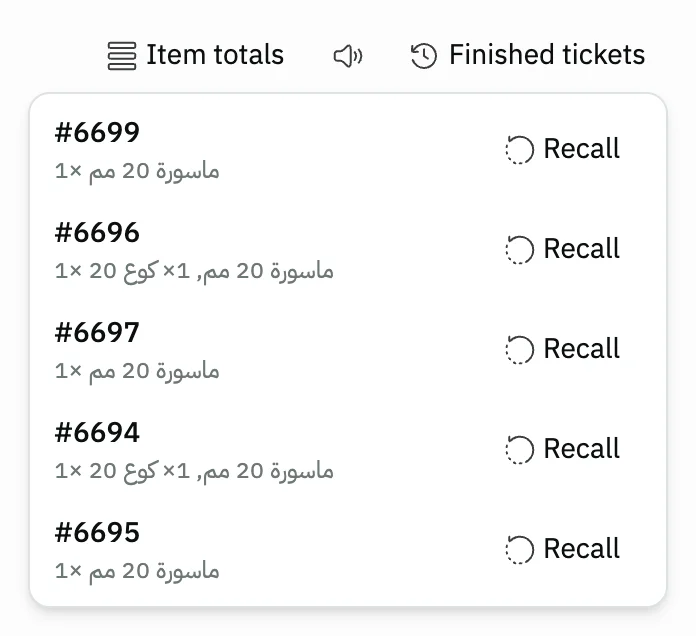
Image key - The Finished tickets button
- The Recall button
Messages that block saving
If saving fails, one of these messages shows next to the field. The table gives the cause and the fix.
| Message | Cause | Fix |
|---|---|---|
| «This ticket changed on another screen — board refreshed.» | A colleague pressed a button on the same order from another screen before you. | Look at the card's status after the board refreshes, and press again if the action is still needed. |
| «Cannot reach the server — showing the last known state.» | The device lost its connection to the internet or to the server. | Check the connection. The board keeps trying and shows the real state when it returns. |
Advanced details
Each section here explains one point from the steps in depth. Every section has a fixed link you can share.
When cards arrive and when the screen shows
The kitchen display shows when the business sector is Restaurants & cafés. You pick it the first time you open the POS, or change it under POS business sector in POS settings.
A card is created for each counter order sold at the POS without a table, and for each round sent from a table with Send to kitchen. The invoice that settles a table adds no card, because its items reached the kitchen with their rounds.
Invoices that do not come from the POS (a regular sales invoice) create no cards. A card nobody touches for 24 hours is finished automatically.
Card colours and the late threshold
A card starts grey, turns amber after two thirds of the threshold and red once the whole threshold has passed. Set it under Kitchen late threshold (minutes) in POS settings: it is 15 minutes by default and accepts 1 to 180.
The threshold is one number for the whole business, so a card turns red at the same second on every screen. The Late figure counts the red cards still cooking.
With sound on, an alert plays when an order turns late and repeats every minute while a card stays late.
The branches and registers this screen shows
The All branches and All registers filters limit the board to chosen branches or registers. Leaving them on their default name shows everything.
The registers list shows the first 20 registers, with a Load more button at its end when there are more. Registers you chose earlier, or that have tickets on the board, keep their names even before their page is loaded.
The choice is saved in this device only, not in your user account. Each kitchen screen keeps its own branches, and the choice does not follow you to another device.
Item totals
The Item totals button opens the Items on order panel beside the cards: each item with its total quantity across the orders still cooking.
An item you ticked and an order already ready are left out. It tells you how much of the same item to cook right now. Review finished sales in POS orders.
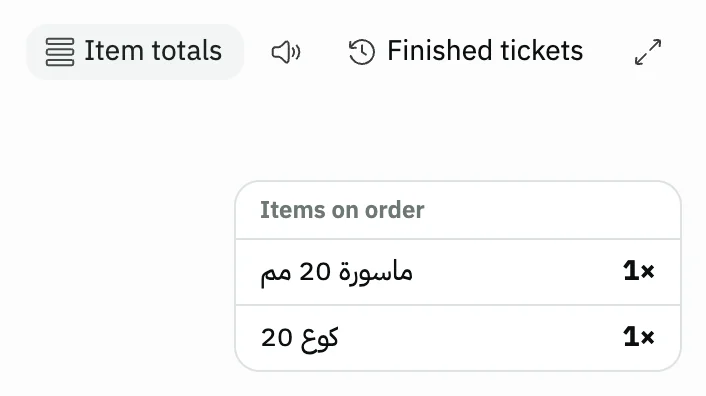
- The Item totals button
- The Items on order panel
What the cashier gets, and rush orders
When you press Ready, the cashier who sold the order, and only that register, sees “Order #number is ready in the kitchen”.
To put an order first, the cashier presses Rush order before saving on the sales screen, and its card carries the Rush badge and leads the board.
Permissions: view only or edit
A user with the view permission alone sees the board as a wall monitor: no ticking items and no order buttons. A user with the edit permission can work it fully.
Grant both from roles and permissions under Kitchen screen. A user without the view permission does not see the screen. For a new kitchen user, see add a user.
Sound and fullscreen
The speaker button switches between Sound on and Sound muted. With sound on you hear a chime when a new card arrives, and the first load of the board is silent.
The Fullscreen button shows the board alone so you can mount the device in the kitchen, and Exit fullscreen brings you back. The button shows only in browsers that support it. For a printed kitchen ticket, pair a printer in POS settings.
Common questions
- Why can't I see the kitchen display?
- For one of two reasons: your POS business sector is not Restaurants & cafés, or your user lacks permission to view the kitchen display. Change the sector in POS settings and ask your account admin for the permission.
- How do orders reach the kitchen display?
- Automatically: each counter order sold at the POS without a table, and each round sent from a table, creates a new card that shows on the board right away.
- How do I make an order a rush?
- On the sales screen press Rush order before saving the order. Its card carries the Rush badge and shows before the other cards.
- When does an order card turn red?
- When the time set in POS settings has passed since the order arrived, 15 minutes by default. A little before that, at two thirds of the threshold, it turns amber.
- Can I recall an order I finished by mistake?
- Yes, as long as it is from today: open Finished tickets and press Recall beside it, and it returns to the board as a Ready card.