
How to import employees from an Excel file in Snad
To import employees in Snad ERP, open Employees, press More, then Import. Press Download Excel template, fill it in, and upload it as an xlsx file. Review the rows in the preview, then press Save, and keep the page open until it finishes.
In this guide6
Steps
Step 1: Open the import screen
From HR, open Employees, press More above the list, then Import.
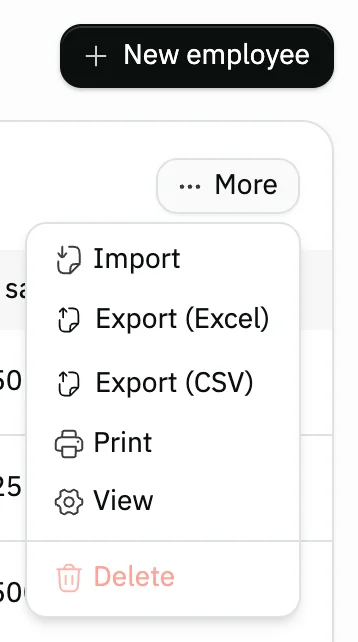
Image key - The More button
- The Import option
Step 2: Download the template
On the Import data page, press Download Excel template. The file holds one example row that you replace with your own. Details
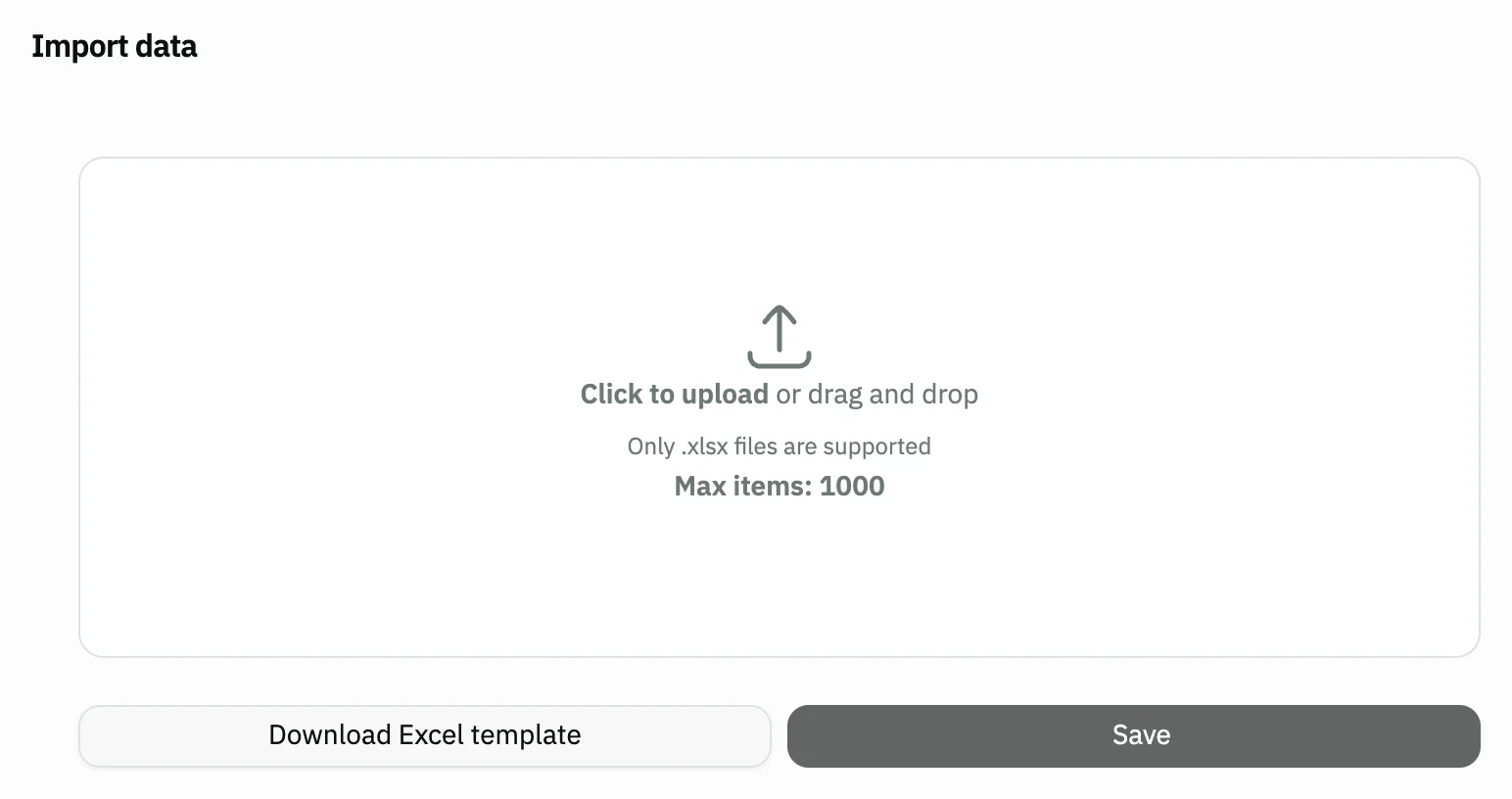
Image key - The xlsx upload area
- The Download Excel template button
- The Save button (disabled until you upload a file)
Step 3: Fill the template
Write each employee on its own row. The name, branchName and workSchedulesName columns are required; the rest is optional. Details
Step 4: Upload the file
Drag the xlsx file onto the upload area, or click it to choose the file. The rows appear as a preview, and the Save button shows their count. Details
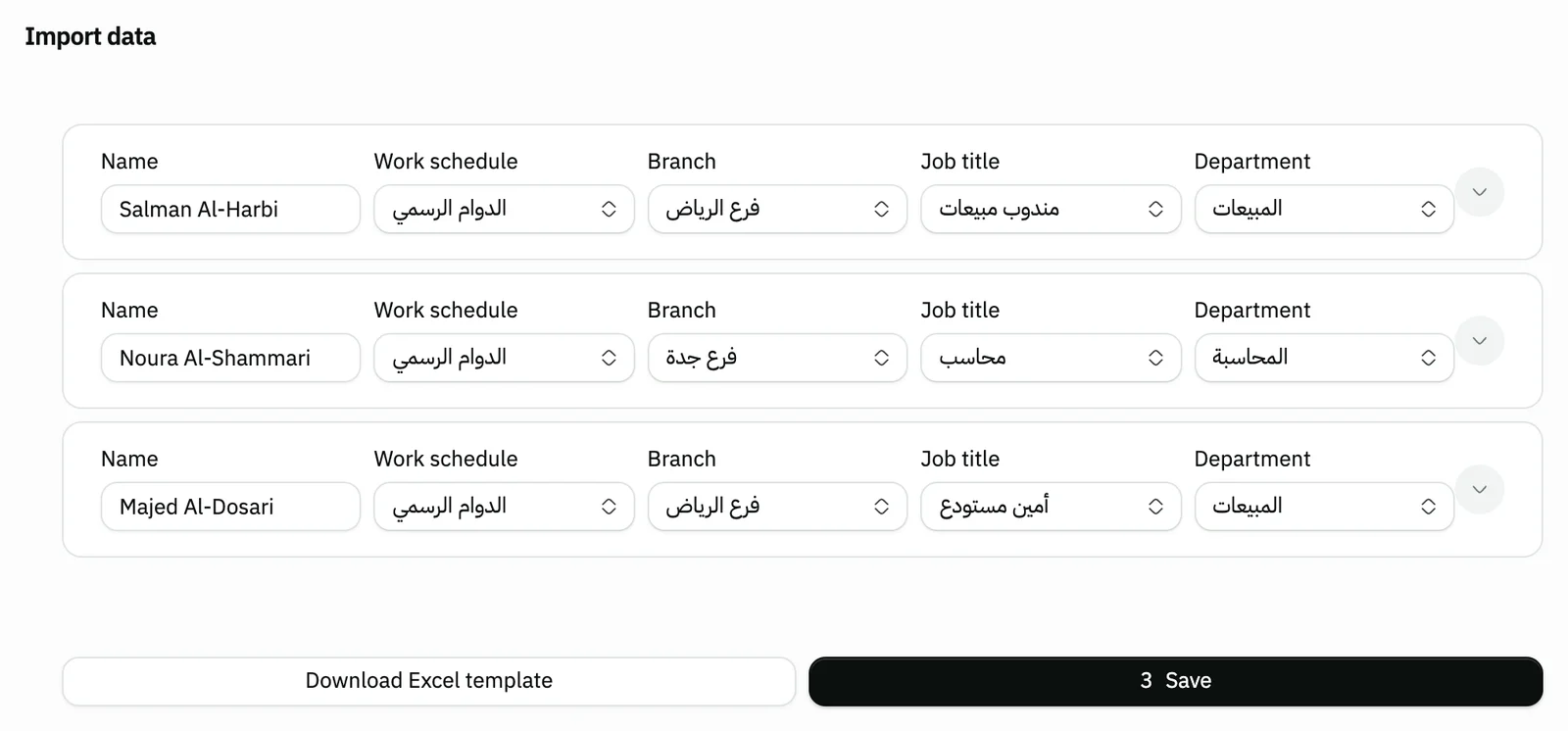
Image key - An employee row: Name, Work schedule and Branch
- A branch name with no match: replaced by your first branch
- The Save button and the row count
Step 5: Review and correct the rows
Open any row with its arrow to see the rest of its data, such as Basic pay and Net salary. Edit whatever you like before saving. Details
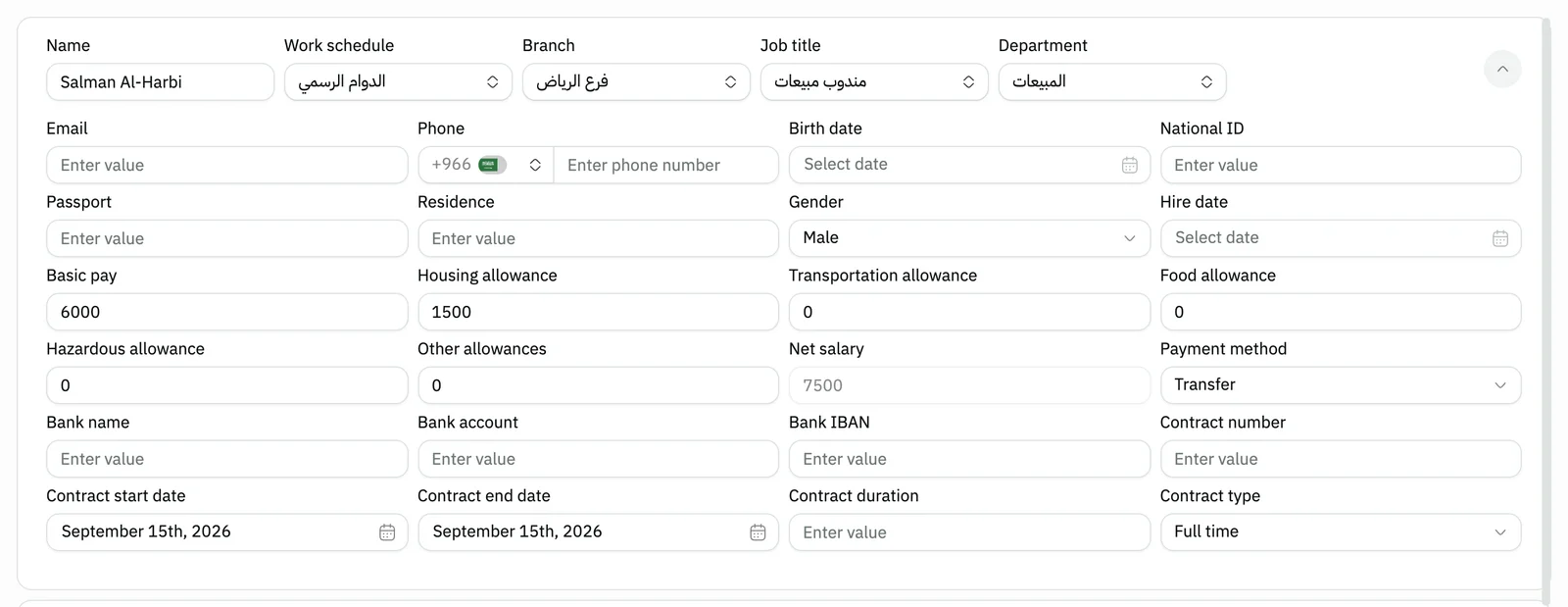
Image key - The rest of the employee's data
- Basic pay
Step 6: Save and wait for it to finish
Press Save and wait for the circle to reach 100%. Then a Completed count appears, plus Not completed if some rows could not be saved. Details
Messages that block saving
If saving fails, one of these messages shows next to the field. The table gives the cause and the fix.
| Message | Cause | Fix |
|---|---|---|
| «Branches not found» | Your account has no branch, so the file is not loaded. | Add a branch, then upload the file again. |
| «Work schedules not found» | Your account has no work schedule, so the file is not loaded. | Create a work schedule in HR settings, then upload the file. |
| «Max limit reached (1000)» | The file has more than 1000 rows. | Split it into smaller files and upload them one after another. |
| «Operation didn't complete — likely a data or server error» | One or more rows could not be saved; the names that were not saved are listed. | Add those names yourself from the employee form. |
Advanced details
Each section here explains one point from the steps in depth. Every section has a fixed link you can share.
The template columns
The template holds one example row and these columns, with the English titles you see in the file:
- name, branchName and workSchedulesName: required.
- email, phone, address and country: optional.
- nationalId, passport and residence: fill one of them, and the identity type follows it.
- salary, housingAllowance, transportationAllowance, foodAllowance, hazardousAllowance and otherAllowance: numbers, and anything left empty counts as zero.
- bankName, bankAccount and bankIBAN: bank details, optional.
- jobTitleName and departmentName: both optional.
How Snad matches the branch and work schedule
Snad matches branchName and workSchedulesName by exact name against your Branch and Work schedule lists. If a name has no match, it uses the first branch and first work schedule in your list, with no warning.
So check the Branch and Work schedule of each row in the preview before saving, and fix any that were replaced.
jobTitleName and departmentName are matched by exact name against Job title and Department, and the field stays empty if there is no match. You add them in HR settings.
What every imported employee gets by default
The file doesn't carry these values, so every employee gets: Gender Male, Payment method Transfer and Contract type Full time.
Their contract starts and ends on the day of the import. If an employee needs other values, add them yourself with the employee form.
Net salary is added up from the salary and allowances in the file, and feeds into payroll.
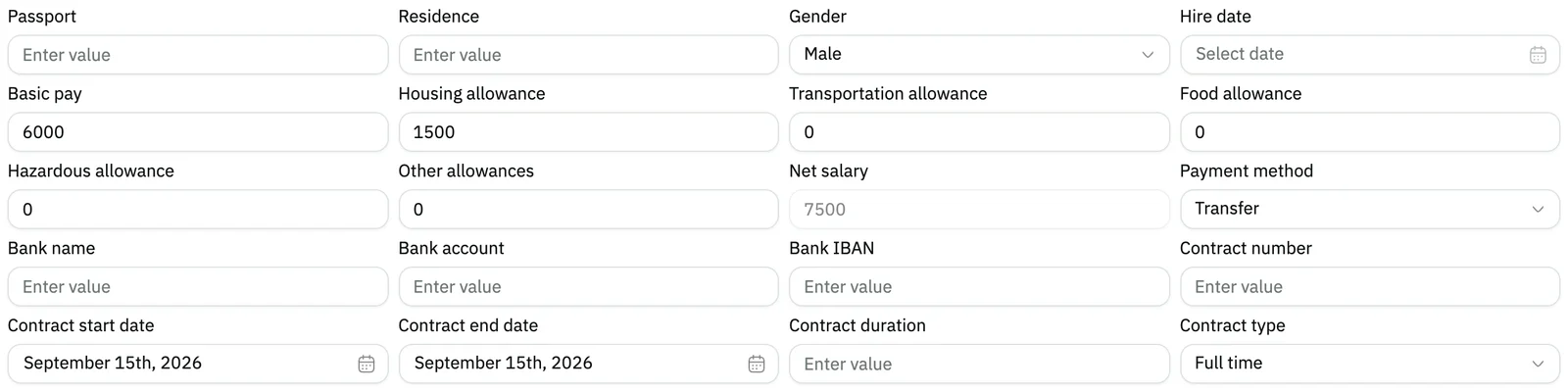
- Gender
- Payment method
Limits and what happens while saving
Snad reads the first sheet of the file, up to 1000 rows. Beyond that, the message “Max limit reached (1000)” appears and the file is not loaded.
A row whose name is shorter than three characters is skipped and counted under Not completed.
Employees are saved in batches of ten with a pause of about three seconds between them, so a long file takes longer. The message “Don't close this page while we process your data” shows; keep the page open.
Afterwards you find the employees in the employee list, and follow their attendance in attendance.
Common questions
- Can I import employees from a CSV file?
- No, the page accepts xlsx files only. Open the CSV in Excel and save it as xlsx.
- How many employees can one file hold?
- Up to 1000 rows on the first sheet. For more, split the file.
- What happens if I type a wrong branch name?
- Snad uses the first branch in your list without warning, so check the Branch column in the preview before pressing Save.
- Should I add a single employee from the file or the form?
- The form is better, as it has gender, payment method and contract. The file is for large batches: how to add an employee.