
How to create a sales return in Snad
To create a sales return in Snad ERP, open Sales, then Refund, and press Create return. Pick the invoice from the Invoice list, set the Quantity to return for each product, check the Total, then press Save.
In this guide6
Steps
Step 1: Open the return screen
In the sidebar, choose Sales, then Refund, and press Create return above the list of returns.
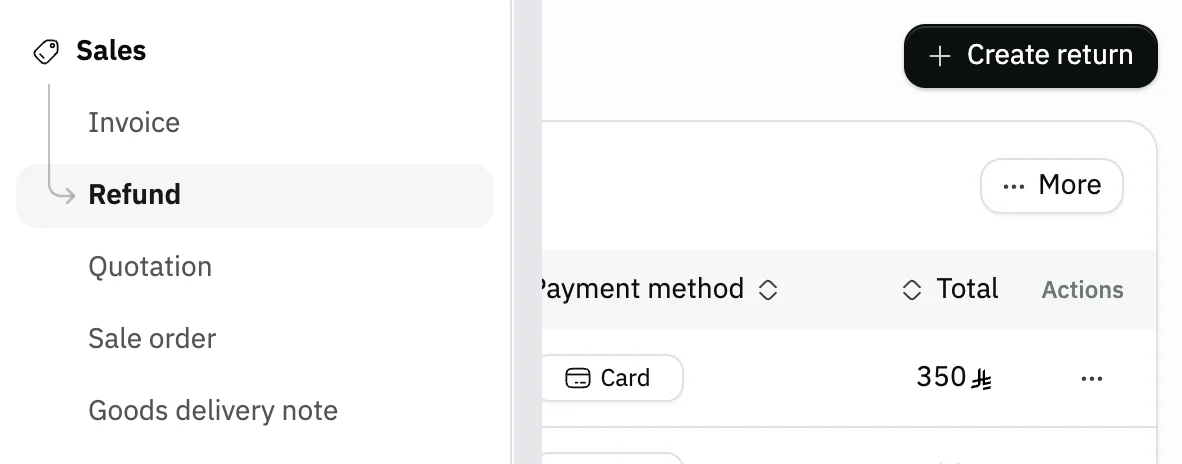
Image key - Refund in the sidebar
- The Create return button
Step 2: Pick the invoice
Click the Invoice list field, type the invoice number or the customer name, and pick the invoice to return. Details
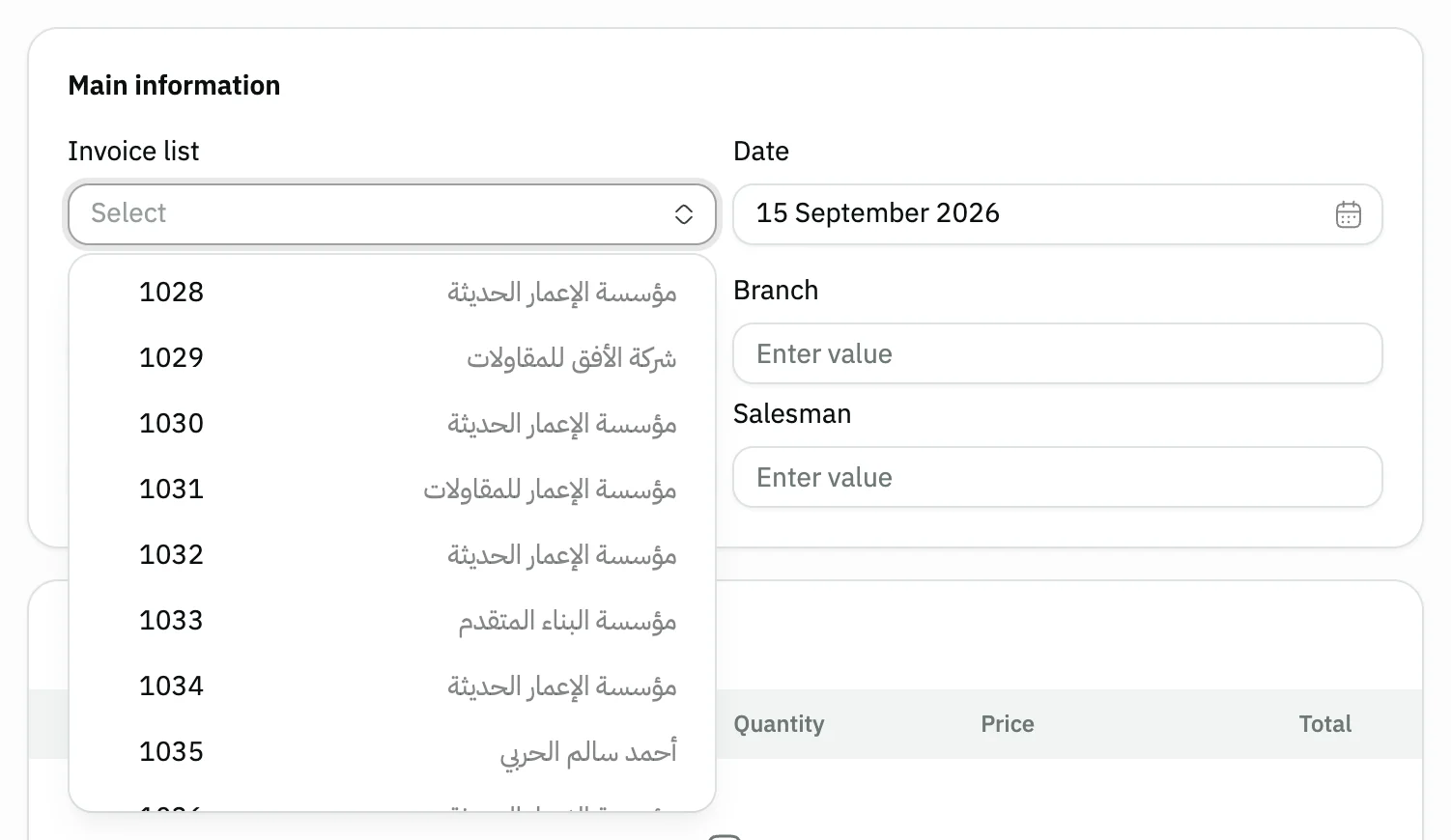
Image key - The Invoice list field
- Invoice number and its customer
Step 3: Check the invoice details
Snad fills in Customer, Branch, Warehouse and Salesman from the invoice. These fields are read-only, so there is nothing to edit. Details
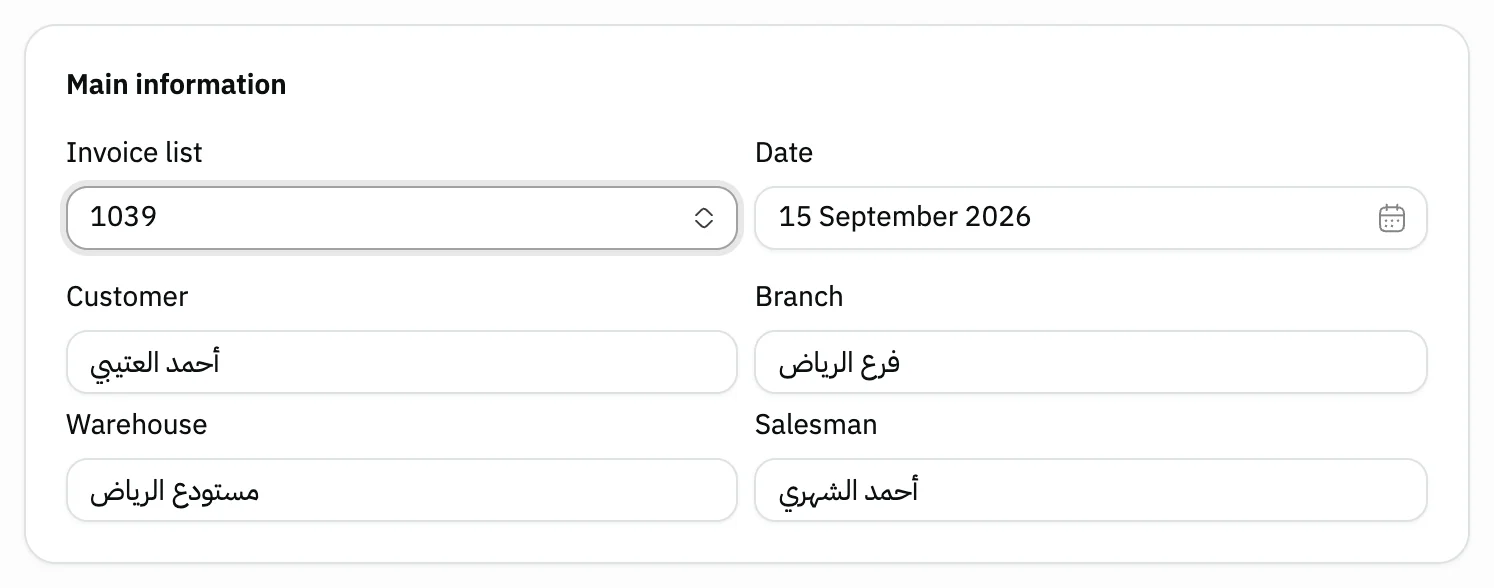
Image key - The chosen invoice number
- The invoice Customer
- The invoice Warehouse
Step 4: Set the quantity to return
Snad puts the full remaining quantity on each line. Change the Quantity to return only part of it; it can't go above Available. Details
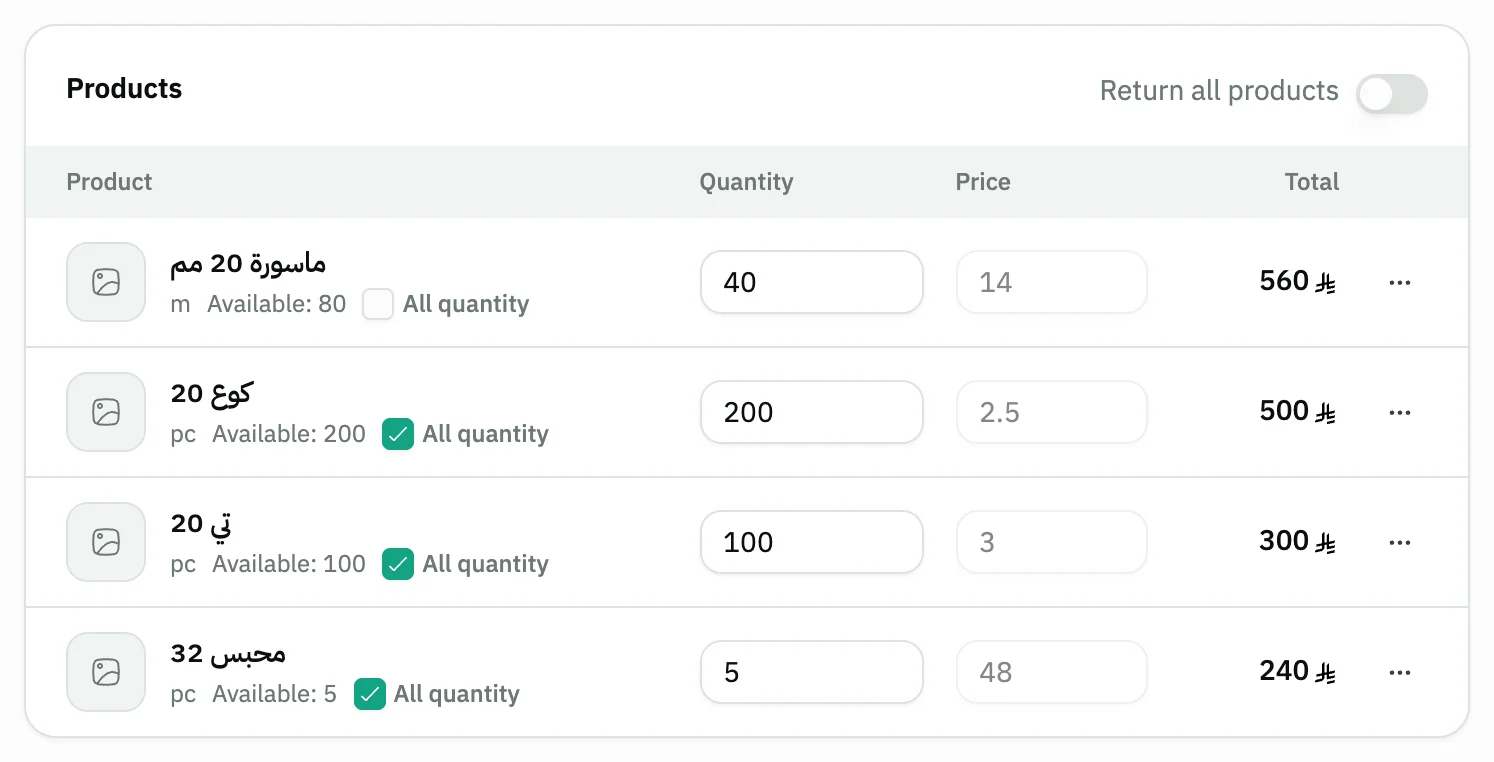
Image key - The Quantity to return
- The All quantity option
- The Return all products switch
Step 5: Check the payment and total
Choose How to give the money back: Cash, Card (network), Transfer, On account, Split payment, or a custom payment method (custom payment methods). It starts on the way the original invoice was paid, and you can change it. Check the Total in the Summary. Details
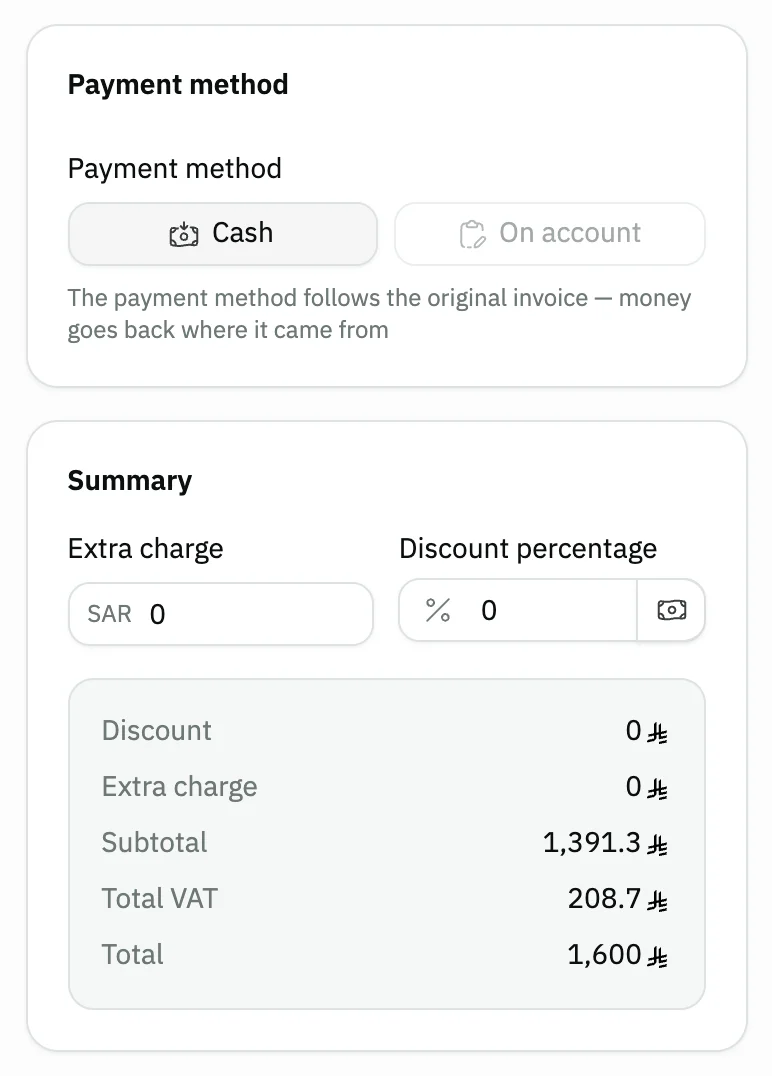
Image key - The Cash button
- The On account button
- Summary: tax and Total
Step 6: Save the return
Press Save, or Save & print to print it right away. The saved return page opens next. Details
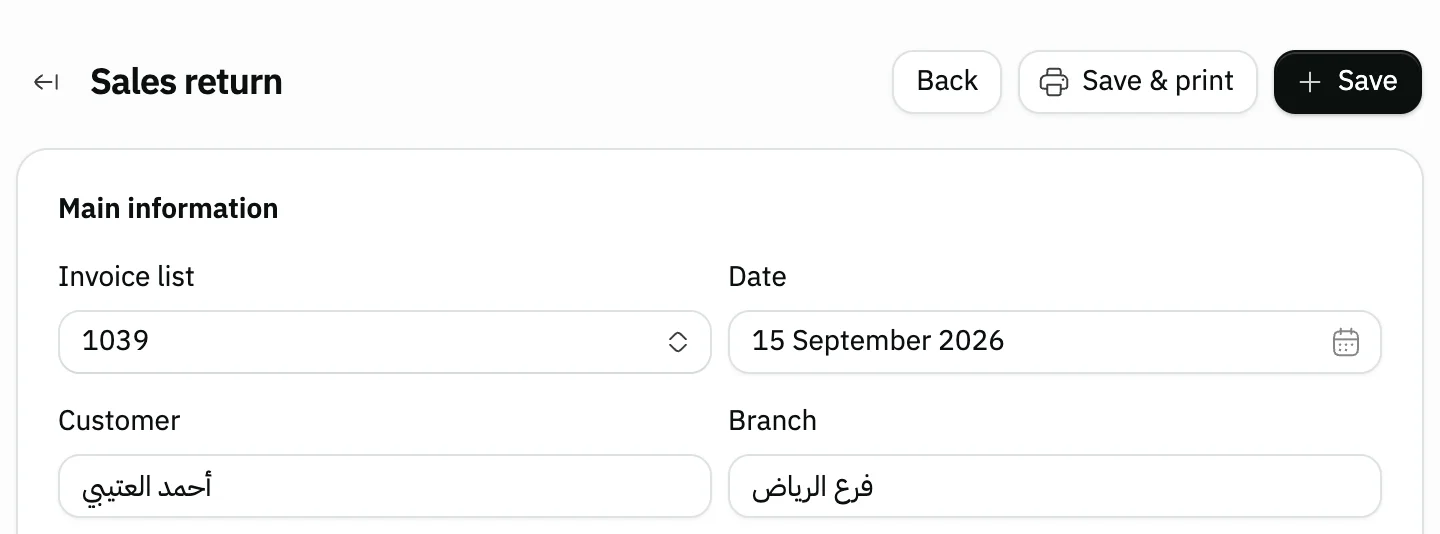
Image key - The Save button
- The Save & print button
Messages that block saving
If saving fails, one of these messages shows next to the field. The table gives the cause and the fix.
| Message | Cause | Fix |
|---|---|---|
| «This invoice has been fully refunded» | You picked an invoice whose items were all returned in earlier returns. | Pick another invoice. If it has an earlier return, Snad opens its latest one. |
| «You can't return the invoice because the return period has expired» | The invoice is older than the return period set in the settings. | Change the return period in the settings (general settings), then pick the invoice again. |
| «Pick the serial numbers for every tracked product first. · The number of serials does not match the quantity.» | The return has a serial-tracked product, and its serial numbers are missing or don't match the quantity. | Pick one serial number for each unit you return. |
Advanced details
Each section here explains one point from the steps in depth. Every section has a fixed link you can share.
Partial returns and successive returns
To return only some items, change the Quantity on each line, or turn off Return all products so every quantity becomes zero, then type what you need.
Each line shows Available: what of the product is still not returned. One invoice can be returned in several returns until all its items are back.
Ticking All quantity on a line sets its full available amount in one click, and clearing it sets the quantity to zero.
The allowed return period
Snad compares the invoice's age in days with the value of Allow order returns within a specified period (days) in the settings.
If the invoice is older than that, a message replaces the save bar, so the return can't be saved. Set the period in general settings.
Choosing how the money goes back
The way back is not tied to how the invoice was paid: an invoice paid by card can be returned in Cash. Under the buttons Snad shows the most that can go back by the chosen method, and the rest goes on the customer's account.
A credit invoice, an on-account one, or one with an unpaid payment link has collected nothing, so its return accepts only On account. The same holds when no collected money is left to give back. The other buttons are disabled and the reason is written under them.
A return On account for a paid invoice needs a real customer, so its button is disabled on a walk-in customer's invoice. A method you turned off in the organization settings is not shown, except the invoice's own method.
If you choose Split payment, fields appear for each method's amount; they must add up to the return total, and none can go above what that method accepts. The fields start empty and Snad does not divide the money for you, so type each method's amount. If the sum or an amount is wrong, Snad refuses to save and shows the reason in a message.
Custom payment methods show as extra buttons, and are not offered when the invoice was split or on credit. If the invoice was paid with a custom method, it stays available even if it was stopped afterwards.
A return On account reduces what the customer owes instead of paying money out. Follow the balance in the customer statement.
To refund an amount paid by card through the gateway, see connect the payment gateway.
After saving: print and delete
After saving, the return page opens. Print it (print settings) or share it by link from there (send documents on WhatsApp). The returned product goes back into the invoice's Warehouse stock.
A saved return has no Edit button. Delete shows to users allowed to delete sales returns, and it disappears once the return is sent to ZATCA.
For an order sold at the cashier, the refund is done from POS orders.
Discount, charges and notes
Snad copies the Discount, Extra charge, tax, Reference and Notes from the invoice when present.
The refund works out tax on the original invoice's basis and rate, whether its prices included tax or not. So what you set in tax settings after the sale does not change it.
The payment method fee on a return
If the original invoice added a payment method fee for the customer, the return summary shows a “Payment method fee share” line with the rate recorded on the invoice in brackets, and it goes back in proportion to what is returned. A part return gives back part of the fee, and a full return gives it all back.
If the store bears the fee, the customer's figures do not change, and you only see a muted Fee borne by the store line. That fee is not given back on a return. For the setup see custom payment methods.
Common questions
- How do I return a sales invoice in Snad?
- Open Sales, then Refund, and press Create return. Pick the invoice, check the Quantity, then press Save.
- Can I return only part of an invoice?
- Yes. Change the line's Quantity to what you need, or type zero for a product that stays sold. No quantity can go above Available.
- Do I choose how the money goes back?
- Yes. How to give the money back starts on the way the original invoice was paid, and you can pick another: Cash, Card (network), Transfer or On account. The original payment method does not bind you.
- Why is a return method button disabled?
- Because a rule blocks it. A credit invoice collected nothing, so it can only be returned On account, and the reason is written under the buttons; On account is disabled for a paid walk-in customer's invoice.
- Can I edit a return after saving it?
- A saved return can't be edited. If you have delete permission and it hasn't been sent to ZATCA, delete it and create a new one.
- Does the product go back to the warehouse on a return?
- Yes. When you Save the return, Snad adds the returned quantity back to the product's stock in the invoice's Warehouse.