
How to ask AI Mode for a report, save it and export it in Snad
To get a report from AI Mode in Snad, type the report and the period you want, and a report card appears in the conversation. Open it in full, export it to Excel or CSV, and press Save report to find it under Saved reports and refresh it whenever you like.
In this guide7
Steps
Step 1: Ask for the report
Type the report and the period into AI Mode, such as “last month's sales”. The result appears as a report card in the conversation. Details
Step 2: Read the headline figures
The card opens with Headline figures, then the sections. Switch the View between Chart and Table as you prefer. Details
Step 3: Open the full report
Press Open the full report to see it on a page of its own, wider. Back to the conversation returns you to your chat.
Step 4: Export the report
Press Export and choose Excel (xlsx) or CSV. When File ready shows, press Download. Details
Step 5: Save the report
Press Save report, type the Report name, choose the Category, then Save. Report saved. shows and the report stays private to you. Details
Step 6: Open Saved reports
Open More actions in the sidebar, then Reports, then Saved reports. Switch between Mine and All. Details
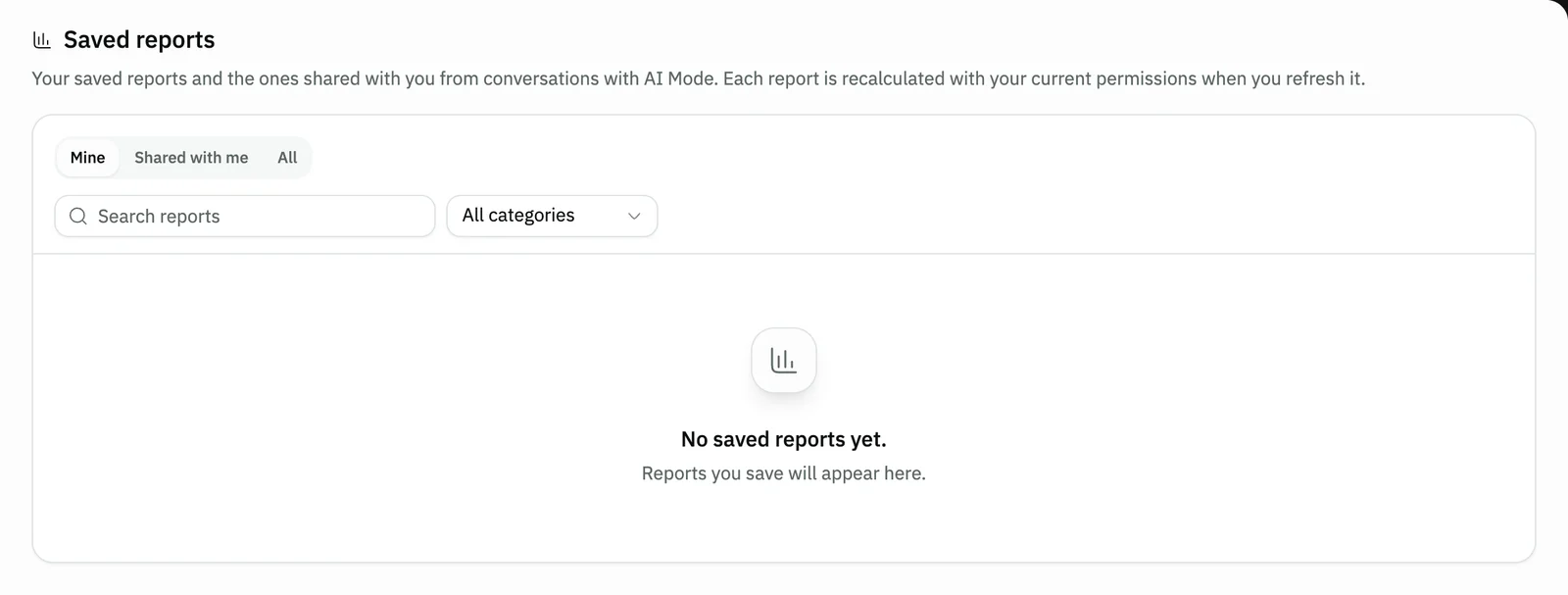
Image key - The Saved reports title
- Mine, Shared with me and All
Step 7: Refresh the saved report
Open the report and press Refresh report to recalculate its figures. The result is under Your latest snapshot, with older ones under Your earlier snapshots. Details
Messages that block saving
If saving fails, one of these messages shows next to the field. The table gives the cause and the fix.
| Message | Cause | Fix |
|---|---|---|
| «You don't have access to this section. An admin in your organization can grant it.» | A section of the report reads data you aren't allowed to view. | Ask your account admin for it (roles and permissions). |
| «No data for this period.» | No activity matches the period you asked for. | Ask for the report over a longer period. |
| «This file has expired» | Too long passed since the exported file was prepared. | Export the report again. |
| «You don't have access to some of this report's data, so it can't be refreshed.» | Your permissions changed after the report was saved. | Ask your account admin for it, or ask for a new report over what you can see. |
| «This report's definition is no longer valid, so it can't be refreshed. You can archive it.» | The saved report relies on a definition that is no longer supported. | Archive it, ask for the report again, then save it. |
Advanced details
Each section here explains one point from the steps in depth. Every section has a fixed link you can share.
Permissions and missing sections
AI Mode calculates every report under your current permissions. A section whose data you can't view shows a message instead of figures, and the other sections still work.
If a colleague shared a report, you see it under Shared with me, and it is calculated under your permissions, not theirs. See roles and permissions.
Charts, tables and comparison
If the data is too much to chart, it shows as a table automatically. The report shows its period and any comparison period in its header.
For more detail open the report in full; for figures to analyse further, export them. For Snad's own built-in reports see sales reports, stock reports and purchase reports.
Export and files
Preparing the file can take a while; if it does, a message shows The file is still being prepared. It will appear on the Files page when it's ready.
You find exported files later under Files, then Exports. A file expires after a while, and you export it again.
What exactly is saved
The report's definition is saved, not its figures. The figures are recalculated on every refresh, and the period stays as it is in the report.
A snapshot is a saved result that doesn't change until you refresh the report. Only you can see your snapshots.
Rename, duplicate and archive
From Report options choose Rename, Duplicate report or Archive report. The copy is private to you.
Archiving hides the report from the list, and from everyone it is shared with if it was shared.
Common questions
- Does a saved report keep its figures?
- No. Only its definition is saved, and the figures are recalculated on every refresh under your current permissions. What you see saved is the snapshot.
- Can my colleagues see my saved report?
- No. The report is saved private to you, and nobody else sees your snapshots.
- Which formats can I export a report in?
- Excel (xlsx) and CSV, from the Export menu on the report card.
- Why can't I refresh a saved report?
- Either you lost access to part of its data, or its definition is no longer valid. In the second case, archive it and ask for it again.