
How to create a goods delivery note in Snad
To create a goods delivery note in Snad ERP, open Sales, then Goods delivery note, and press Create goods delivery note. Pick the invoice from the Invoice list, adjust the delivered Quantity if needed, then press Save. The note is a delivery document only and does not change stock.
In this guide6
Steps
Step 1: Open the delivery notes screen
In the sidebar, choose Sales, then Goods delivery note, and press Create goods delivery note above the list.
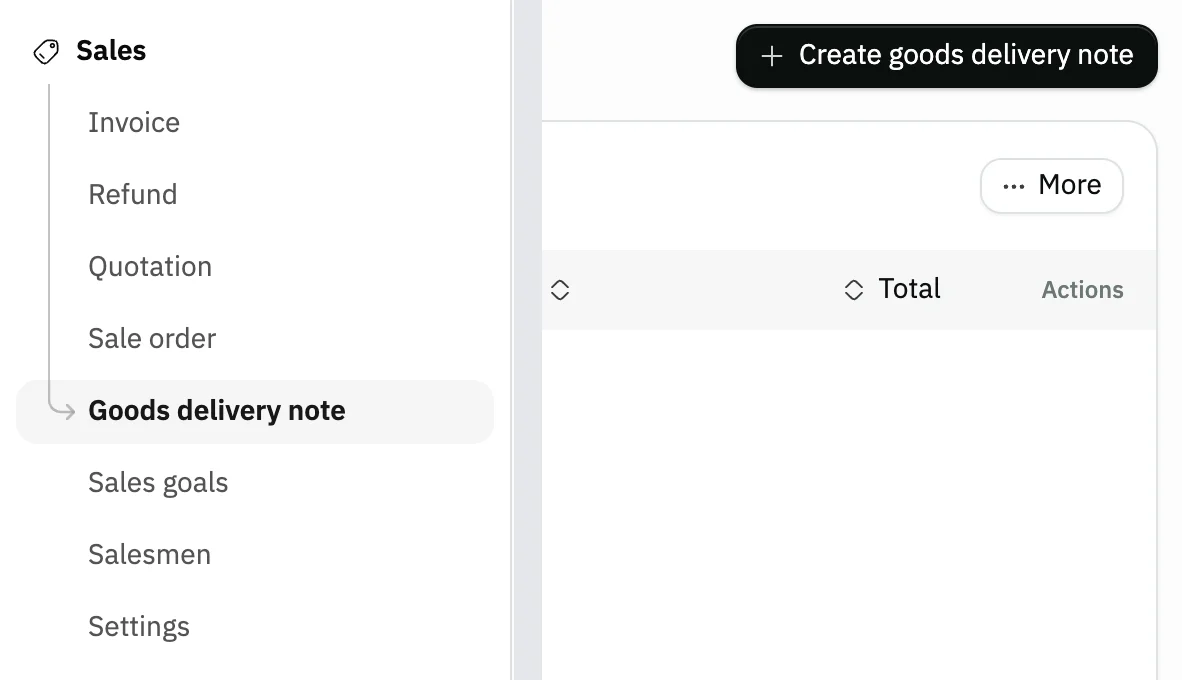
Image key - Goods delivery note in the sidebar
- The Create goods delivery note button
Step 2: Pick the invoice
Click the Invoice list field, type the invoice number or the customer name, and pick the invoice you are delivering. Details
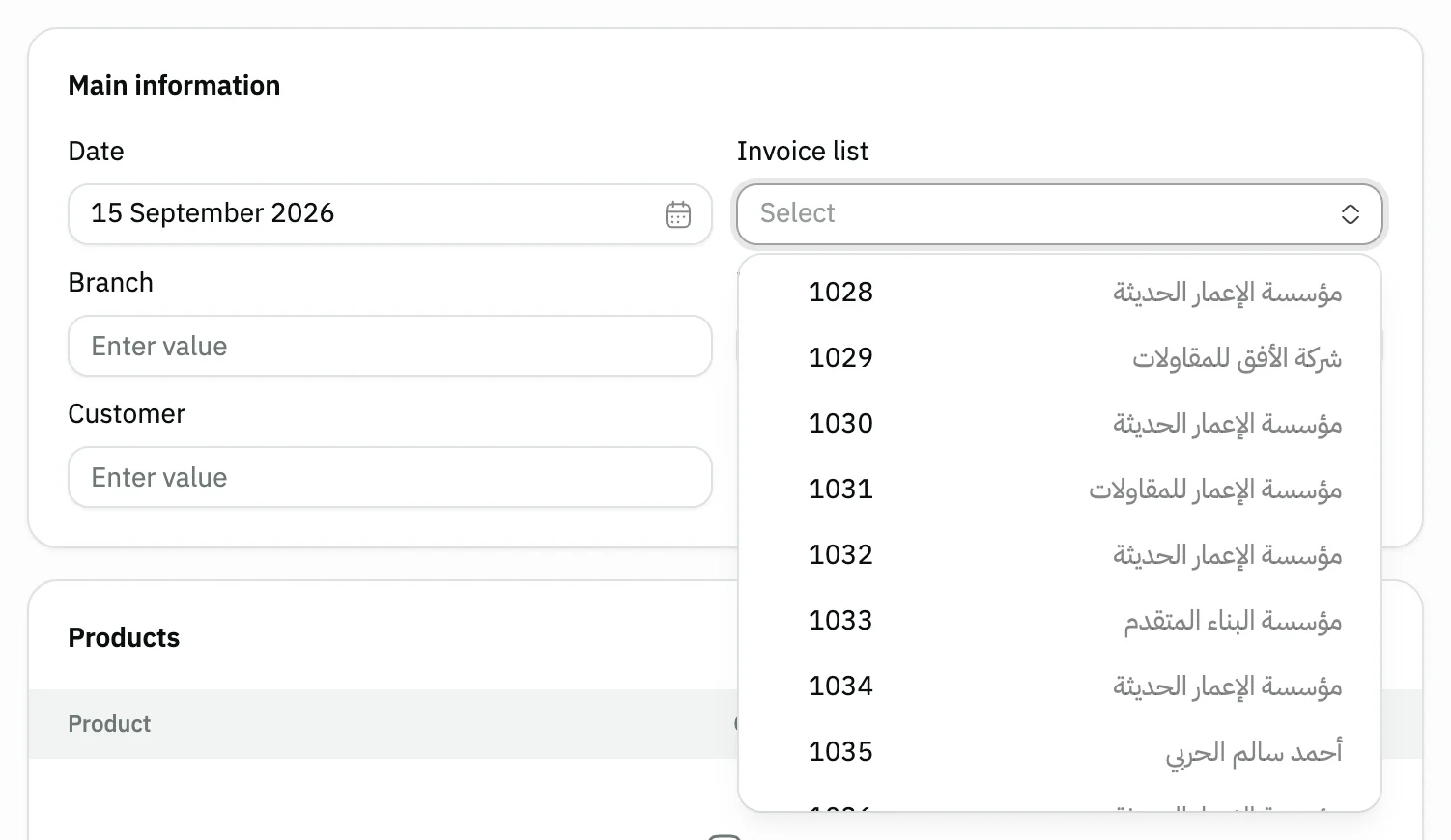
Image key - The Invoice list field
- Invoice number and its customer
Step 3: Check the invoice details
Snad fills in the invoice's Customer, Branch and Warehouse, all read-only. The note is dated today, and you can change that if the general settings allow it. Details
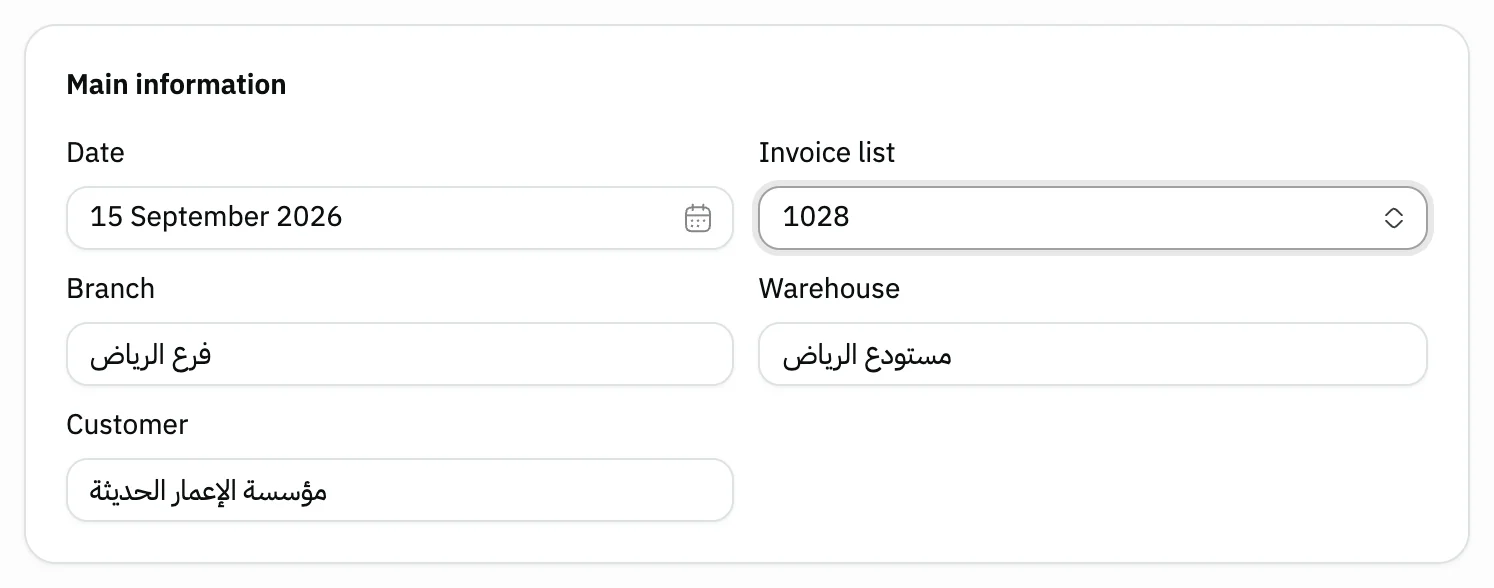
Image key - The chosen invoice number
- The invoice Customer
- The invoice Warehouse
- The note Date
Step 4: Adjust the delivered quantities
The invoice lines arrive with their full quantities. Change the Quantity to deliver only part; the Price is read-only. The line menu removes a product. Service lines are not copied onto the note, because it holds goods only, and a warning says that service lines were not copied, with their count. An invoice with services only cannot start a note: “This invoice holds services only, so no goods delivery note can be made from it”. Details
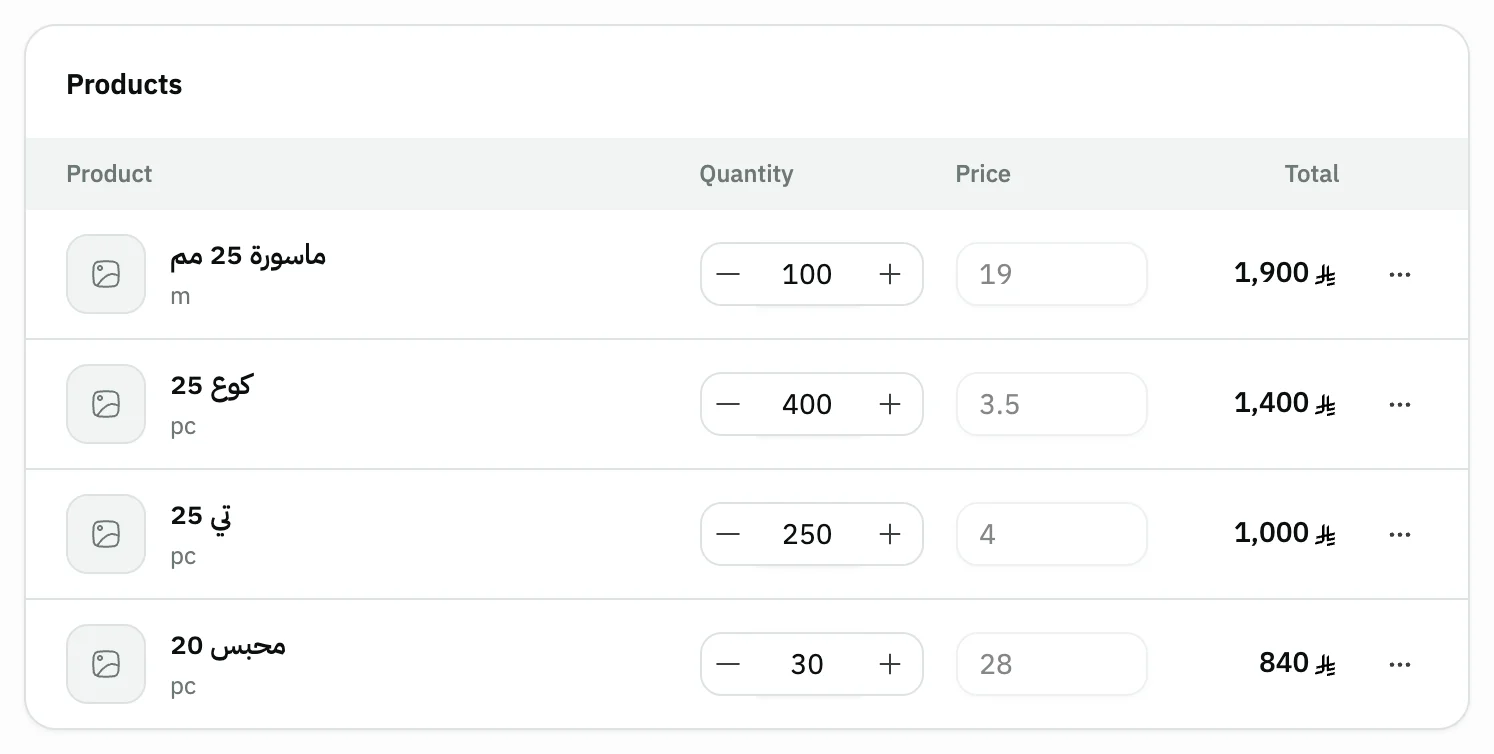
Image key - The delivered Quantity
- The Price, read-only
- The line Actions menu
Step 5: Add a reference and notes
Open Notes and attachments to write a Reference and Notes and to add Attachments. All of them are optional.
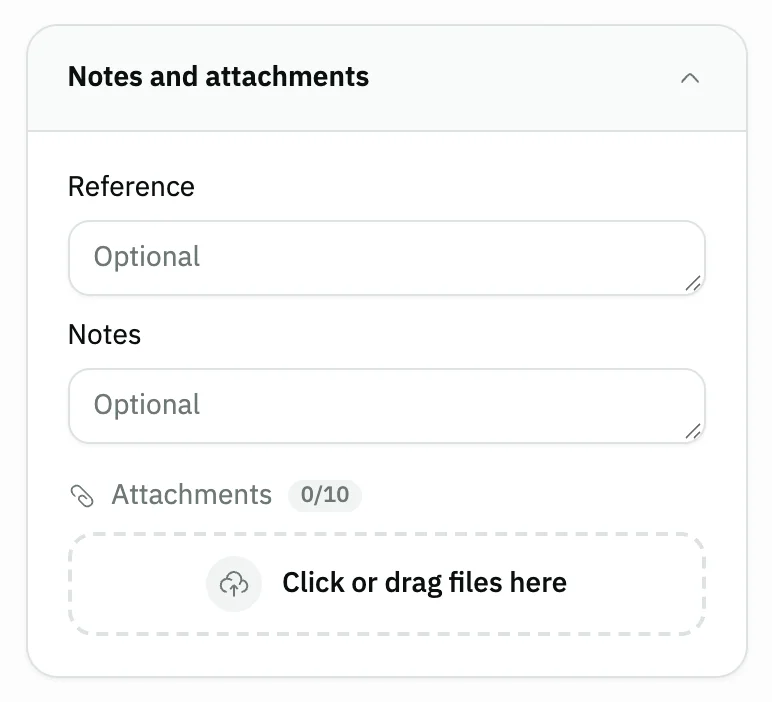
Image key - The Reference field
- The Notes field
Step 6: Save the note
Press Save, or Save & print to print it right away. The saved note's page opens next. Details
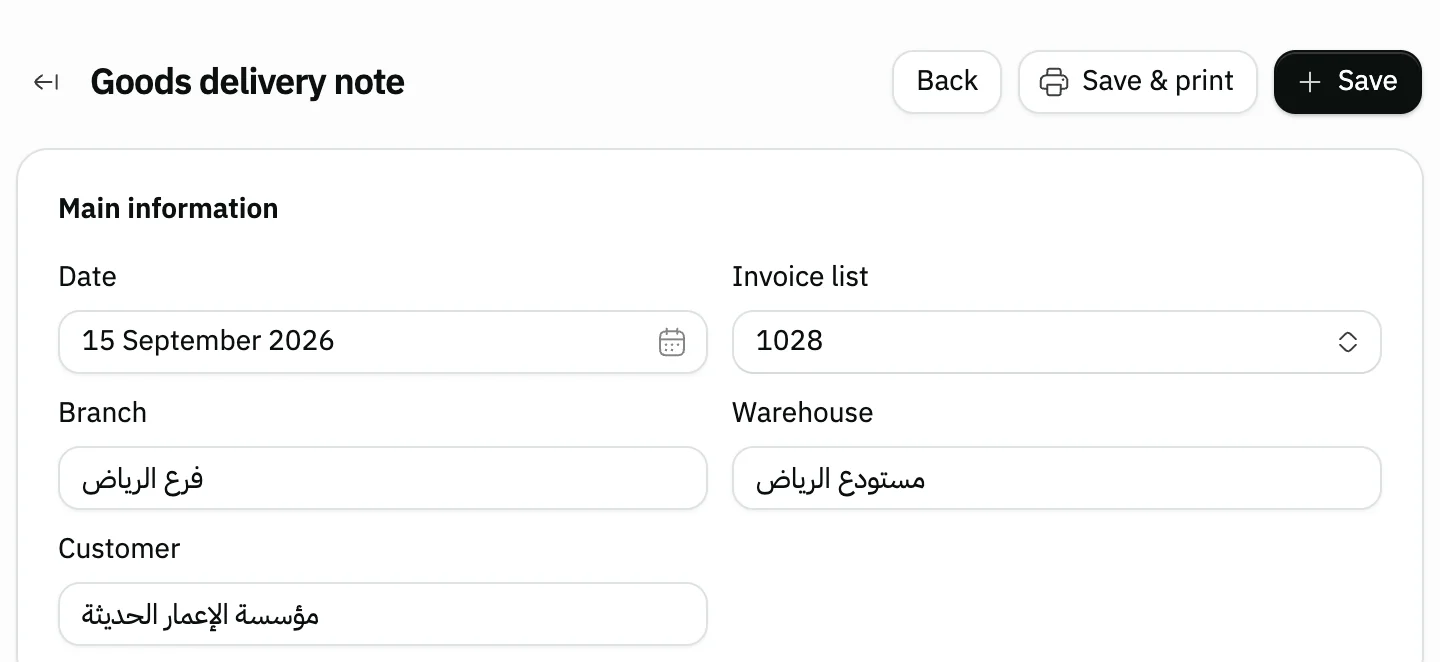
Image key - The Save button
- The Save & print button
Messages that block saving
If saving fails, one of these messages shows next to the field. The table gives the cause and the fix.
| Message | Cause | Fix |
|---|
Advanced details
Each section here explains one point from the steps in depth. Every section has a fixed link you can share.
The note is a delivery document only
Saving a delivery note does not take stock out of the warehouse, post a journal entry, or change any account balance. It is a document that records what was delivered to the customer from the invoice.
It has one effect: while an invoice has a delivery note, the invoice cannot be deleted, so delete the note first. The invoice has its own guide.
The note date
The Date field is locked unless Allow date changes is turned on for Sales. The switch is in general settings.
The note lines: quantity, removal and a note
The line's Actions menu has Product information, line Notes and Remove product. Remove a product you are not delivering now instead of typing zero for it.
You cannot add products that are not on the chosen invoice. To deliver another invoice, pick that invoice instead.
After saving: print, edit and delete
After saving, the note's page opens with its number, and you can Print it from there. Edit and Delete show to users allowed to edit or delete delivery notes.
Set how it prints in print settings and the print template.
If the goods come back from the customer, create a sales return.
Custom fields on the note
Your organization can add its own fields to the delivery note form. Open the Customizer and choose Goods delivery note under Sales, then press the place for the field, such as Bottom of the document details or Under the totals summary, and press Add field.
The fields show in the form where you placed them. If you tick a field Required, a new note is not saved until it is filled, and the message “Fill in the required custom fields” shows. The rule does not stop saving an edit to an existing note.
A field with Print on documents ticked shows on the printed note. One with Show in list ticked shows as a column in the delivery notes list.
The invoice's field values are not copied to the note. They are data saved with the note only and do not change stock.
Common questions
- How do I create a goods delivery note in Snad?
- Open Sales, then Goods delivery note, and press Create goods delivery note. Pick the invoice, check the Quantity, then press Save.
- Does a delivery note take stock out of the warehouse?
- No. A delivery note is a document only. It does not reduce stock or post a journal entry.
- Can I deliver only part of an invoice?
- Yes. Change the line's Quantity to what was delivered, or remove the product from the line's Actions menu.
- Why can't I delete a sales invoice?
- If the invoice has a goods delivery note, it cannot be deleted until the note is deleted first.