
How to update your account and password in Snad
To update your account in Snad, press your name at the bottom of the sidebar, then Profile. Change your name with Update name and your photo with Upload image, update your phone with a verification code, add a password with Set password if you have none, and review your Active sessions.
In this guide6
Steps
Step 1: Open your profile
Press your name at the bottom of the sidebar, then choose Profile. A page opens with your name and photo card and the account sections. Details
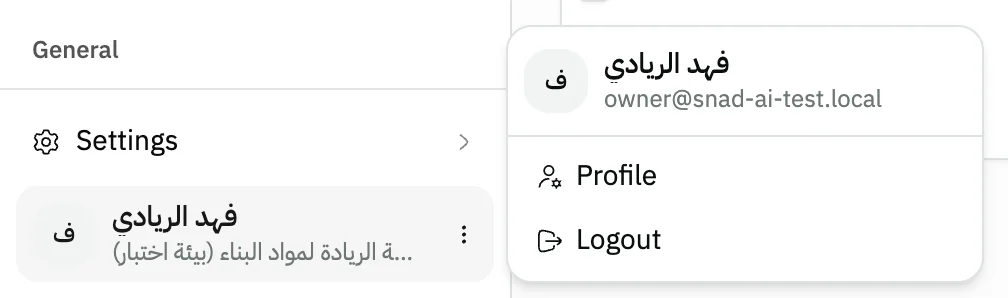
Image key - Your name at the bottom of the sidebar
- The Profile item
Step 2: Change your name
Press Update name, type the new name with at least 3 characters, then press Save. Save turns on once the name differs from the current one.
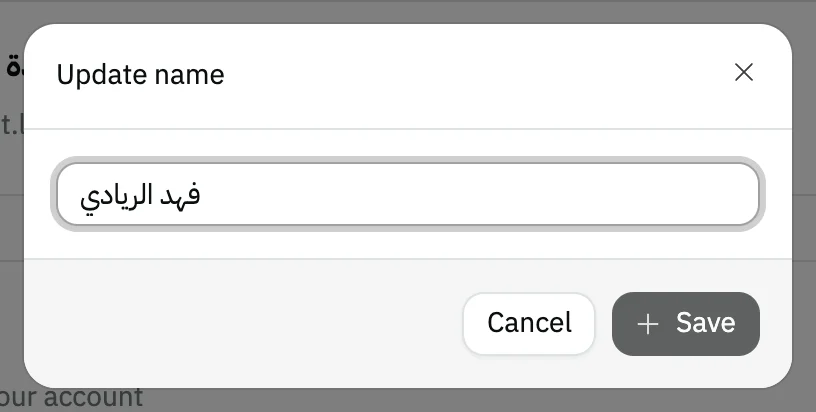
Image key - The new name field
- The Save button
Step 3: Change your photo
Press Upload image and pick a JPG, PNG, GIF or WebP file. It uploads and becomes your photo. The Delete button removes it. Details
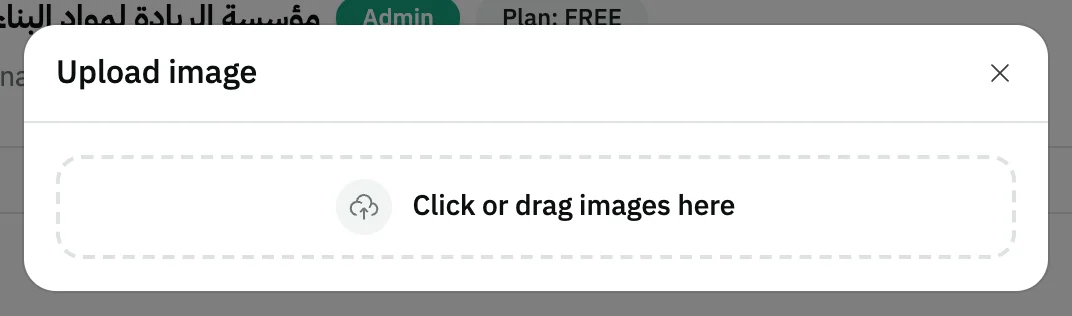
Image key - The image drop area
Step 4: Update your phone number
Under Login accounts, press the edit icon next to Phone. Enter the New phone number and press Send verification code, then enter the code and press Verify & save. Details
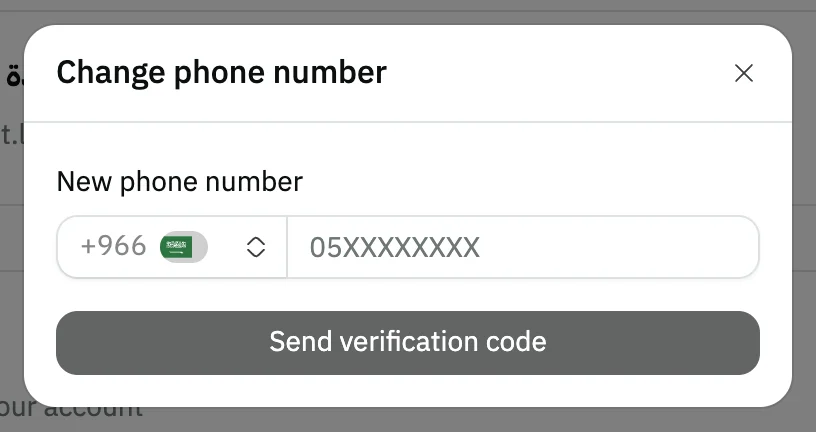
Image key - The New phone number field
- The Send verification code button
Step 5: Add a password
If a Set password card shows, press it, type the New password with at least 8 characters, repeat it in Confirm password, then press Set password. Details
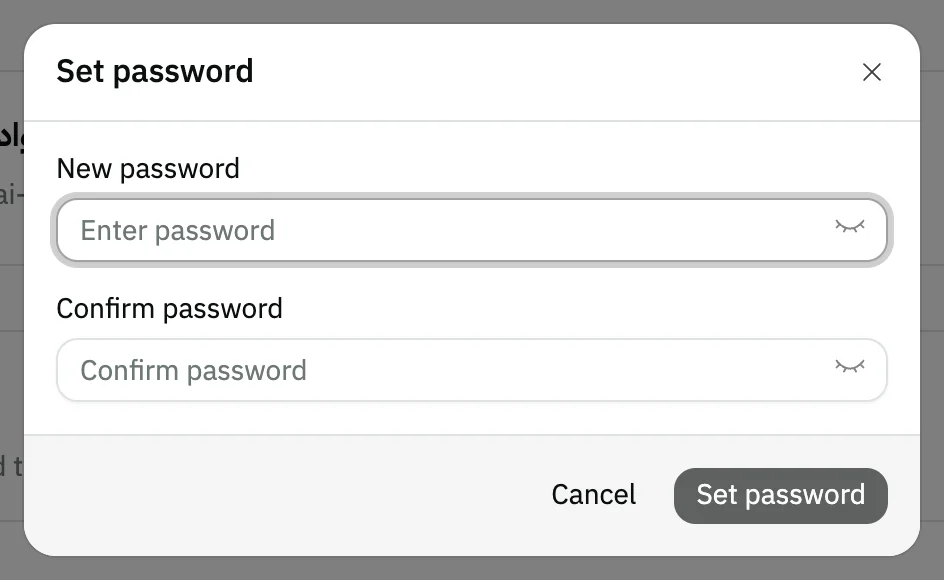
Image key - The New password field
- The Confirm password field
Step 6: Review your sessions
Under Active sessions you see your signed-in devices, with the current session first. Press Revoke next to a device you don't know, then Confirm, and it is signed out immediately.

Image key - The current session
Messages that block saving
If saving fails, one of these messages shows next to the field. The table gives the cause and the fix.
| Message | Cause | Fix |
|---|---|---|
| «Name must be at least 3 characters» | The new name is shorter than 3 characters. | Type a name of 3 or more characters, then Save. |
| «Password must be at least 8 characters» | The password is shorter than 8 characters. | Type a password of 8 or more characters. |
| «Passwords do not match» | What you typed in Confirm password differs from the New password. | Type the same password in both fields. |
Advanced details
Each section here explains one point from the steps in depth. Every section has a fixed link you can share.
A second way to the page
You also find it in Settings under My account, showing the same sections. The My account item shows to users with permission to view settings.
The notifications you receive have their own page: Notification preferences.
Uploading and deleting the photo
The photo uploads as soon as you pick it and changes on the profile card and at the bottom of the sidebar together, with no Save button.
The Delete button is disabled while your account has no photo.
The verification code and resending
After Send verification code, Snad asks for the 6-digit code. Verify & save stays off until you enter all six digits.
If the code doesn't arrive, the resend button turns on after 15 seconds, and Change number takes you back to type another number.
Password and signing in with Google
The Set password card shows only when your account has no email-and-password login. Its button turns on once both fields reach 8 characters.
Forgot your password? On the sign-in screen press Forgot password? and enter your email, and a link arrives to set a new one.
The Link Google account button adds Google sign-in. Unlink is disabled for your only login method, so you can't lock yourself out.
Switching between businesses
The Organization section on the page shows your current business, your role in it and its plan. If your phone number is linked to more than one business, a Linked organizations list shows under it with Switch beside each business.
Switching asks for a 6-digit code sent to your phone, then Verify and switch. The same list also shows in the user menu at the bottom of the sidebar.
Common questions
- How do I change my name in Snad?
- Open Profile from your name at the bottom of the sidebar, press Update name, type a name of 3 or more characters, then Save.
- How do I change my password in Snad?
- If your account has an email and password, press Forgot password? on the sign-in screen to set a new one. If it doesn't, add one from the Set password card on your profile.
- How do I change my phone number in Snad?
- Under Login accounts, press the edit icon next to Phone, type the new number, enter the verification code you receive, then Verify & save.
- How do I sign out of my account on another device?
- Under Active sessions, press Revoke next to the device, or Sign out all other sessions to sign out of every device except this one.
- Why can't I unlink a login method?
- Because it is your only way to sign in. Link a second method first, and then Unlink turns on.