
How to create a service in Snad
To create a service in Snad, open Products, press New product, then open Product type and choose Service. Enter the Name and Price, choose the Service unit, add an estimated Cost for reports if you want, then press Save. Then sell it from an invoice or the POS with no stock.
In this guide8
Steps
Step 1: Open the products list
In the sidebar, open Products, then press New product. To see services only, choose Service in the Product type filter; their rows carry a Service badge. Details

Image key - The New product button
Step 2: Pick the Service type
The form opens on an ordinary product type. Open the Product type list and choose Service. The type can't change after saving.
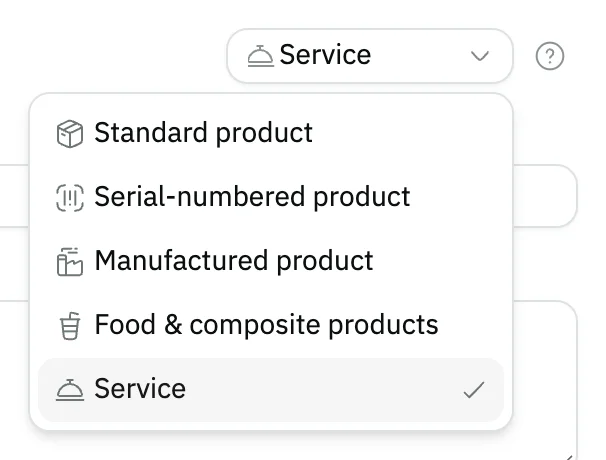
Image key - The Product type list
- The Service option
Step 3: Enter the name and description
In Product information, enter the Name with at least three characters; it is required. Add a Description if you like.
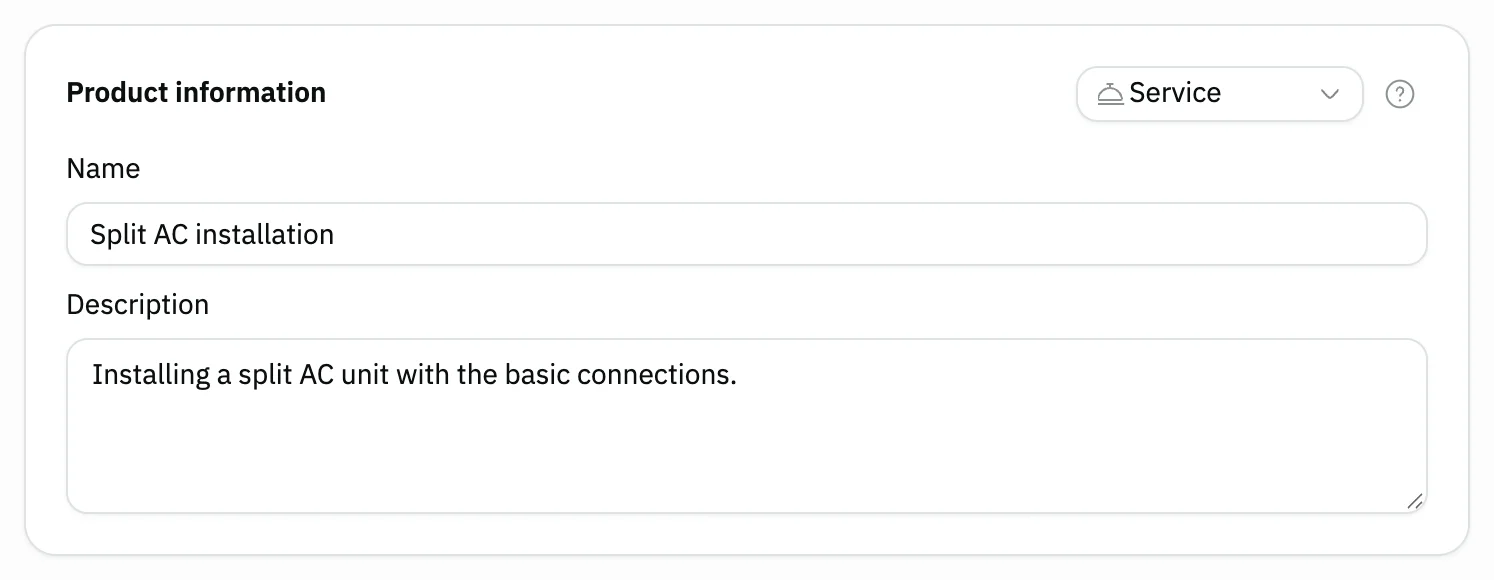
Image key - Name
- Description (optional)
Step 4: Set the price, unit and cost
In Pricing, enter the Price and choose the Service unit: service, hour, day, week, month, year, session or visit. It starts on “Service”. Cost is optional: an estimate that gives the Margin and Profit in reports, and it posts no journal entry. You won't see the Inventory card, because a service holds no stock. Details
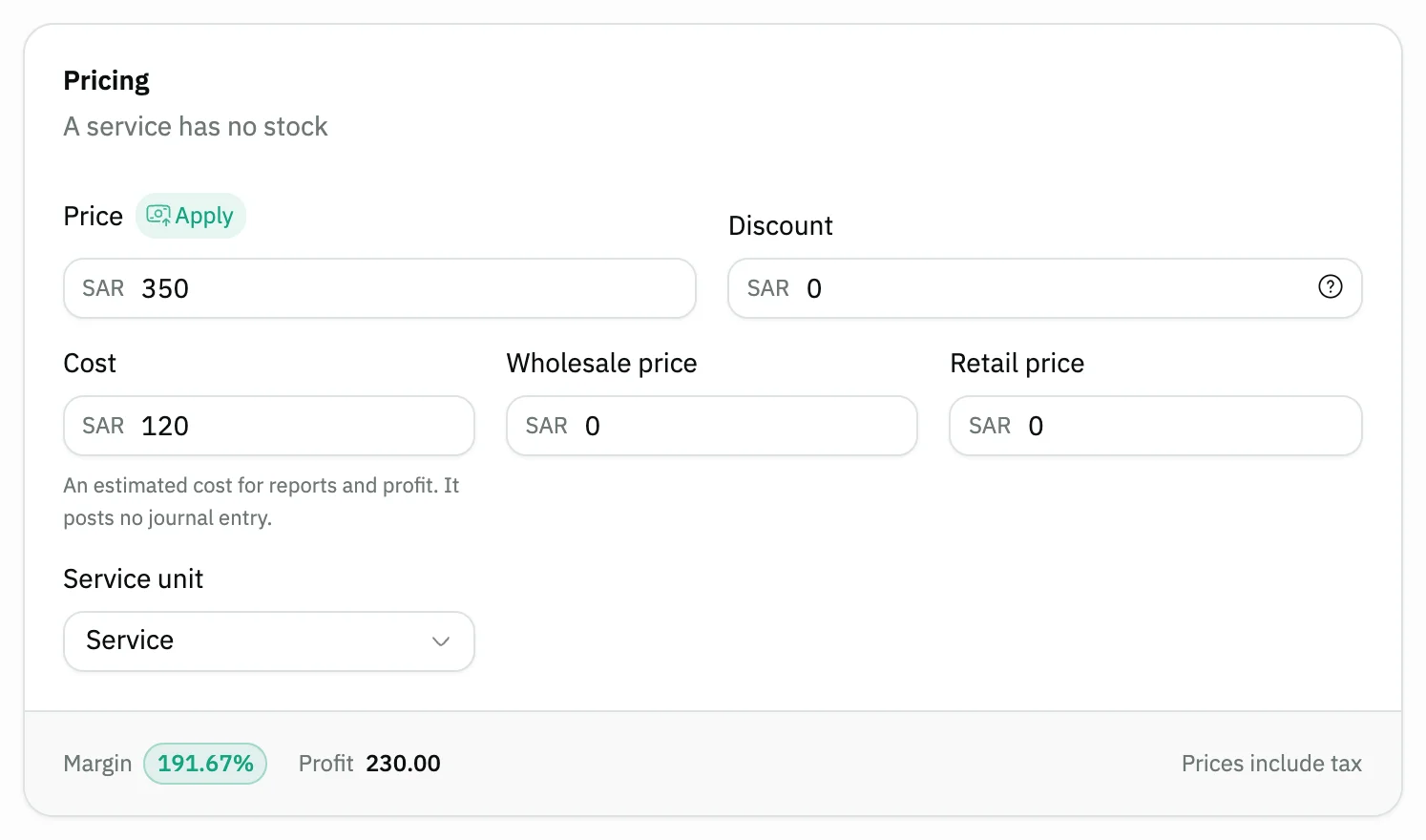
Image key - Price
- Service unit
- Cost (optional)
Step 6: Save the service
Press Save at the top of the form, or Ctrl + S (⌘ + S on Mac). The service is saved and you'll find it in Products by choosing Service in the Product type filter. Details

Image key - The Save button
- The Back button
Step 7: Sell the service on an invoice
On a sales invoice, press Add product in the Products card and pick the service, like any product. A Service provider column shows while the invoice holds a service, so pick who delivered it. It is optional, and one invoice can hold goods and services together. Details
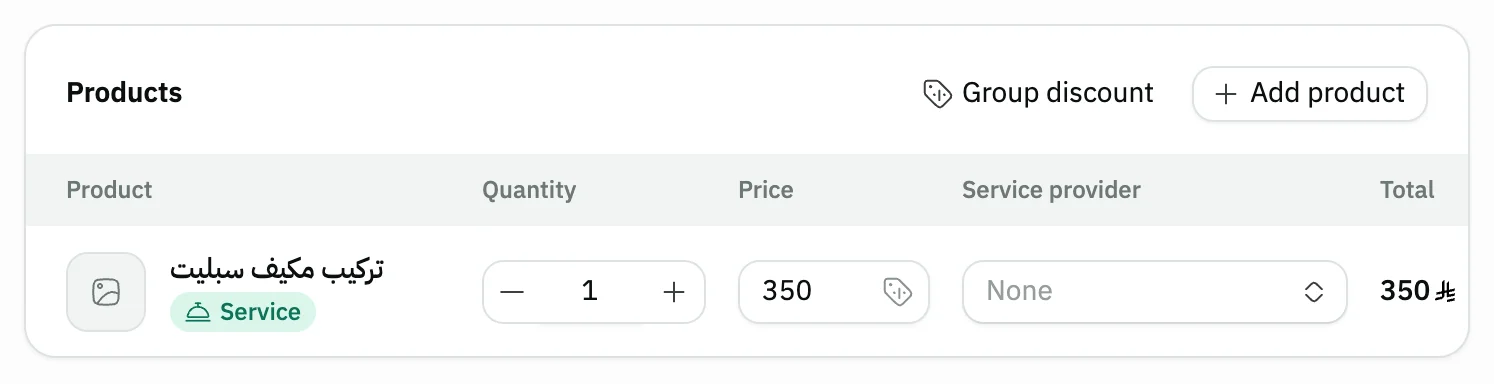
Image key - The service line with its Service badge
- The Service provider column
Step 8: Follow sales by service provider
Open Reports, then the Sales section, and choose Sales by service provider. For each provider it shows Invoices, Sales (excl. tax), Returns (excl. tax) and Net, for the current month unless you pick another period. It is for users who hold the sales reports permission (sales reports).

Image key - The Service provider column
- The Net column
Messages that block saving
If saving fails, one of these messages shows next to the field. The table gives the cause and the fix.
| Message | Cause | Fix |
|---|---|---|
| «A service holds no stock — it cannot be used on this document: …» | You put a service line on a warehouse document, such as a transfer, a stocktake or a delivery or receipt note. | Remove the service line from the document. These documents take goods lines only. |
| «A service cannot carry free units on a purchase document: …» | You entered a free quantity on a service line of a purchase invoice. | Leave the free quantity empty on the service line; a service takes no free quantity. |
| «A supplier gift invoice cannot hold services» | You turned on supplier gifts on a purchase invoice that has a service line. | Buy the service on an ordinary purchase invoice, and keep the gift invoice for goods. |
| «This invoice holds services only, so no goods delivery note can be made from it» | You tried to make a delivery or receipt note from an invoice whose lines are all services. | No note is needed. Delivery and receipt notes take goods lines only, and service lines are left out. |
| «The selected account is a group account — choose a sub-account that takes entries.» | You picked a group account in Revenue account or Expense account under Advanced. | Pick a sub-account, or clear the field so the default services account is used. |
| «A service revenue account must be a revenue account.» | You picked an account of another type for Revenue account. The expense account has the same kind of message: “A service expense account must be an expense account.” | Pick a revenue account for Revenue account, and an expense account for Expense account. |
| «Add at least one option.» | You turned on Enable service options and added no option. | Press Add option and enter its name and price, or turn the options off before saving. |
| «This service is already on documents, so it cannot be turned into a service with options. Create a new service with options.» | You tried to turn on options for a saved service that is already on a document. | Create a new service with options, and leave the old one as it is. |
| «An inactive service cannot be bookable. Activate the service first.» | Status in Product organization is not Active, so the Bookable switch stays off. | Set Status to Active, then turn on Bookable and save. |
| «The service was created, but its booking settings were not saved. Check them here and save again.» | The service itself was saved, but the Booking settings go in a separate request that did not finish, for example when no provider is selected. | Check the Booking card, select a provider, then save again. |
Advanced details
Each section here explains one point from the steps in depth. Every section has a fixed link you can share.
Other ways to open the service form
If the header shows the command palette Ctrl + K (⌘ + K on Mac), which happens when AI Mode is off for your organization and on the POS screen, open it and type “New service”. The service form opens with Product type already set to Service. The command shows to users who can see sales, purchases or warehouses.
If you typed data into a New product form and then switch the type to Service, Snad asks “Change product type?” because the switch resets the form to its defaults. To compare types, press What's the difference?, where the Service tab describes what it does. The other types are covered in how to add a product.
From Bookings: Bookings, then Services, opens the products list filtered to services, once no old booking services are left and your user can view products. A bookable service is a product of the Service type (add a bookable service).
A service's cost and profit
Under Cost, Snad says: “An estimated cost for reports and profit. It posts no journal entry.” So no cost-of-goods-sold entry is posted when you sell it. Leave it empty if you have no estimate. A negative value is refused: “The service cost must be zero or more.”
In the types window Snad describes the cost source of a service as “Entered by you (reports only)”. The Price is what you charge the customer, and it follows the same tax setting as products; set the tax in tax settings.
Service options
In the Service options card Snad says: “Each option has its own label, prices and cost, e.g. short cut, long cut. No stock.” Turn on Enable service options, then press Add option for each form.
While options are on, the Pricing card is hidden because each option has its own prices, and Service unit moves to its own card, which applies to every option. You need at least one option.
Once options are saved they can't be turned off: to remove one, delete it from the list and save, and the last option can't be deleted. A saved service can be turned into one with options only if no document uses it. A service with options, and its options, are not bookable, and a service linked to a booking service can't get options.
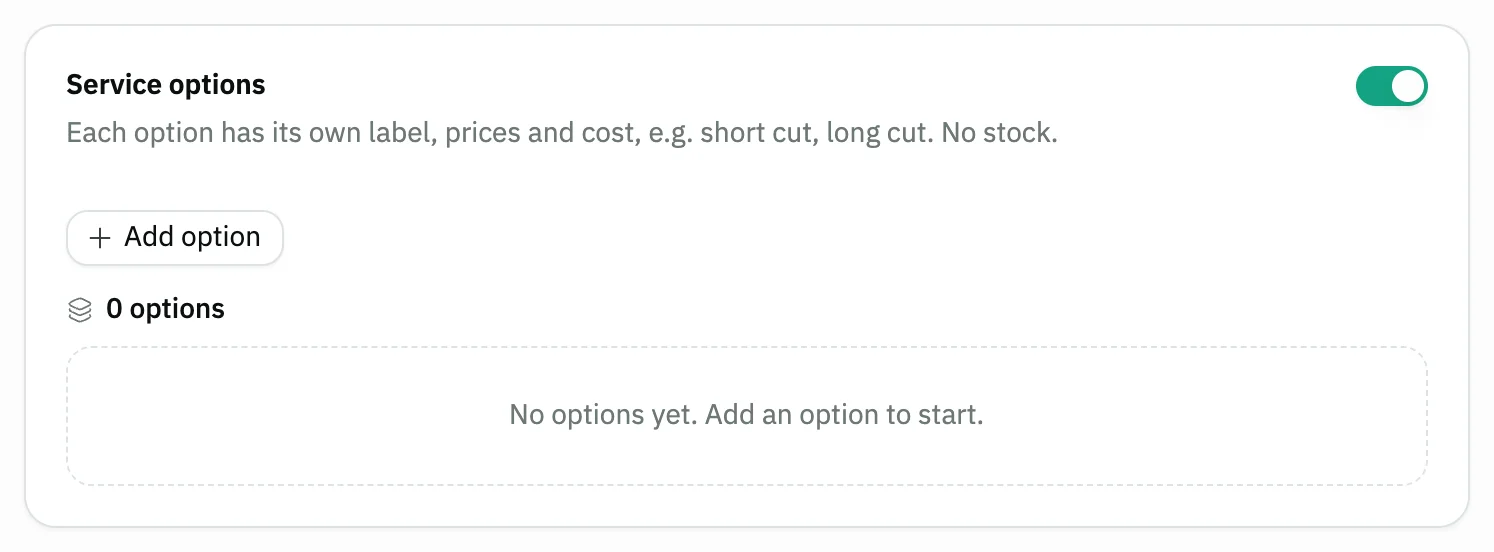
- The Enable service options switch
- The Add option button
Revenue and expense accounts
The Advanced section folds two accounts: Revenue account and Expense account, which Snad describes as “the accounts this service's revenue and expense are posted to”. If you leave them empty, each field says: “The Service Revenue account is used” and “The Service Expenses account is used”.
Selling the service posts to “Service Revenue” and buying it to “Service Expenses”, or to the account you choose for it, and no cost-of-goods-sold entry is made for it. Pick sub-accounts of the right type; the × button clears the choice and the default returns. The section shows when Snad can read the chart of accounts for your user.
Both account lists show the first 20 accounts as soon as you open them, and the rest load as you scroll. Search is optional and covers all the organization's accounts, with a loading indicator while it fetches. If loading fails, an error line and a Retry button appear.
If a saved account stops taking entries of this type, Snad says: “The saved account no longer takes entries of this type — choose another account or clear it”.
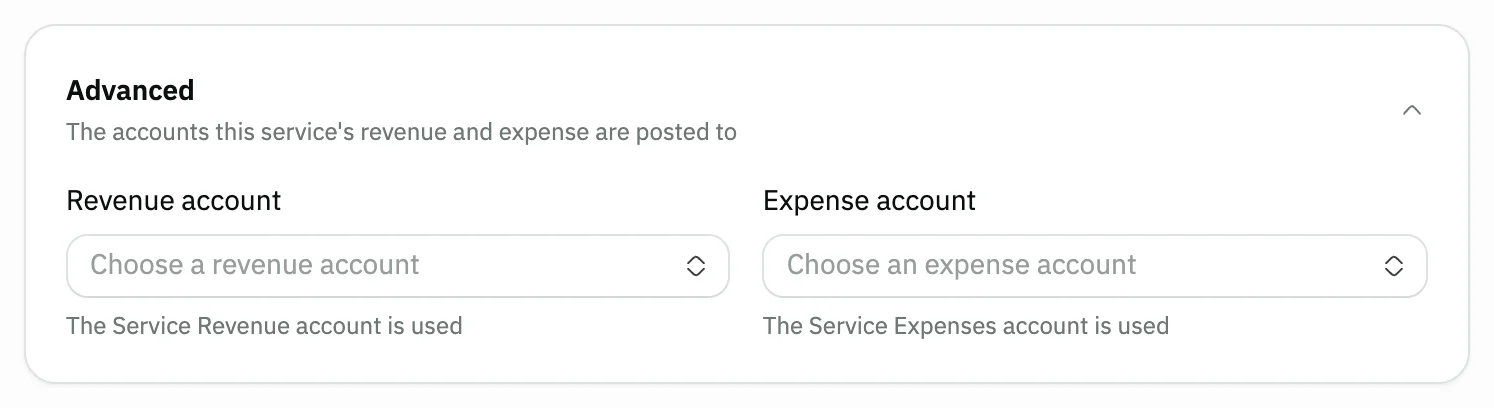
- Revenue account
- Expense account
Making the service bookable
The Booking card shows on the service form when the Bookings app is in your plan and your user can view services in Bookings; it does not show for a service with options. Turn on Bookable to take its bookings “on the bookings calendar and the public booking page”. Turn it off to stop new bookings; the settings are kept.
Under the switch are the booking fields: Show on the public booking page, Duration (minutes), Capacity, Tax group, and who delivers the service. Availability & limits and Group classes follow. Each field is explained in add a bookable service.
At least one provider is needed once booking is on, or no times will show. An inactive service can't be booked: set Status to Active first. The booking settings are saved in a separate request after the service is saved.
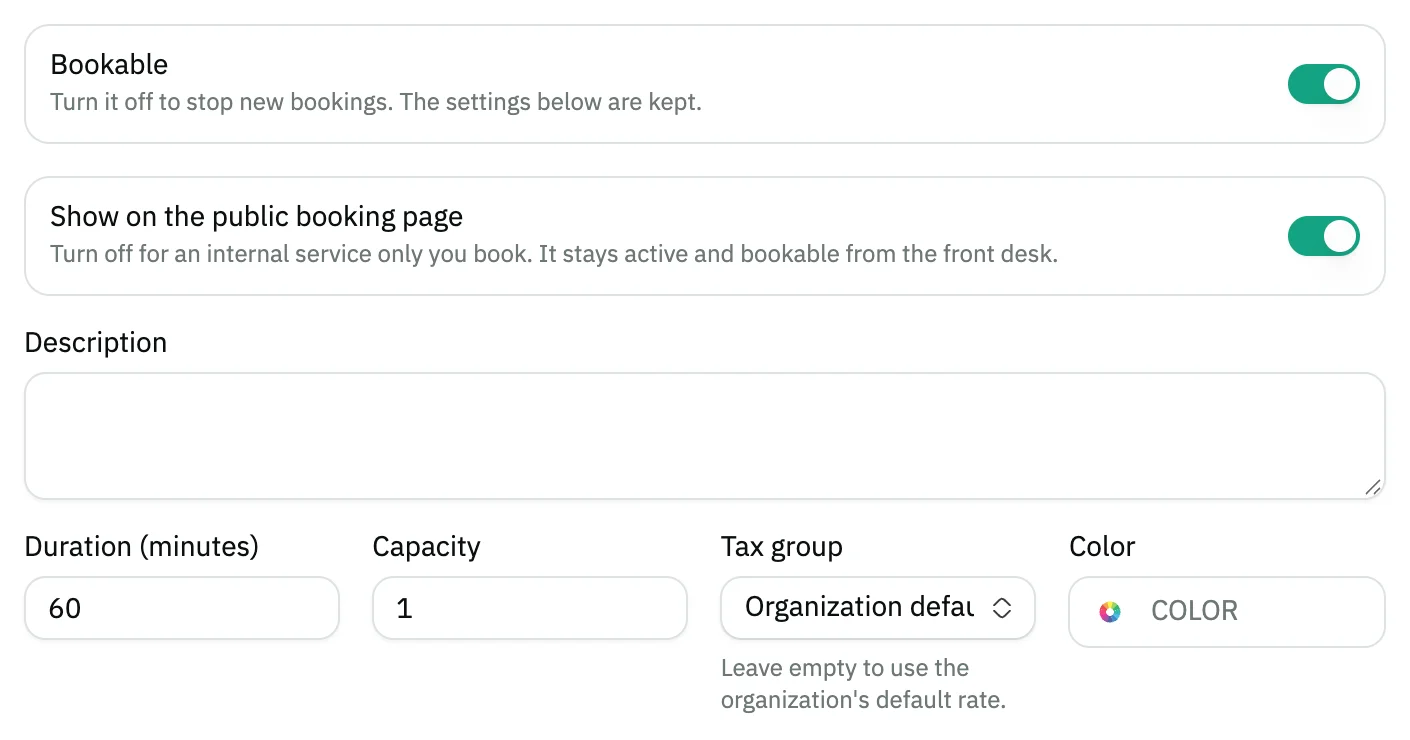
- The Bookable switch
- Show on the public booking page
- Duration (minutes)
Selling on invoices and at the POS
A service is sold on invoices and at the POS, and “never shows as out of stock”. The Service provider column on an invoice picks from your list of salesmen, starts on “None”, and doesn't show on an invoice whose lines are all goods.
At the POS, a service tile carries a Service badge instead of a stock figure. Tap the service line in the cart to open Product info, then pick the Service provider there. The field shows for a service line only.
One invoice can hold both goods and services. Goods delivery and receipt notes take goods lines only, and when you copy an invoice into a note, Snad says “Service lines were not copied” with their count, and “this note holds goods only”. The report that totals what each person delivered is the last step.
Buying a service from a supplier
A service is bought directly on a purchase invoice (how to create a purchase invoice), and the purchase posts to “Service Expenses” or to an expense account you chose for it. It takes no free quantity.
A supplier gift invoice can't hold services, and warehouse documents such as transfers, stocktaking and delivery and receipt notes don't take them either; a service never appears in warehouses. The matching messages are in the troubleshooting table above.
Common questions
- How do I create a service in Snad?
- Open Products and press New product, then choose Service in Product type. Enter the Name and Price, choose the Service unit, then press Save.
- Does a service need stock?
- No. A service holds no quantity and never appears in warehouses, stocktaking or transfers, and it never shows as out of stock when you sell it.
- Does a service's cost create a journal entry?
- No. A service's Cost is an estimate for reports and profit only, and no cost-of-goods-sold entry is made for it. Revenue and expense are posted to the services account, or to the account you chose under Advanced.
- Can I change a product to or from a service after saving?
- No. “The type cannot be changed after creation.” Choose Service when you create the product, and if you got it wrong, create a new product with the right type.
- How do I know who delivered a service?
- Pick the Service provider on the service line of the invoice or the POS, then open the Sales by service provider report from the Sales section of Reports.
- How do I make my service bookable by appointment?
- Turn on Bookable in the Booking card of the service form, choose who delivers it, then save. The fields are explained in add a bookable service.