
How to create a purchase invoice in Snad
To create a purchase invoice in Snad ERP, open Purchases, then Invoice, and press Create invoice. Pick the Supplier and Warehouse, add the products with their quantities and purchase prices, and choose the Payment method. Then press Save: the quantities enter stock and product costs update.
In this guide7
Steps
Step 1: Open the purchase invoices
In the sidebar, choose Purchases, then Invoice, and press Create invoice above the list.
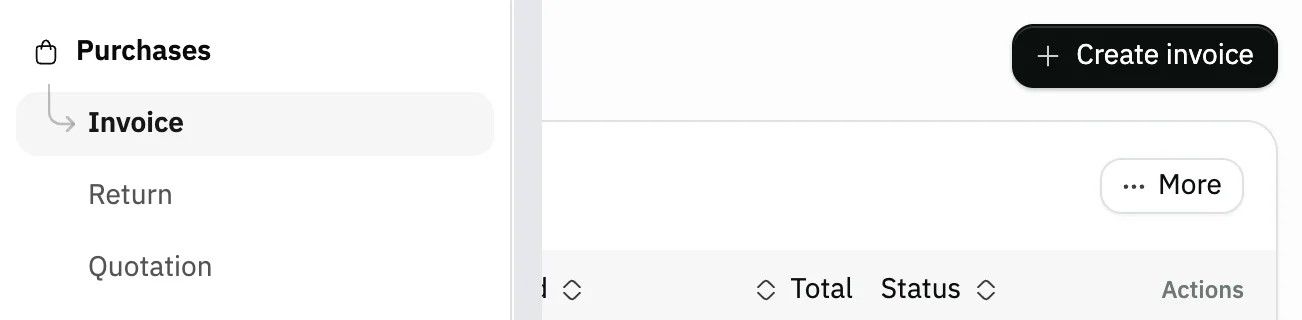
Image key - Invoice in the sidebar
- The Create invoice button
Step 2: Check the main information
The Main information card starts as a Purchase invoice, dated today. Pick the receiving Warehouse, which is hidden when your business has only one. Details
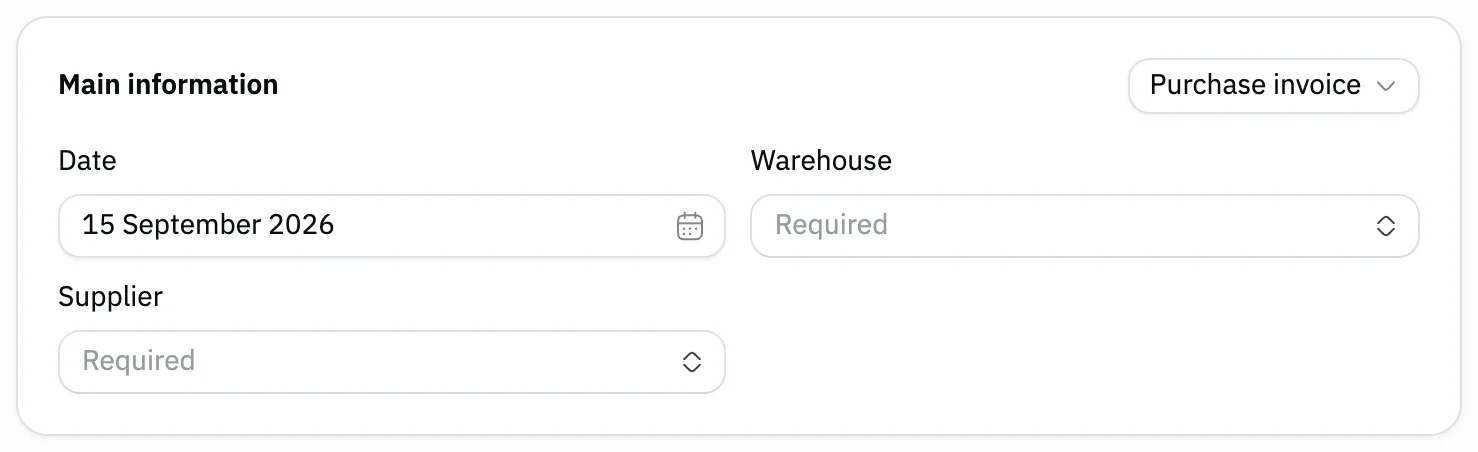
Image key - Type
- Date
- Supplier
Step 3: Pick the supplier
Press the Supplier field, type part of the name and pick it from the list. For a new supplier press Add inside the list, and it is saved and selected on the invoice. Details
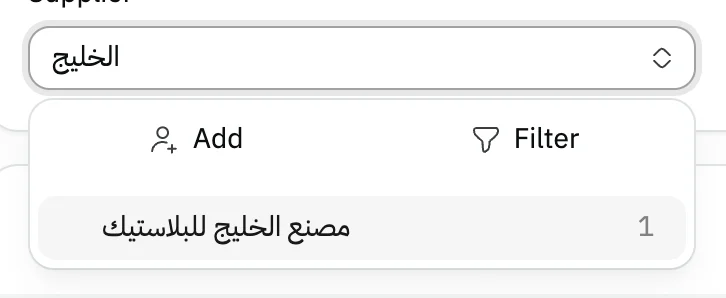
Image key - The Supplier field
- The supplier in the list
- The Add button
Step 4: Add the products
Press Add product, and in the Add products window search by name, tick every product you are buying, then press Apply.
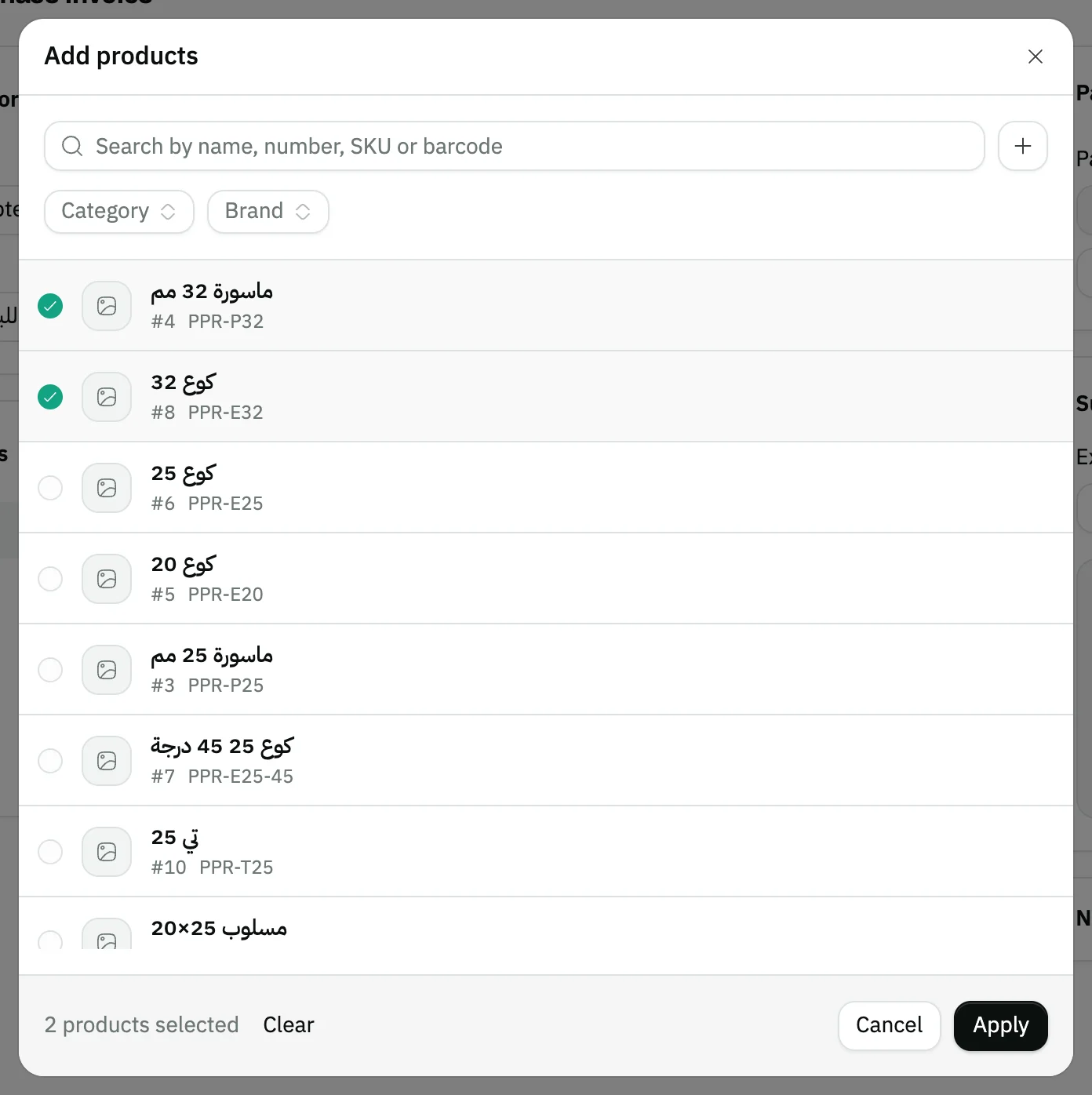
Image key - Search
- A ticked product
- The Apply button
Step 5: Set quantity and price
Each product comes in at its current cost in Price. Enter the received Quantity, change Price to the supplier's price, and compare it with the Last buy price column: the last price you paid for the product on a purchase invoice. Details
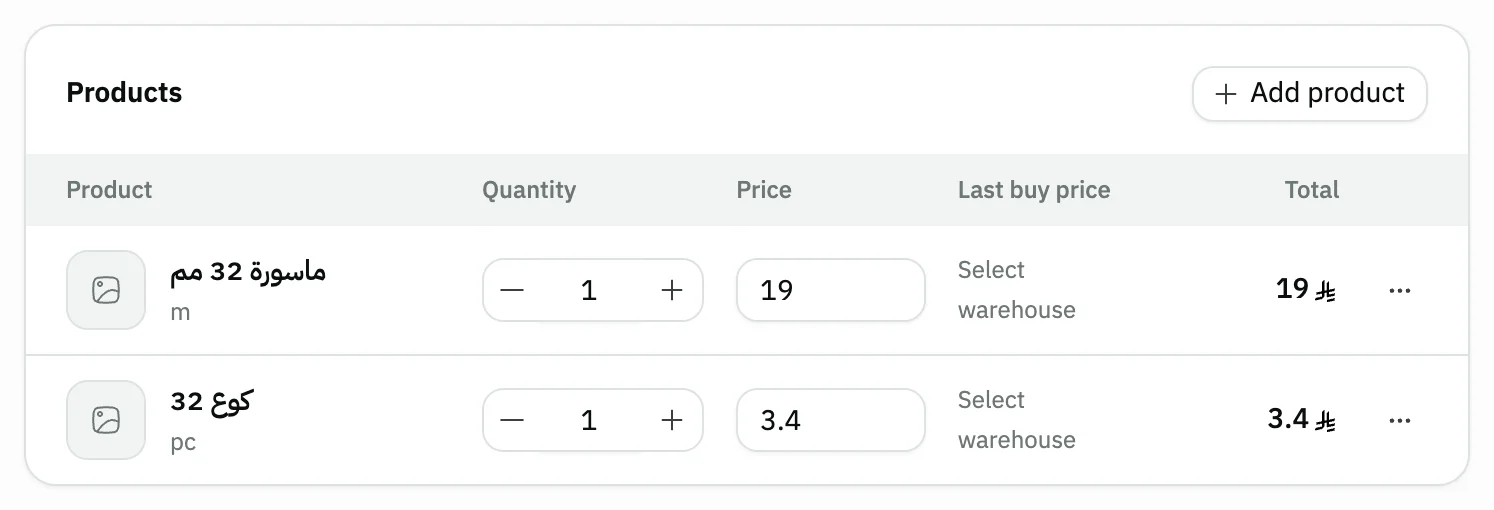
Image key - Quantity
- Price
- Last buy price
Step 6: Set the payment and totals
Under Payment method choose Cash, Card, Transfer or On credit. With On credit the Due date appears, and the discount, extra charge and tax are in Summary. Details
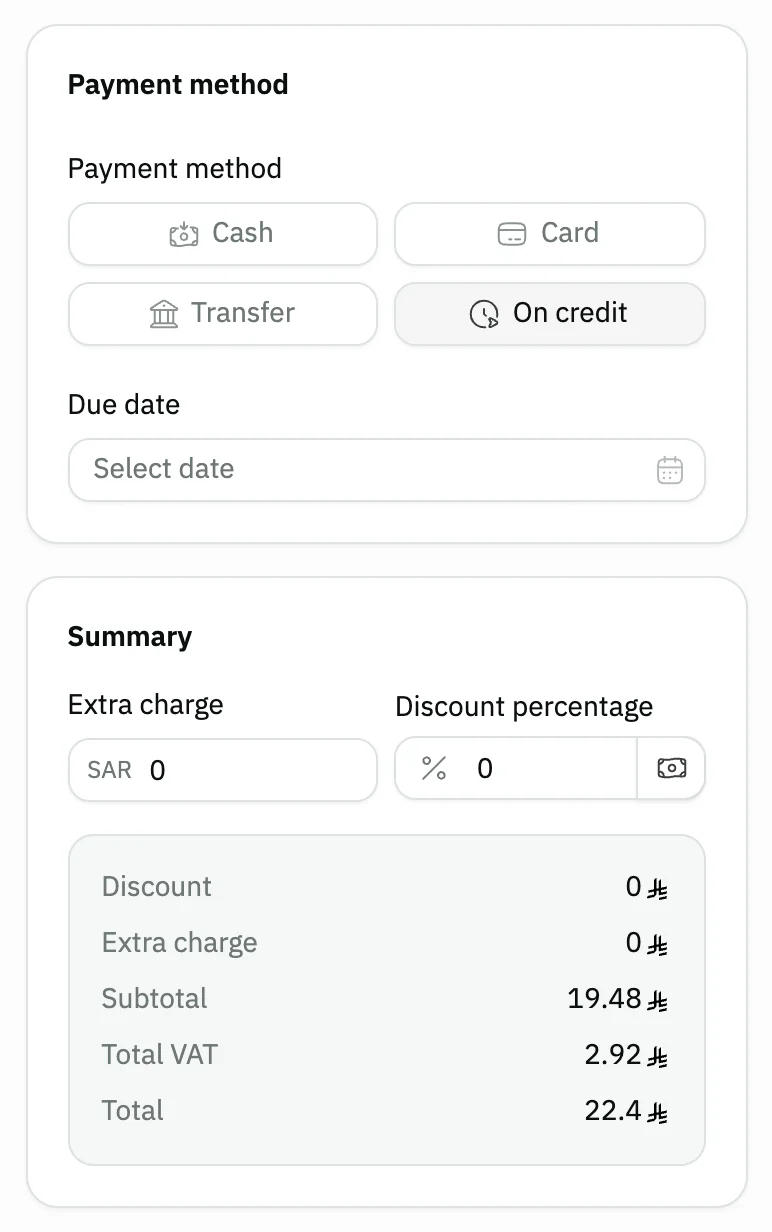
Image key - The payment methods
- Due date
- The invoice totals
Step 7: Save the invoice
Press Save at the top of the page. The quantities enter the receiving warehouse and the invoice opens with its number. For a paper copy press Save & print instead. Details
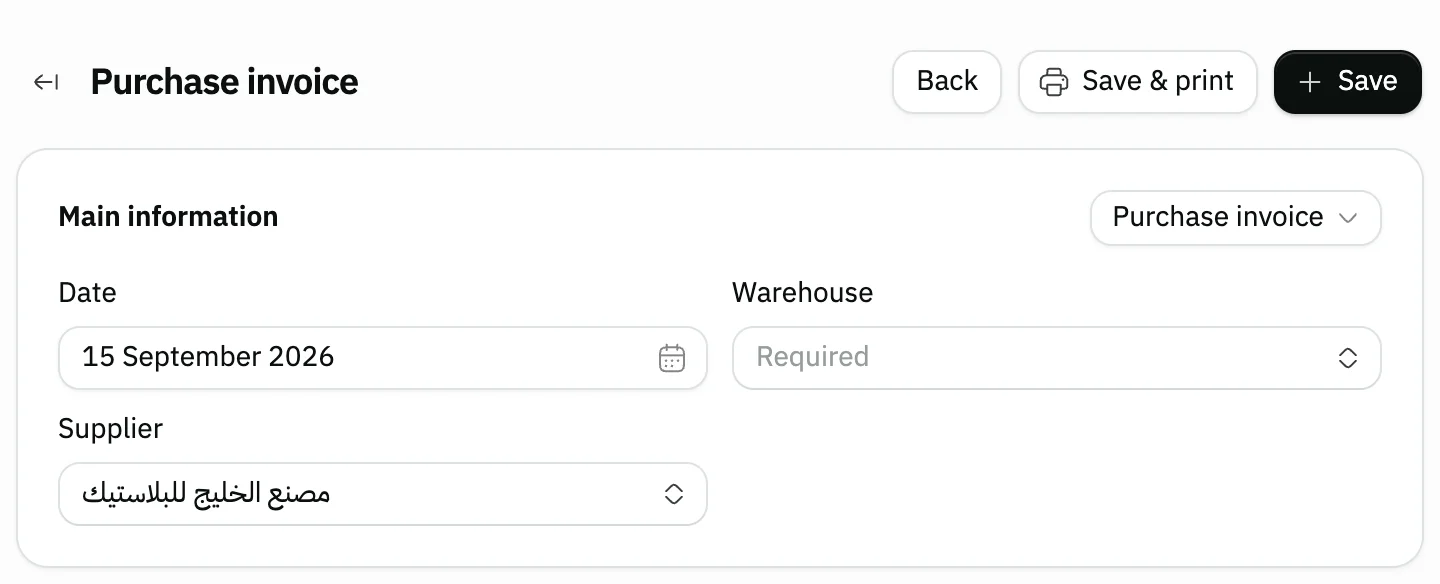
Image key - The Save button
- The Save & print button
Messages that block saving
If saving fails, one of these messages shows next to the field. The table gives the cause and the fix.
| Message | Cause | Fix |
|---|---|---|
| «Pick a product first» | The invoice has no products, or has an empty line. | Press Add product and pick a product, or delete the empty line. |
| «Enter a price» | A line has a price of zero or none. | Type the purchase price in the Price box of the line marked in red. |
| «Enter a quantity» | A line has a quantity of zero or none, and no free quantity. | Type the received amount in the Quantity box, or in Free quantity for a bonus line, then save. |
| «A line with only free units must have a price of 0» | A line has a Quantity of zero and a Free quantity above zero, but its price is above zero. | Type 0 in Price for this line, or enter the paid Quantity to make it a bonus line. |
| «Enter a due date» | You chose On credit and no Due date is set. | Pick a day in Due date; the calendar does not accept days in the past. |
| «Pick the serial numbers for every tracked product first.» | The invoice has a product tracked by serial number and its numbers are not entered. | Open the Quantity box of the product and enter one serial number for each unit received. |
Advanced details
Each section here explains one point from the steps in depth. Every section has a fixed link you can share.
An invoice from a quotation or purchase order
The Type list on the card offers Purchase invoice, Purchase quotation, Purchase order and Supplier gifts (a gift invoice). Choose an order or a quotation to copy its supplier, products and totals into the invoice instead of typing them.
A Purchase order list or Quotation list field then appears to pick the document from. The copied document is marked used after you save. Create the order first with how to create a purchase order.
The list shows the first 20 open documents, and the rest load as you scroll. Search is optional and covers all open documents, by document number or supplier name. If the read fails, an error line and a Retry button appear.
Quick add and payment terms
The Add button shows to users allowed to create suppliers, and a name is enough. For trade and bank details and payment terms use the add-supplier page.
If you choose On credit on a new invoice with no date, Snad proposes the Due date from the invoice day plus the payment terms saved on the supplier, and proposes it again when you change the supplier. A day you picked yourself stays as it is.
What saving does to stock and cost
On save Snad adds each product's quantity to the receiving warehouse, records the purchase price in the product's cost and posts the invoice entry to the accounts. The credit side is the supplier's account for an On credit invoice, and the warehouse's purchase account otherwise.
That is the default “Last purchase price” method. If you pick “Weighted average cost” in general settings, the new quantity blends with the stock on hand: 10 units at 100, then 10 bought at 120, make the cost 110.
If the invoice carries tax and the warehouse has no purchase tax account set, Snad finds the account itself and creates it if it is missing, so the stock goes in at its value without the tax and the tax is posted on its own line.
Changed the Warehouse after adding products? Snad resets the Price on each line to the product's cost in the new warehouse.
The prices on purchase lines are what enters the cost, so check them before saving. After saving, you change the invoice with the Update purchase invoice button on its page.
A supplier gift invoice
To record goods a supplier gave you free, choose Supplier gifts in Type when you create a new invoice. The quantities enter stock with no payment and no tax. With Do not include in cost, their value is added to the stock account against the equity account “Opening balance - inventory”; with Spread the cost there is no entry.
Each line keeps only the Quantity box, and all of it counts as free, with no Price. The Payment method and Summary cards disappear, and a Supplier gifts card takes their place.
If you added products before choosing Supplier gifts, Snad turns their quantities into free quantities at a price of zero. Shipping you paid for the gifts is recorded with a separate expense voucher. A Supplier gifts invoice does not accept services: they are not offered in the product list, and if the invoice already has a service line, choosing this type is refused with the warning “A supplier gift invoice cannot hold services”.
Bonus: free units with a product
Press Add bonus above the product lines to show a Free quantity box on each line. Quantity is what you pay for, the free units come on top, and stock grows by both. The button stays pressed while any line holds free units. A service line takes no free quantity, so its line shows a dash “—” instead of the Free quantity box.
For another product that comes entirely free, add it, set Quantity to zero, Free quantity to what arrived and Price to 0. If you leave it a price, the message “A line with only free units must have a price of 0” shows. A product tracked by serial number needs one number per unit, paid or free.
Once any line has free units, a Cost method card appears. Spread the cost is the default: the free units lower the unit cost, so the stock value equals what was paid. Do not include in cost leaves the cost as it is, and selling these units later shows a lower profit.
If the same product appears on a paid line and a free-only line of one invoice, its cost is worked out together: what you paid divided by all its units, paid and free.
Users allowed to see costs get a small line on each bonus line showing the effect, such as “Cost: 10 ← 8”. For a line with a paid quantity it is price × paid ÷ (paid + free). For an all-free line it shows “Cost: drops by the current stock”, or “Cost: unchanged” with the exclude option. With the “Weighted average cost” method it shows “Cost: blends into the average with the current stock” instead of a figure. The preview is for display only.
The bonus and its cost method arrive from a quotation or a purchase order when you copy it into the invoice. In the invoice list a Gift or Bonus badge sits beside the number, and an Invoice type filter offers Gifts from the supplier, With a bonus and Regular.
Which payment methods you see
Payment method shows all four methods, and one your business has not enabled stays greyed out with the note “Payment method is not enabled”. The one picked automatically is the first enabled in this order: Cash, Card, Transfer, then On credit.
Changing the method clears the Due date. Paying the supplier later is recorded with a separate payment document, covered in how to record a supplier payment.
After you save
Put the supplier's own invoice number in Reference so you can search for it later, add anything in Notes, and attach the invoice photo from the attachments card.
To see what you owe a supplier after its invoices and payments, read how to read a supplier statement, and to review all your purchases see view purchase reports.
To document the receipt of goods, create a goods receipt note; to send them back to the supplier, create a purchase return.
Common questions
- Does a purchase invoice add to stock?
- Yes. When you Save the invoice, each product's quantity is added to the receiving Warehouse and its cost follows the invoice's purchase price. Review the quantities in stock reports. That holds for goods lines. A Service line (how to create a service) holds no quantity and changes no product's cost, and its purchase is posted to the “Service Expenses” account or to the account you chose for the service.
- How do I record a purchase on credit?
- Choose On credit under Payment method, set the Due date or keep Snad's proposal built from the supplier's payment terms, then Save.
- Why is there no warehouse field?
- Your business has a single warehouse, so Snad picks it and hides the field. Once you add a second warehouse, Warehouse appears.
- Can I create an invoice from an existing purchase order?
- Yes. Choose Purchase order in Type and then the document from the list, or open the order and press Convert to purchase invoice. Create the order with how to create a purchase order.
- How do I record goods a supplier gave me as a gift?
- On a new purchase invoice choose Supplier gifts in Type, add the products, enter the Quantity of each, then Save. They enter stock with no payment or tax, and with Do not include in cost their value is recorded in stock against equity. Details are in a supplier gift invoice.
- How do I record a bonus on top of the quantity I bought?
- Press Add bonus above the lines and enter the amount in Free quantity. Then pick Spread the cost or Do not include in cost under Cost method. Details are in bonus.