
How to use the employee account in Snad
To use the employee account in Snad ERP, sign in with the user linked to your employee record, then open HR and My account. You get the tabs Job information, Financial details, Vacations, Requests and Performance evaluation. The Update button edits your personal details.
In this guide7
Steps
Step 1: Open the My account page
In the sidebar, choose HR, then My account. Your page opens with your name, your job title and five tabs. Details

Image key - My account in the sidebar
- The five tabs
Step 2: Read your job details
The Job information tab opens first: Personal information, then Job information with your Branch, Work schedule and Direct manager. An empty field is not shown.
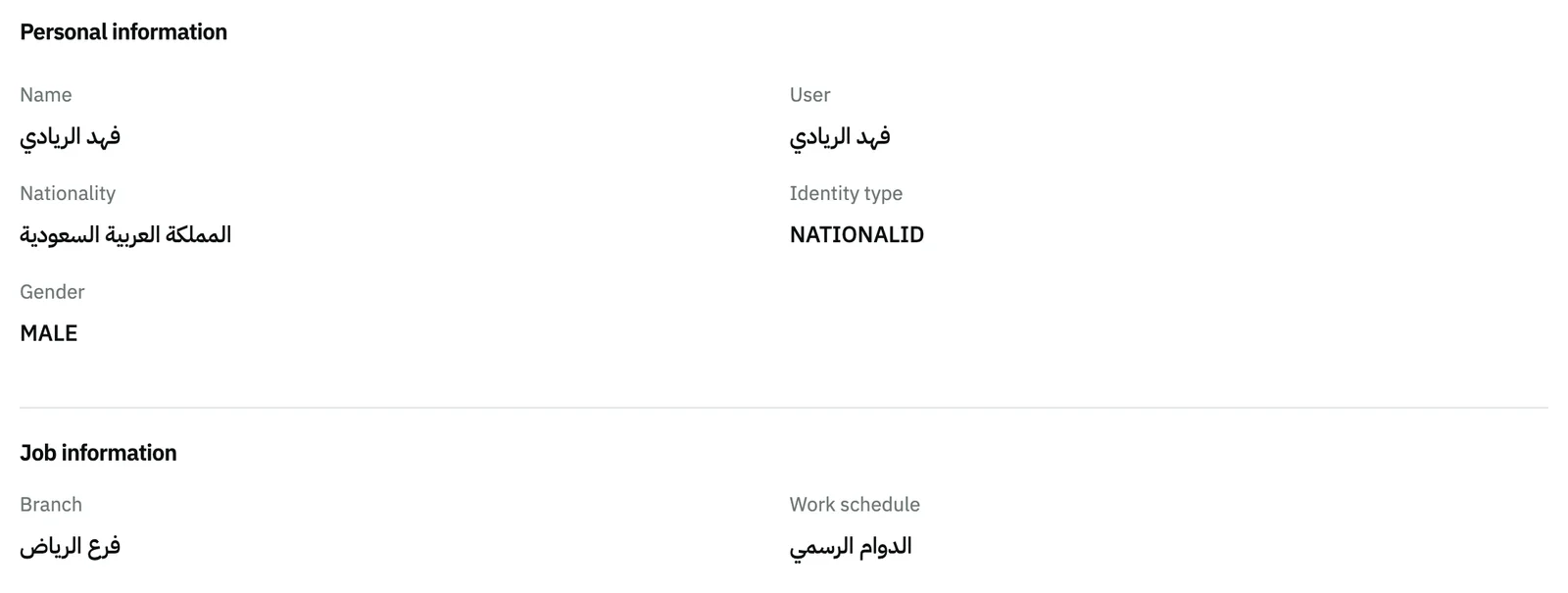
Image key - Personal information
- Job information
Step 3: Update your personal details
Press Update and the Update personal information window opens. Edit the fields, then press Save. The window does not change your salary. Details
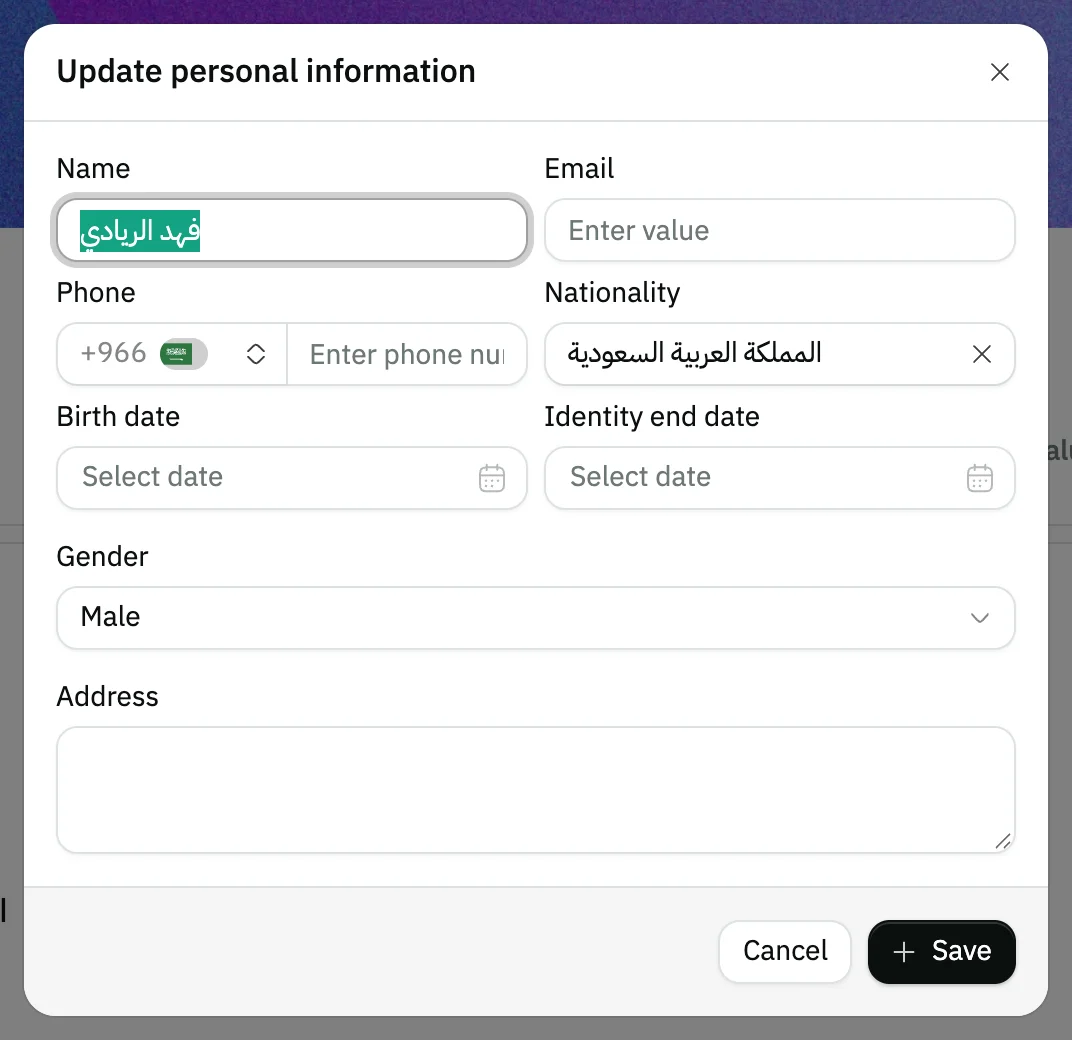
Image key - Name
- Address
- Save
Step 4: Check your salary and contracts
Open the Financial details tab: Basic pay, the allowances, Net salary and Payment method, and below them Employee contracts.
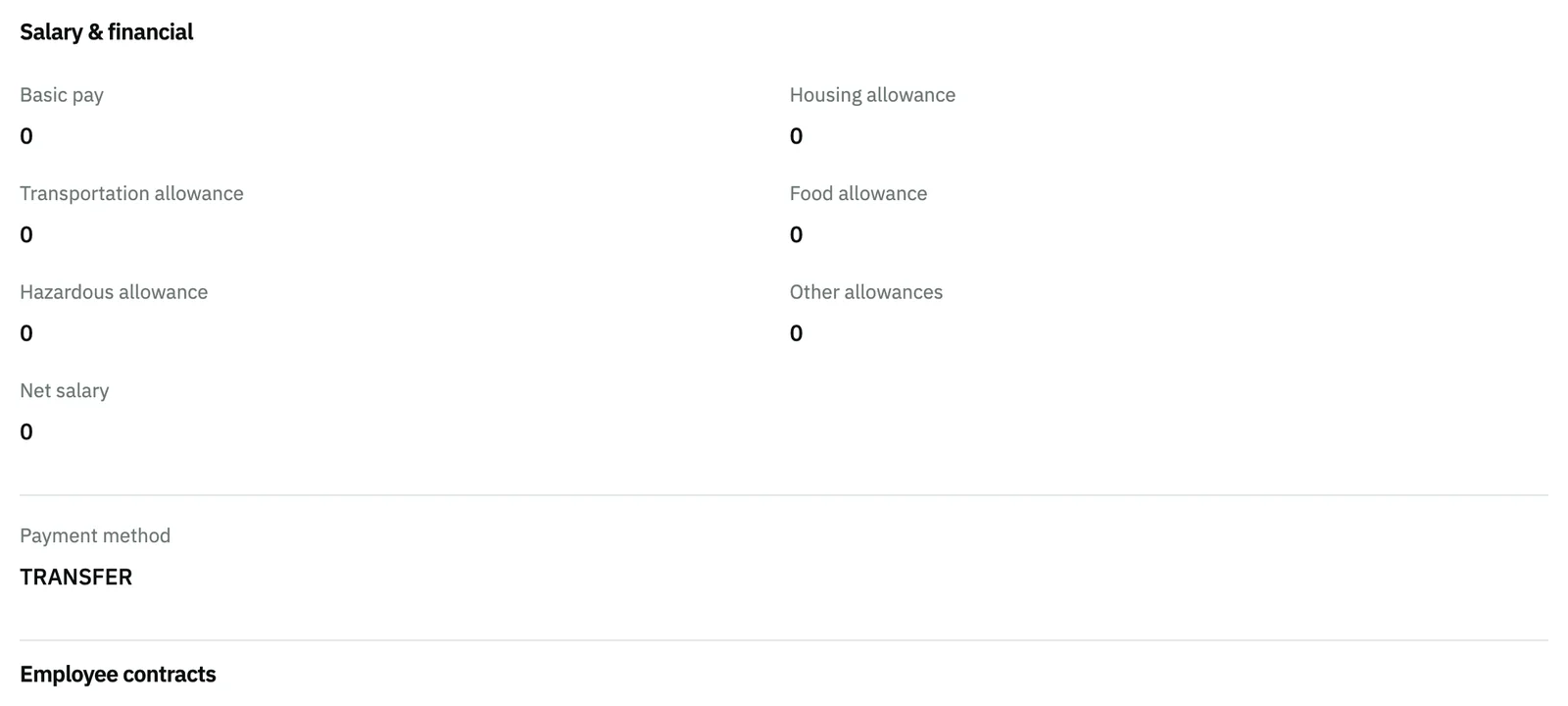
Image key - Basic pay
- Net salary
- Employee contracts
Step 5: Follow your vacation balance
Open the Vacations tab. Six cards show the days of each type, Annual vacation, Sick leave and more, and your recorded vacations sit below them. Details
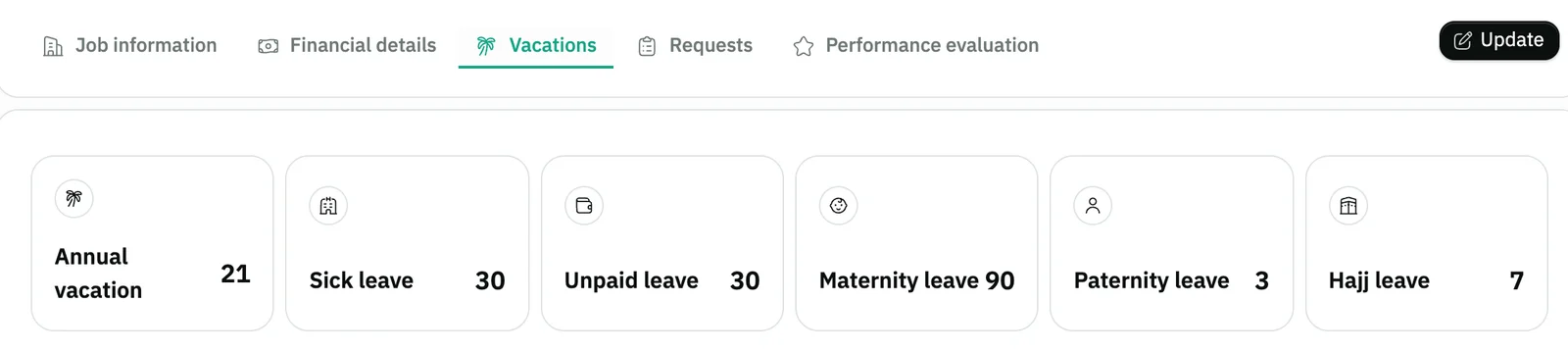
Image key - Annual vacation
- Sick leave
Step 6: Follow your requests
Open the Requests tab. Six cards count your requests by type: Leave request, Promotion, Advance payment, Document/certificate, Complaint/suggestion and Other. Details
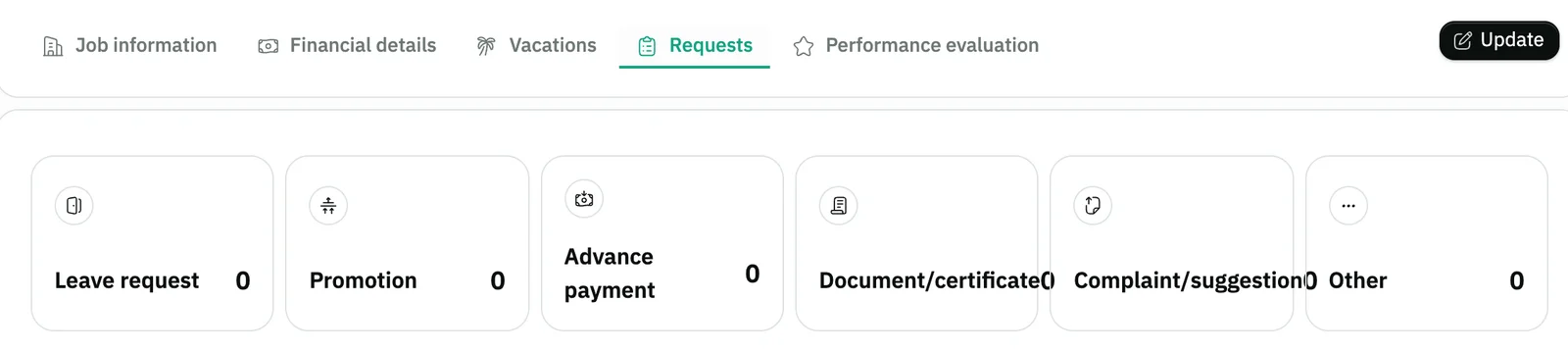
Image key - Leave request
- Advance payment
Step 7: See your evaluations
Open the Performance evaluation tab. Each cycle shows a card with the period and cycle name, your score, result and status, and a card opens its details. Details
Messages that block saving
If saving fails, one of these messages shows next to the field. The table gives the cause and the fix.
| Message | Cause | Fix |
|---|---|---|
| «You don't have permission to view this page» | Your user is not linked to an employee record, so My account does not show in the sidebar and its page does not open. | Ask your account admin to link your user to your record from the employee form or from user management. |
| «No requests» | Shows on the Vacations tab when no vacation is recorded under your name yet. | File your vacation from the Vacations screen (record an employee vacation). |
Advanced details
Each section here explains one point from the steps in depth. Every section has a fixed link you can share.
How your user gets linked to an employee
The account admin does the linking, from User account in the employee form (add an employee). The Employee field when you add a user works too. One employee per user.
Without a link, My account disappears from the sidebar, and opening the page address directly shows a no-access message.
Your photo
At the top of the page there is a place to upload or remove your photo, with the Update button. Both show on medium screens and up, so open the page on a computer or tablet.
Filing a vacation, a request or attendance
The tabs here are for viewing. File your vacation from Vacations and your request from Requests in HR. The employee field comes filled with your name (record a vacation, employee requests).
You check in and out from Attendance (record attendance).
When your evaluations show
The Performance evaluation tab lists the cycles your HR manager added you to. If you are in none, the tab is empty.
The manager runs the cycles from evaluate employee performance.
Common questions
- Why can't I find My account in the sidebar?
- Because your user is not linked to an employee record. Ask your account admin to link it, then reopen the program.
- Can I change my salary or branch there?
- No. The Update button edits only your personal details; the salary and branch are managed by the HR admin (add an employee).
- Where do I see my vacation balance?
- On the Vacations tab: a card for each type with its days. The starting balances are set in HR settings.
- Do my colleagues see my financial details?
- My account shows only your own record. Who can see others' salaries is decided by roles and permissions.