
How to record damaged stock in Snad
To record damaged goods in Snad, open Inventory, then Damaged stock, and press Create damaged stock. Pick the Warehouse, add products with Add product, enter the Quantity and Cause of damage, then press Save. The balance goes down.
In this guide6
Steps
Step 1: Open the damaged stock screen
In the sidebar, choose Inventory, then Damaged stock, and press Create damaged stock above the list. Details
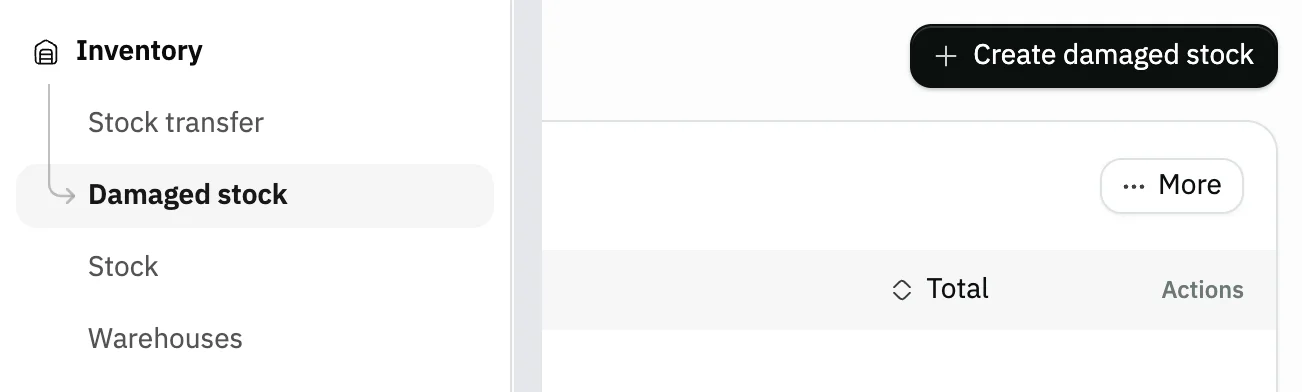
Image key - Damaged stock in the sidebar
- The Create damaged stock button
Step 2: Pick the warehouse
In Main information, pick the Warehouse that holds the damaged goods and check the Date. The form remembers the last warehouse you chose here. Details
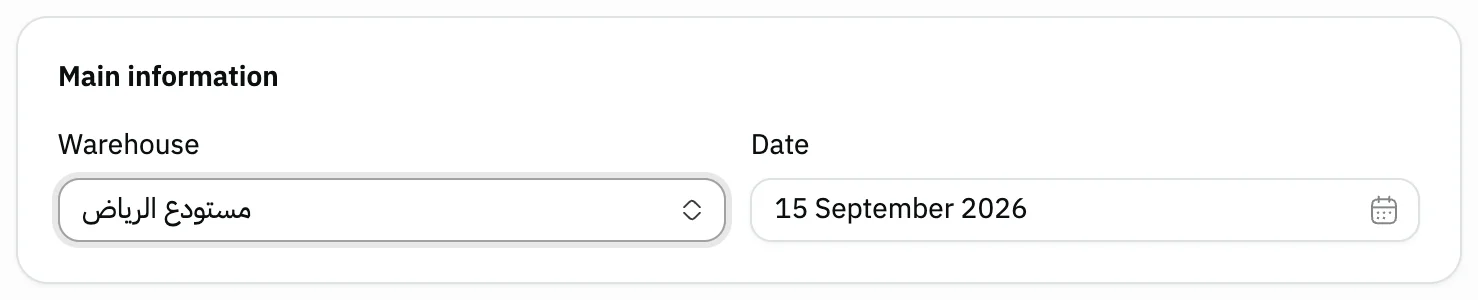
Image key - Warehouse
- The entry Date
Step 3: Add the damaged products
Press Add product, search by name or barcode, tick the damaged products, then press Apply.
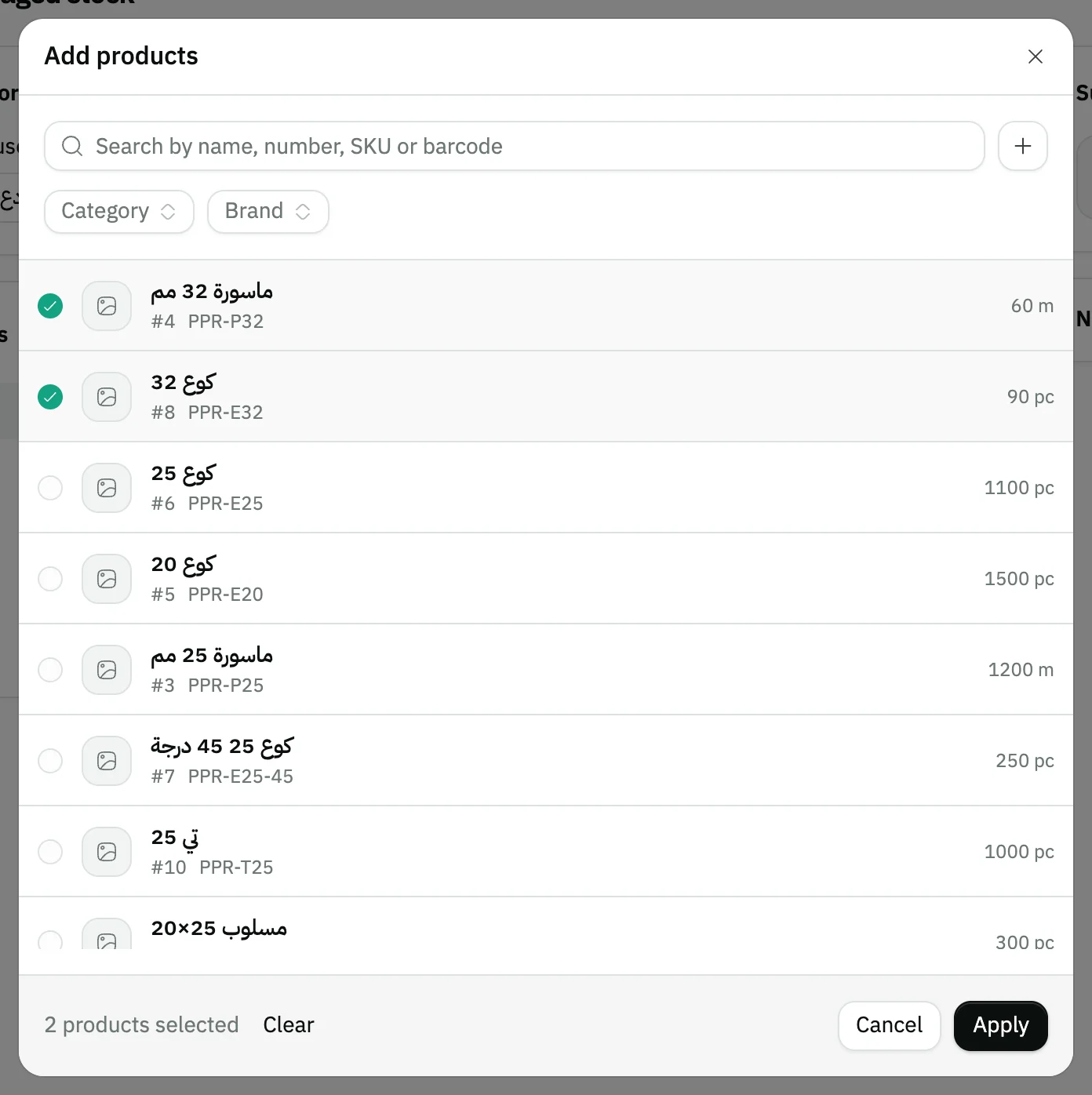
Image key - Search by name, number or barcode
- A ticked product
- The Apply button
Step 4: Enter the quantity and cause
Enter the damaged Quantity on each line, and the reason in Cause of damage, such as breakage or expiry. Details
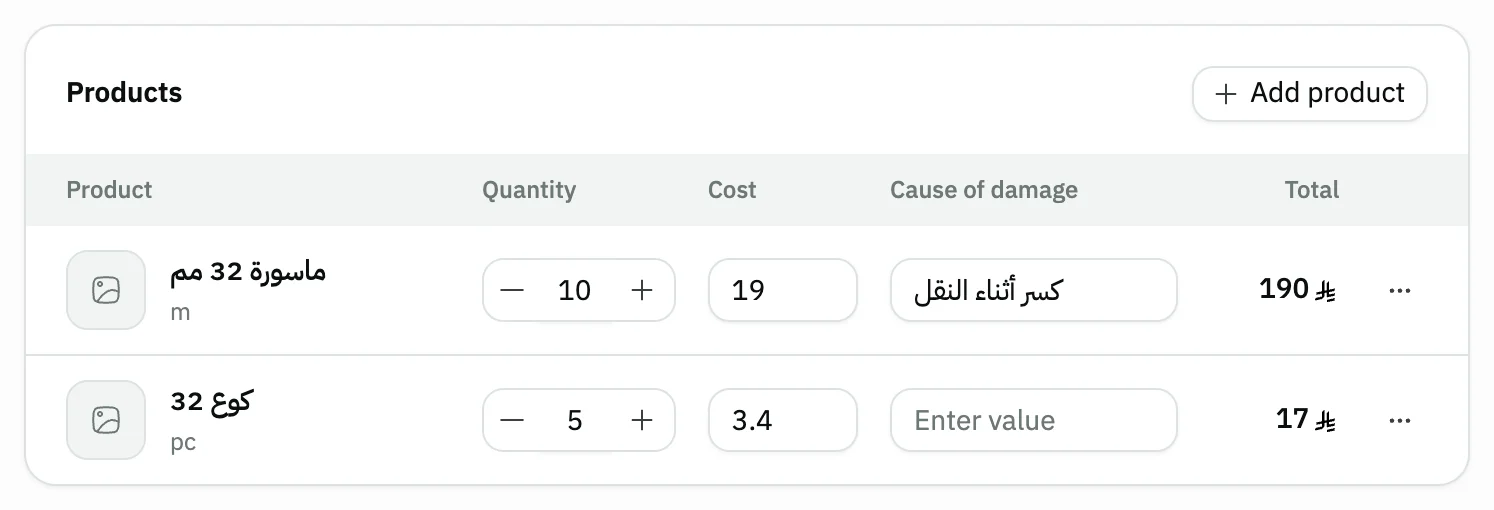
Image key - Quantity
- The product Cost
- Cause of damage
Step 5: Check the summary and notes
The Summary shows the Total at the cost of the damaged goods. In Notes and attachments, add a Reference or Notes if you need to. Details
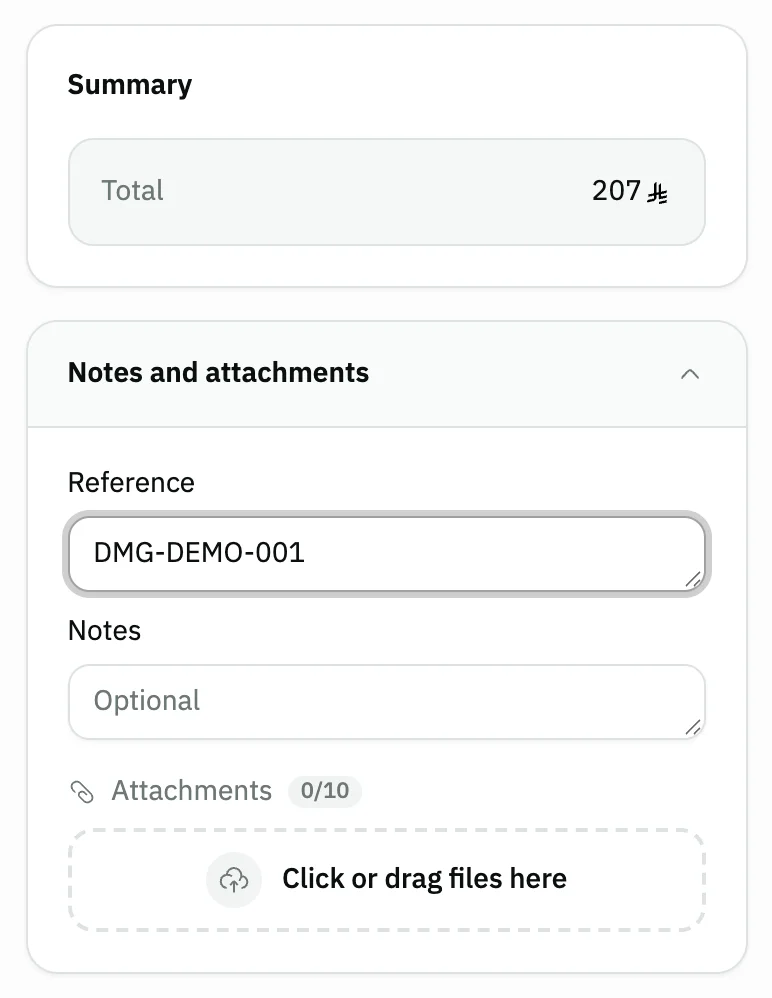
Image key - The Total in the Summary
- The entry Reference
Step 6: Save the entry
Press Save. The saved entry page opens, and the damaged quantity comes off the product's balance in the warehouse. Details
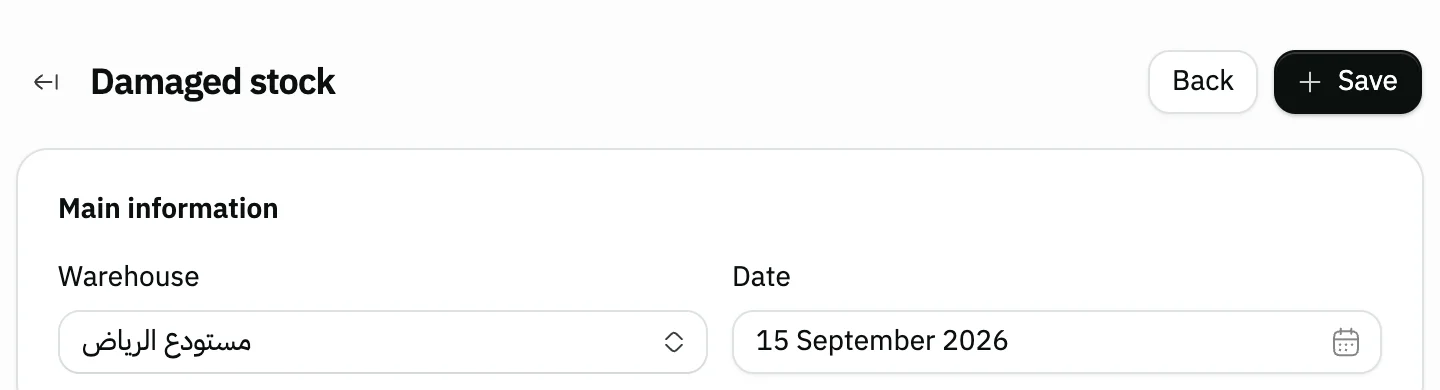
Image key - The Save button
Messages that block saving
If saving fails, one of these messages shows next to the field. The table gives the cause and the fix.
| Message | Cause | Fix |
|---|---|---|
| «Pick a product first» | The entry has no products. | Add at least one product with Add product. |
| «Enter a quantity» | A line has no quantity, or its quantity is zero. | Enter the Quantity on the flagged line. |
| «Pick the serial numbers for every tracked product first. · The number of serials does not match the quantity.» | A product tracked by serial numbers has no units picked, or their count differs from the quantity. | Pick the product's units from the same field until their count matches the quantity. |
Advanced details
Each section here explains one point from the steps in depth. Every section has a fixed link you can share.
The entry date
The Date field starts on today's date. If it is locked, the allow-date-changes setting for Inventory is off in the general settings.
Products with serial numbers
For a product that Snad tracks by serial numbers, you pick the damaged units from the warehouse instead of typing a quantity, and the count of units must match the quantity.
Reference, notes and attachments
In Notes and attachments you write the entry Reference and Notes, and attach files, such as a photo of the damaged goods.
Each product line also has its own note, from the line menu.
After saving: edit, delete and print
On the saved entry page, press Update damaged stock to change the warehouse, products and quantities, then Save. Move between entries with the previous and next arrows.
The Print and Delete buttons show to users with the permission, and the edit button to users allowed to edit.
Keyboard shortcuts
The keyboard cuts repeated steps:
- Alt + A on the form: Add product.
- Ctrl + S (⌘ + S on Mac): Save.
No Create damaged stock button?
The button shows only to users allowed to create damaged stock. Ask your Snad account admin to grant it (roles and permissions).
If you see “This app is not included in your plan”, the Inventory app is outside your current plan.
Custom fields on the damaged stock entry
Your organization can add its own fields to the damaged stock form. Open the Customizer and choose Damaged stock under Inventory, then press the place for the field: Bottom of the document details under the main information, or End of the damaged stock document after the product lines, and press Add field. The form is listed when the Warehouses app is on.
The fields show in the form where you placed them. If you tick a field Required, a new entry is not saved until it is filled, and the message “Fill in the required custom fields” shows. The rule does not stop saving an edit to an existing entry.
A field with Print on documents ticked shows when you print from the saved entry's page. One with Show in list ticked shows as a column in the damaged stock list.
Custom fields are data saved with the document only. They do not change quantities or warehouse balances.
Common questions
- How do I record damaged goods in Snad?
- Open Inventory, then Damaged stock, and press Create damaged stock. Pick the Warehouse, add the products with their quantities and cause of damage, then press Save.
- Does damaged stock reduce the warehouse balance?
- Yes. On save, the damaged quantity comes off the product's balance in the chosen warehouse, and the damage is recorded at its cost. Follow the balance in the stock reports.
- Is the cause of damage required?
- Saving doesn't stop without it. Still, write it so each line keeps its reason.
- Can I edit a damaged stock entry after saving?
- Yes, from the saved entry page with Update damaged stock, if you have edit permission.
- What is the difference between damaged stock and a stock adjustment?
- Damaged stock takes goods with a known cause out of one warehouse. Correcting balances after a physical count belongs in stocktaking or a stock adjustment, and moving goods between warehouses in a stock transfer.