
How to create a goods receipt note in Snad
To create a goods receipt note in Snad ERP, open Purchases, then Goods receipt note, and press Create goods receipt note. Pick an invoice from the Purchase invoice list, and the supplier, warehouse and lines are filled from it. Check the Quantity, then press Save.
In this guide6
Steps
Step 1: Open the goods receipt screen
In the sidebar, choose Purchases, then Goods receipt note, and press Create goods receipt note above the list. Details
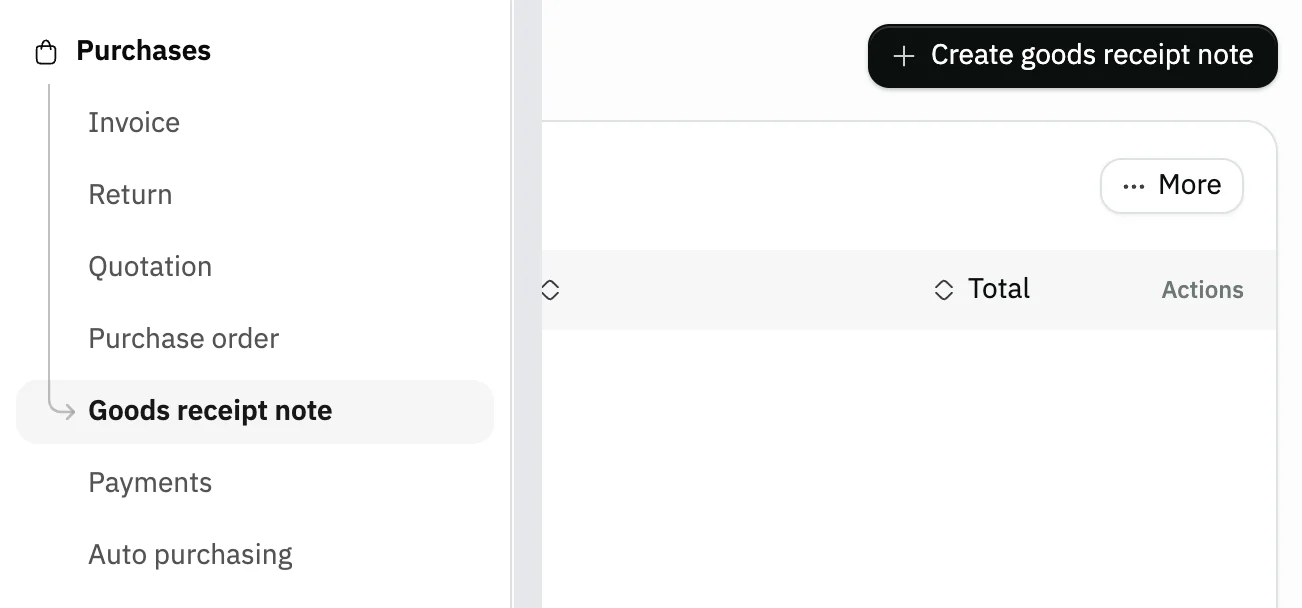
Image key - Goods receipt note in the sidebar
- The Create goods receipt note button
Step 2: Pick the purchase invoice
A goods receipt note is built on a purchase invoice. Click the Purchase invoice list field, search by invoice number or supplier name, then pick the invoice. Details
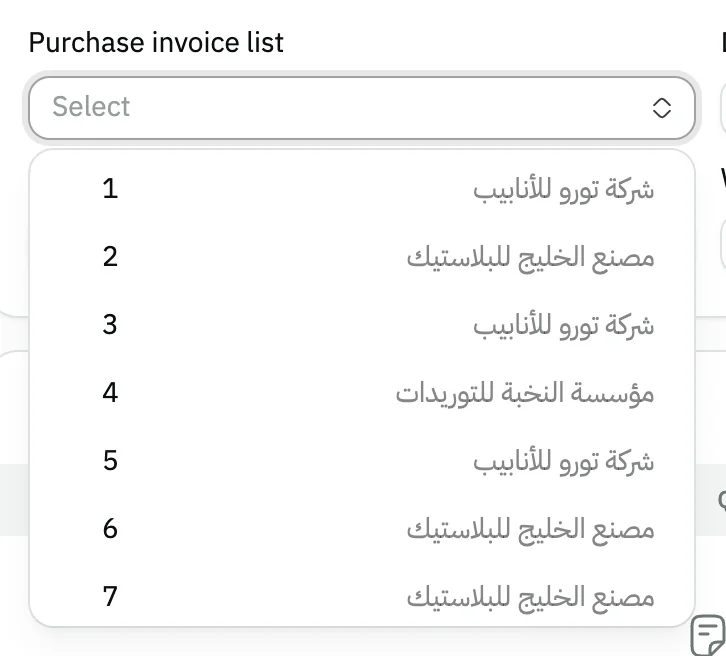
Image key - The Purchase invoice list field
- The invoice you pick
Step 3: Check what was copied from the invoice
Once the invoice is picked, Supplier (the supplier) and Warehouse (the warehouse) fill in on their own, and you can't change them on the note. The note Date starts on today. Details
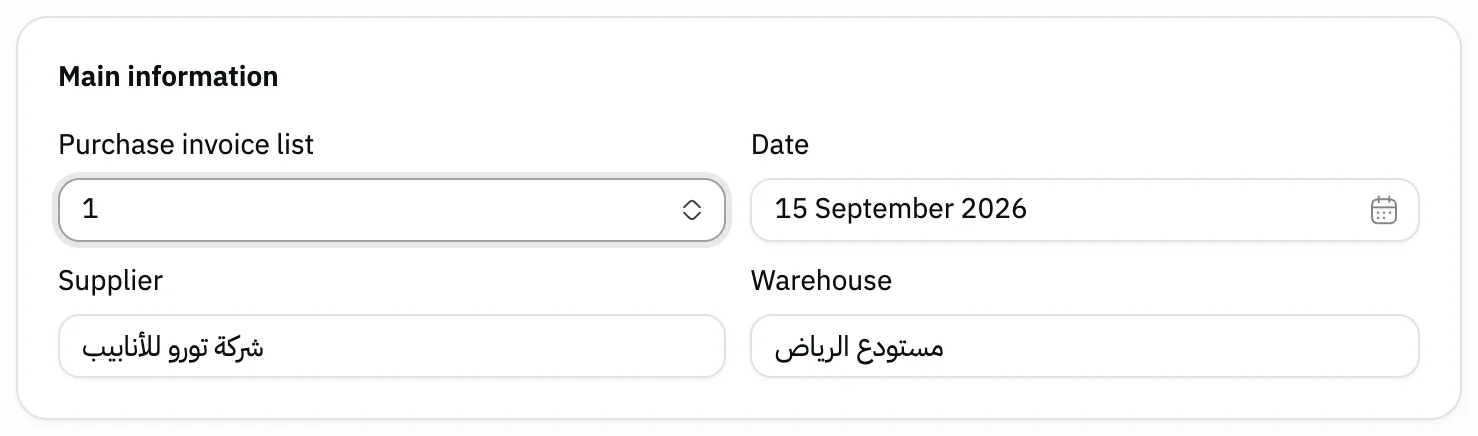
Image key - The picked invoice
- The note Date
- Supplier from the invoice
- Warehouse from the invoice
Step 4: Check the product lines and quantities
The invoice lines move onto the note. Change the Quantity with the + and − buttons, or by typing, if what you received differs from the invoice. The Price is locked, since it is the invoice price. Service lines are not copied onto the note, because it holds goods only, and a warning says that service lines were not copied, with their count. An invoice with services only cannot start a note: “This invoice holds services only, so no goods receipt note can be made from it”. Details
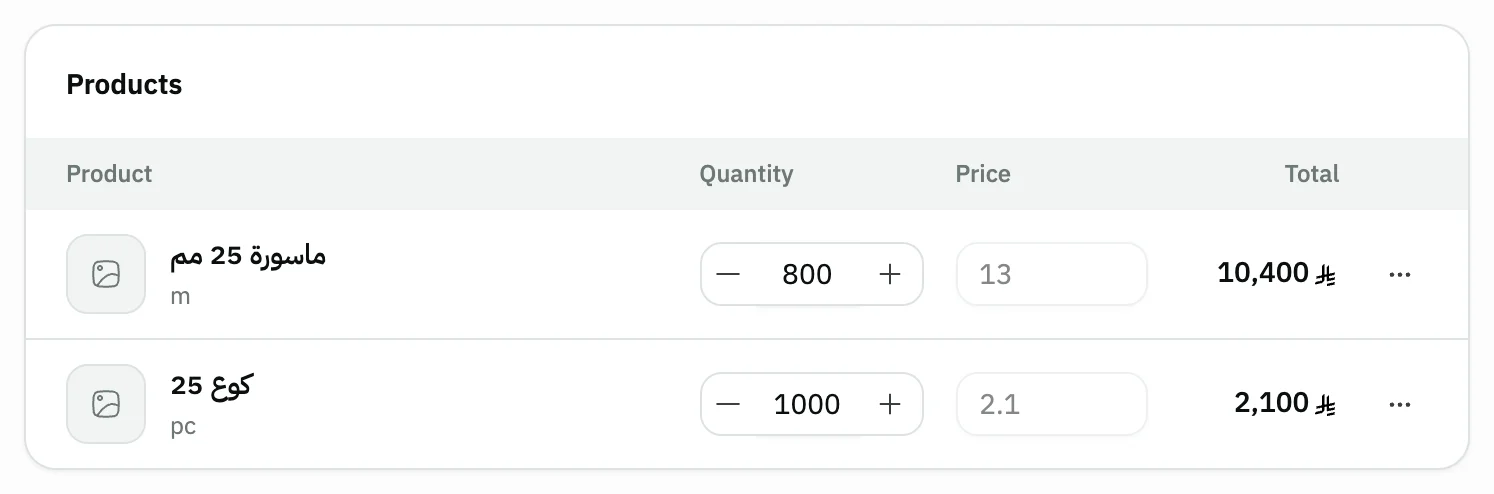
Image key - Quantity, editable
- Price, locked
- Line menu: product information, notes, remove
Step 5: Check the summary
Check the note Summary: the Subtotal, Total VAT and Total. The figures follow the quantities you left on the lines. Details
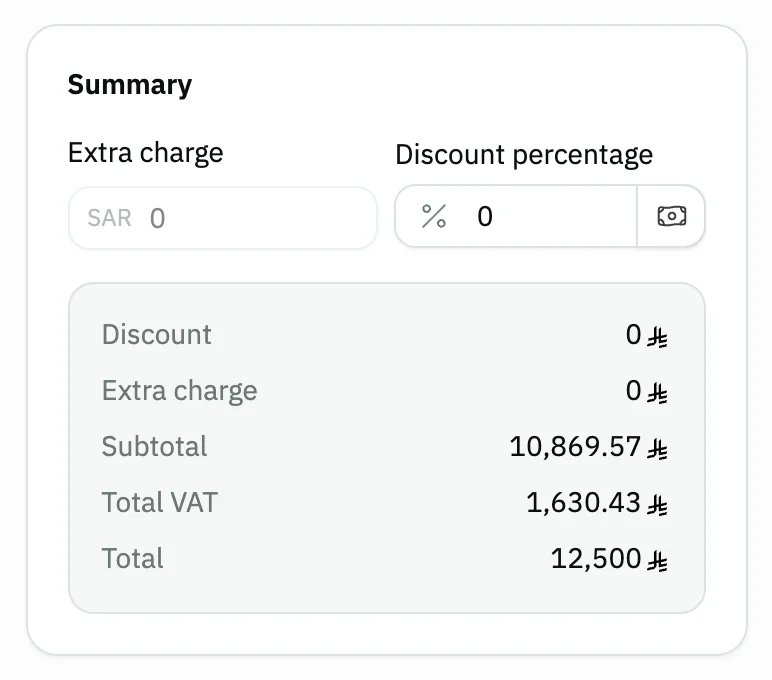
Image key - Totals: Subtotal and Total
Step 6: Save the goods receipt note
Press Save, or Save & print to print it right away. The saved note page opens next. Details
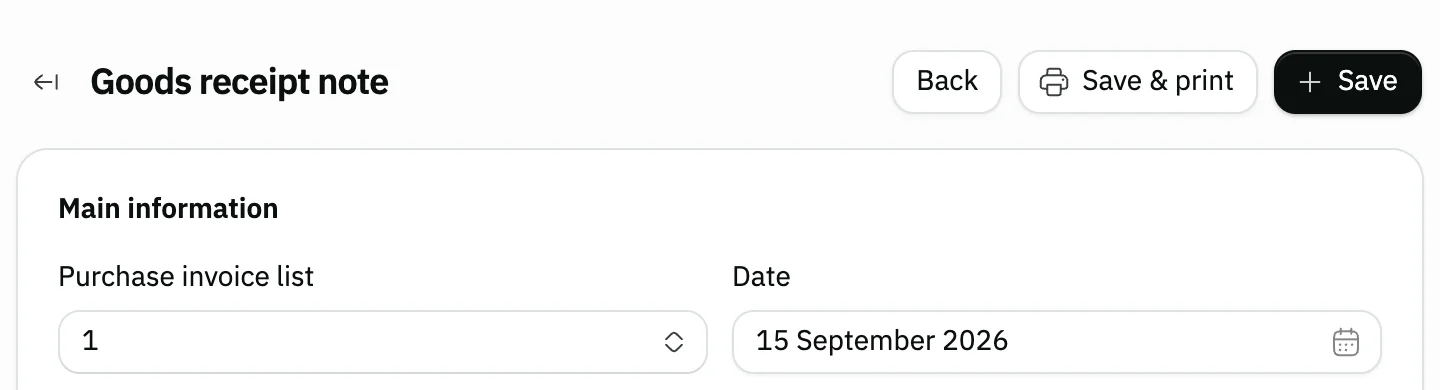
Image key - The Save button
- The Save & print button
Messages that block saving
If saving fails, one of these messages shows next to the field. The table gives the cause and the fix.
| Message | Cause | Fix |
|---|
Advanced details
Each section here explains one point from the steps in depth. Every section has a fixed link you can share.
How the note links to the invoice
Each goods receipt note is tied to one purchase invoice (which may come from a purchase order), and you set it only when you create the note. After saving, the invoice field is locked, so if you picked the wrong invoice, create a new note.
While an invoice has a goods receipt note, Snad doesn't let you delete it. Delete the note first, then the invoice. For the invoice itself, see the purchase invoice.
Lines and quantities
The lines come from the invoice and aren't added by hand, so this form has no Add product button. You change the Quantity and remove a line from its menu if you didn't receive it.
If you start before picking the invoice, the lines area is empty, so pick the invoice first.
Discount and extra charge on the note
The note takes the Discount percentage from the invoice if it has one, and you can change it, up to 100. The Extra charge is copied from the invoice and stays locked. If service lines were left out when you picked the invoice, neither the Discount percentage nor the Extra charge is copied: the Discount percentage starts at zero and you can type it, and the Extra charge stays locked at zero.
The tax group, reference and notes also carry over from the invoice, if it has them.
Reference, notes and attachments
The Notes and attachments section is folded until it holds something. Open it to write the note Reference, such as the supplier's delivery slip number, and Notes.
You can also attach up to 10 files, such as a photo of the signed delivery slip.
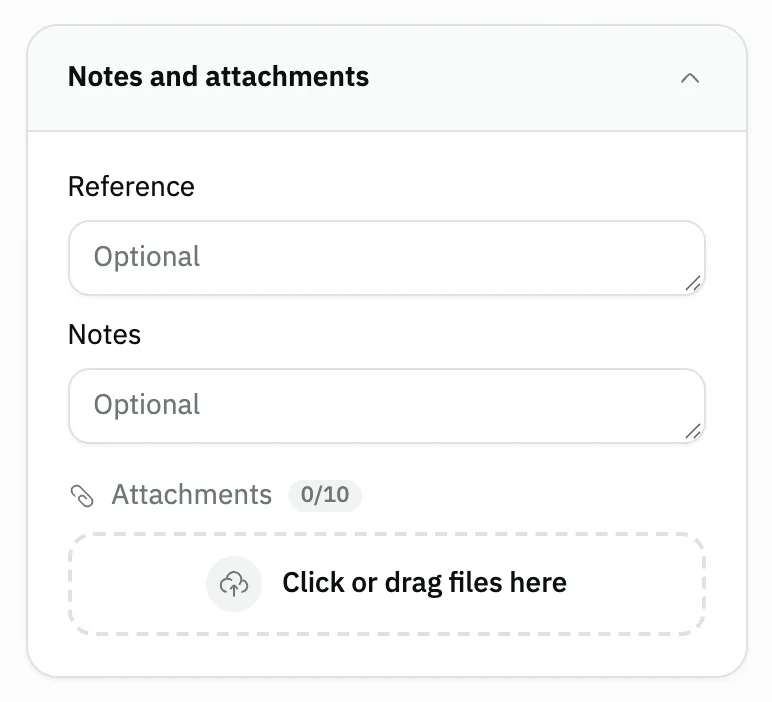
- Reference
- Notes
After saving: what changes and what doesn't
A goods receipt note is a document only: it doesn't change stock or post an accounting entry. Stock and the entry come from the purchase invoice itself, so the note records the receipt and doesn't repeat it. Review quantities in stock reports.
To change a saved note, press Update goods receipt note on its page. Snad saves what you change in Reference, Notes, Date, the discount, the attachments and the quantities. The invoice, supplier and warehouse stay as you picked them.
If you send goods back to the supplier, that is a purchase return, not a goods receipt note.
No Create button, or the date won't change?
The Create goods receipt note button shows only to users allowed to create goods receipt notes. Ask your Snad account admin to grant it.
If the Date field is locked, the purchases setting that allows date changes is off. You find it in the general settings.
Custom fields on the note
Your organization can add its own fields to the receipt note form. Open the Customizer and choose Goods receipt note under Purchases, then press the place for the field, such as Bottom of the document details or Under the totals summary, and press Add field.
The fields show in the form where you placed them. If you tick a field Required, a new note is not saved until it is filled, and the message “Fill in the required custom fields” shows. The rule does not stop saving an edit to an existing note.
A field with Print on documents ticked shows on the printed note. One with Show in list ticked shows as a column in the goods receipt notes list.
The invoice's field values are not copied to the note. They are data saved with the note only and do not change stock.
Common questions
- How do I create a goods receipt note in Snad?
- Open Purchases, then Goods receipt note, and press Create goods receipt note. Pick an invoice from the Purchase invoice list, check the quantities, then press Save.
- Does a goods receipt note change stock?
- No. A goods receipt note is a document only, and it posts no accounting entry. Stock and the entry come from the purchase invoice. To move goods between warehouses, see stock transfer.
- Can I create a goods receipt note without a purchase invoice?
- No. The note is always tied to a purchase invoice, and it takes the supplier, warehouse and lines from it. Create the invoice first, then the note.
- Why can't I change the price or supplier on the note?
- Because they are copied from the purchase invoice and locked on the note. What you change here is the quantity, discount, reference, notes and date.
- Why can't I delete the purchase invoice?
- Because it has a goods receipt note. Delete the goods receipt note first, then delete the invoice.