
How to manage product categories in Snad
To create a product category in Snad ERP, open Categories from the sidebar, press New main category, enter the Name, pick the products that belong to it, then press Save. To add a sub-category under it, open the Actions menu on its row.
In this guide6
Steps
Step 1: Open the categories page
In the sidebar open General then Categories, and press New main category.
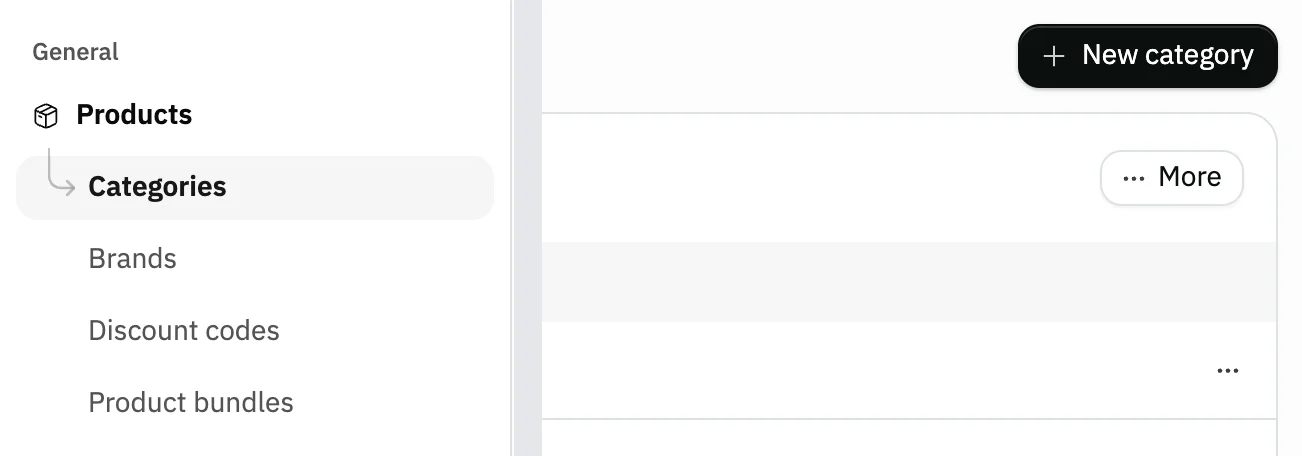
Image key - Categories in the sidebar
- The New main category button
Step 2: Enter the name and description
Enter the Name, at least three characters; it is the only required field. The Description and the category Image are optional.
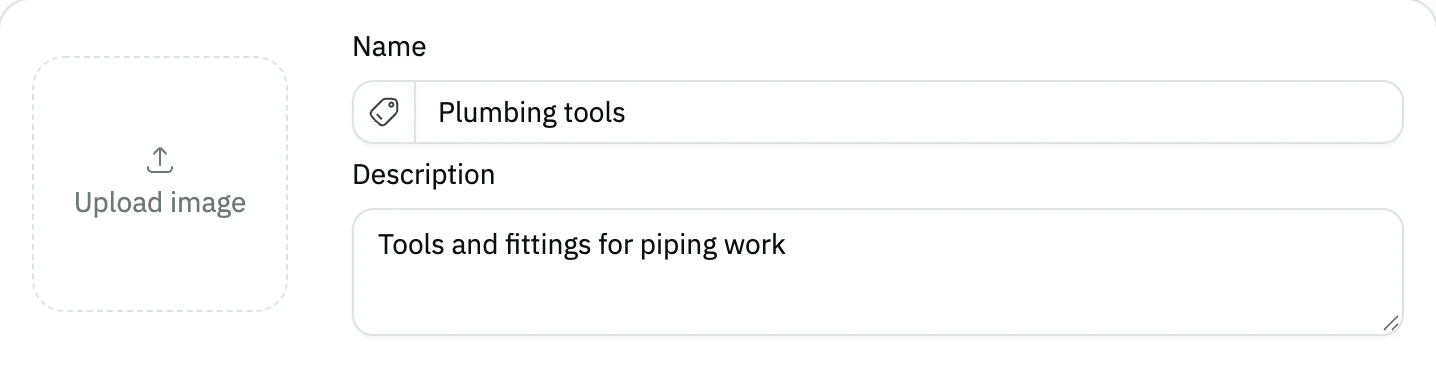
Image key - The Icon button
- The Name field
- The Description field
Step 3: Pick an icon for the category
The icon is optional: press the Icon button beside the name, search for a symbol and click it. To undo, press Remove icon.
Step 4: Pick the main category
Pick in Main category the category this one goes under, or leave it empty to make this a main category. Categories go at most 3 levels deep. Details
Step 5: Add products to the category
In Add products press Select beside each product in the category, or Select all. You will find them all under Selected products. Details
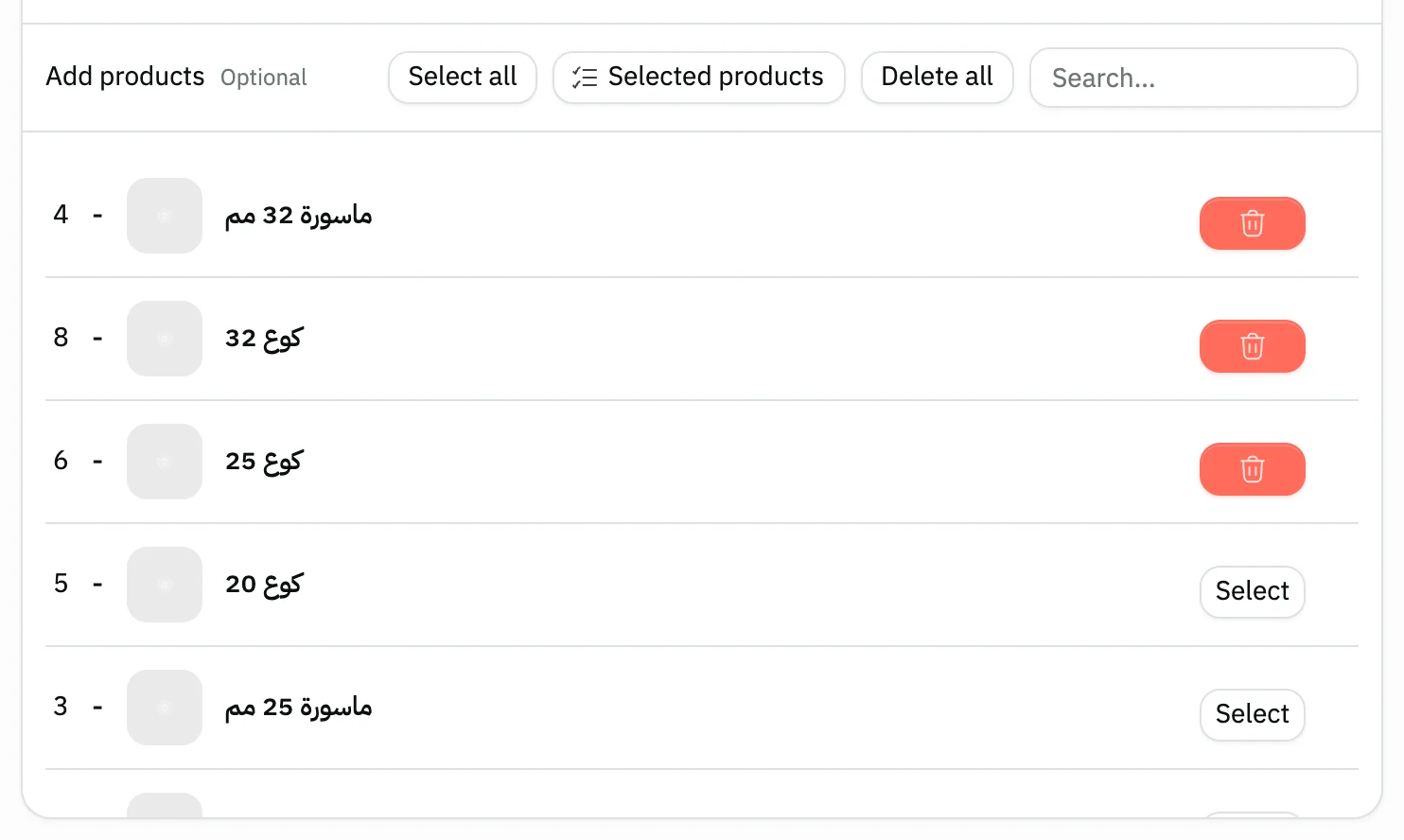
Image key - The product search field
- The Select all button
- Selected products
- A product row in the list
Step 6: Save the category
Press Save at the top of the form to return to the list, where you find the new category. Back leaves without saving. Details
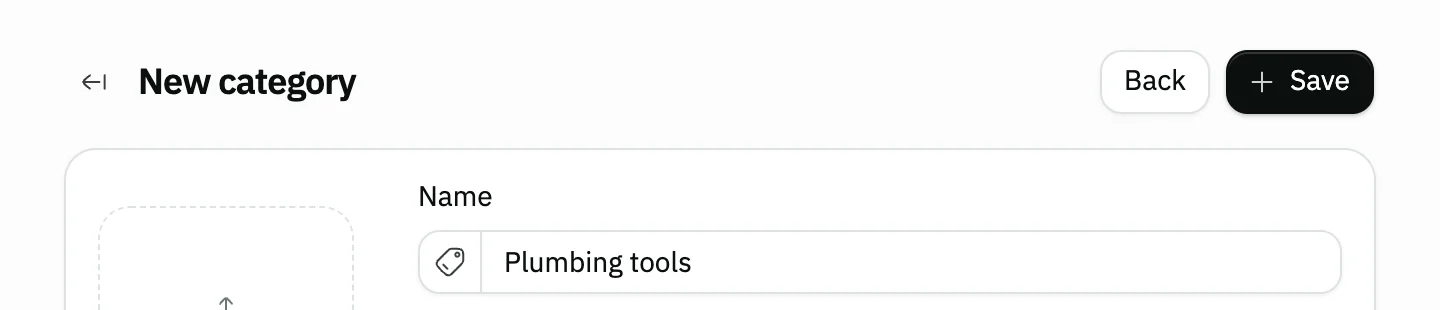
Image key - The Save button
- The Back button
Messages that block saving
If saving fails, one of these messages shows next to the field. The table gives the cause and the fix.
| Message | Cause | Fix |
|---|
Advanced details
Each section here explains one point from the steps in depth. Every section has a fixed link you can share.
Products inside a category
On an account with many products, Snad loads the list in batches: a line “Loaded N of M products” and a Stop loading button show, and Retry shows if the load fails. If you press Select all before the load finishes, a message says “Available after all products have loaded”, so wait and press it again.
The list shows parent products only, so if you pick a product that has variants, its variants come along automatically. To find one product, type its name in the search field, and to remove one press the red delete button beside it.
You can also create a category from the Add product screen itself without coming to this page.
Sub-categories and editing a category
On the category row press Actions then Add sub-category: the form opens titled “New sub-category under “the category name”” with Main category already filled in. This option does not show on the 3rd level.
The page shows the categories as a tree: press a row that has sub-categories to open or close it, and Expand all and Collapse all do that for every row. A search keeps the parent visible above each match. Every row shows its number of sub-categories and its number of products, and the product count includes the products of its sub-categories.
To change the order or the level, press and hold the row, then drag it (this needs the update permission): up or down to reorder it, sideways to change its level. If the move would pass 3 levels, a message says “Can't move it here: categories go at most 3 levels deep.”
On the category row press Actions then Edit to change its name, icon, Main category or products, or Delete to remove it. Pressing a row that has no sub-categories also opens the edit form if you have the update permission.
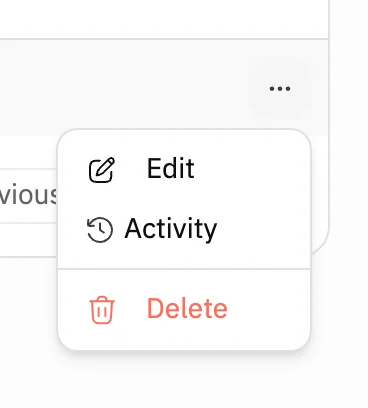
- The Actions button
- Edit
- Delete
The delete confirmation
Snad asks “Are you absolutely sure?”; Confirm deletes the category, and Cancel leaves it as it is. The dialog says the category will be deleted and its products unlinked from it, and that the products themselves are not deleted.
If the category has sub-categories, the dialog says only it will be deleted and its sub-categories move up one level: under the category above it, or they become main categories if it was a main category. No product is deleted, and products are unlinked only from the deleted category.
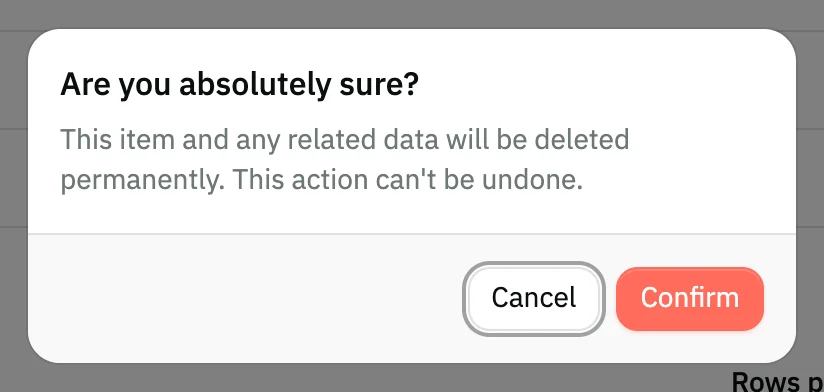
- The Confirm button
- The Cancel button
Where categories are used
The category appears in the product list filter, you choose it when you add a product, and you set it for each product in the product import preview.
The category's picture (the single Image field in the form) shows beside its name in the table, and on the register when the cashier picks the Categories view or Picture tiles.
Choosing a main category includes its sub-categories everywhere: in the product list filter, on the register, in coupons (excluding it excludes its sub-categories too) and in sales goals. Category pickers list the categories in tree order, and a sub-category shows with its path, such as “Clothes › Men”. A product can be linked to a main category or to a sub-category.
You can group your products another way with brand management.
Common questions
- Is a product deleted if I delete its category?
- No. Only the category and its link to the product are deleted; the product stays with all its data. You can link it to another category at any time.
- How do categories help on the product list?
- They appear in the product list filter, so you can show the products of one category. You set a product's category when you add it.
- Why don't I see the New category button?
- The New main category button shows for people allowed to create categories. Ask your account admin to enable it under roles and permissions.
- How many characters does a category name need?
- At least three characters. Everything except the name is optional: the image, the description, the icon, the Main category and the products.
- How many levels of categories can I create?
- At most 3 levels: a main category, its sub-categories and their sub-categories. Add sub-category does not show on the 3rd level, and dragging refuses any move that passes it.
- What happens to the sub-categories if I delete a main category?
- Only it is deleted, and its sub-categories become main categories. If a sub-category with sub-categories is deleted, they move to the category above it. Products are not deleted.