
How to transfer an asset in Snad
To transfer an asset in Snad ERP, open Assets, then Transfers, and press Transfer. Pick the asset in Asset name, then the Transfer type: Branch, Custodian or Branch & custodian. Choose To branch or To custodian, type the Reason, then press Save.
In this guide6
Steps
Step 1: Open the transfers page
In the sidebar open Assets, then Transfers, and press Transfer above the list.
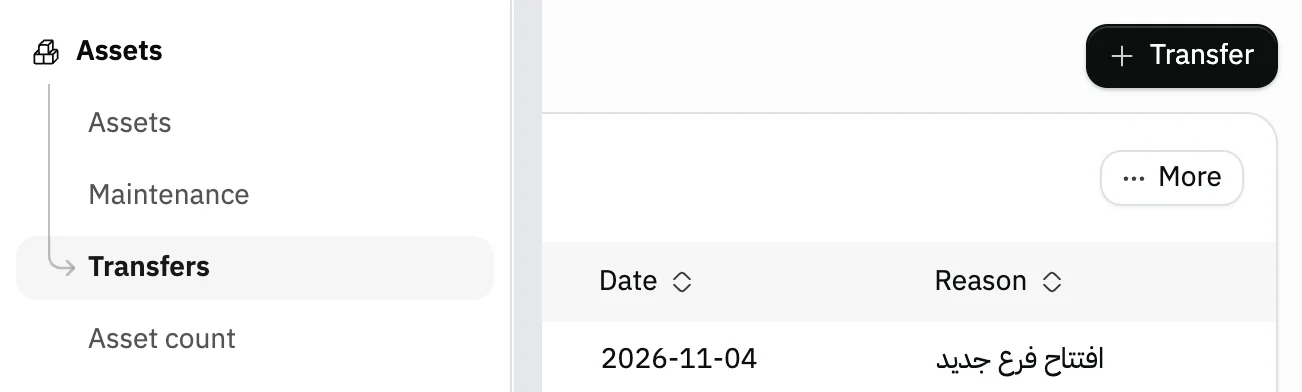
Image key - Transfers in the sidebar
- The Transfer button
Step 2: Pick the asset
In the Transfer window open the Asset name field and pick the asset you are moving. Assets are listed by number and name.
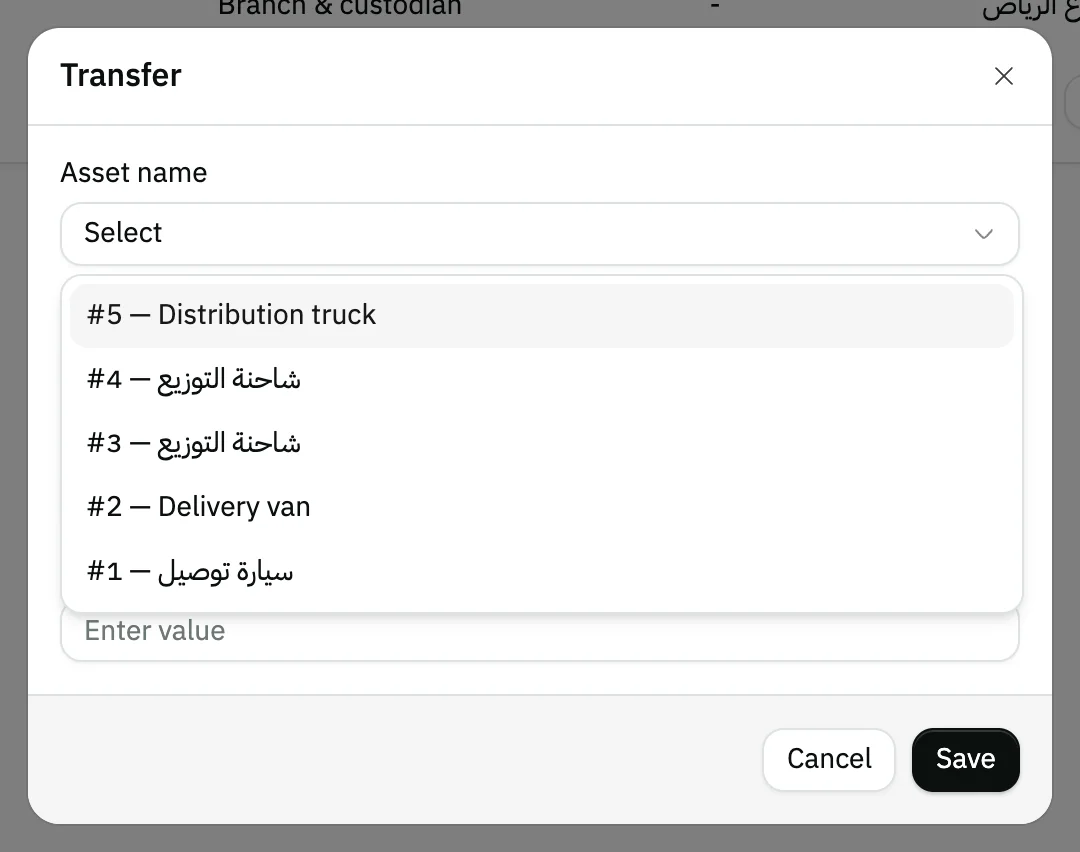
Image key - Asset name
- An asset in the list
Step 3: Choose the transfer type
Choose the Transfer type: Branch to change the branch, Custodian to change the responsible employee, or Branch & custodian for both. Details
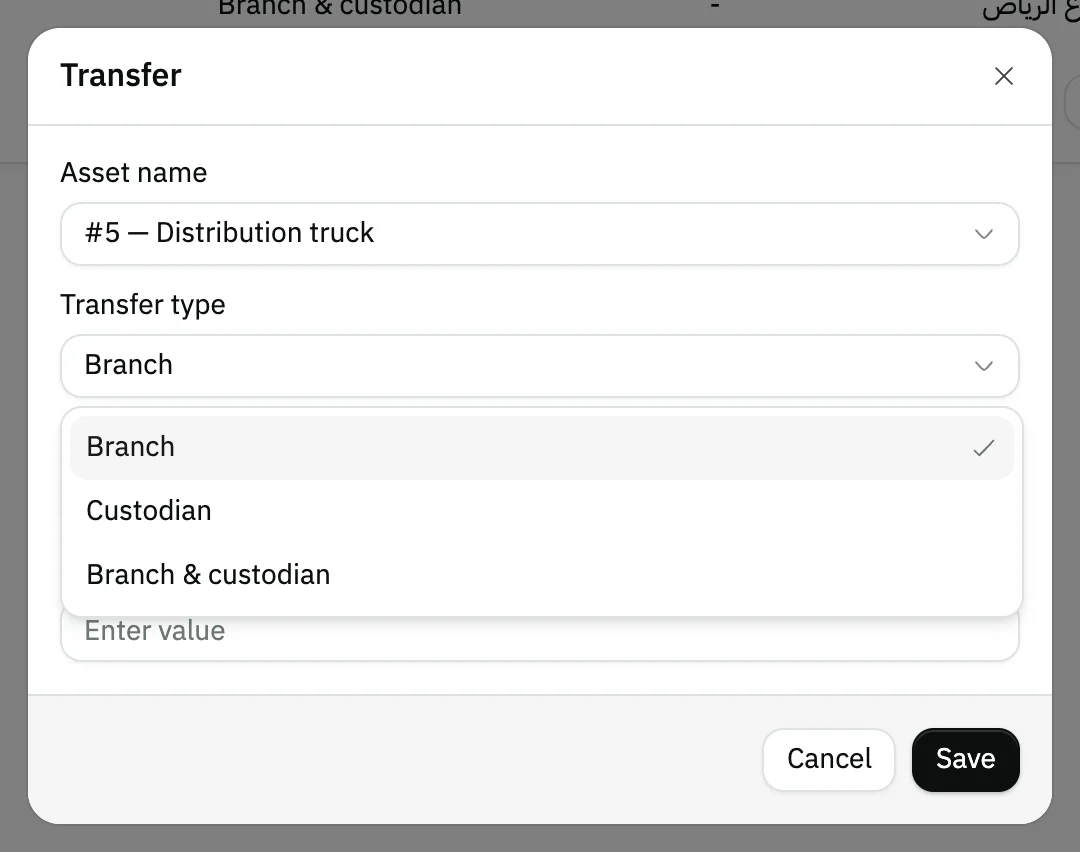
Image key - Transfer type
- The options: branch, custodian, both
Step 4: Choose the destination
A To branch and/or To custodian field shows, depending on the type. Pick the branch or employee the asset moves to.
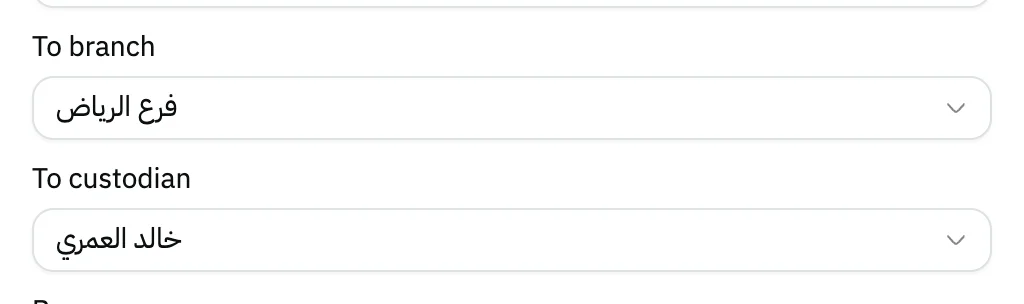
Image key - To branch
- To custodian
Step 5: Type the reason
Type the Reason in a few words, such as “new branch opening”. It is optional, but it stays in the transfer record.
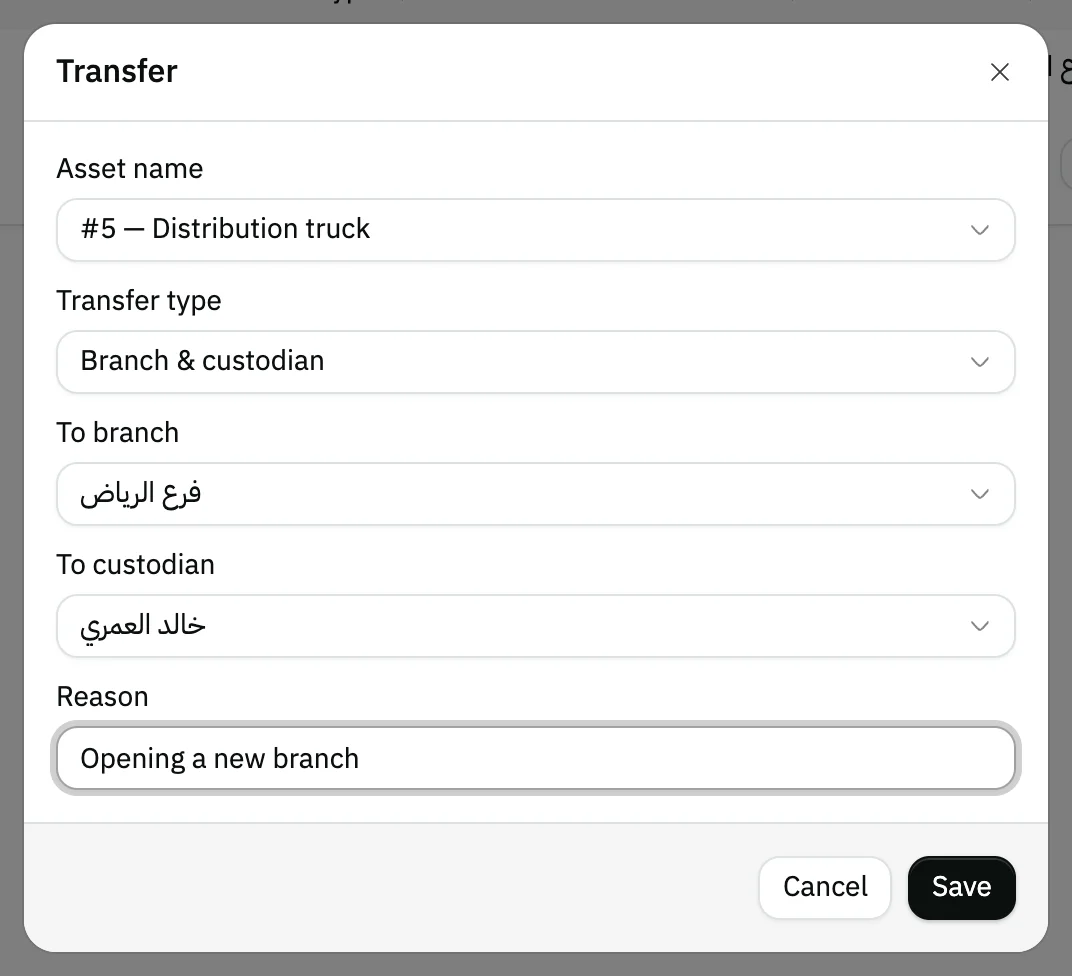
Image key - Reason
Step 6: Save the transfer
Press Save. The window closes, the transfer appears at the top of the list, and the asset's branch and custodian become what you chose. Details

Image key - The new transfer in the list
Messages that block saving
If saving fails, one of these messages shows next to the field. The table gives the cause and the fix.
| Message | Cause | Fix |
|---|---|---|
| «No data» | No asset is picked in Asset name. | Pick the asset, then press Save. |
Advanced details
Each section here explains one point from the steps in depth. Every section has a fixed link you can share.
What changes on the asset
Branch changes the Branch only, Custodian changes the Custodian only, and Branch & custodian changes both. Nothing else on the asset changes.
A transfer posts no accounting entry: the asset's cost stays as it is in the books.
Always pick a destination. If you leave To branch on “—”, the asset's branch is cleared, and likewise its custodian if To custodian stays on “—”.
Where to find the transfer history
The Transfers list is a permanent record: each transfer shows the Asset name, Transfer type, From, To, Date and Reason, dated today. Rows can't be opened or deleted.
If you changed the custodian, it is also recorded in the Custody history on the asset's page, with the reason in Notes.
To check assets in their places see count your assets, and to log their repairs see record asset maintenance.
Common questions
- How do I move an asset to another branch in Snad?
- Open Assets, then Transfers, and press Transfer. Pick the asset, set Transfer type to Branch, choose To branch, then Save.
- How do I change the employee responsible for an asset?
- In the Transfer window set Transfer type to Custodian, pick the new employee in To custodian, and save. The change is recorded in the asset's Custody history.
- Does a transfer affect accounting?
- No. A transfer changes only the branch or custodian and posts no entry, so the asset's cost and depreciation stay the same.
- Can I undo a transfer?
- There is no undo button, and a transfer record can't be deleted. Transfer the asset again back to its previous place; both records stay.