
How to use quick search and keyboard shortcuts in Snad
In Snad press Ctrl + K on the home page or an AI Mode page to open the Command palette, then type a page or action and pick it. If AI Mode is off for your organization, it works on every page. Press Shift + / for this page's shortcuts, and Alt + G then a letter to jump.
In this guide6
Steps
Step 1: Open the command palette
Press Ctrl + K on the home page or an AI Mode page, or on every page if AI Mode is off for your organization. The Command palette opens and you can type at once. On a Mac, press ⌘ + K.
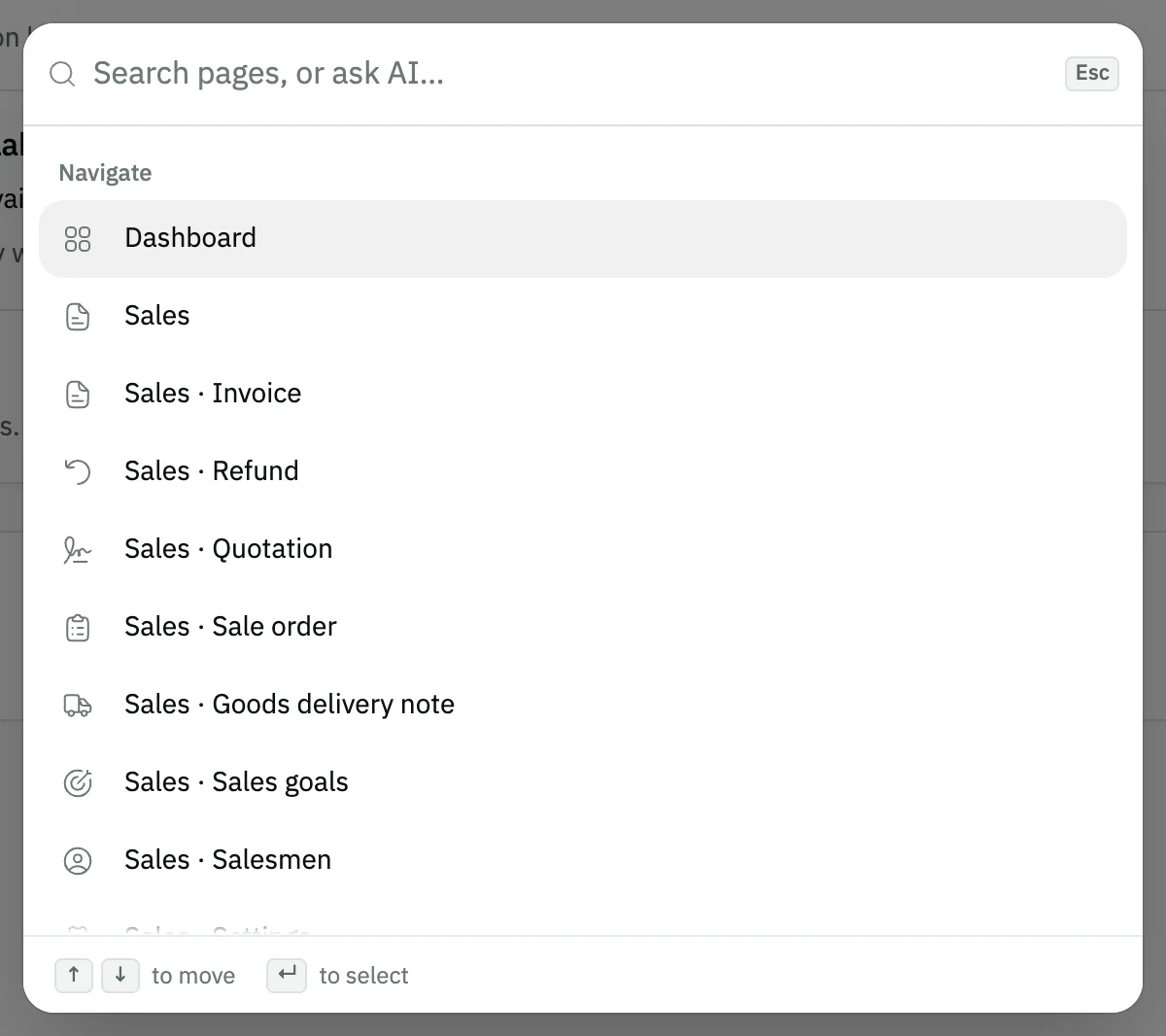
Image key - The search field in the Command palette
- The Navigate group
Step 2: Type a page or action
Type a word such as invoices or customer. Pages appear under Navigate and actions under Create. Press ↓ then Enter to open a row. Details
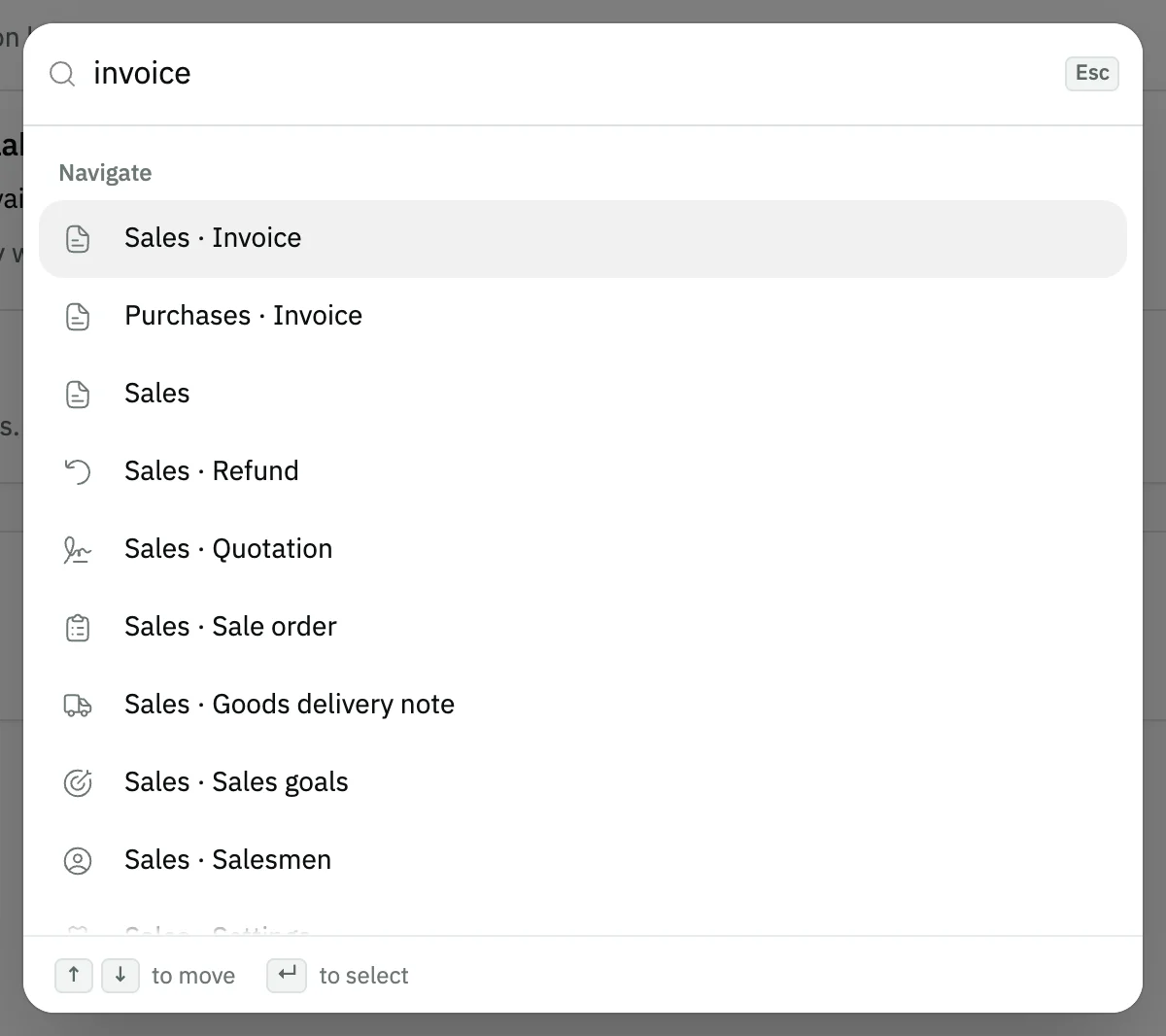
Image key - The word typed in the search field
- The first matching row
Step 3: Show the page shortcuts
Press Shift + / or the keyboard button at the top. Keyboard shortcuts lists what is available on this page right now.
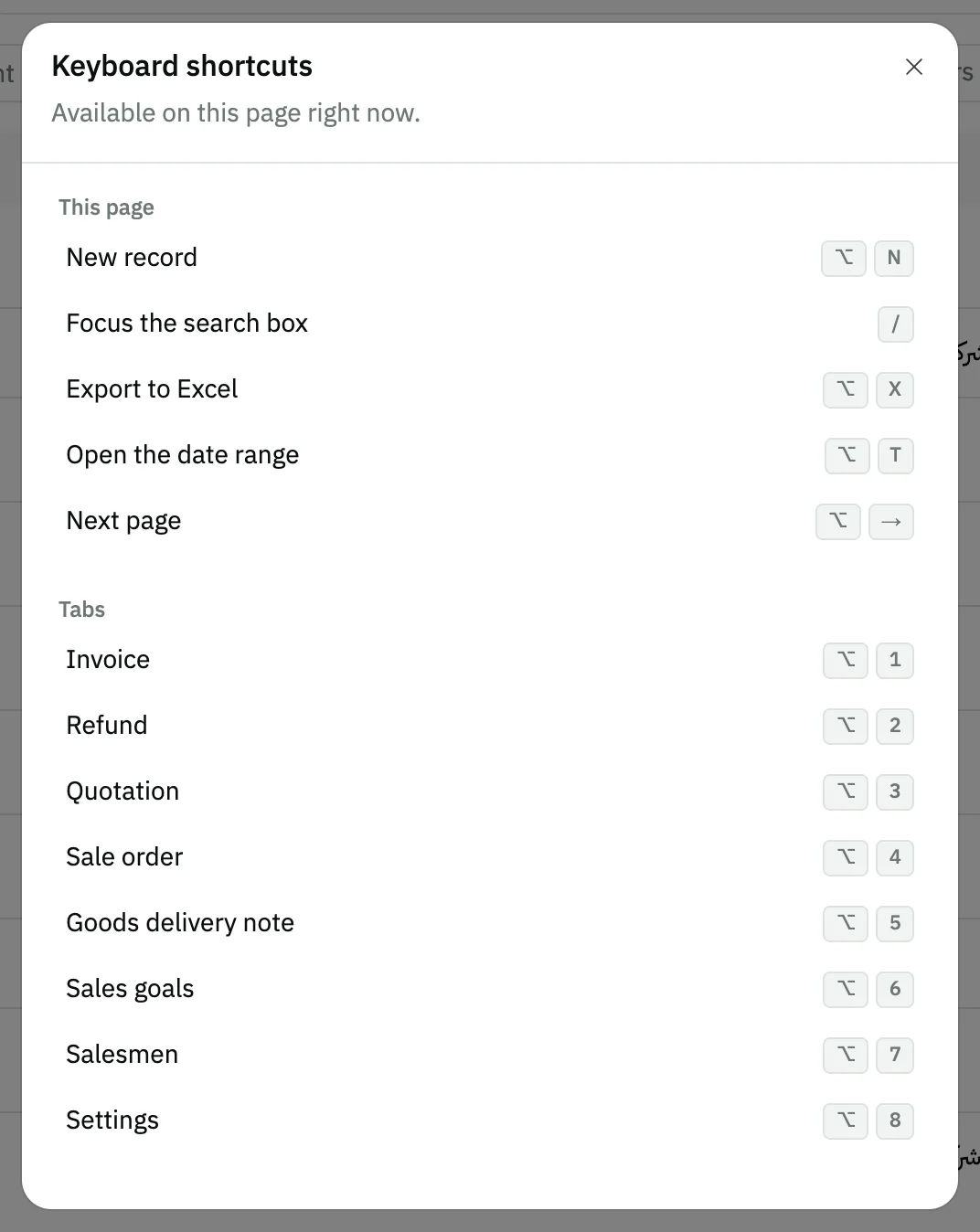
Image key - The Keyboard shortcuts title
- The This page group
Step 4: Use the page shortcuts
On lists: Alt + N starts a New record, / focuses the search box, and Alt + R clears the filters. Details
Step 5: Jump between sections
Press Alt + G, release, then press the section letter, such as S for Sales. The list is under Go to, and the letter alone does nothing.
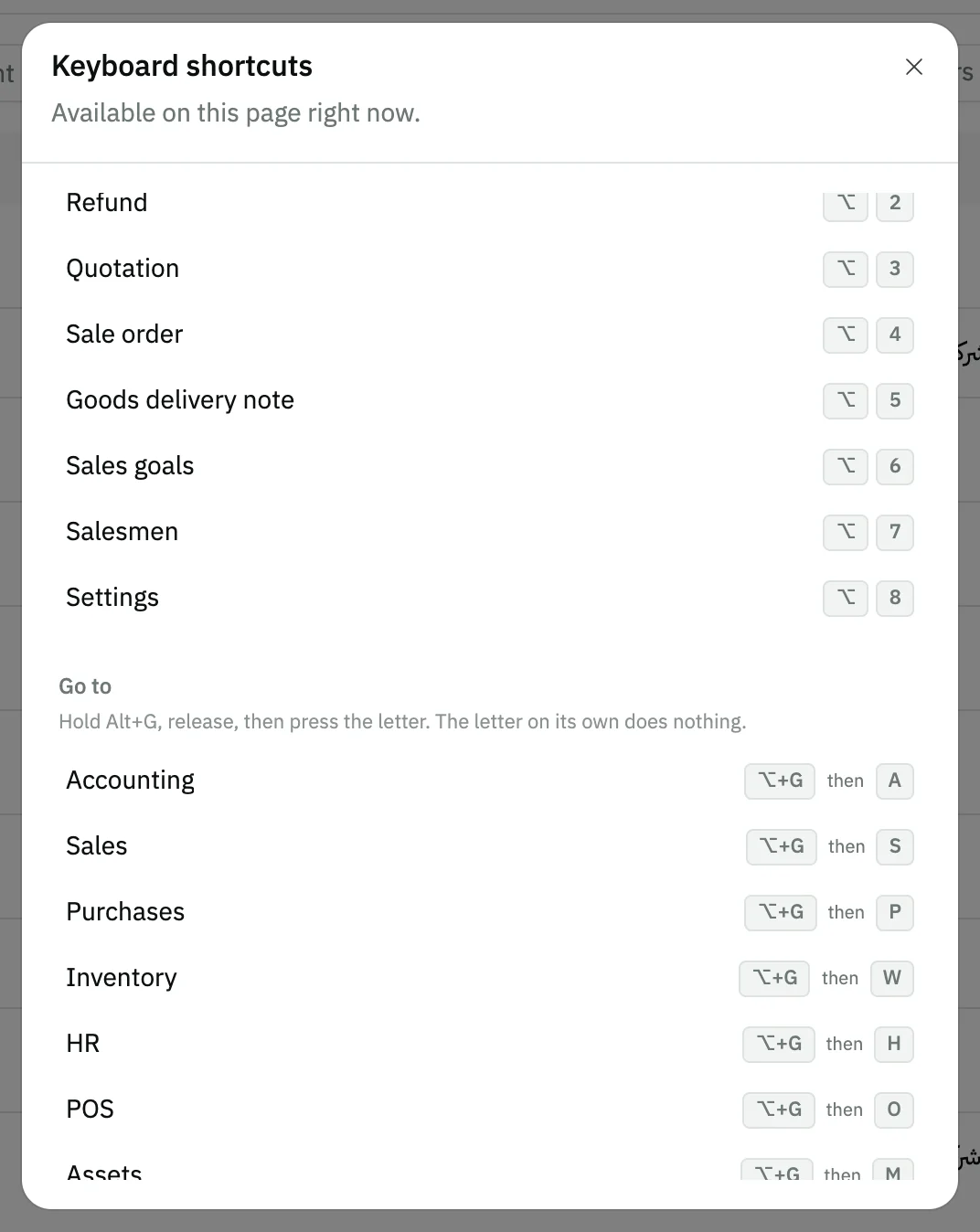
Image key - The Go to group
- A section shortcut: Alt + G, then its letter
Step 6: Shortcuts that work everywhere
Under Everywhere: Ctrl + B hides or shows the sidebar, and Ctrl + J opens or closes AI Mode.
Messages that block saving
If saving fails, one of these messages shows next to the field. The table gives the cause and the fix.
| Message | Cause | Fix |
|---|
Advanced details
Each section here explains one point from the steps in depth. Every section has a fixed link you can share.
Form and invoice shortcuts
On an invoice or form: Ctrl + S Save, Alt + A Add a line, Alt + P Print. To move between records use Alt with the arrow keys.
On a saved record's page: Alt + H Open or close the activity log. Details in the activity log.
In the Arabic interface the two arrows swap, so "next" always follows the reading direction. A full example is in creating a sales invoice.
Why a shortcut doesn't fire while you type
Inside a text field or a dropdown the Alt shortcuts pause so they don't clash with typing. Ctrl + K, Ctrl + S and Ctrl + B keep working.
Press Esc or leave the field, then repeat the shortcut.
The Ask AI row in the palette
If AI Mode is available to you, the palette shows an "Ask AI" row with the words you typed. Choosing it really sends your question to AI Mode. On other pages Ctrl + J opens the AI Mode panel instead of the palette.
To find a page only, skip that row and pick one under Navigate. To learn the feature, see getting started with AI Mode.
Common questions
- What is the quick search shortcut in Snad?
- Ctrl + K on Windows, ⌘ + K on a Mac. It opens the Command palette on the home page and AI Mode pages, and on every page if AI Mode is off for your organization.
- How do I find the shortcuts of the page I'm on?
- Press Shift + / or the keyboard button at the top. The list changes from page to page and shows only what is available now. Try it on the dashboard, where Alt + R refreshes the figures.
- Do shortcuts work on an Arabic keyboard?
- Yes. Shortcuts follow the key's position, not the letter printed on it, so press the same key in any input language.
- Why does the letter alone do nothing after Alt+G?
- Navigation is a sequence: press Alt + G first and release, then press the letter. The letter alone won't move you, to avoid jumping pages by accident.