
How to edit your business details in Snad
To edit your business details in Snad ERP, open Settings at the bottom of the sidebar, choose Organization information, then press Update. Change any field, from the name and commercial record to Country, Currency and Time zone, then press Save.
In this guide5
Steps
Step 1: Open the organization information
Press Settings at the bottom of the sidebar and the sidebar turns into the settings menu. Then choose Organization information. Details
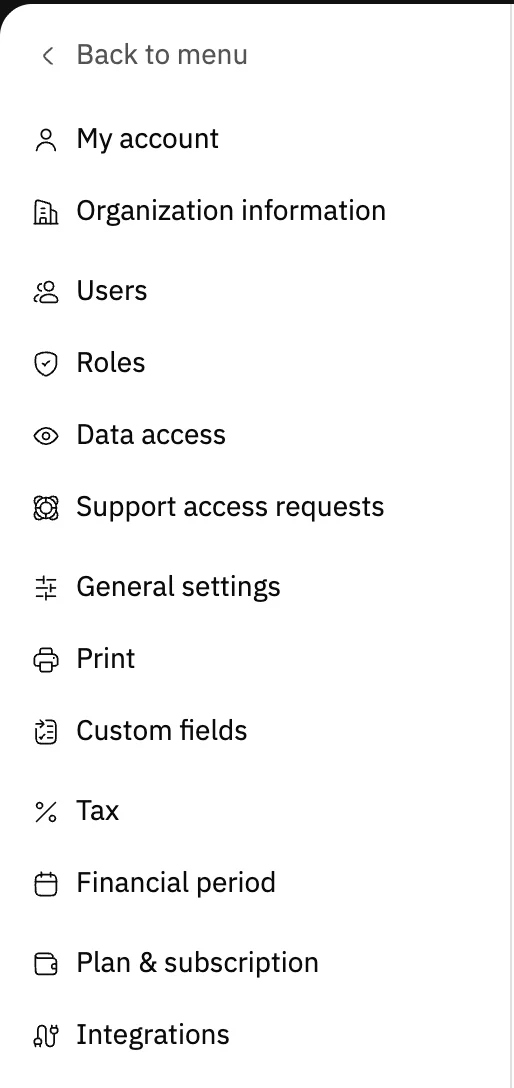
Image key - Organization information
Step 2: Press Update
The page shows your logo and current details. Check them, then press Update to open the edit window. Details
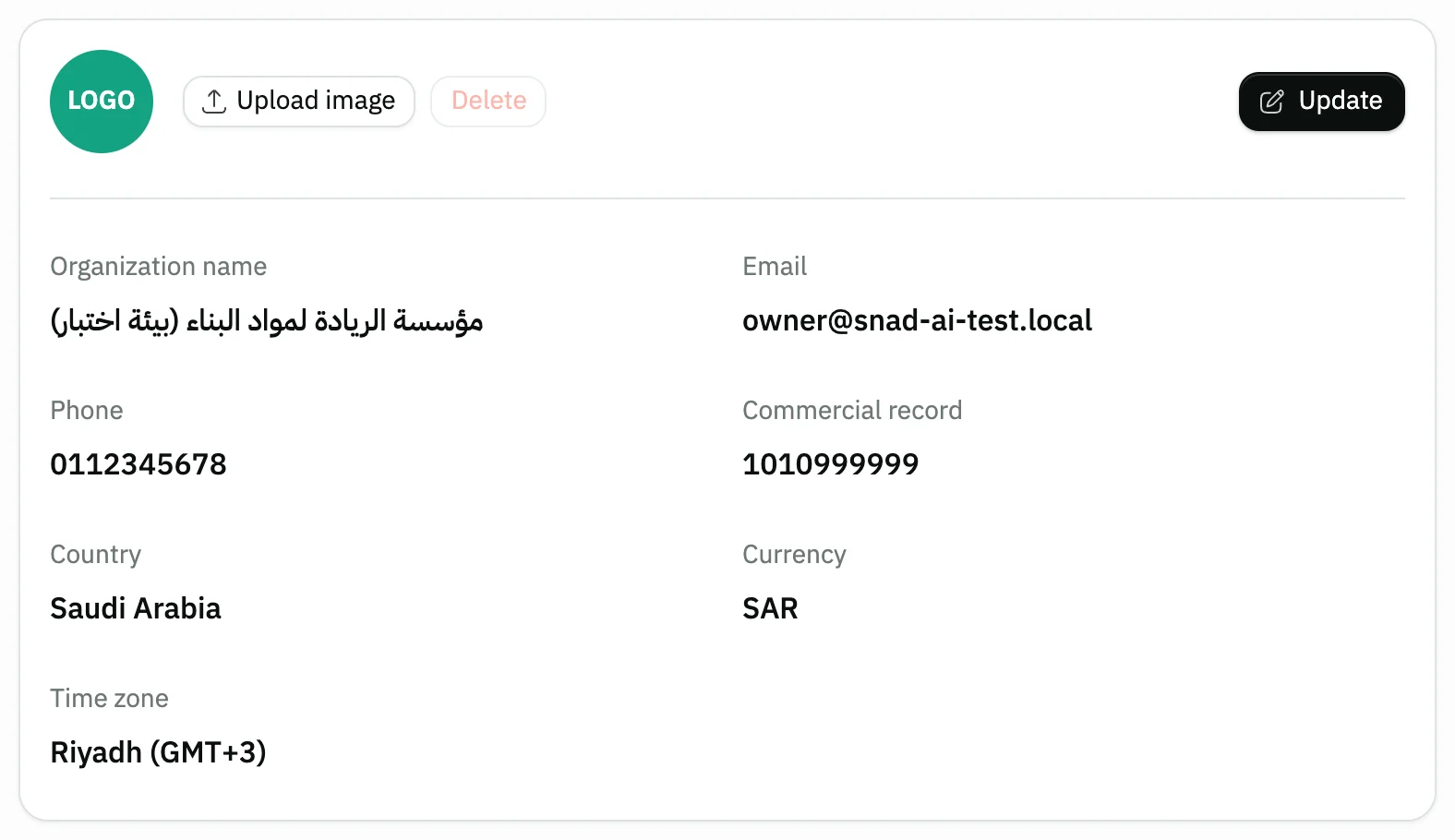
Image key - The Update button
- Upload image for the logo
- The current details
Step 3: Edit the business details
In the Update organization profile window, edit the Organization name, Phone, Email, Business field, Commercial record and Tax ID. Details
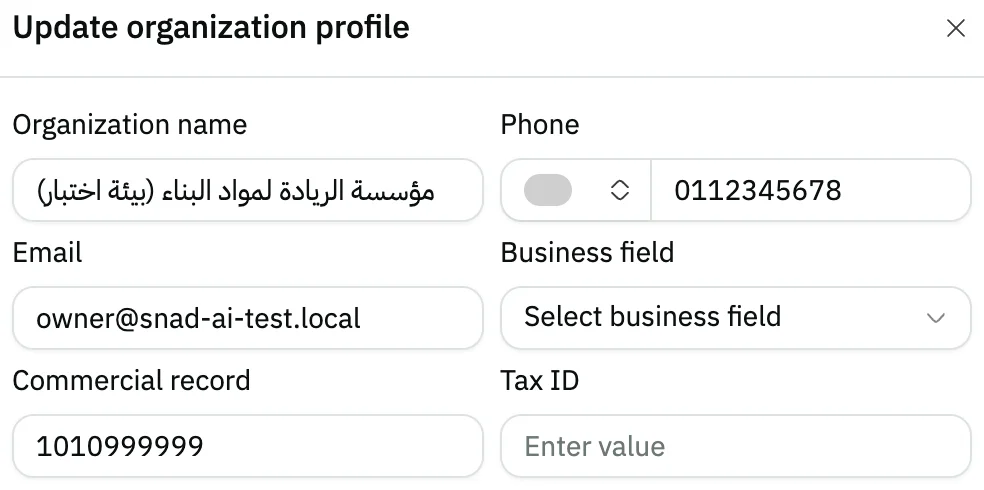
Image key - Organization name (3 characters or more)
- Phone
- Business field
- Commercial record
- Tax ID
Step 4: Pick country, currency and time zone
Pick the Country and Currency, then the Time zone your business works in. Details
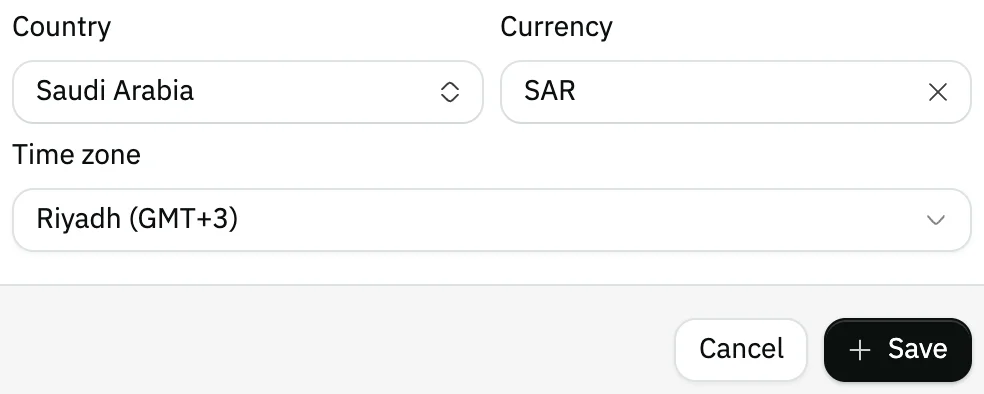
Image key - Country
- Currency
- Time zone
- The Save button
Step 5: Save the changes
Press Save at the bottom of the window. It closes, and the new details show on the organization information page. Details
Messages that block saving
If saving fails, one of these messages shows next to the field. The table gives the cause and the fix.
| Message | Cause | Fix |
|---|---|---|
| «يجب أن يحتوي النص على 3 حرف على الأقل (the app shows this message in Arabic)» | The organization name is shorter than 3 characters. | Type at least 3 characters in Organization name. |
| «البريد الإلكتروني غير صالح (the app shows this message in Arabic)» | The email address is not in a valid format. | Type a full address in Email, such as name@company.com. |
| «Phone number already exists» | The number is registered to another business in Snad. | Enter a Phone number that no other business uses. |
Advanced details
Each section here explains one point from the steps in depth. Every section has a fixed link you can share.
Changing or removing the logo
The logo is managed from the top of the card, not from the update window. Press Upload image to choose a new logo, or Delete to remove the current one.
The Delete button stays disabled while no logo is uploaded.
Phone, email and commercial record
Phone and Commercial record are optional, but Email must be a valid address.
Snad doesn't accept a phone number registered to another business, and refuses the save with “Phone number already exists”.
Your personal account details, such as your name and email, are in the my account settings guide.
The ZATCA link takes the Tax ID from here, and the tax rates themselves are set in set up tax.
Country and billing currency
Changing the Country before you subscribe to a paid plan also changes the billing currency your plan is priced in, to match your new country.
After you subscribe, the billing currency stays as it is whatever Country you pick, because your live subscription is priced in it. Correcting it then goes through Snad support.
The payment gateway accepts the Saudi riyal only, so check the Currency before you turn on card payments.
Subscription and billing details are in the manage subscription guide.
What changing the time zone does
The Time zone is the one Snad uses for your business's dates and times. A change applies from the very next request, with no need to sign in again.
No Organization information item?
The page opens for the account admin and for users allowed to view the organization information. Ask your account admin to grant it.
How to grant permissions is in the roles and permissions guide.
Common questions
- Where do I change my company name in Snad?
- From Settings, then Organization information: press Update, edit the Organization name, then press Save.
- How do I add my business logo?
- On the Organization information page, press Upload image at the top of the card and choose the logo.
- How do I change the time zone?
- Open the Update window, choose the Time zone, then Save. The change applies from the next request.
- Why won't Snad accept my business phone number?
- The number is registered to another business in Snad, so “Phone number already exists” shows. Enter another number in Phone.
- Does my plan price change if I change the country?
- Before you subscribe to a paid plan, the billing currency follows the new Country. After you subscribe it stays as it is.