
How to create a sale order in Snad
To create a sale order in Snad ERP, open Sales, then Sale order, and press Create sale order. Pick the customer, add products with Add product, check the quantity and price, then press Save. The saved order page opens, where you convert it to an invoice.
In this guide6
Steps
Step 1: Open the sale order screen
In the sidebar, choose Sales, then Sale order, and press Create sale order above the list. Details
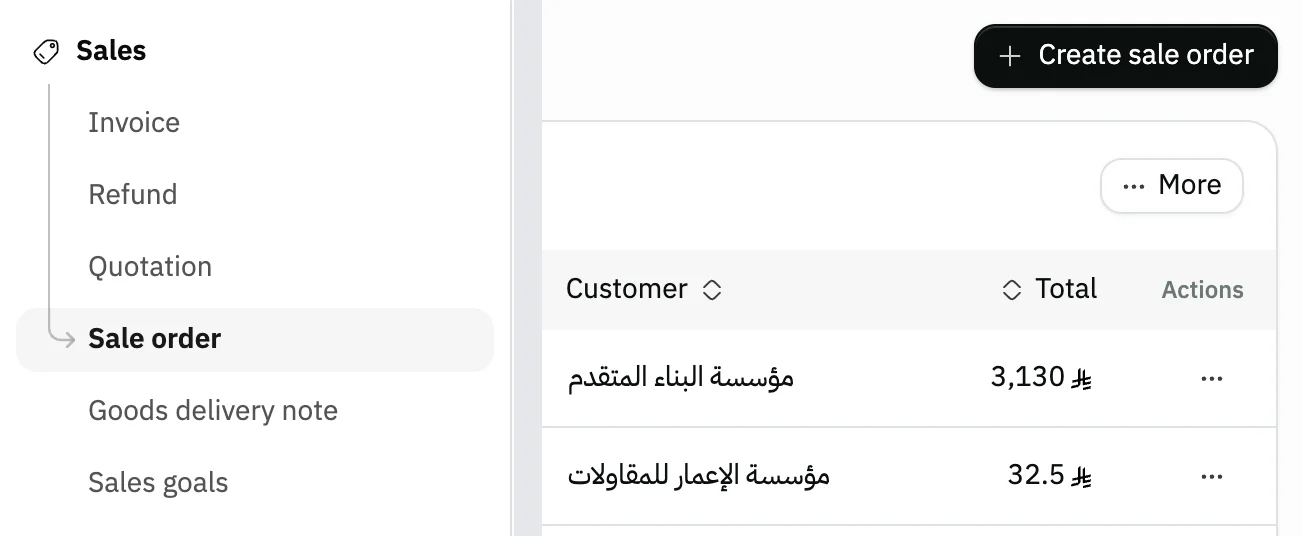
Image key - Sale order in the sidebar
- The Create sale order button
Step 2: Pick the customer and check details
Click the Customer field and pick the customer from the list, then check the Date. If the Branch, Warehouse and Salesman fields show, pick their values (branches, warehouses); they are required.
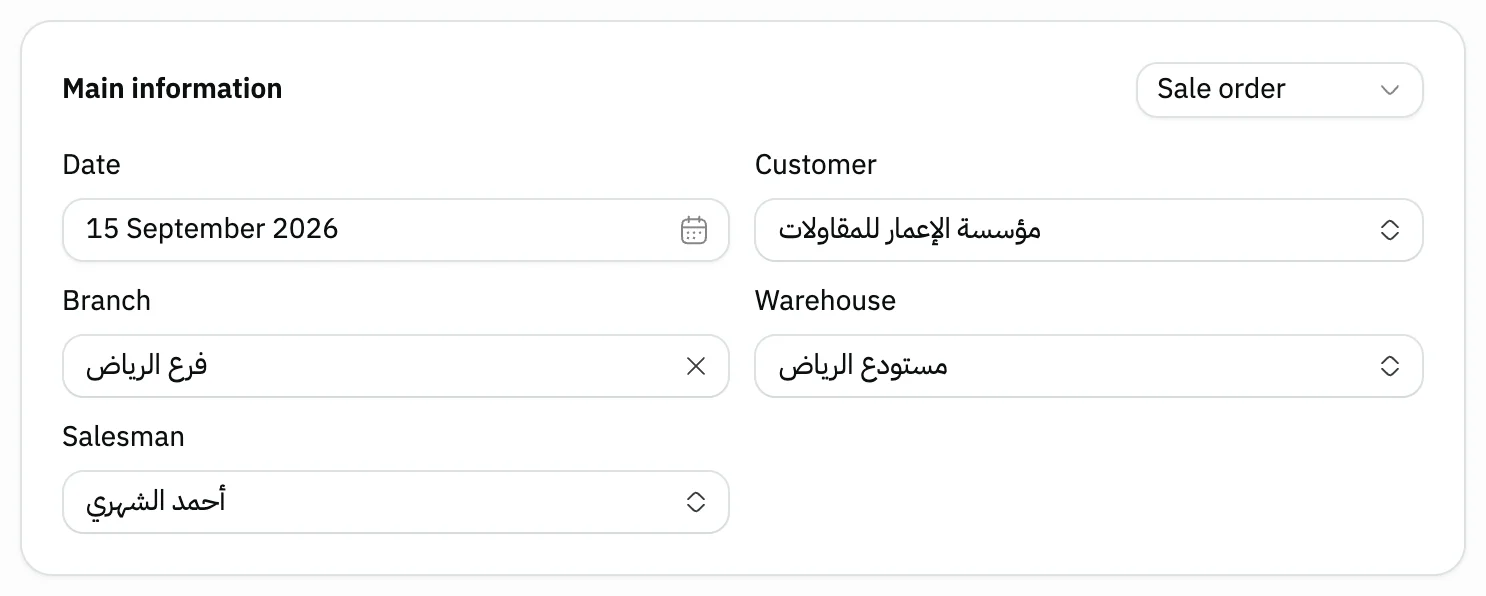
Image key - The Type list: Sale order
- The order Date
- Customer
- Salesman
Step 3: Add the products
Press Add product, search by name or barcode, tick the products you need, then press Apply.
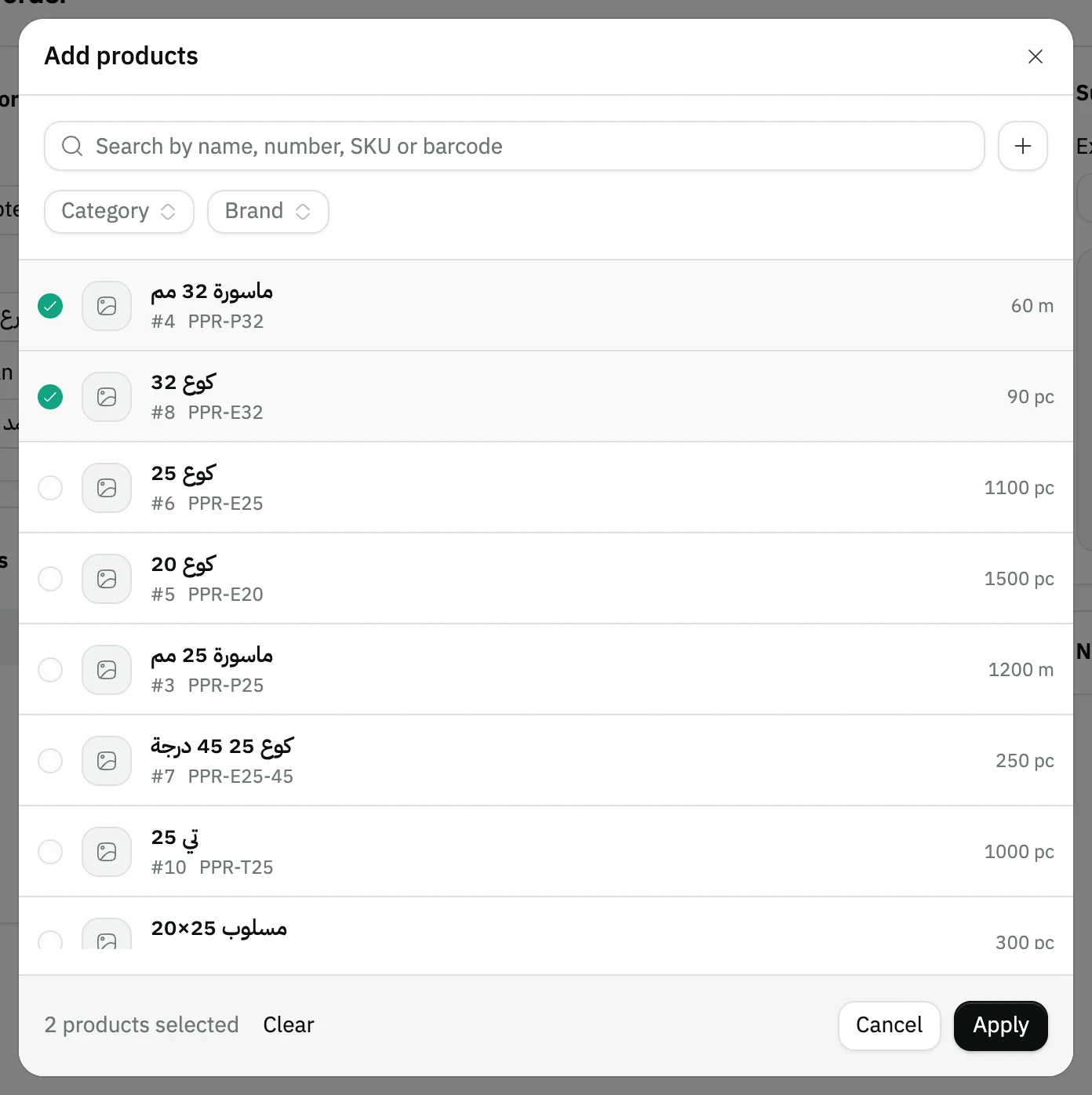
Image key - Search by name, number, SKU or barcode
- A ticked product
- The Apply button
Step 4: Set quantity and price
On each line, enter the Quantity and check the Price. A discount on one product goes in that line's Product discount.
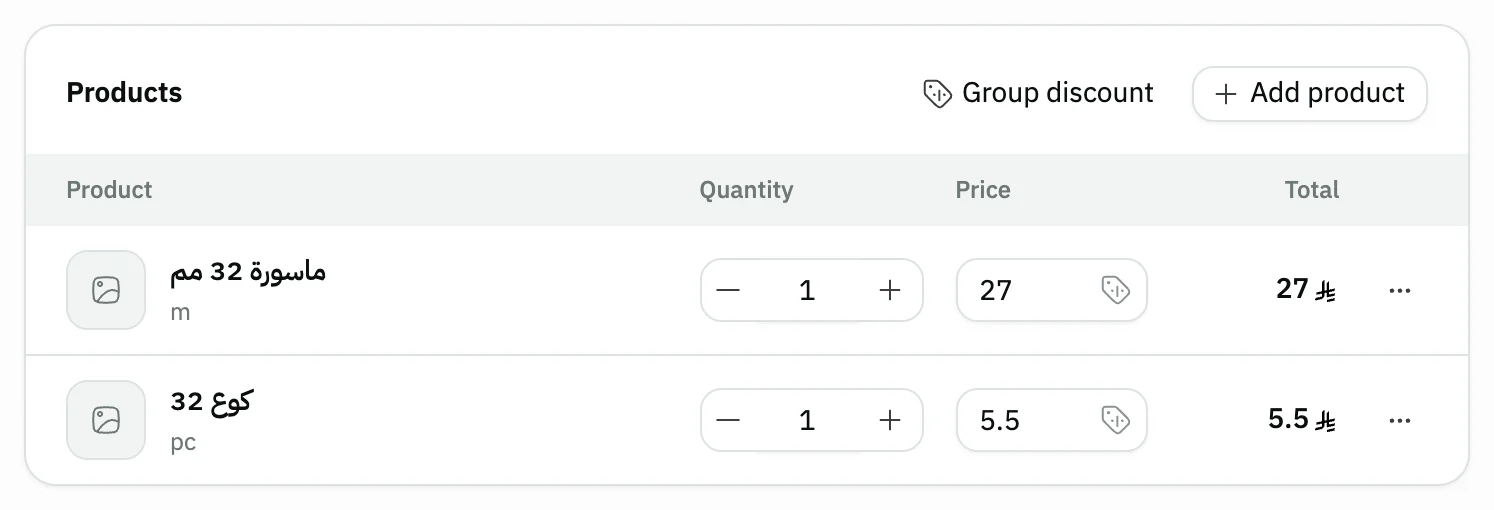
Image key - Quantity
- Price
- Line menu: product info, notes, remove
Step 5: Check the summary and reference
In the Summary, check Extra charge, Discount percentage and the total (tax setup). In Notes and attachments, write the order Reference, such as the customer's purchase order number.
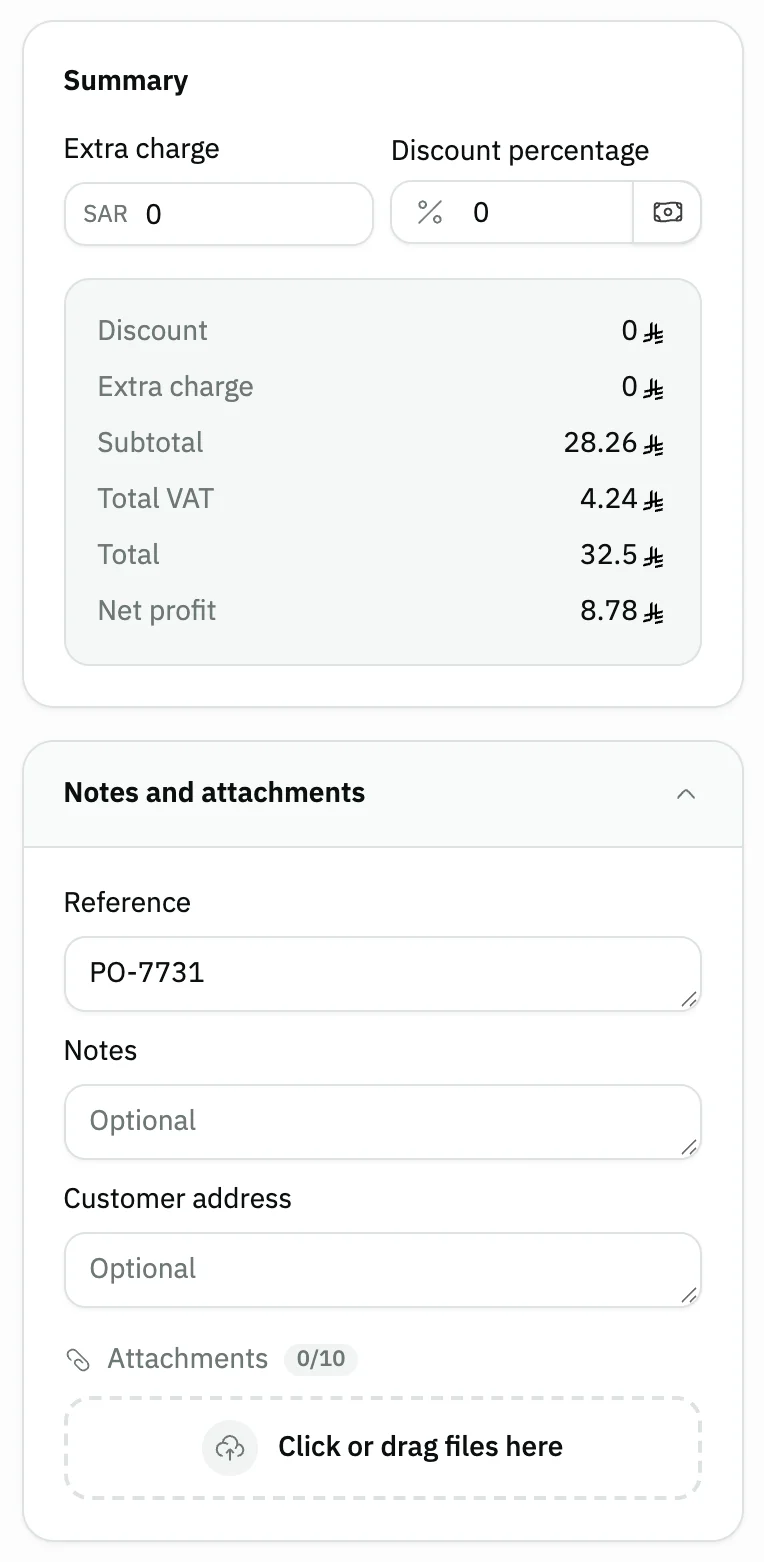
Image key - Extra charge
- Discount percentage
- Tax and total
- Reference
Step 6: Save the sale order
Press Save at the top of the form. The saved sale order page opens next. Details
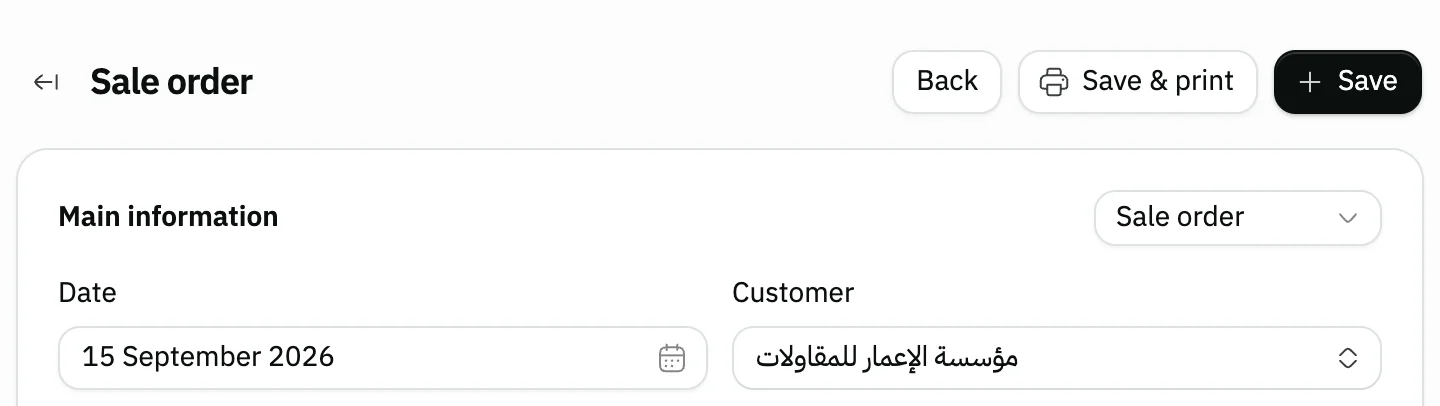
Image key - The Save button
Messages that block saving
If saving fails, one of these messages shows next to the field. The table gives the cause and the fix.
| Message | Cause | Fix |
|---|---|---|
| «Pick a product first» | The sale order has no products. | Add at least one product with Add product. |
| «Enter a price · Enter a quantity» | A line has no price or no quantity. | Fill the missing value on the flagged line. |
Advanced details
Each section here explains one point from the steps in depth. Every section has a fixed link you can share.
Create the order from a quotation
The Type field on the main information card starts on Sale order. Change it to Quotation and a Quotation list field appears, showing each quotation's number and customer.
Pick a quotation and Snad copies its customer, branch, warehouse, salesman, lines, discount, charges, notes and reference into the order. Check them, then save.
The list shows the first 20 open quotations, and the rest load as you scroll. Search is optional and covers all open quotations, by quotation number or customer name. If the read fails, an error line and a Retry button appear.
To create the quotation itself, see create a quotation.
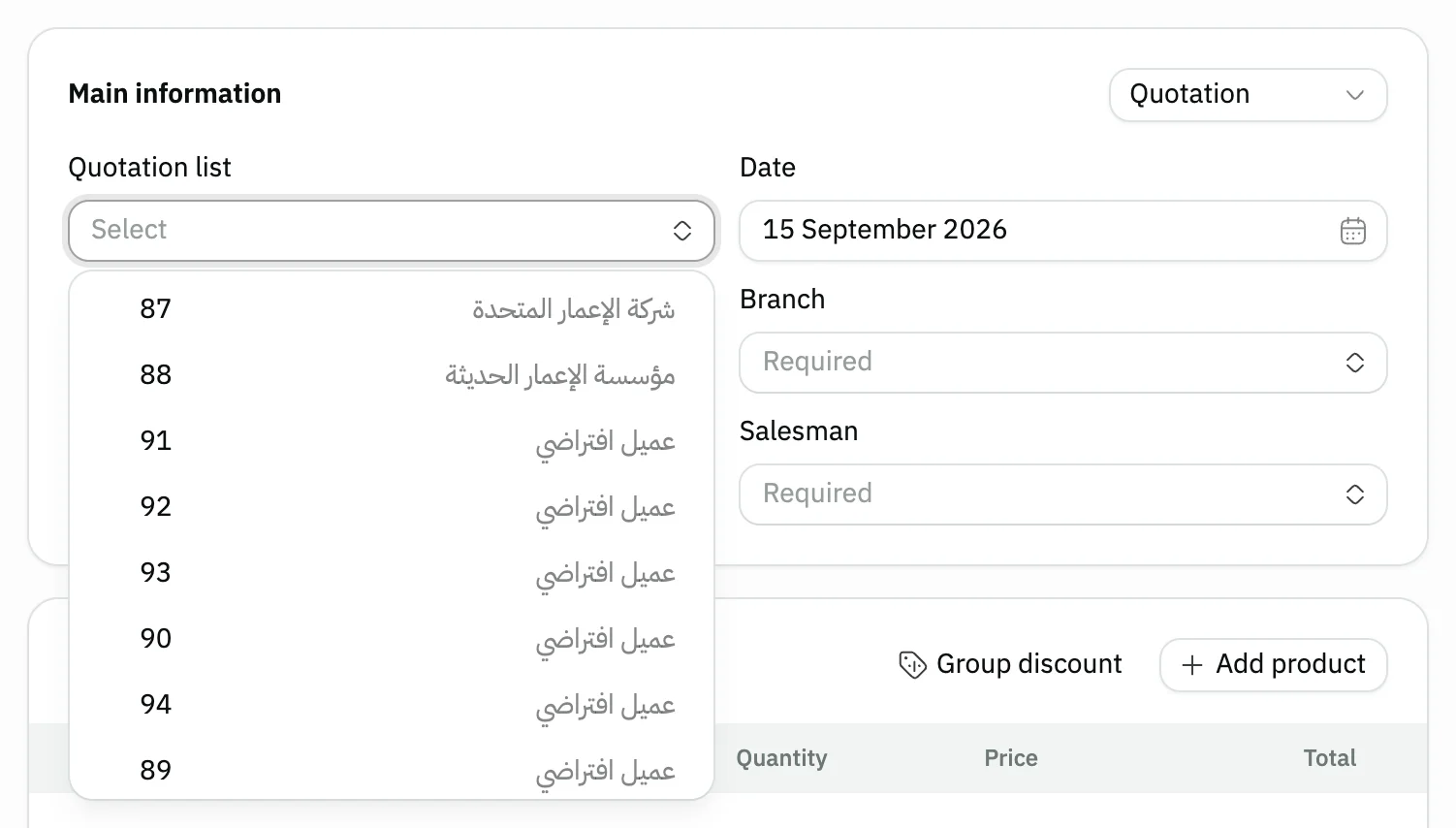
- The Quotation list
- A quotation with its number and customer
The Type list on the form
The Type list offers two options: Sale order and Quotation. It shows only while you create a new order, and disappears after saving.
The invoice form has the same Type list; choose Sale order there to create the invoice from an existing order.
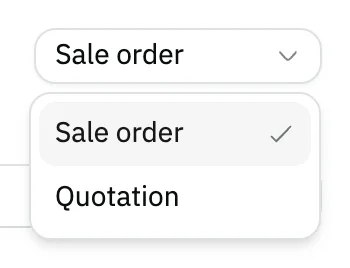
- Two options: sale order and quotation
After saving: convert to an invoice
On the saved order page you find Convert to invoice and Print (print settings and the print template). Convert to invoice shows to users allowed to create invoices, as long as the order hasn't been converted yet.
Converting opens the invoice form with the order's data carried over. When you save the invoice, the order counts as used and its convert button disappears.
Unlike a quotation, the order has no button to share it with a public link.

- The Convert to invoice button
Common questions
- How do I add a new sale order in Snad?
- Open Sales, then Sale order, and press Create sale order. Pick the customer, add the products, then press Save.
- How do I create a sale order from an existing quotation?
- On the new order form, change the Type to Quotation, then pick the quotation from the Quotation list. Its data moves into the order.
- How do I convert a sale order to an invoice?
- Open the saved order and press Convert to invoice. An invoice form opens with the order's data. Check it, then save the invoice.
- Why don't I see the Convert to invoice button?
- It shows only to users allowed to create invoices, and only for an order not converted yet. After an invoice is saved from it, the button disappears.