
How to design a print template in Snad
To design a print template in Snad ERP, open a template from Print, drag blocks from the Blocks tab onto the page, and click a block to edit its Properties. Set the Page and Theme tabs, then press Save and Preview.
In this guide6
Steps
Step 1: Open the template in the editor
Click the template card under Print. The page sits in the middle, Blocks on one side, and the Properties of whatever you pick on the other. Details
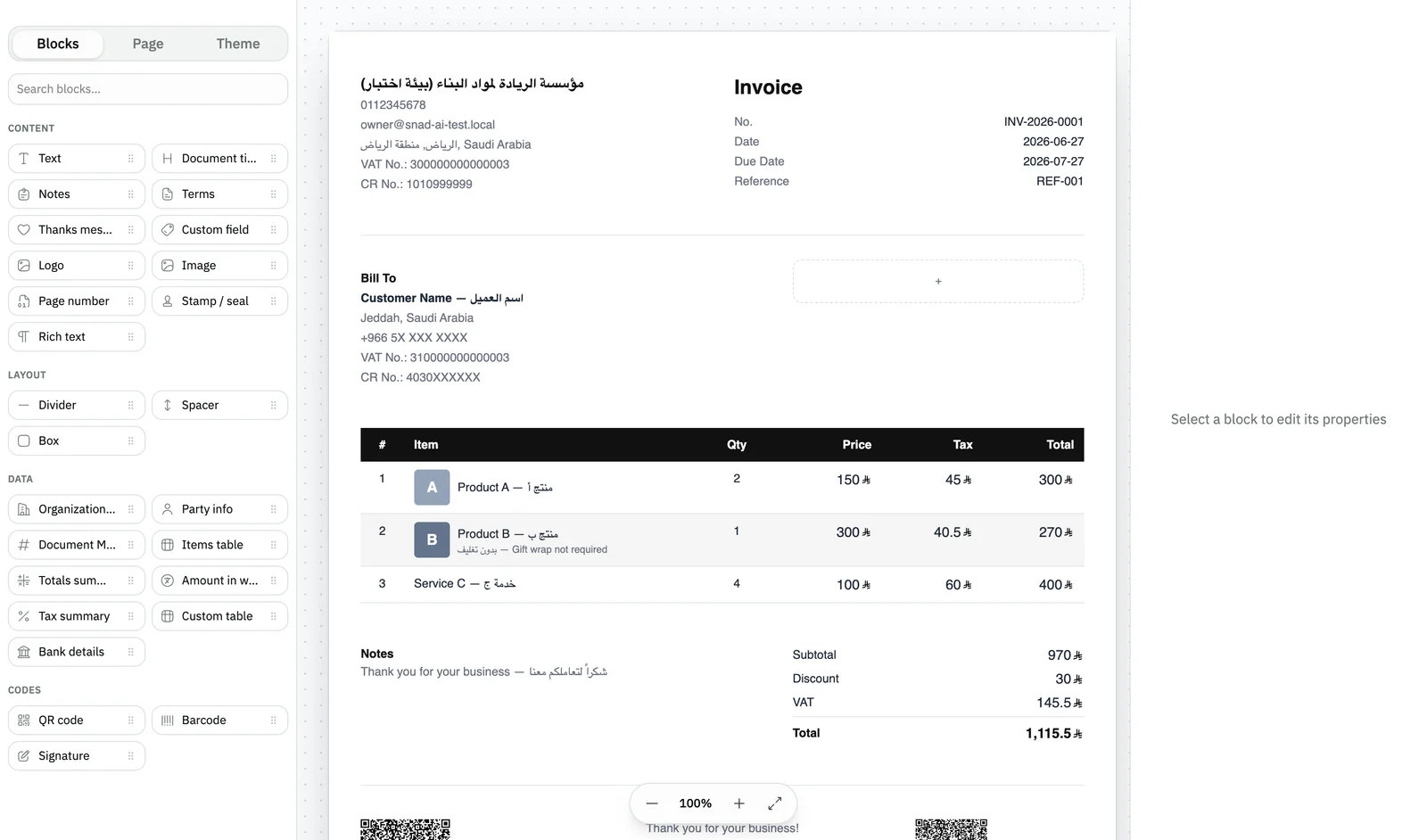
Image key - The Blocks, Page and Theme tabs
- The template page, with sample data
- Select a block to edit its properties
Step 2: Add a block to the page
On the Blocks tab, search with Search blocks… or pick a block such as QR code under Codes, then drag it to where you want it. Details
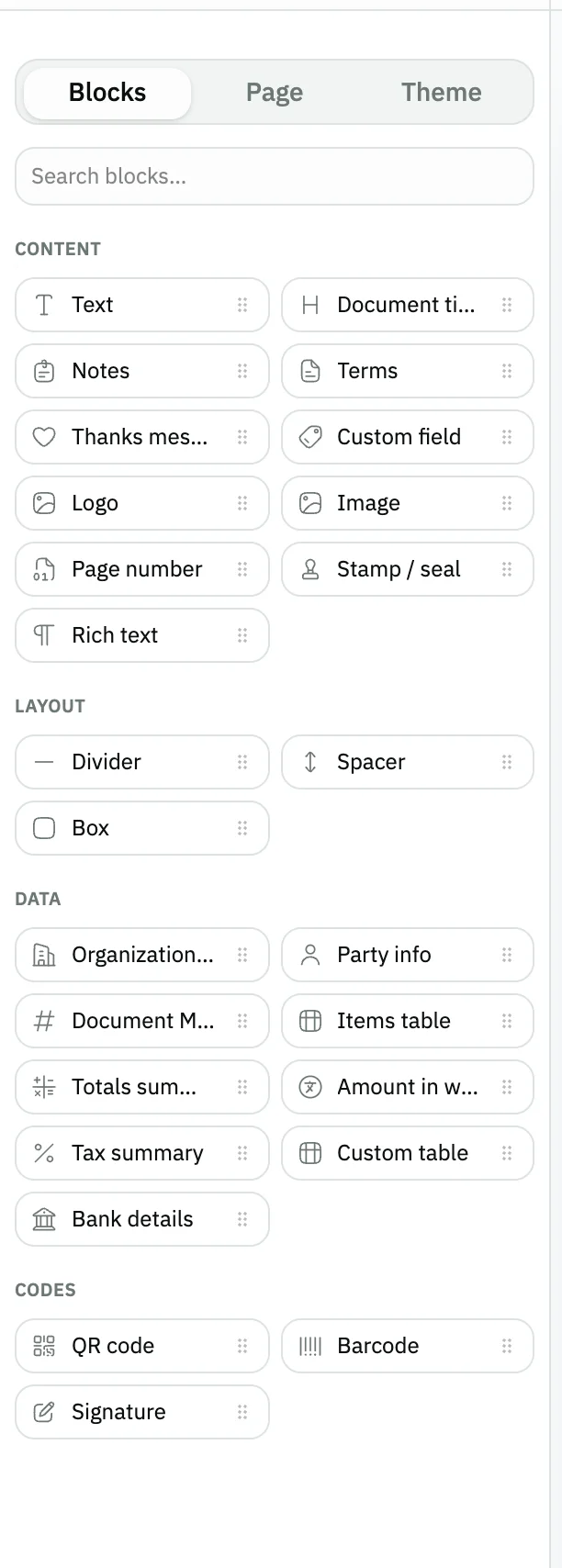
Image key - Search blocks…
- The Codes category
- The QR code block
Step 3: Edit the block's properties
Click a block on the page. You edit its Properties, Style and Layout, including its Column span. Details
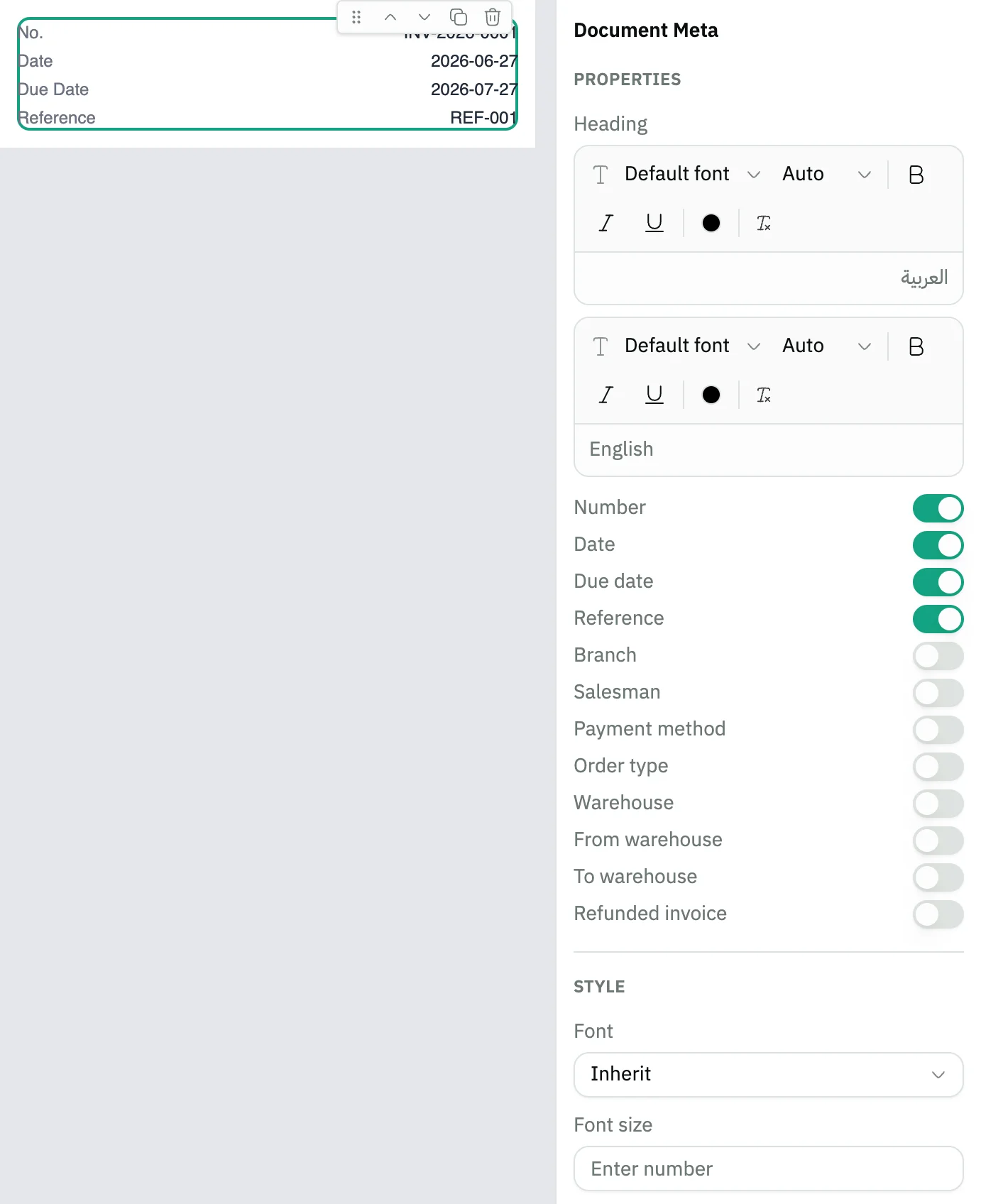
Image key - The selected block, outlined
- Properties
- Style
Step 4: Set up the page
Open the Page tab and set the Page size, Orientation and margins. It also has Page background and Watermark.
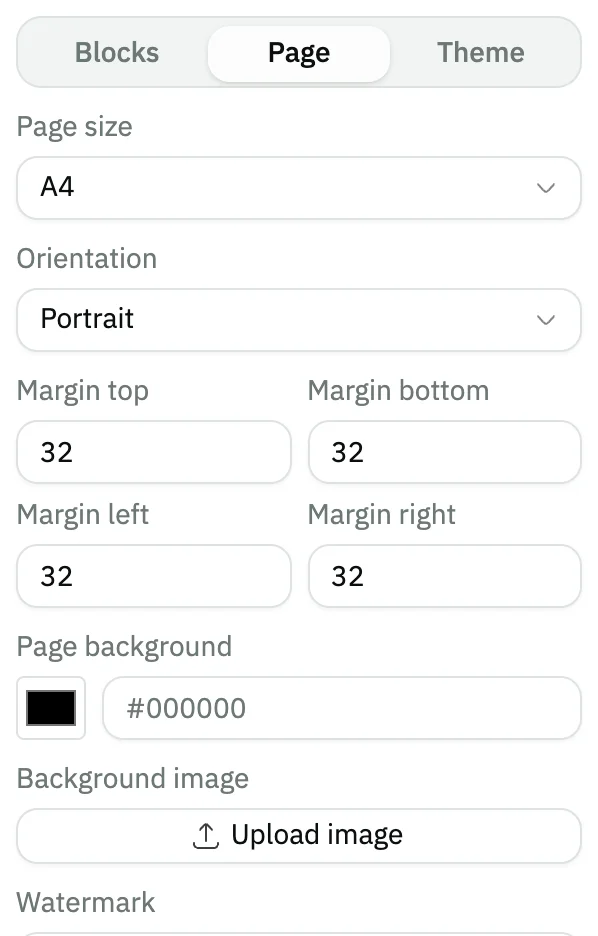
Image key - The Page tab
- Page size
- Orientation
Step 5: Pick colors and fonts
Open the Theme tab. Choose a color from Color palettes and a font from Font pairings, and the page changes at once. Details
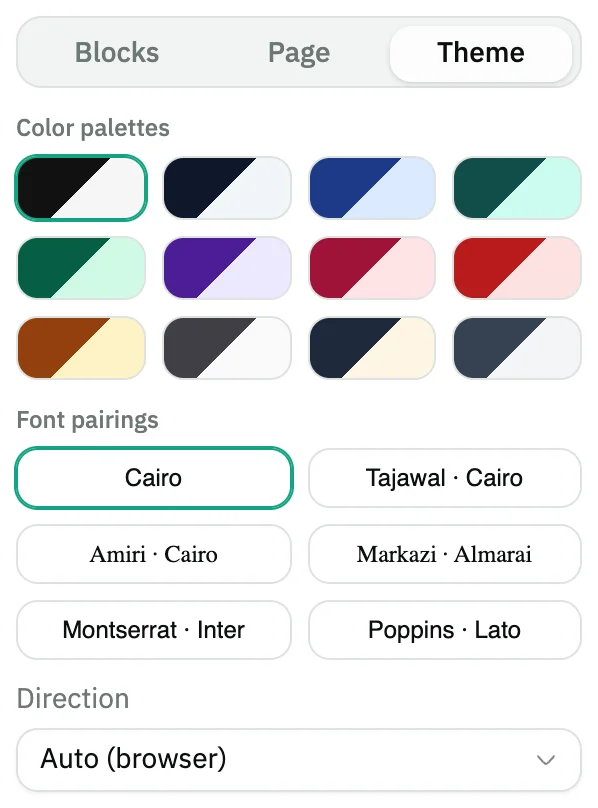
Image key - The Theme tab
- Color palettes
- Font pairings
Step 6: Save and preview
Press Save, then Preview to see the template printed. Set active makes it the one Snad uses, then Save. Press Back to leave. Details

Image key - The template name
- Set active
- Undo and Redo
- Save
- Preview
- Back
Messages that block saving
If saving fails, one of these messages shows next to the field. The table gives the cause and the fix.
| Message | Cause | Fix |
|---|---|---|
| «Please enter a name» | You pressed Save while the template name field in the top bar is empty. | Type a template name, then press Save. |
Advanced details
Each section here explains one point from the steps in depth. Every section has a fixed link you can share.
The data you see on the page
The page shows sample data for the template's first document type, not a real document. The numbers and names are only there to show the layout.
When you print for real, the blocks fill with the document's own data (how to create a sales invoice).
Block types and how to insert them
Blocks come in four categories: Content, Layout, Data and Codes. They include the Items table, Document title and QR code.
While you drag, divider lines appear between blocks, and dropping on one inserts the block there. You can also drag a block already on the page to move it.
Block buttons and row layout
A small button bar appears above a block when you select or hover it: drag, move up, move down, duplicate and delete.
Under Layout you set the Column span from 1 to 12, and press Add row for a new row in the same section.
Fine control over the theme
Below the palettes and fonts under Theme: Direction, base font size, corner radius, spacing, text and table-header colors, and a custom Primary color.
Saving, undoing and activating
Save stays disabled until you change something, and Ctrl + S saves too. Undo and Redo also work with Ctrl + Z and Ctrl + Shift + Z.
Set active in the bar is saved only after you press Save. Activating from the template card is covered in how to set up printing.
Next to Set active is the branch list, which starts on All branches. Pick one or more branches so the template prints only their documents, then Save.
Common questions
- How do I add a QR code to the printed invoice?
- In the editor open the Blocks tab and drag QR code from Codes onto the page. Then press Save.
- How do I change the colors of the printed invoice?
- Open the Theme tab and choose a color from Color palettes, or change the Primary color. Then press Save.
- Will my customers' data show in the editor?
- No. The editor page uses sample data, and fills with the document's data when you print for real.
- Why is the Save button disabled?
- Because you haven't changed anything in the template yet. It turns on after any edit, including renaming.
- Can I undo my last edit?
- Yes. Press Undo in the top bar or Ctrl + Z, and Redo to bring it back.