
How to run an action with AI Mode in Snad
To run an action with AI Mode in Snad, ask for the operation in the chat. It shows a preview of what will happen without changing anything. Review the preview, then press the confirm button or Cancel. After it runs, the result is in the chat and every operation is on the History page.
In this guide8
Steps
Step 1: Ask for the operation in the chat
Write what you want done, such as “Create a quotation for a customer”. Sending changes nothing in your data. AI Mode prepares a preview first. Details
Step 2: Answer its question if one shows
If it is missing a detail, it shows a card with its question. Answer with a choice or by typing the value. If a Send button shows, press it.
Step 3: Fill in the fields card
For an incomplete sales invoice, one card asks for everything: pick the customer, fill each row, then press Continue. Press Cancel to back out.
Step 4: Review the preview
The preview shows what will be created or changed, with Warnings, Assumptions AI Mode made and This will also. Read it all before confirming. Details
Step 5: Confirm the operation or cancel it
Press the confirm button at the bottom of the preview, which reads Run, Confirm or Confirm and carry out depending on the operation. To back out before it runs, press Cancel. Details
Step 6: Follow the run
A long operation runs in the background, so keep working. Find it with its progress on the Running page, where you can press Stop if needed.
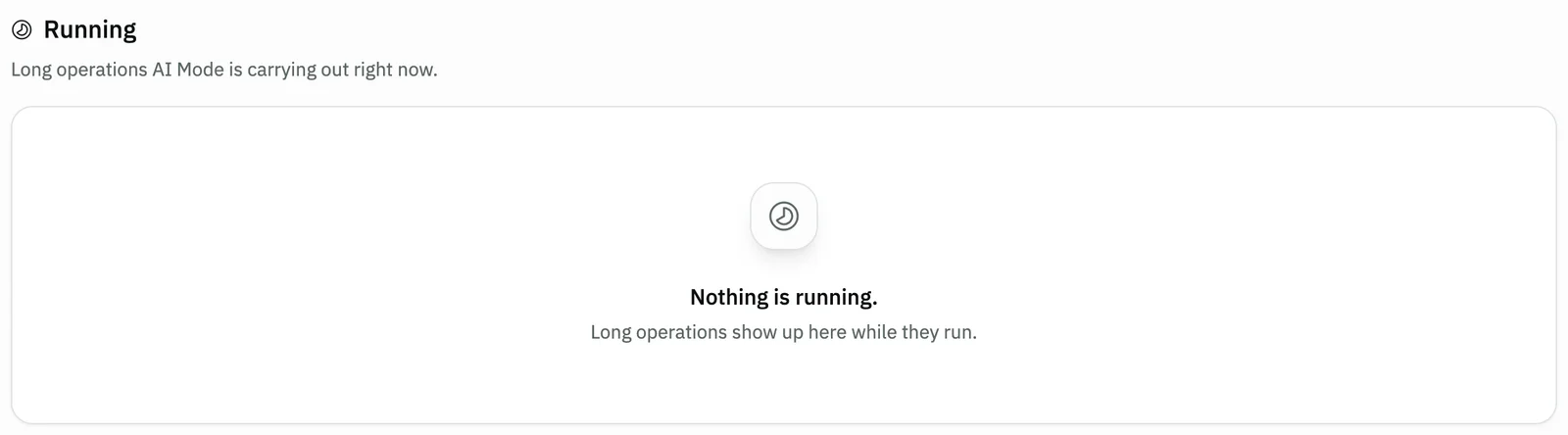
Image key - The Running page
- The message shown when nothing is running
Step 7: Read the result
A card Operation completed shows in the chat with a button to open the resulting record, such as Open invoice. If part of it failed, you find it under What failed. Details
Step 8: Check the history
Open More actions, then History, to see everything AI Mode did at your request. Filter by operation status or by date, and press any operation for its details and steps. Details
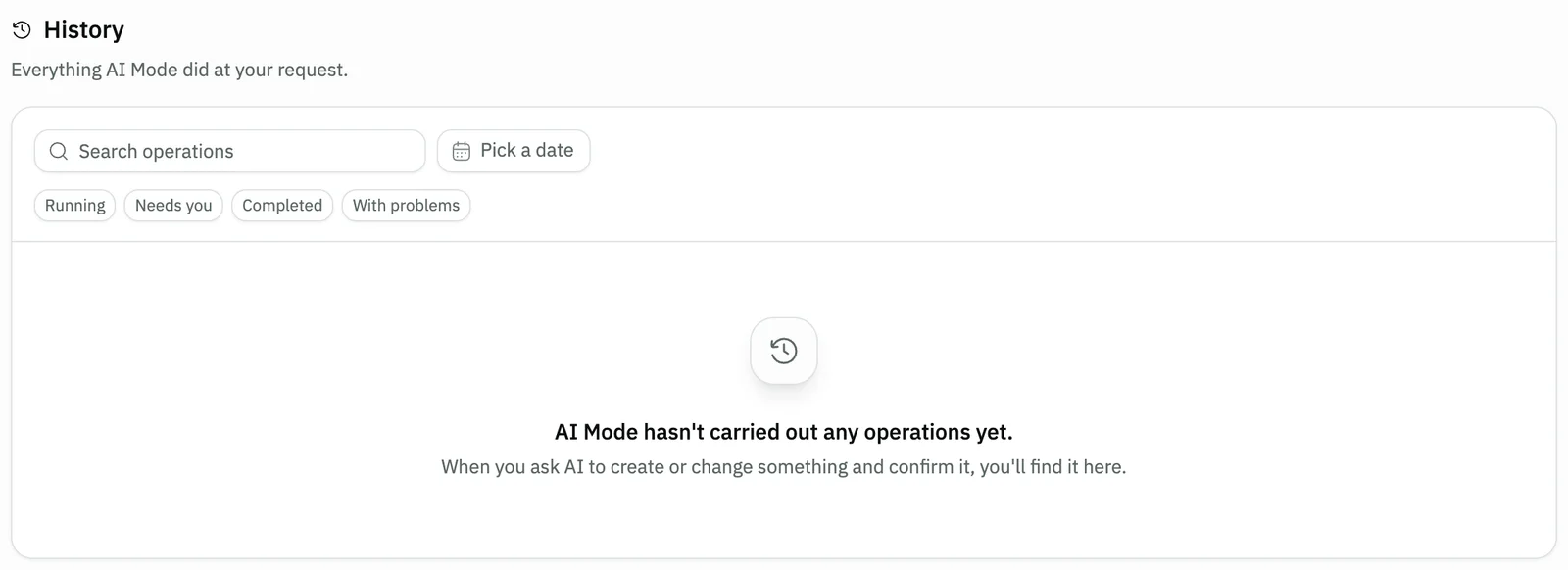
Image key - The History page
- Search, the status buttons and the date
Messages that block saving
If saving fails, one of these messages shows next to the field. The table gives the cause and the fix.
| Message | Cause | Fix |
|---|---|---|
| «Confirm is available once the current reply finishes.» | AI Mode is still writing its reply. | Wait for the reply to end, then press confirm. |
| «This preview expired before it was confirmed. Nothing changed — ask AI to prepare it again.» | Too much time passed and the preview lapsed. | Ask for the operation again in the chat. |
| «The data changed since the preview was prepared.» | Something the preview depends on changed, such as a balance or a price. | Press Refresh preview, review the figures, then confirm. |
| «The result of the request isn't confirmed. Checking whether the operation ran — don't try again.» | The connection dropped while confirming, so it isn't known whether the operation ran. | Wait for the check to finish, and don't confirm again. Then open History to be sure. |
| «This operation can't be carried out from the conversation.» | This operation is not allowed from the chat. | Do it from its own screen in Snad, as you normally would. |
Advanced details
Each section here explains one point from the steps in depth. Every section has a fixed link you can share.
Confirmation levels
The confirm button's name follows the operation. It may name the act itself, like “Issue 3 invoices”, or else read Run or Confirm, and Confirm and carry out for financial operations.
An extra confirmation field may also ask you to type a phrase or an amount yourself before the button is enabled. That is the server's rule for that operation, and AI Mode can't skip it.
For a document that goes to ZATCA, you tick an acknowledgement that it can't be undone, and later correct it with a credit note.
Some cards are editable drafts: date, items, quantities and payment method. The Open in the invoice screen button takes you to the ordinary document screen.
An expired or duplicate preview
A preview has a time limit. If it ran out, press Refresh preview to recalculate the figures, or Ask again to have AI Mode prepare it again.
If AI Mode finds a record similar to what you are creating, it shows it under Similar record:. Open it and check; if you still want to create it, press I know, create it anyway.
Undo and recover what failed
Some operations can be undone after they run: open the operation and press Undo this operation, or Undo with a reversing document. An undo preview appears, and you confirm it like any operation.
Undo has a set window after the operation runs, and anything sent to ZATCA or to the customer can't be taken back automatically.
If an operation partly completed, press Recover failed parts to get a preview that handles only the failed parts. What already completed stays as it is.
History and the operation page
Filter the history by operation status: Running, Needs you, Completed or With problems. You can also filter by date, or search in Search operations.
The operation page shows the Result, the Steps and the Operation timeline, with a link Open conversation to the chat it was asked in.
For what comes after a report or an import, see reports and imports.
Common questions
- Why is Continue disabled on the invoice card?
- Continue turns on once the required fields are filled. Each row needs an item and a quantity above zero, and the price is optional. Add a row with Add an item, and remove one with its delete button. After Continue the card becomes the invoice draft to review and confirm, and any error shows under its field.
- Does AI Mode run the operation as soon as I ask?
- No. It prepares a preview first and changes nothing in your data until you press the confirm button.
- What do I do if the preview expired?
- Nothing changed. Press Refresh preview if the button shows, or ask for the operation again in the chat.
- Where do I find the operations AI Mode ran?
- On the History page, under More actions in the sidebar. What is still running is under Running.
- Can I undo an operation AI Mode ran?
- Some can, within a window after they run: open the operation and press Undo this operation. What was sent to ZATCA is corrected with a credit note.