
How to set up tax in Snad
To set up tax in Snad, open Settings, then Tax, and press Add. Pick your country's rate from the list, or press Custom tax and type the Name and Tax percentage. Then press Set default so your new invoices start with that group.
In this guide6
Steps
Step 1: Open Tax
Press Settings at the bottom of the sidebar, then choose Tax in the settings menu. Details
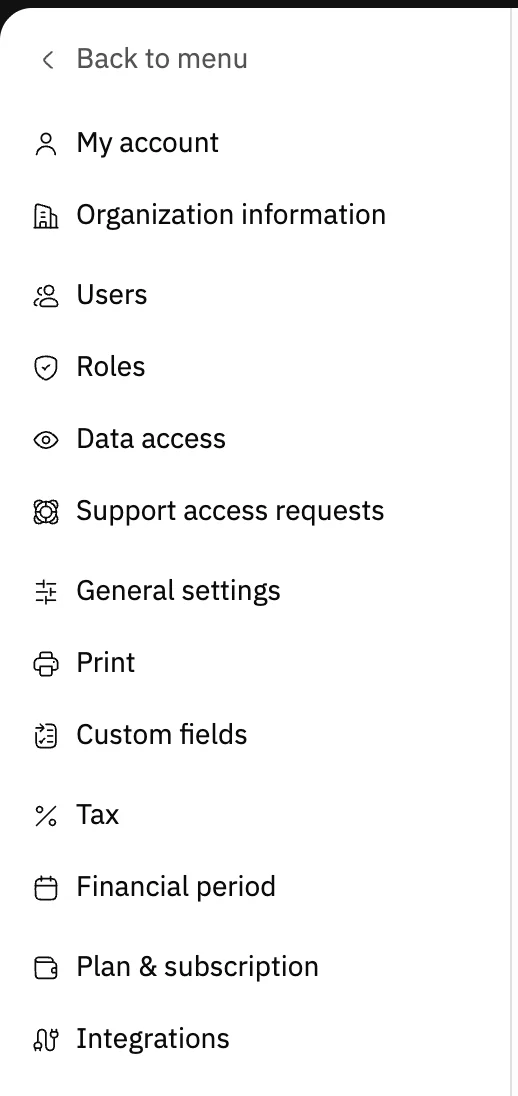
Image key - Tax
Step 2: Read the current groups
Each tax group is a card with its rate and name. The group in use carries the Default badge, and new invoices start with it. Details

Image key - The Add button
- The Default badge
Step 3: Add your country's rate
Press Add and the page lists country rates. Press + on your rate's card and a group with the country's name and rate is added at once. Cancel takes you back without adding. Details
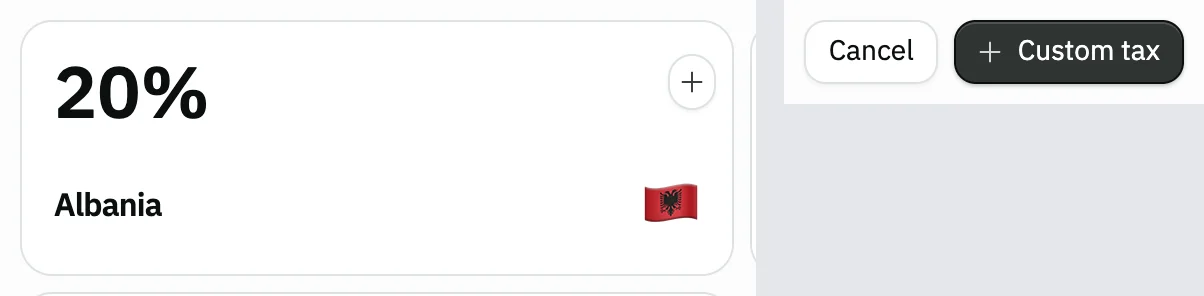
Image key - The + button on a country card
- The Cancel button
Step 4: Or create a custom tax
Your rate isn't listed? Press Custom tax, type the Name and Tax percentage, then press Save. Details
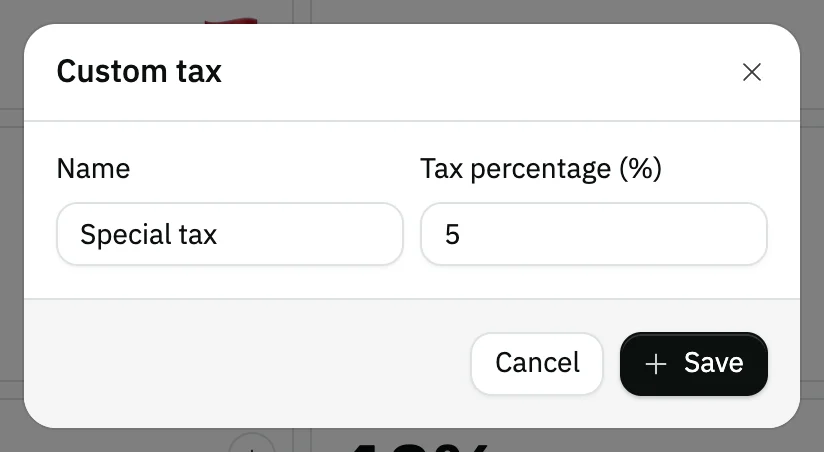
Image key - Name (3 characters or more)
- Tax percentage
- The Save button
Step 5: Set the default group
Open the card's menu (the three dots) and choose Set default. The badge moves to this group and new invoices use it.
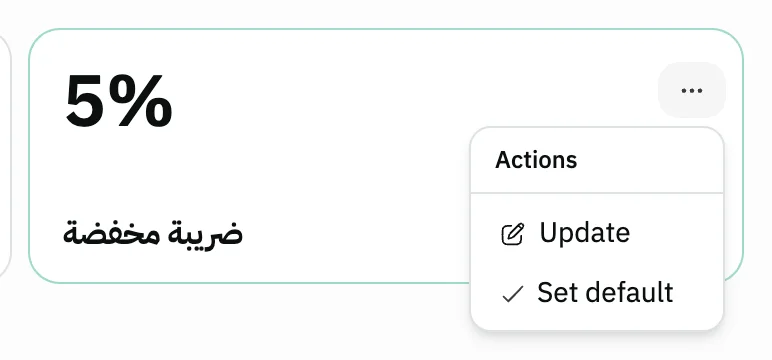
Image key - Update
- Set default
Step 6: Edit the name or rate
Click the card or choose Update in its menu, and the Update tax group window opens. Edit the Name or the rate, then press Save.
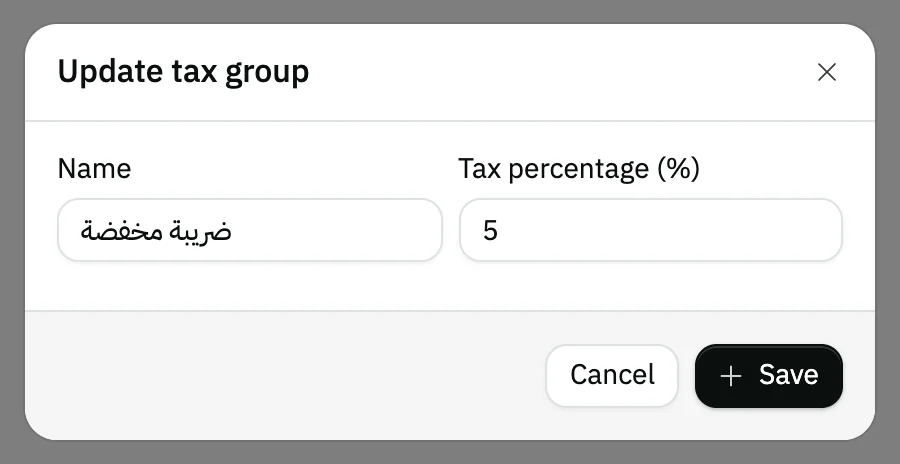
Image key - Name
- Tax percentage
- The Save button
Messages that block saving
If saving fails, one of these messages shows next to the field. The table gives the cause and the fix.
| Message | Cause | Fix |
|---|---|---|
| «يجب أن يحتوي النص على 3 حرف على الأقل (shown in Arabic)» | The Name in the Custom tax window is shorter than 3 characters. | Type a name of 3 characters or more, such as “VAT”. |
Advanced details
Each section here explains one point from the steps in depth. Every section has a fixed link you can share.
Tax missing from the settings menu?
The item shows to users with permission to view General settings, or to the admin role. Without it the item is hidden, and opening the address directly shows a no-permission message.
Ask your account admin to grant it; see roles and permissions. The rest of your business settings are in general settings.
What does the default group do?
A new invoice starts with the default group and calculates its tax at that rate. See how to create a sales invoice for the invoice itself.
Your tax invoices are sent to ZATCA automatically once you connect Snad to it.
Whether prices include tax or tax is added on top is set by Product price/cost include tax in Sales settings, not on this page.
The same setting applies to delivery prices and booking service prices.
If your prices include tax and your organization holds stock, you cannot make a group with a different rate the default using Set default. The message says tax settings cannot be changed while the organization holds stock, and to zero the stock or contact support. The reason is that the stock value is worked out at the current default rate.
A new group is not the default
Every group you add, from the country list or custom, is created as not the default. You set it yourself with Set default in its card's menu.
The Set default item doesn't show on the default group's own card.
When to use a custom tax
Use it when your rate isn't in the country list, or when you want a group under a name you choose.
Type the rate as a number, such as 15 for 15%. The name field is required, with at least 3 characters.
Common questions
- How do I change the VAT rate in Snad?
- Open Settings, then Tax, click the card or choose Update in its menu, edit the Tax percentage and press Save. Or add a new group and set it as the default.
- How do I add a new tax rate?
- Press Add on the Tax page and pick your country's rate with the + button, or press Custom tax and type the name and rate.
- Can I delete a tax group?
- This page has no delete button. You can edit a group's name and rate, or set another group as the default.
- Why does my invoice add tax at a different rate?
- A new invoice starts with the default group. Check the Default badge on the Tax page and set the right group.
- Is the Saudi Arabia tax rate in the list?
- Yes, the country list shows Saudi Arabia at 15%. Press + on its card to add it.