
How to edit product prices in bulk in Snad
To edit product prices in bulk in Snad ERP, open Products, press Update multiple products, then Update prices. Click any price in the table to change it, or select products and press Edit selected to apply a percentage, then Save changes and Confirm save.
In this guide6
Steps
Step 1: Open the pricing screen
In the sidebar open Products, press Update multiple products above the table, then choose Update prices. The Pricing adjustment screen opens.
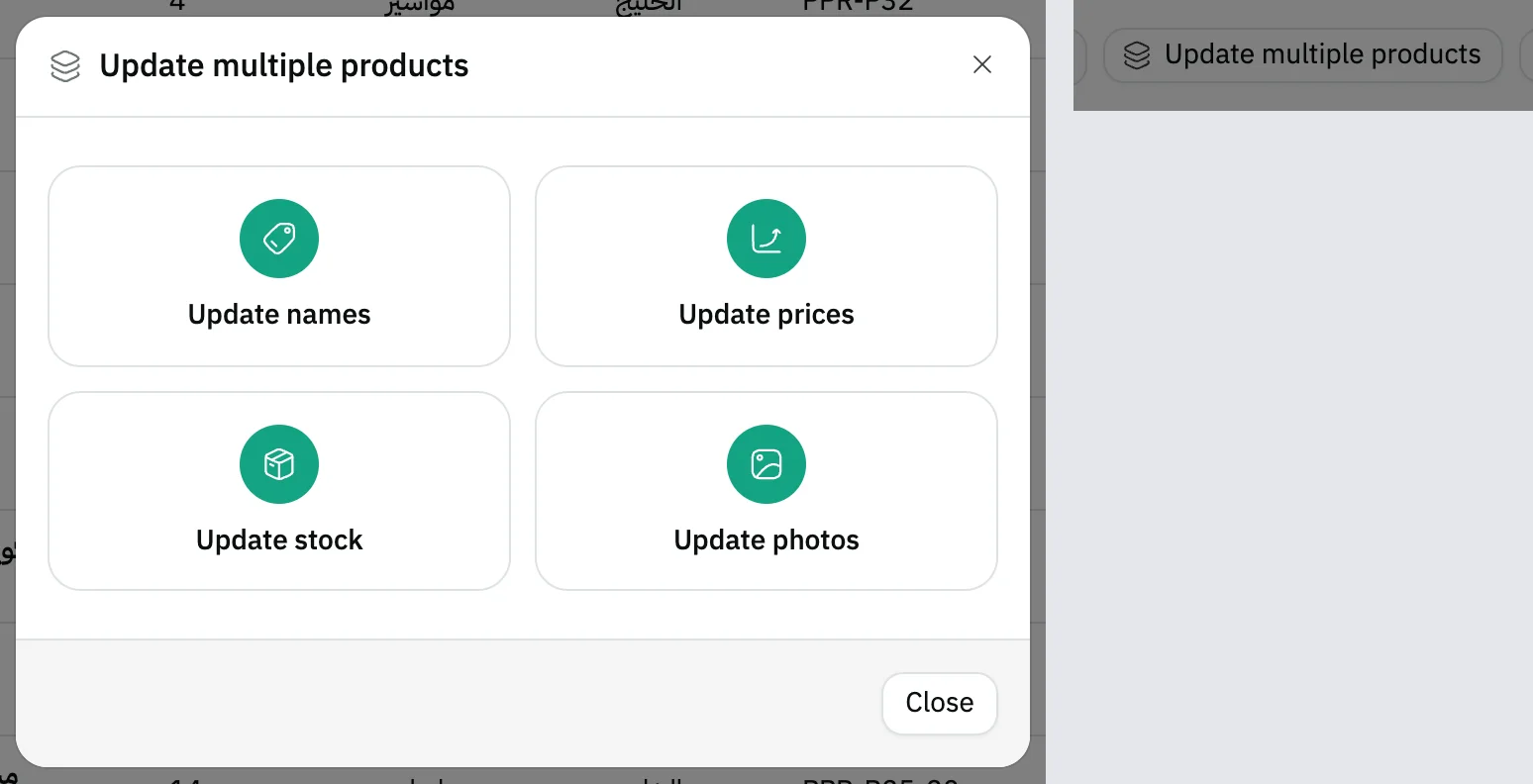
Image key - The Update multiple products button
- Update prices
Step 2: Narrow down the products
Search by product name, number, SKU or barcode in the search field, and narrow the table by brand, category or warehouse with the lists beside it. A bulk change later touches only the products you see. Details

Image key - The search by name or product number
- The brand list
- The warehouse list
Step 3: Change a price by clicking it
Click a product's Selling price (or Cost) cell, type the new value and press Enter. The cell is highlighted, the Margin in the row updates, and Save changes appears at the top. Nothing is saved yet. Details
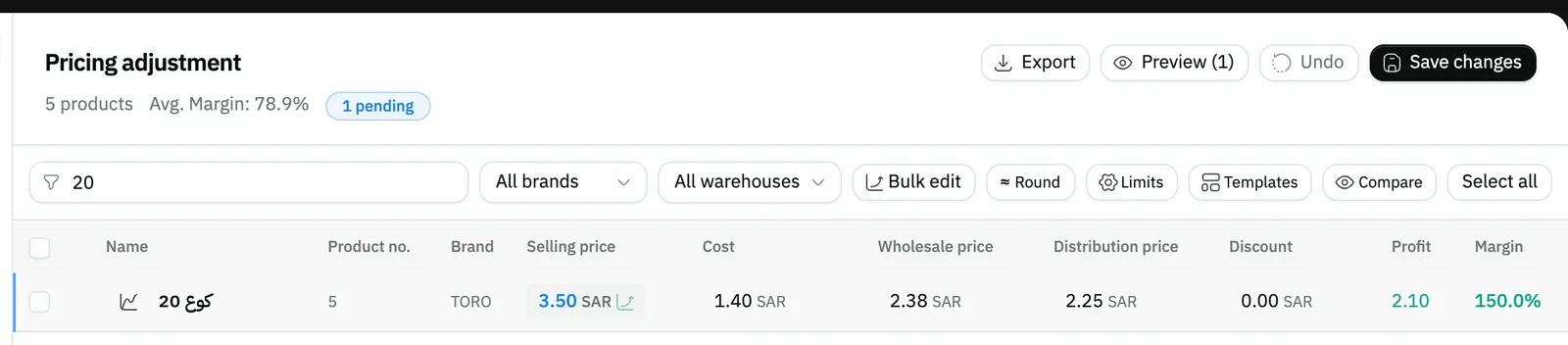
Image key - The Selling price cell after the change
- Margin
- The Save changes button
Step 4: Apply a percentage to several products
Tick several products and press Edit selected. In Bulk price edit pick the Field, then the Change type such as Increase by %, enter the Value and press Apply. With nothing ticked, the change covers every product you see. Details
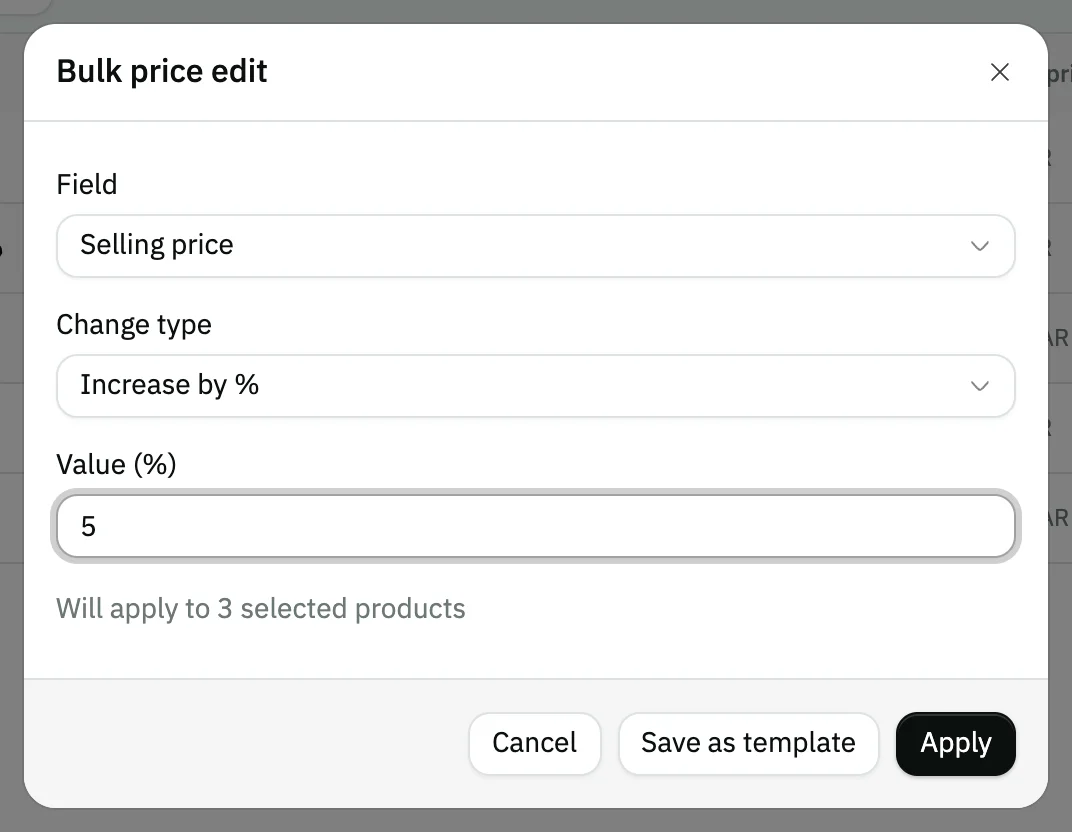
Image key - The Field list
- The Change type list
- The Value field
- The Apply button
Step 5: Review the differences before saving
Press Preview at the top. The table shows each product's old and new price, the change, and the margin before and after. Close it to adjust more, or press Proceed to save.
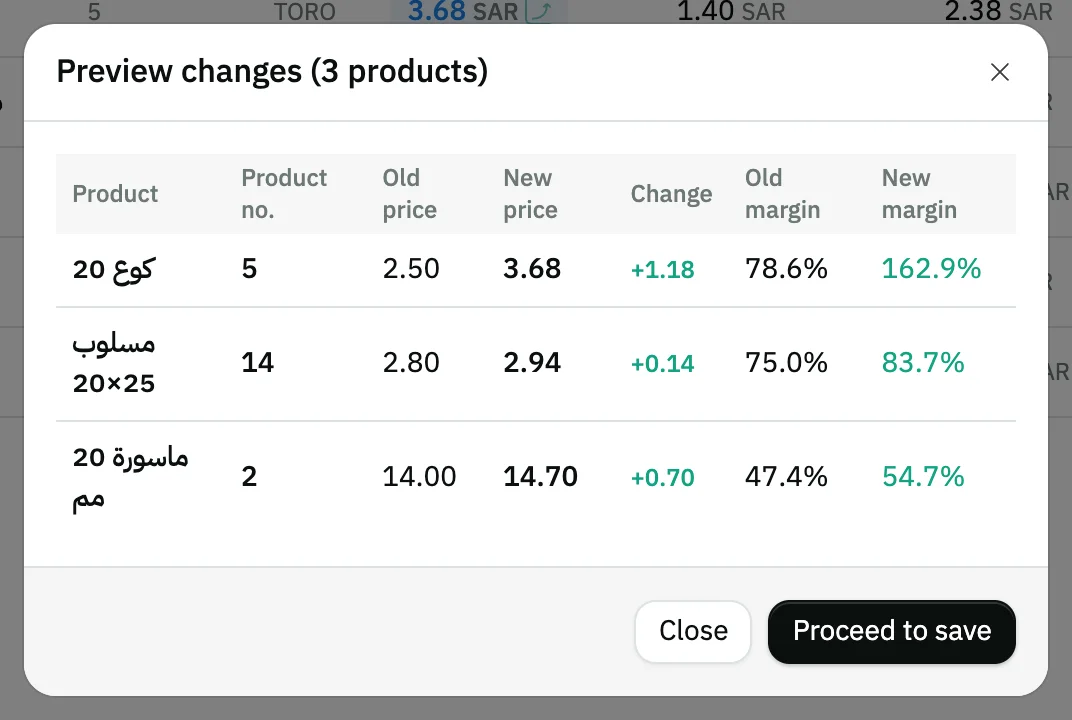
Image key - The New price column
- The Proceed to save button
Step 6: Save the changes
Press Save changes, and in Confirm save changes press Confirm save: the product prices are updated for good. To back out before saving, press Undo and every cell returns to its value.
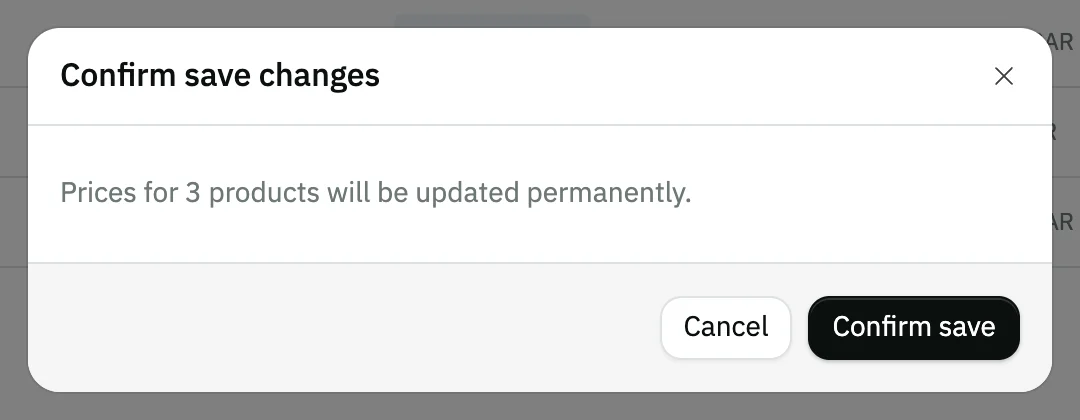
Image key - The Confirm save button
- The Cancel button
Messages that block saving
If saving fails, one of these messages shows next to the field. The table gives the cause and the fix.
| Message | Cause | Fix |
|---|---|---|
| «Enter a value greater than zero» | You pressed Apply with the value empty or zero. | Enter a percentage or amount above zero in Value. |
| «… products are below the minimum margin (…%). Disable the block or adjust prices.» | You turned on blocking in Limits, and some products have a margin under the minimum. | Raise those prices, or turn off Block saving if any product is below the minimum in Limits. |
| «… products violate the defined price limits.» | A new price is below the “Minimum allowed price” or above the “Maximum allowed price” in Limits. | Bring the price inside the range, or change the two limits. |
| «Failed to save prices» | The server refused the save or the connection dropped. | Check your connection and press Confirm save again; your pending changes are still on screen. |
Advanced details
Each section here explains one point from the steps in depth. Every section has a fixed link you can share.
Which products the table shows
The table lists active products that have a selling price. Disabled products, a parent product with variants (its variants are priced instead), and products of the Manufactured product and Component kinds are not listed.
On an account with many products, Snad loads the list in batches: a line “Loaded N of M products” and a Stop loading button show above the table, and Retry shows if the load fails. Until the load finishes, the buttons that touch every row stay disabled: Export, Select all, Bulk edit with nothing ticked, and Round with no pending changes. Hovering one shows “Available after all products have loaded”.
A derived item's or composite product's cost comes from its parent or recipe, so its Cost cell is read-only.
To sell several products at one price, do not edit their prices; create a product bundle instead.
From the same update window you also update product photos (how to add product photos), while delivery-app prices are set separately (set delivery prices).
How the margin is worked out
Margin = (selling price − cost) ÷ cost × 100, the profit as a share of cost, not of the selling price. A product costing 10 and priced 15 has a 50% margin.
A product with zero cost shows a margin of 0. A service with no cost entered shows “—” for profit and margin, and is left out of the margin filter, the below-minimum count, the save block and the average margin. A warning shows beside the figure when it falls under the minimum set in Limits.
Press Tab while typing to keep the cell and move to the next in the row (price, cost, wholesale, distribution, discount), and Esc to discard the cell.
Rounding prices
Press Round and pick a pattern: nearest 1, 0.5, 5 or 10, or ending in .99 or .95. The preview shows each product that would change with its current and rounded price; then press Apply rounding.
Rounding covers the products with a pending change if there are any, otherwise every product you see. It is a pending change too: nothing is saved until Save changes.
Margin and price limits
Open Limits to set the Minimum margin (%) (default 1), turn on Block saving if any product is below the minimum, and set a Minimum allowed price (0 = no limit) and a Maximum allowed price (0 = no limit).
Limits are kept in this browser, not on your account, so another browser starts from the defaults. A change outside the two price limits is never saved, whether or not blocking is on.
Save a change as a template
In Bulk price edit press Save as template and enter a Template name (for example “Raise prices by 10%”). You find it later under Templates: click its name and the edit window opens with its values filled in.
Applying a template changes nothing until you press Apply, and you delete it with the delete icon beside its name.
Warehouse prices, history and export
A product with a price or cost per warehouse shows an arrow that opens its warehouse rows for editing. Compare lays warehouse prices side by side and colours the highest and the lowest when they differ.
The Price history icon beside a product's name opens when each of its prices changed, old and new. Export saves the products you see to an Excel file.
Common questions
- How do I raise all product prices by one percentage in Snad?
- Open Update prices, leave the products unticked, press Bulk edit, choose Increase by %, enter the percentage and press Apply, then review with Preview and Save changes.
- Are prices saved as soon as I change them?
- No. Every change stays pending on screen and applies only after Save changes and Confirm save. If you leave the page before that, the pending changes are lost.
- Can I undo after saving?
- Undo cancels changes before saving only. After Confirm save the prices are updated for good; each product's old values are in its Price history, and you enter them again.
- Why is a product missing from the pricing screen?
- The screen lists active products that carry a price only. A disabled product, a parent with variants, and Manufactured and Component products are not shown. Also check the search, brand, category and warehouse filters.