
How to evaluate employee performance in Snad
To evaluate employee performance in Snad ERP, open HR, then Performance evaluation, and press New evaluation cycle. Type the Evaluation cycle name, pick the Employees and the Evaluation cycle type, then press Save. On the cycle page, start the period, add objectives, rate each objective from 0 to 5, then complete the period.
In this guide9
Steps
Step 1: Open the evaluation cycles
In the sidebar, choose HR, then Performance evaluation, and press New evaluation cycle on the cycles page.
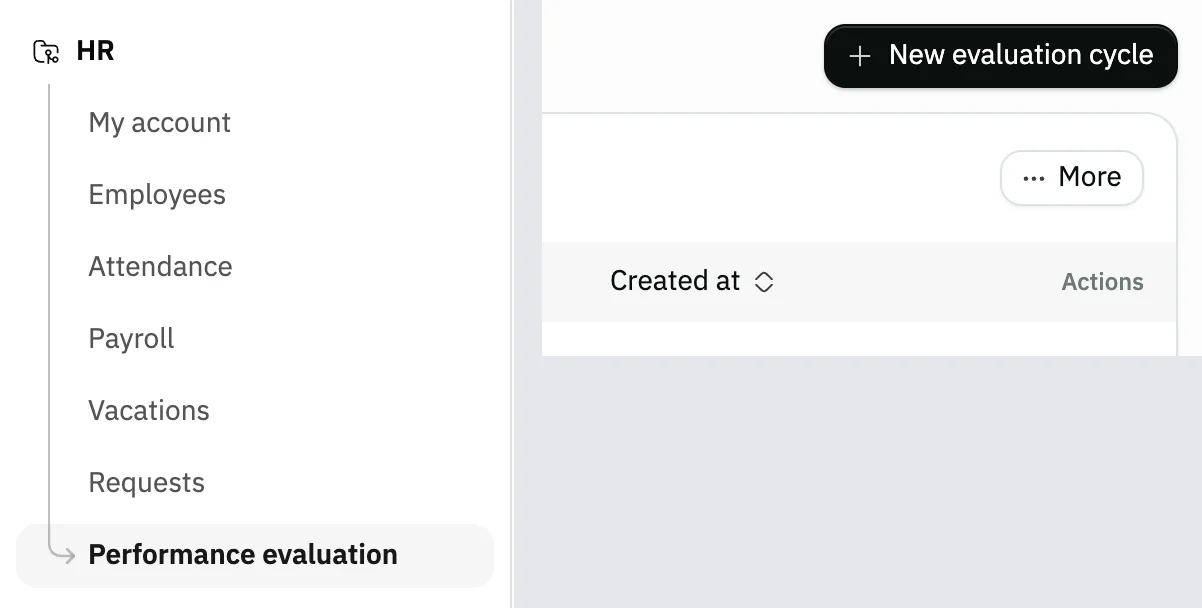
Image key - Performance evaluation in the sidebar
- The New evaluation cycle button
Step 2: Name the cycle and pick employees
Type the Evaluation cycle name, at least 3 characters. Then open Employees and pick who will be evaluated, or Select all. Details
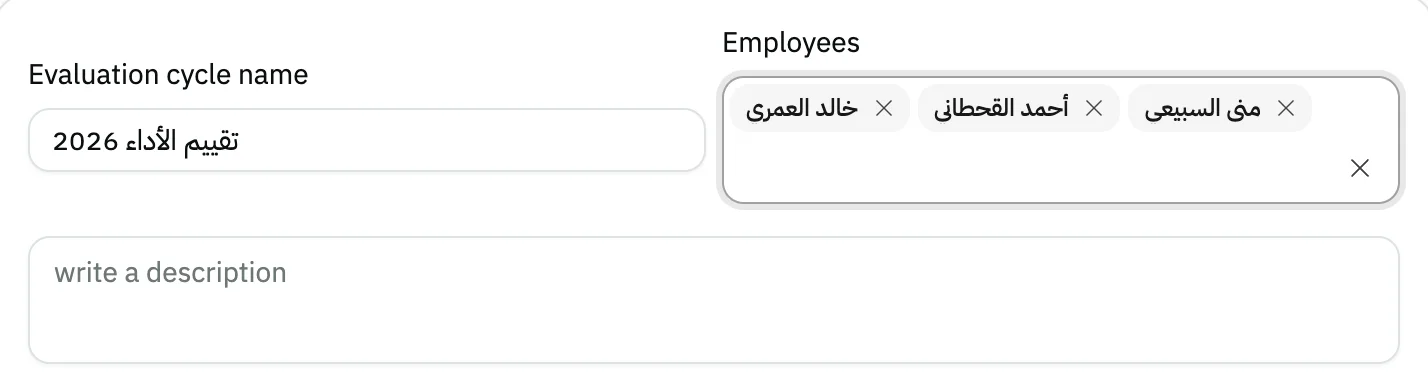
Image key - Evaluation cycle name (required)
- Employees
Step 3: Choose the type and period days
Pick the Evaluation cycle type: Annual, Semi-annual, Quarterly, Monthly or Customize. Then set the Start day, Review day and End day. Details
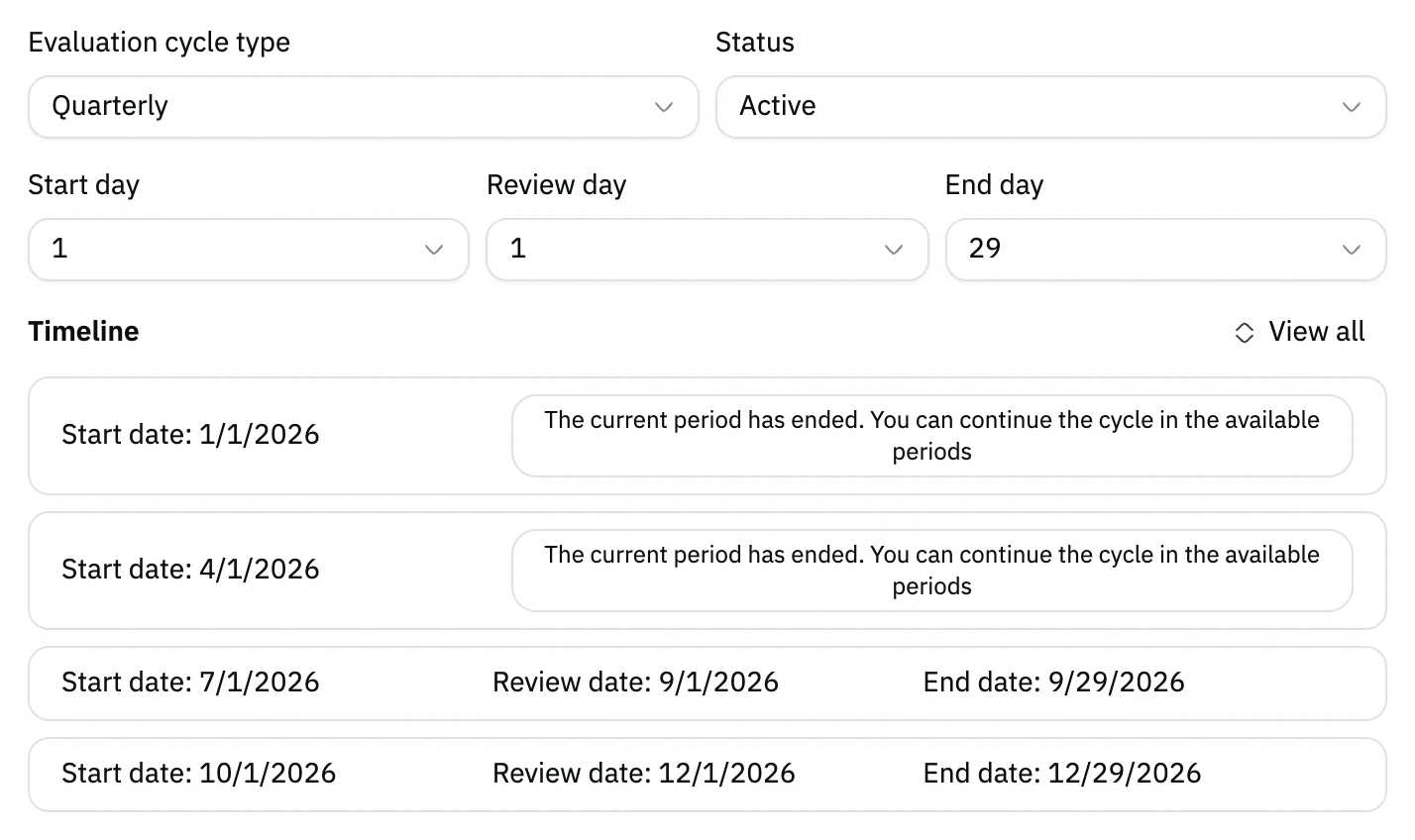
Image key - Evaluation cycle type
- Start day, Review day and End day
- The Timeline of periods
Step 4: Set the objectives and competencies
Under Set objectives, choose All employees for shared objectives, or Each employee individually to set them later. Set competencies works the same way. Details
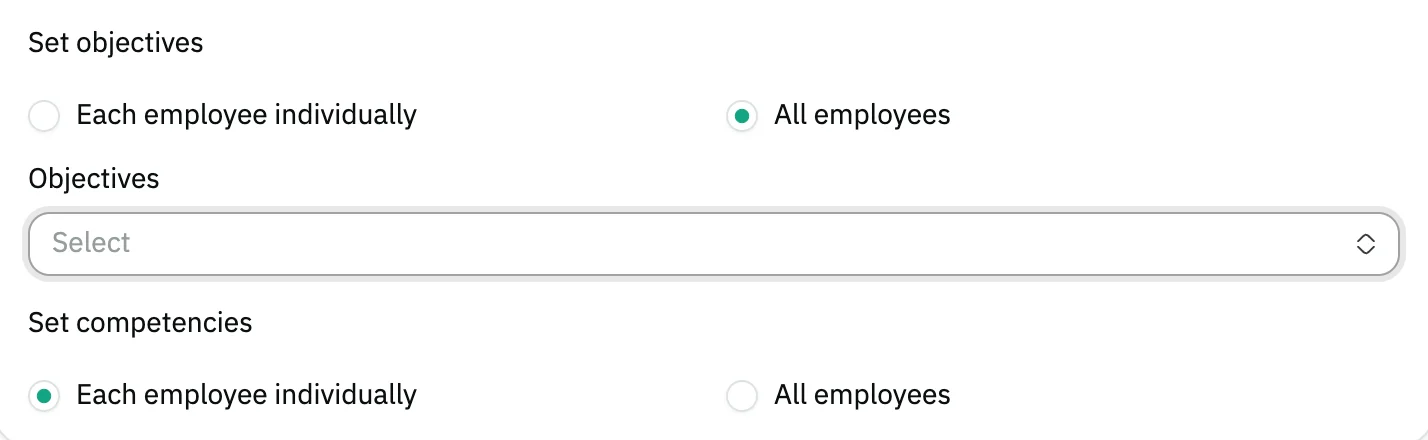
Image key - Set objectives
- Set competencies
Step 5: Save the cycle
Press Save at the top of the form. The cycle page opens with the Assigned employees table, in the Not started state.
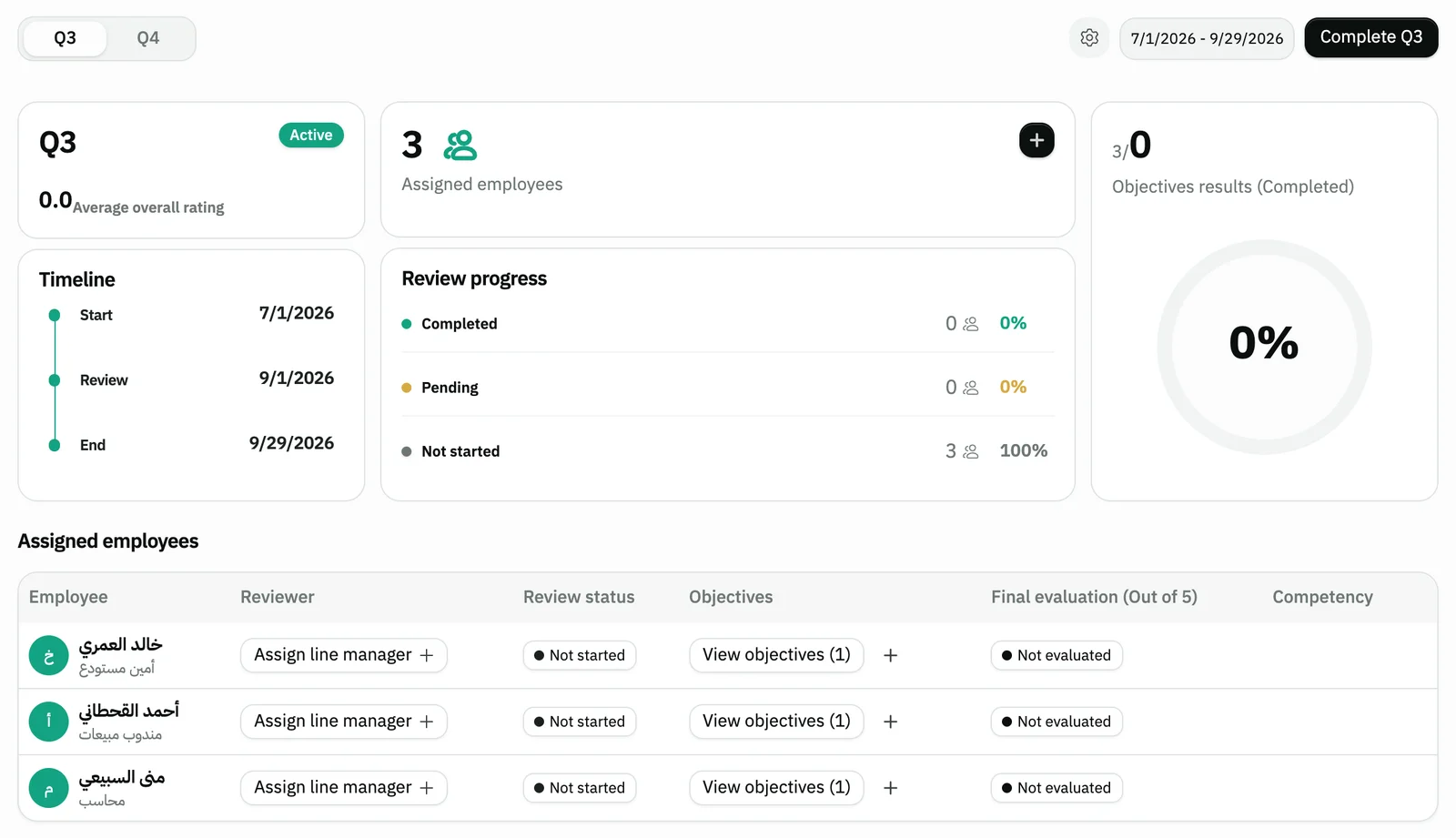
Image key - The period dates
- The Assigned employees table
Step 6: Start the period and employee evaluations
Open the gear menu and choose Start evaluation to activate the period, then Start evaluation for employees, and confirm with Continue. There is no going back. Details
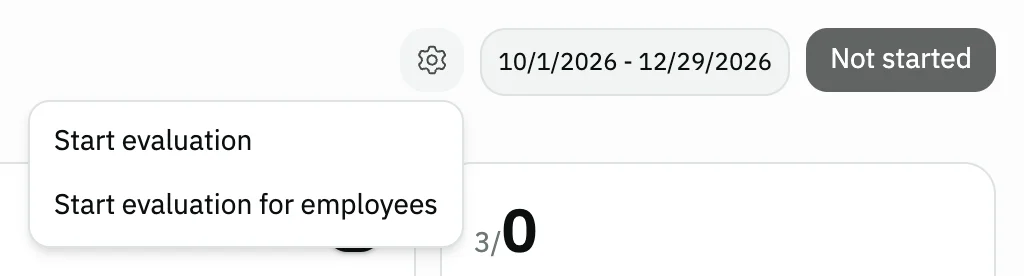
Image key - The gear menu
- Start evaluation for the period
- Start evaluation for employees
Step 7: Add objectives and assign the manager
On each employee's row press the add (+) button to open the Add objectives window, and pick their objectives. Then Assign line manager, who shows in the Reviewer column.
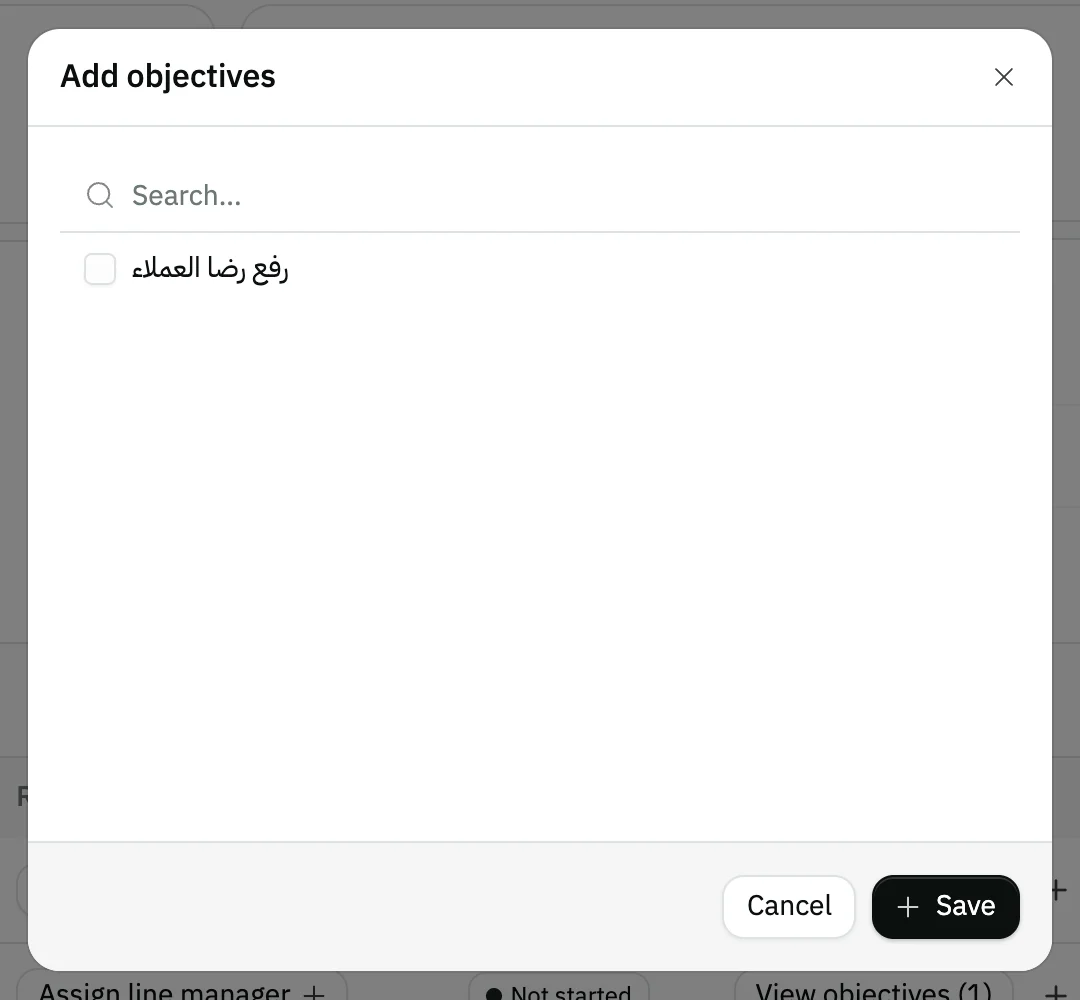
Image key - Search in the objectives list
- The Objectives list
Step 8: Rate each objective
When the employee's status is Pending, the Start evaluation button shows on their row. Type the Rating for each objective from 0 to 5, then save. Details
Step 9: Complete the period
Press Complete beside the period name and confirm. The dialog lists anyone not yet evaluated, and nothing can be edited after you confirm. Details
Messages that block saving
If saving fails, one of these messages shows next to the field. The table gives the cause and the fix.
| Message | Cause | Fix |
|---|---|---|
| «يجب أن يحتوي النص على 3 حرف على الأقل» | The Evaluation cycle name is shorter than 3 characters. The message shows in Arabic in both interface languages. | Type a name of 3 or more characters. |
| «Select objectives» | You saved the Add objectives dialog without picking an objective. | Tick at least one objective, then save. |
| «No objectives found. Add objectives to start the evaluation» | You opened Start evaluation for an employee who has no objectives. | Close the dialog and add objectives with Add objectives. |
| «Value must be between 0 and 5» | You typed a Rating outside the range 0 to 5. The message shows under the field, and the number is kept within the range before saving. | Type a number from 0 to 5; one decimal place is accepted. |
Advanced details
Each section here explains one point from the steps in depth. Every section has a fixed link you can share.
Who can be the line manager
The Direct manager list shows only employees linked to a user account. Link the manager's account to their record first (add an employee).
If the employee already has a manager on their record, that name shows in the Reviewer column and the assign button is hidden.
Periods and their names
Annual is one period named after the year. Semi-annual is two (H1, H2), Quarterly is four (Q1 to Q4), and Monthly is twelve named after the months.
Customize shows Create your own timeline: you name each period and set its Start date, Review date and End date.
The start, review and end days accept values from 1 to 29.
Periods whose end date has already passed are not created, and the period that covers today starts active.
Ready-made or new objectives and competencies
When you choose All employees, the Objectives list appears. Objective not there? Press Add at the top of the list, type the Name, and save; it is picked right away.
Competencies work the same way with a Name and a Type. You manage both lists in HR settings.
The result and completing
The employee gets the average of their objective ratings as the Final evaluation. From 0 up to 1 is Weak, from 1 Acceptable, from 2 Good, from 3 Very good, from 4 Excellent.
After you confirm, you cannot cancel, modify or review. So make sure every employee is evaluated before you press Complete.
An employee linked to an account sees their evaluation in the employee account. The page buttons are disabled for anyone without permission to edit evaluations (roles and permissions).
Common questions
- What evaluation cycle types does Snad have?
- Five: Annual, Semi-annual, Quarterly, Monthly and Customize for a timeline of your own.
- Can I go back after starting an evaluation?
- No. The confirm dialog says you cannot return to the current step once it starts, and after Complete nothing can be edited or cancelled.
- How do I add an employee to an existing cycle?
- On the Assigned employees card of the cycle page, press the add (+) button and pick the employee in the Add Employee dialog. The button hides once every employee takes part.
- Where does an employee see their evaluation?
- On the Performance evaluation tab of their account, if they are linked to a user account. The details are in use the employee account.
- Where do I manage the objectives list?
- From HR settings, or from the form itself with the Add button when you pick objectives.