
How to review and refund POS orders in Snad
To review POS orders in Snad ERP, open POS, then Orders. Search by document number or date, or narrow the list with More filters, then open an order from its menu to see its products and totals. From the same menu you print the order or refund it.
In this guide6
Steps
Step 1: Open the Orders page
In the sidebar, choose POS, then Orders. A list opens with every sale registered at the register. Details
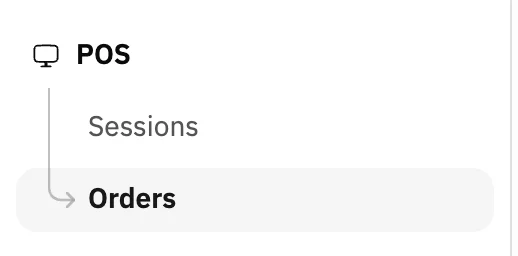
Image key - POS in the sidebar
- Orders
Step 2: Find the order
Type the order number in the Document no. field, or pick a date. To narrow by customer, salesman, status or payment method, open More filters. Details

Image key - The Document no. field
- The Pick a date button
- The More filters button
Step 3: Read the order row
Newest first, and each row shows the Invoice number, the date, the customer, the payment method and the Total. The Status column reads Completed, Partial refund or Refunded. Details

Image key - The Invoice number
- The Total
- The Status (Completed)
Step 4: Open the order details
Press the three-dots button at the end of the row to open the Actions menu. Choose View order, press the row itself, or choose Print. Details
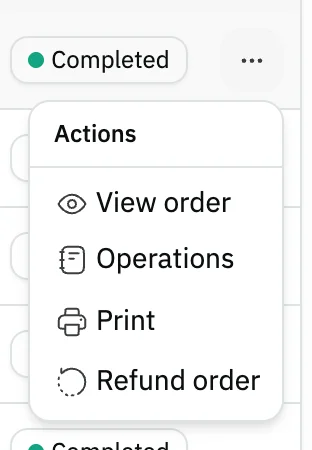
Image key - View order
- Refund order
Step 5: Read the products and totals
The View order drawer shows the Main information, then the Products with their quantities, and a totals summary at the bottom. It is read-only.
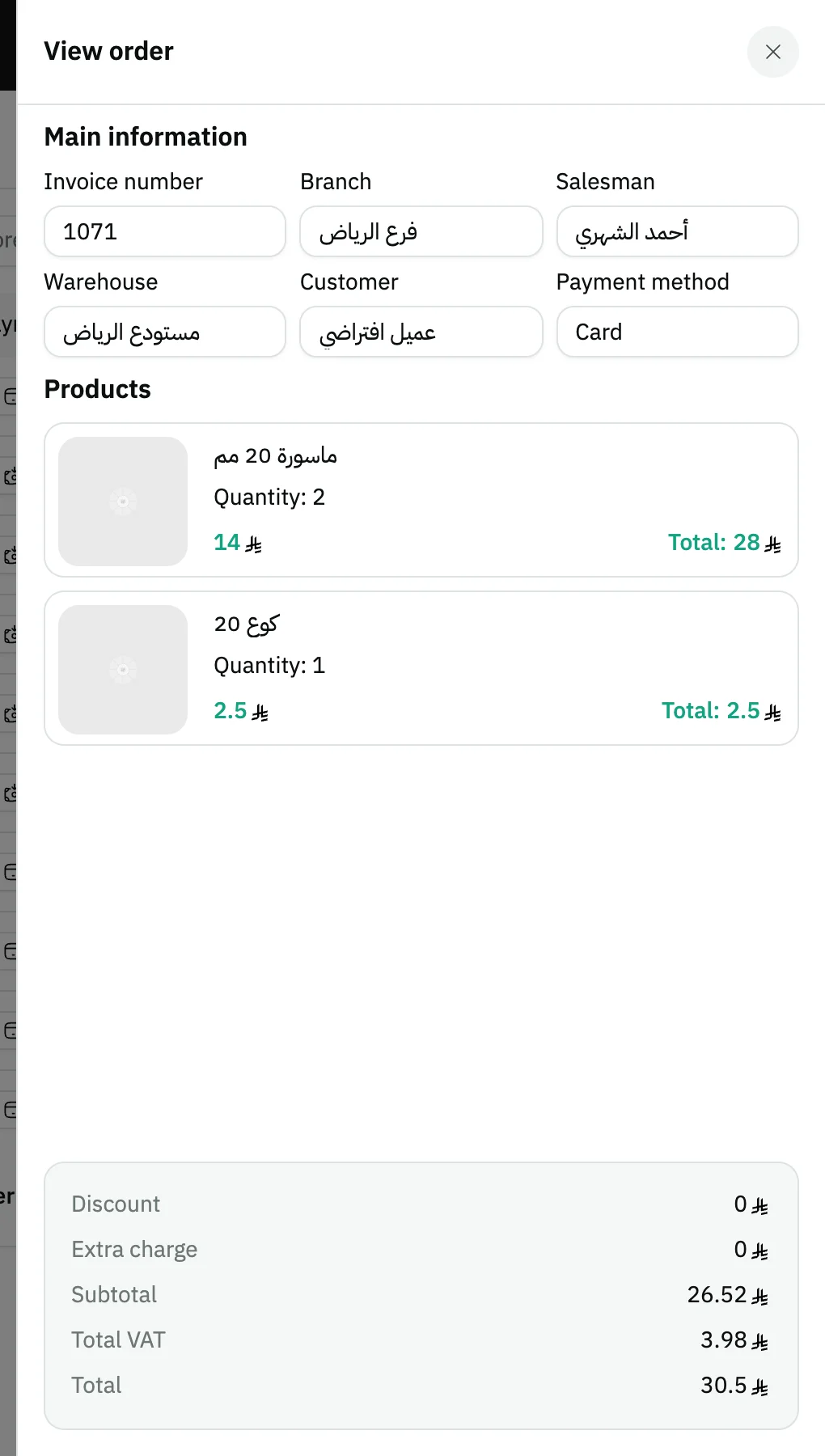
Image key - Main information
- Products
- The totals summary
Step 6: Refund the order
From the menu choose Refund order. The Return an invoice drawer slides in from the side of the screen (from the bottom on a phone) with the invoice already picked. Set the items and How to give the money back, then press Confirm return. Details
Messages that block saving
If saving fails, one of these messages shows next to the field. The table gives the cause and the fix.
| Message | Cause | Fix |
|---|---|---|
| «The return period (… days) has passed for this invoice.» | The order is older, in days, than the return period set, so Confirm return and the item and method fields are disabled. | Raise the return period in the POS settings, then open the sheet again (set up the point of sale). |
| «This invoice was already returned in full.» | Every item on the invoice was returned in earlier returns, so nothing is left to return. | Pick another invoice, or open the order's Refund record to review its returns. |
Advanced details
Each section here explains one point from the steps in depth. Every section has a fixed link you can share.
What the list shows
The list shows sales registered at the point of sale, and orders from a connected online store (connect Salla, connect Zid).
The Order type column (dine in, takeaway or delivery) shows only when the order type switch is on in the POS settings.
The Operations option in the menu opens the order's Accounting operations: its entries with account, debit and credit. For totals see sales reports.
Filters
The bar always shows Document no. and the date. The More filters button holds the rest: Customer, Salesman, Warehouse, Branch, Status and Payment method. A filter from it that you set a value for moves onto the bar.
Payment method takes Cash, Card, On credit, Transfer and Split payment. Status takes Completed, Refunded and Partial refund.
To clear every filter press Reset filters.
Reprint the receipt of a past order
Print in the row menu prints the order's receipt with your print template, so you don't reopen the session (completed orders count in your session's amounts when you close it).
To change how the receipt looks, see set up printing or design a print template. To pair a receipt printer, see set up the point of sale.
Refunds and their record
In the Return an invoice drawer each item's quantity starts at zero. Press Return all to return what is left, or change each item with the + and - buttons (side by side around the quantity box). Under each item you see what is left to return, and an Extra charge to return field appears if the invoice had one.
Under How to give the money back you choose how the money returns: Cash, Card (network), Transfer, On account or Split payment, or any custom payment method that is turned on. You are not tied to how the original invoice was paid, and the sheet starts on that way.
Snad blocks what the books cannot take: a credit invoice can only be returned On account, a return On account for a paid invoice needs a real customer, not the walk-in one (its button is disabled, with no reason written), and money paid out can't exceed what was actually collected. A line under the buttons gives the most each method can take.
If you choose Split payment, the amount fields appear empty and Snad does not divide the money for you: type each method's amount until they add up to the return total, with none above its method's cap. Confirm return stays disabled, with the reason under it, while the sum or an amount is wrong.
After Confirm return you see Return done with the return slip number, and the slip prints on its own while the Print the return slip switch is on. You can return another invoice from the same sheet. A session's returns come off the expected amounts when you close it.
If you have no open session on the invoice's branch, the drawer warns you that the return will be saved without a session.
After you save, the order's status changes to Refunded or Partial refund, and the menu option becomes Refund record. To return what is left of a partly returned order, use the Return button on the register (selling at the POS).
In the Refund record you can Print the return receipt. A user with permission to delete refunds also sees Delete, which sets the order back to Completed.
To return a regular sales invoice, not a register sale, see create a sales return.
Common questions
- Why don't I see the refund order option?
- The Refund order option shows only to users with permission to create order refunds. Ask your account admin to turn it on (roles and permissions).
- How many days can I refund an order after the sale?
- The period is what you set in Allow order returns within a specified period (days) in the POS settings. After it, a message blocks the save.
- Can I refund only some of the products?
- Yes. In Return an invoice every quantity starts at zero, so raise only the items you want back. The order's status becomes Partial refund.
- Must the money go back the way the invoice was paid?
- No. In How to give the money back you pick what suits you, such as Cash or Card (network). A credit invoice accepts only On account.
- How do I print the receipt of an old order?
- Find the order by its number, then from the Actions menu choose Print.