
How to do a stocktake in Snad
To count stock in Snad, open Inventory, then Stocktaking, and press Create stocktaking. Pick the Warehouse, add the products, enter what you counted in Quantity in stock, check Increase/decrease, then press Save.
In this guide6
Steps
Step 1: Open the stocktaking screen
In the sidebar, choose Inventory, then Stocktaking, and press Create stocktaking above the list. Details
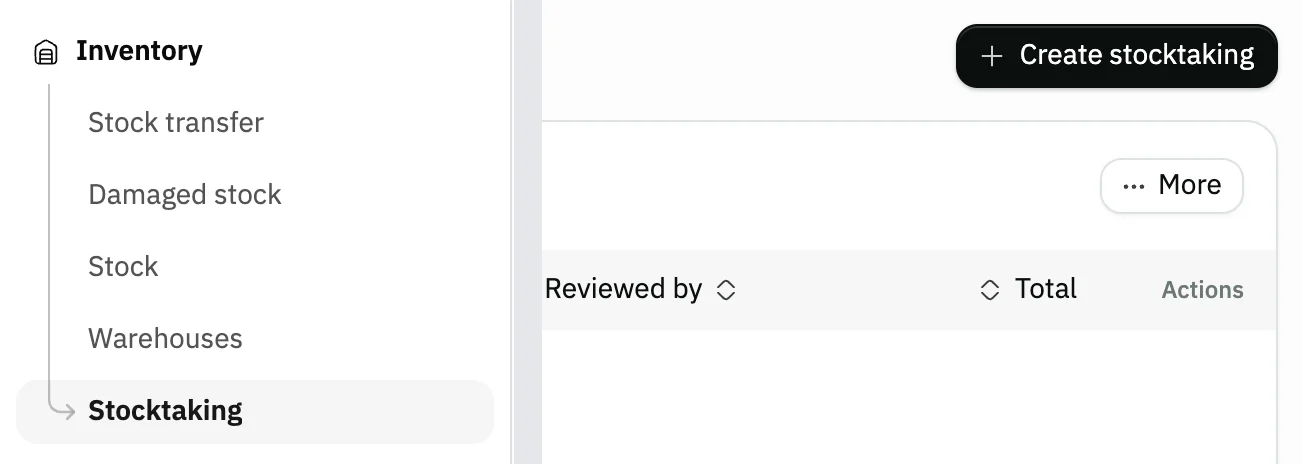
Image key - Stocktaking in the sidebar
- The Create stocktaking button
Step 2: Pick the warehouse and count details
In Main information, pick the Warehouse, check the Date, write the counter's name in Stocktaking by, and the checker's in Reviewed by if there is one. Details
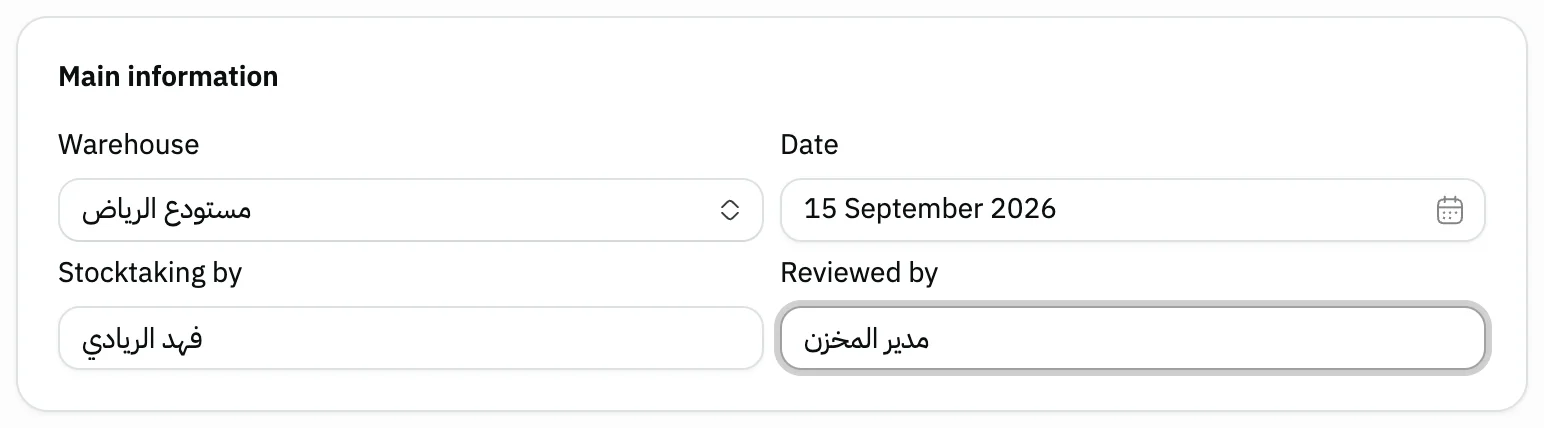
Image key - Warehouse
- The count Date
- Stocktaking by
- Reviewed by
Step 3: Add the products you counted
Press Add product, tick the products you counted, then press Apply. For the whole warehouse, press Add all products. Details
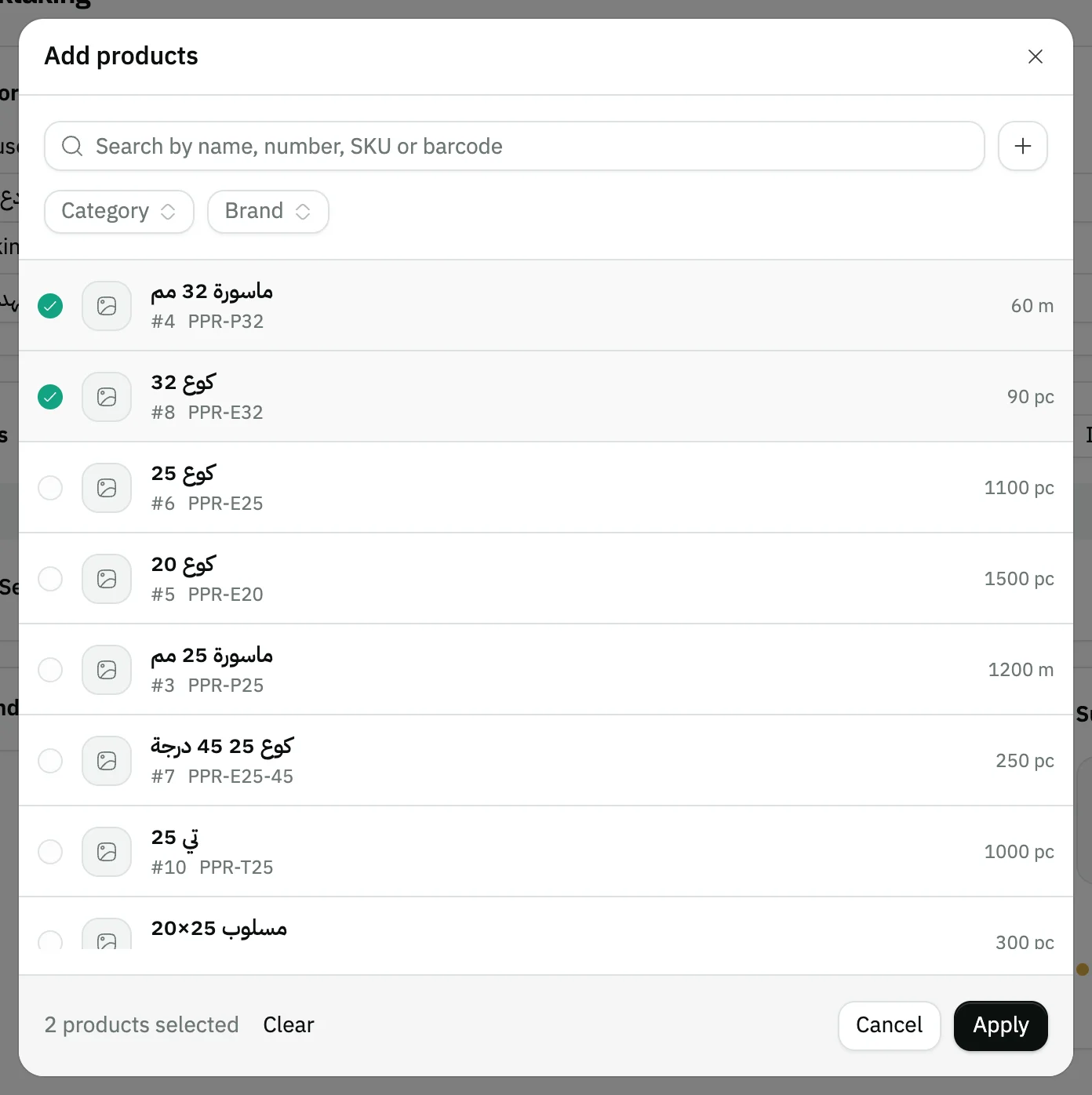
Image key - Search by name, number or barcode
- A ticked product
- The Apply button
Step 4: Enter the counted quantity
Enter what you actually counted in the Quantity in stock column. Snad shows the recorded Current quantity and the Increase/decrease between the two. Details
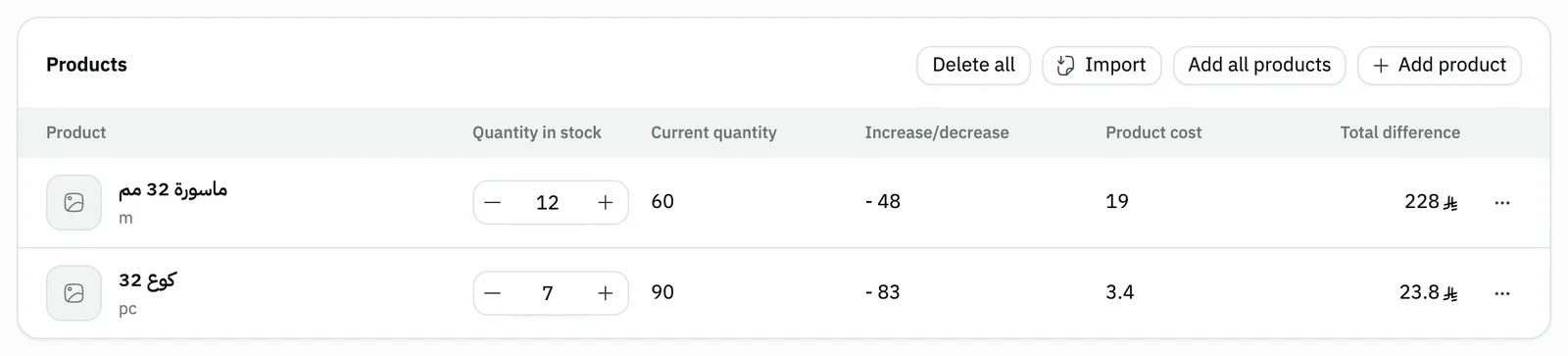
Image key - The counted quantity
- Current quantity
- Increase/decrease
Step 5: Check the count summary
In the Summary, compare Total current stock balance with Total stock balance after stocktaking. The figures cover only the products added to the count. Details
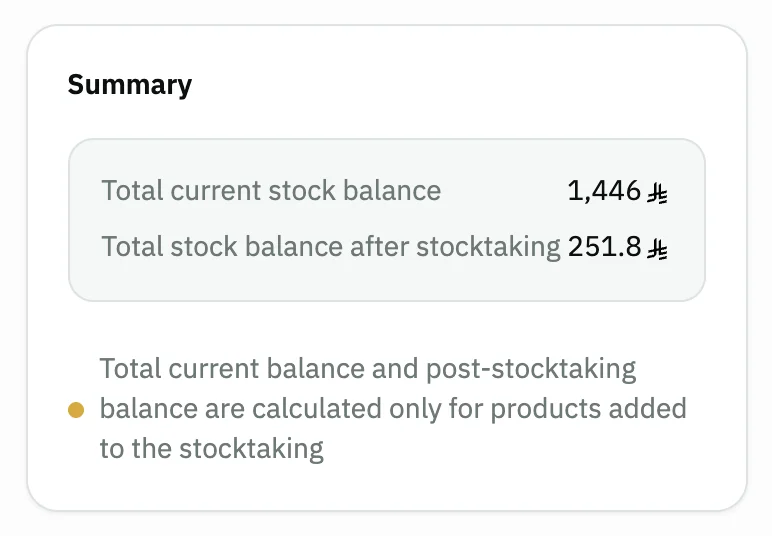
Image key - Total current stock balance
- Total stock balance after stocktaking
Step 6: Save the count
Press Save. The saved count page opens, and each product's balance in the warehouse becomes the quantity you counted. Details
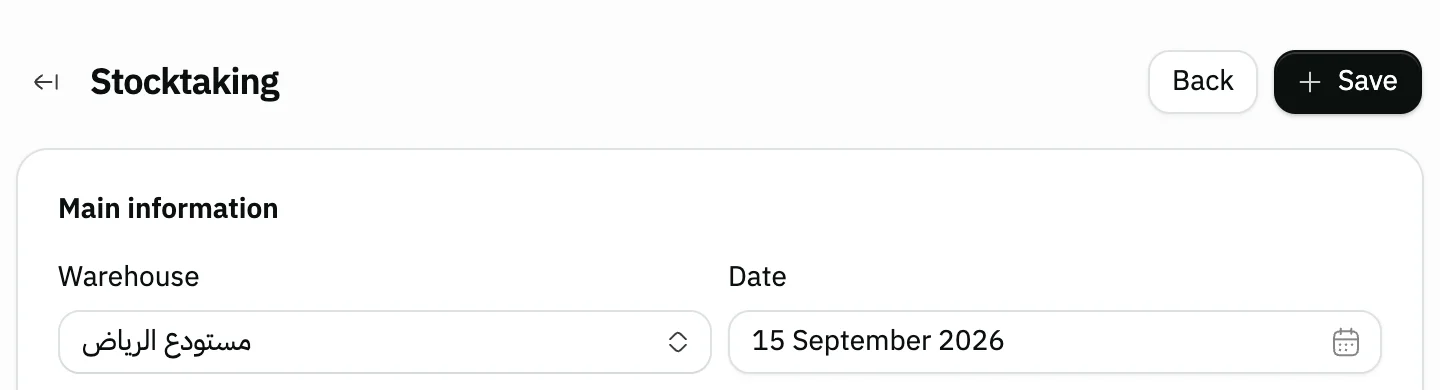
Image key - The Save button
Messages that block saving
If saving fails, one of these messages shows next to the field. The table gives the cause and the fix.
| Message | Cause | Fix |
|---|---|---|
| «مطلوب (shown in Arabic)» | No Warehouse is picked, and without it the add-product buttons stay off. | Pick the warehouse first and the buttons and the table open. |
| «Pick a product first» | The count has no products. | Add at least one product with Add product. |
| «Enter a quantity» | A line has an empty or zero quantity. | Enter the counted quantity on the flagged line. |
| «Pick the serial numbers for every tracked product first. · The number of serials does not match the quantity.» | A product tracked by serial numbers has no units picked as found. | Open the field and tick the units you found; the count then follows the quantity. |
Advanced details
Each section here explains one point from the steps in depth. Every section has a fixed link you can share.
Count date and responsible people
Stocktaking by starts with your current user's name and you can change it. The Date field starts on today's date.
If the date is locked, the allow-date-changes setting for Inventory is off in the general settings.
Import counts from a file
After picking the warehouse, press Import to open the Import data window. Download the template, fill the product name and quantity columns, then upload the xlsx file.
Names that match the warehouse's products are added, and the window lists the names that were not uploaded. The first 2000 matching products are added in one count, and Snad warns you if more remain.
To start over, press Delete all and the table empties. To update many balances without a physical count, use import stock quantities.
Products with serial numbers
For a product that Snad tracks by serial numbers, the quantity field opens its list of units with all of them ticked. Untick what you can't find on the shelf, and the count follows.
Reference, notes and attachments
Write the count's Reference and Notes in the notes card, and attach files such as the signed count sheet. Each line also has its own note, from the line menu.
After saving
The saved count opens for viewing only, and shows the Old quantity of each product. The Delete button shows to users with the delete permission, with previous and next arrows to move between counts. Review the new balances in the stock reports.
The stock value difference from a count is posted to an expense account called “Inventory count differences”, which Snad creates on first use, so it shows in profit and loss, not in equity. If the warehouse has an inventory-adjustment account set, that account is used instead. The exception is a product with no stock before the count: its first quantity is posted to the opening stock equity account. Deleting the count reverses the entry in the account it used.
Keyboard shortcuts
The keyboard cuts repeated steps:
- Alt + A on the form: Add product.
- Ctrl + S (⌘ + S on Mac): Save.
No Create stocktaking button?
The button shows only to users allowed to create stocktaking. Ask your Snad account admin to grant it (roles and permissions).
If you see “This app is not included in your plan”, the Inventory app is outside your current plan.
Common questions
- How do I count stock in Snad?
- Open Inventory, then Stocktaking, and press Create stocktaking. Pick the Warehouse, add the products, enter the counted quantity for each, then press Save.
- What happens to the balance when I save a count?
- Each product you added gets the quantity you counted as its balance in the warehouse. A product you did not add keeps its balance.
- Do I have to count the whole warehouse at once?
- No. Add only the products you counted. For the whole warehouse press Add all products, or import an xlsx file. Snad loads the products in batches with Stop loading and Retry, and adds the first 2000 products in one count, so count the rest in another stocktaking.
- Does a count accept a zero quantity?
- No. The form wants a quantity on every line and refuses zero with “Enter a quantity”. Remove the line from its menu if you couldn't find the product.
- Can I edit a count after saving?
- A saved count opens for viewing only. See how to adjust stock levels to correct a product's balance after saving, and damaged stock to record goods lost to a known cause.