
How to set up a recurring journal entry in Snad
To set up a recurring journal entry in Snad, open Accounting, then Recurring entries, and press New recurring template. Enter the Template name, add the accounts and amounts, set the schedule in When?, then press Save and activate.
In this guide7
Steps
Step 1: Open recurring entries
In the sidebar, choose Accounting, then Recurring entries, and press New recurring template.
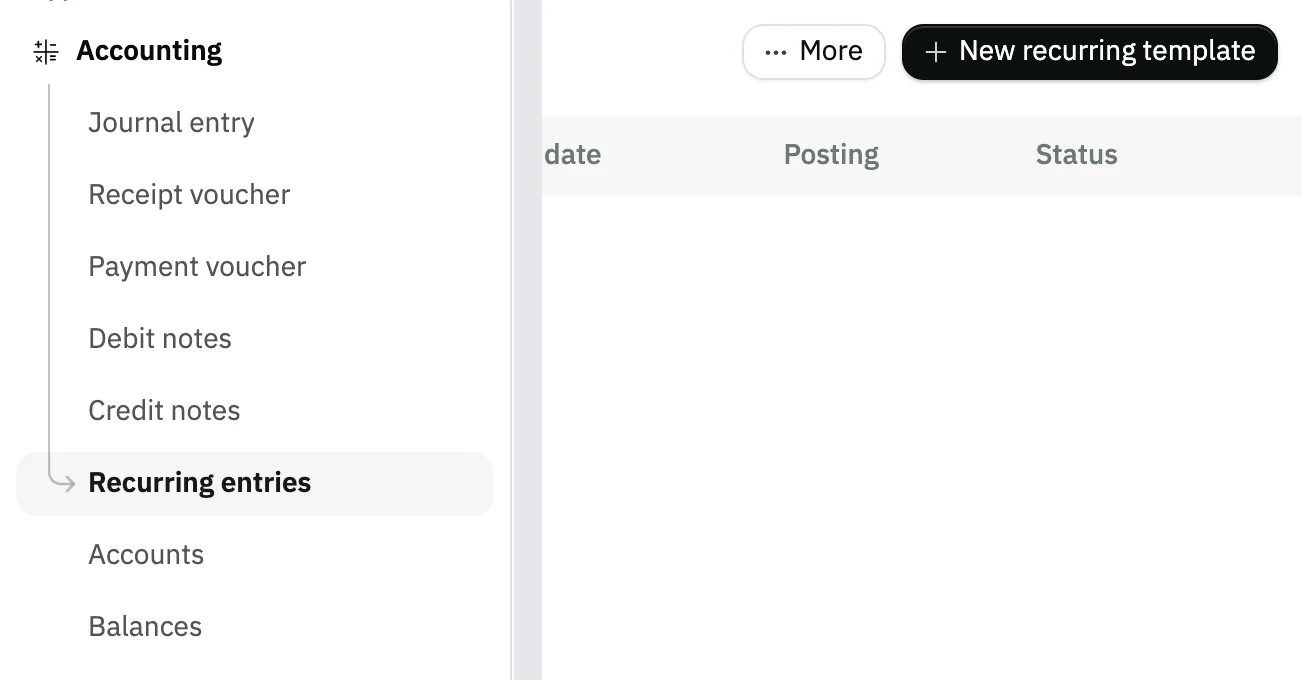
Image key - Recurring entries in the sidebar
- The New recurring template button
Step 2: Name the template
Enter the Template name, such as “Monthly showroom rent”. Document type starts on Journal entry, so leave it for an ordinary entry.
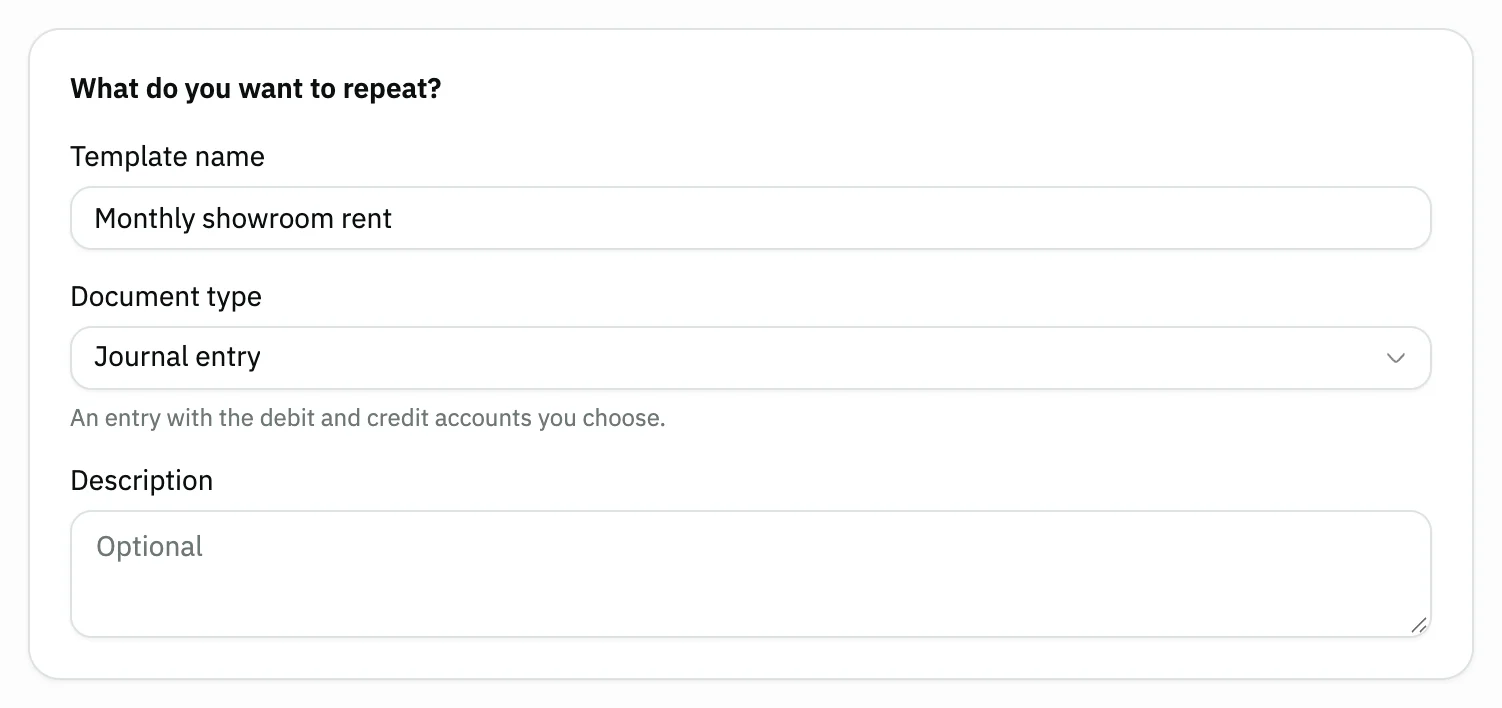
Image key - The Template name
- The Document type
Step 3: Choose how the amount works
In Amount, choose Same amount each time, A total split into instalments, or A different amount each time. It starts on the fixed one. Details
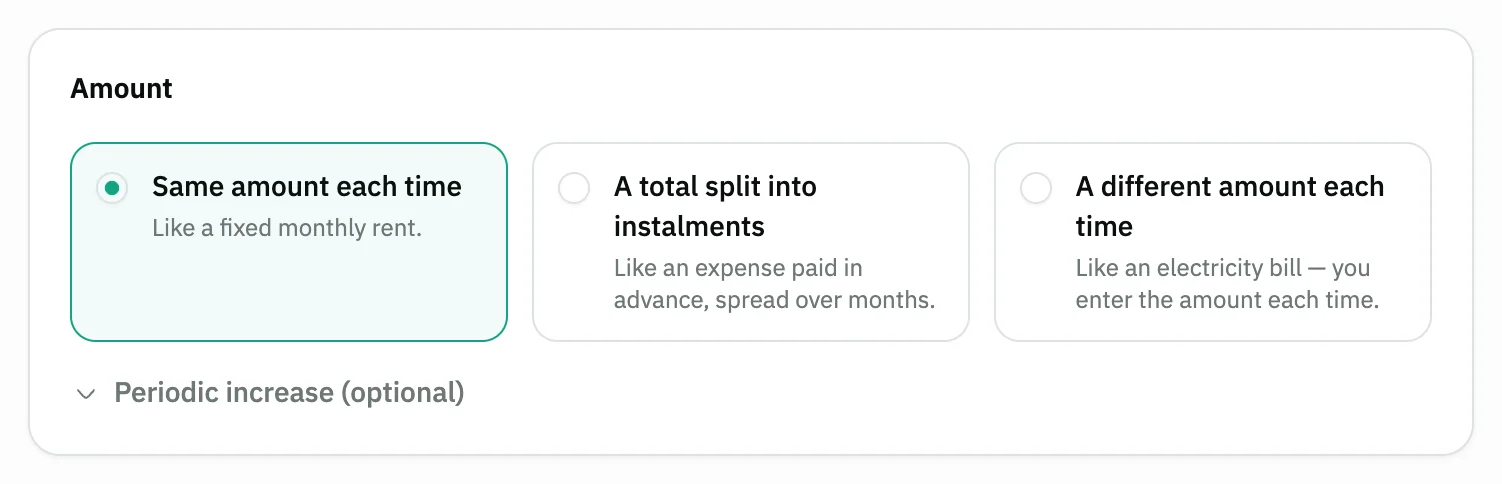
Image key - The three amount choices
Step 4: Add accounts and amounts
In Accounts press Add account and tick the accounts. Enter Debit or Credit on each line until the two totals match.
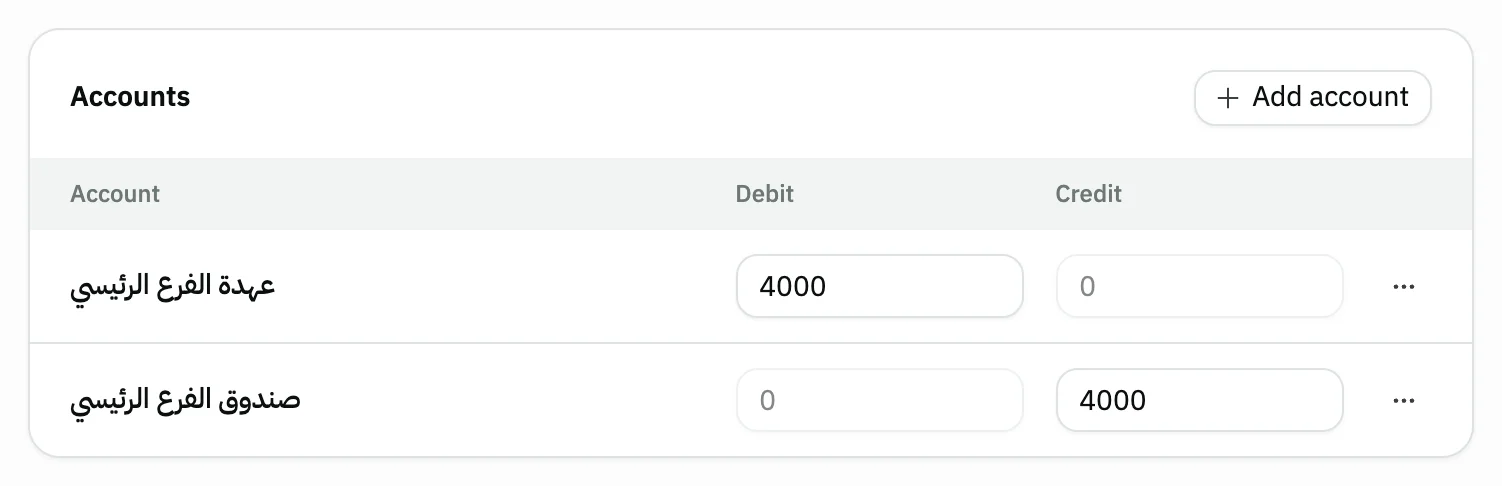
Image key - The Add account button
- Debit
- Credit
Step 5: Set the schedule
In When? enter a number in Repeats every and pick the unit, such as months. Then set Starts on and Ends, which starts on Never. Details
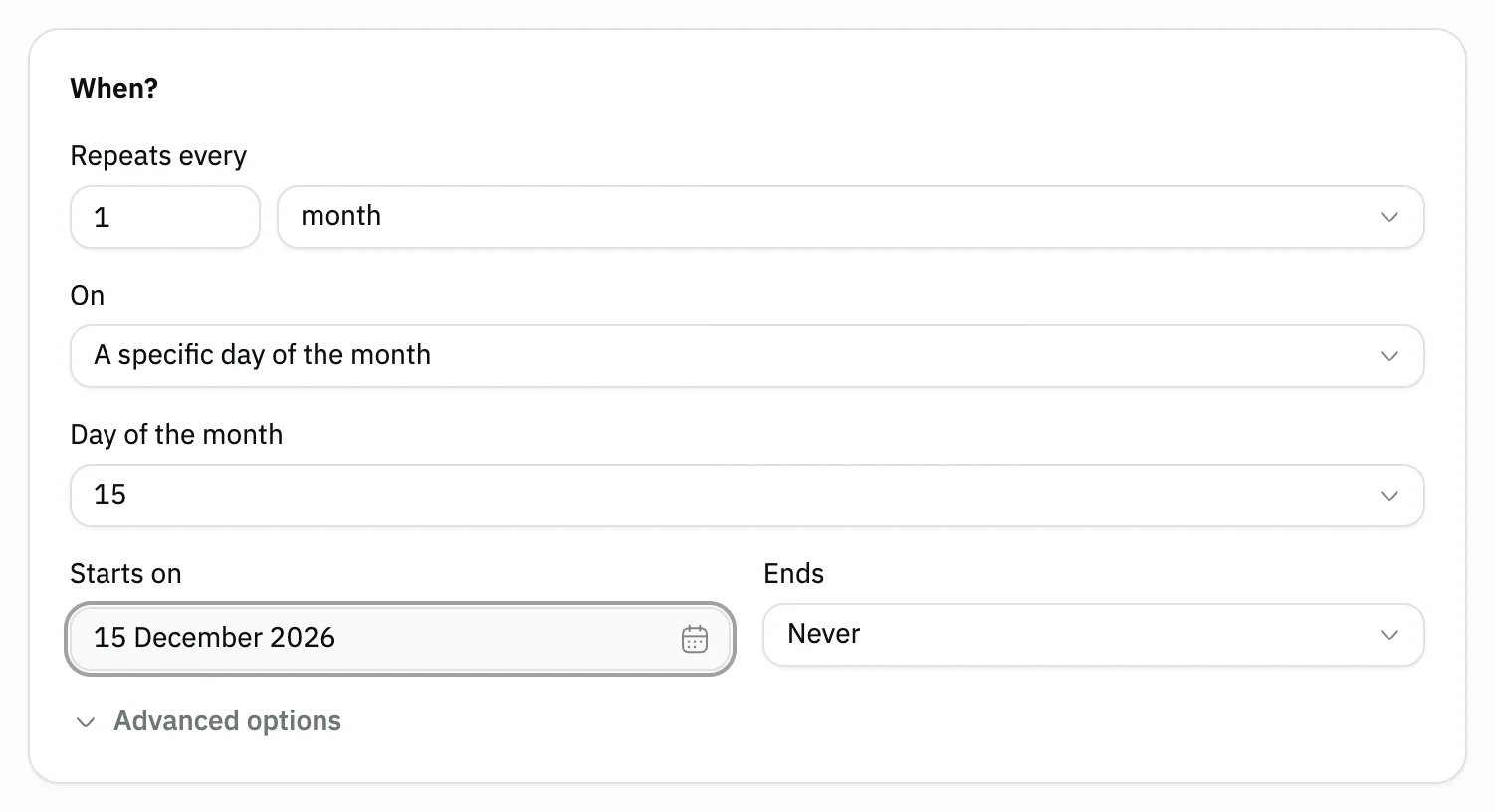
Image key - Repeats every
- Starts on
- Ends
Step 6: Choose how it is posted
In How is it posted? choose I review it before posting (recommended) or Post automatically. Check Summary and Upcoming dates before saving. Details
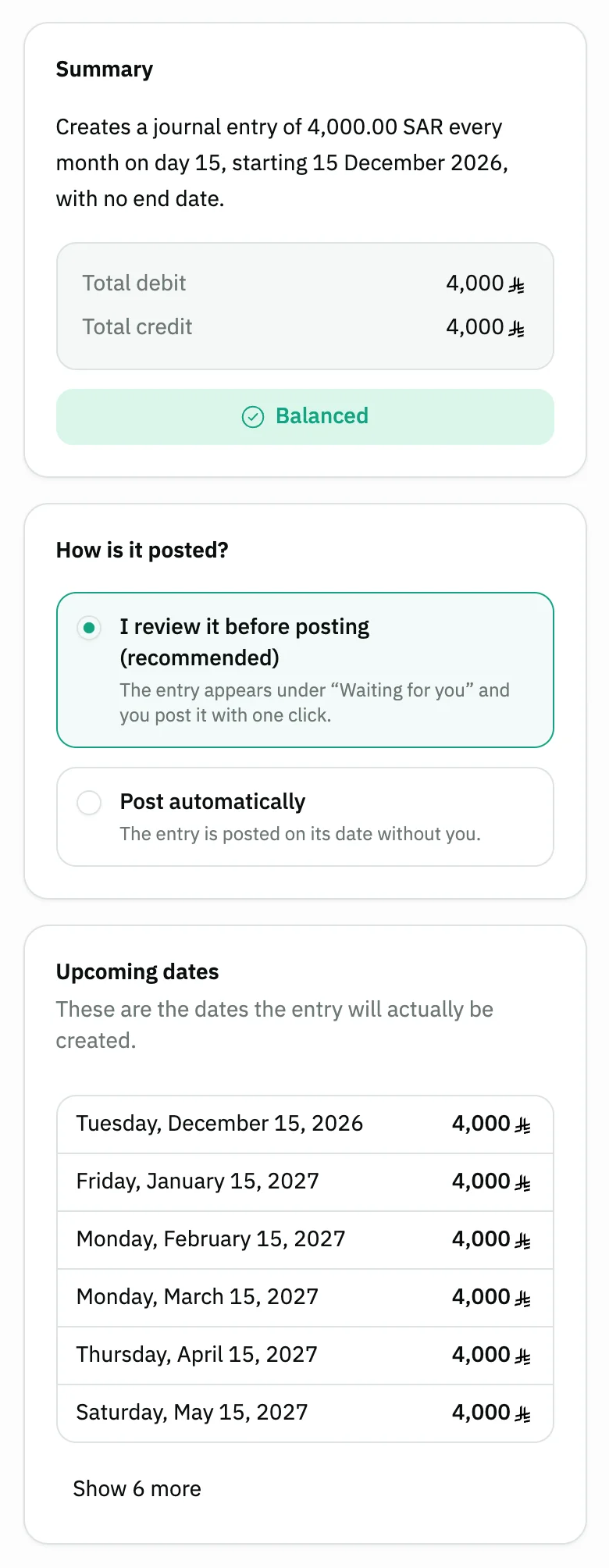
Image key - The template Summary
- How is it posted?
- Upcoming dates
Step 7: Activate the template
Press Save and activate to start the template. If you're not ready, press Save as draft and it won't run until you activate it. Details
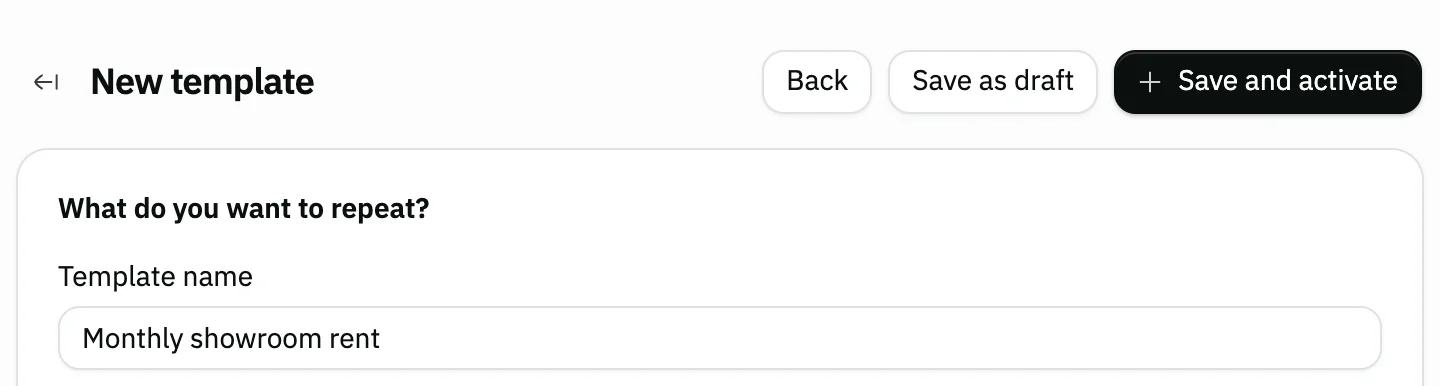
Image key - The Save as draft button
- The Save and activate button
Messages that block saving
If saving fails, one of these messages shows next to the field. The table gives the cause and the fix.
| Message | Cause | Fix |
|---|---|---|
| «Give the template a name.» | The Template name field is empty. | Enter a name for the template and save again. |
| «The entry isn't balanced: debits don't equal credits.» | The sum of Debit does not equal the sum of Credit in the Accounts card. | Edit the amounts until the two totals match, then save. |
| «Fix the highlighted fields first» | A required field is missing or invalid, so Snad did not save the template. | Find the fields marked in red, correct them, then press Save and activate again. |
Advanced details
Each section here explains one point from the steps in depth. Every section has a fixed link you can share.
The account lists
The account window shows the first 20 accounts as soon as it opens, and the rest load as you scroll. Search is optional and covers all the organization's accounts, with a loading indicator while it fetches. If loading fails, an error line appears with Retry beside it.
The Account type filter takes one type at a time, and no account counts show beside the types.
Fixed, instalment and changing amounts
A total split into instalments suits an expense paid in advance. You enter the total and the Number of instalments, and the template ends on its own after the last one.
A different amount each time suits an electricity bill. Nothing is posted until you enter the amount and review it on each date.
With a fixed amount you can open Periodic increase (optional) to raise the amount by a percentage every few periods, such as a rent increase.
A start date in the past and closed periods
If the start date has passed, Snad creates the entries that were already due as soon as you activate, and shows their number in Upcoming dates. It creates only the first 12, then pauses the template until you review it.
If the financial period is closed on the date, Snad defers the entry instead of posting it, and shows The financial period is closed — the entry was deferred, not posted.
Posting from Waiting for you
With I review it before posting (recommended) the entry appears in the Waiting for you tab on its date. Press Post to post it, or Skip this time from the More actions menu.
For a changing amount, type the amount in the row and press Save amount; the entry then waits for approval. A changing amount is never posted automatically.
Edit, duplicate and pause a template
In the Templates tab, open the More actions menu on a template's row to find Edit, Duplicate and Pause. Activate shows for a paused template or a draft.
After editing an active template, save with Save changes.
Custom fields
A recurring entry does not copy the custom fields of a journal entry (Customizer).
Common questions
- Does Snad post a recurring entry on its own?
- It depends on your choice in How is it posted?. With Post automatically the entry posts on its date without you; with review you post it with one click from Waiting for you.
- How do I pause a template?
- In the Templates tab open the More actions menu on the active template's row and choose Pause. Choose Activate when you want it running again.
- What if the financial period is closed on the date?
- Snad does not post into a closed period; it defers the entry and shows it as Financial period is closed. Check how to set the financial period, then post it.
- Can a template be a receipt or payment voucher?
- Yes. Change Document type to receipt voucher or payment voucher. Snad then asks for the Cash / bank account and Payment method, and the lines are all credits for a receipt and all debits for a payment.
- When should I use a recurring entry instead of a normal one?
- Use it when the same entry repeats on a known schedule, such as rent or a subscription. For a one-off entry, write it with create a journal entry.