
How to import an Excel or CSV file with AI Mode in Snad
To import a file with AI Mode in Snad, open the Files page, press Upload file and pick a CSV or Excel file. Choose the data type and match the columns, then review the Check result, press Review import and confirm. The import keeps running in the background even if you leave the page.
In this guide7
Steps
Step 1: Open the Files page
At the bottom of the AI Mode sidebar, open More actions and choose Files. Details

Image key - The More actions button
- The Files option
Step 2: Upload a CSV or Excel file
Press Upload file at the top of the page and choose one file. Reading the file shows, then the import page opens. The old .xls format isn't accepted. Details
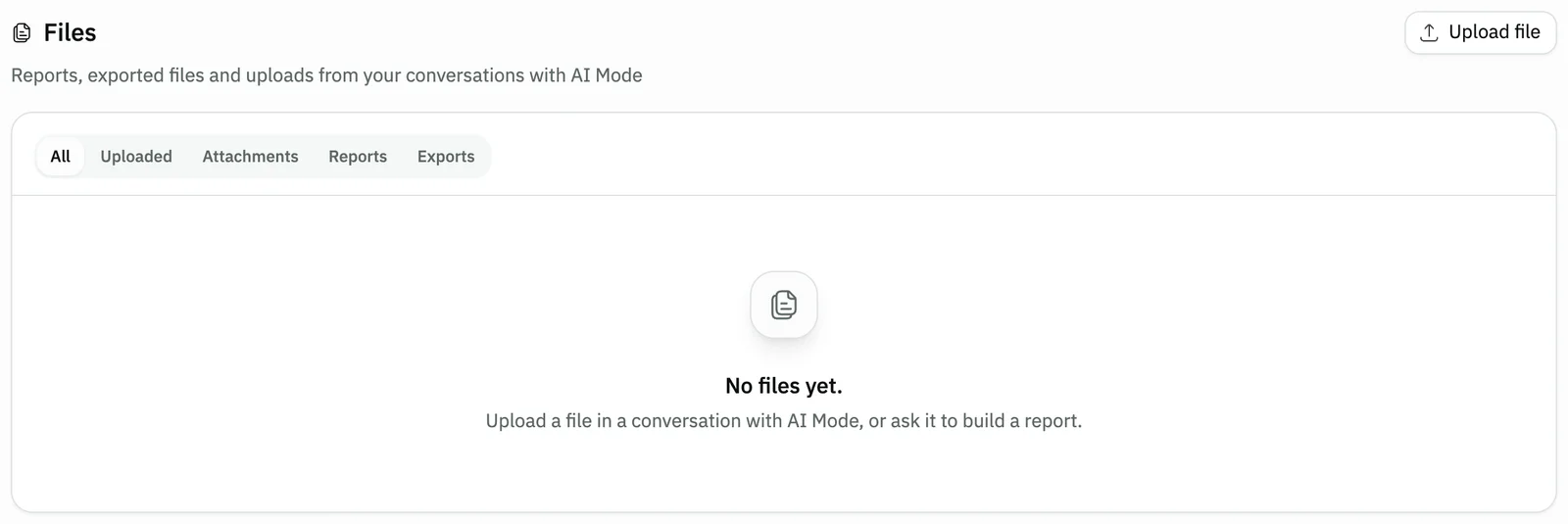
Image key - The Upload file button
Step 3: Choose the data type
The page asks What does this file contain? Choose Products, Customers or Suppliers. Only the types you are allowed to add show. Details
Step 4: Match the columns
In Match columns, AI Mode pairs each File column with a Snad field, next to Examples from the file. Fix whatever needs your choice. Details
Step 5: Review the check result
The Check result splits the file's rows into Ready to import, Similar, will be skipped and Has errors. Download the error file and fix it if there are any. Details
Step 6: Confirm the import
Press Review import to get the preview, then confirm under Confirm the import. The confirmation asks you to type a phrase or a number yourself. Details
Step 7: Follow the result
The import runs in the background, so you can leave the page. When Import completed. shows, press Open products or the match for your data type. Details
Messages that block saving
If saving fails, one of these messages shows next to the field. The table gives the cause and the fix.
| Message | Cause | Fix |
|---|---|---|
| «The file is empty.» | The uploaded file has no data. | Open the file, check that it has rows, then upload it again. |
| «You don't have permission to import. An admin in your organization can grant it.» | Your user has no permission to import. | Ask your account admin for it (roles and permissions). |
| «Imports aren't enabled for your organization right now.» | The import feature is off for your organization. | Ask your account admin to turn it on, or use the regular product import page. |
| «No rows can be imported. Fix the file and upload it again.» | Every row has errors or matches an existing record. | Download the error file, fix the rows, then upload the corrected file. |
| «This file has expired. Nothing was changed.» | Too long passed since the file was uploaded. | Press Upload the file again and start over. |
| «The matching can't change once the preview is ready.» | AI Mode prepared the preview, so the matching is fixed. | Upload the file again if you want a different match. |
Advanced details
Each section here explains one point from the steps in depth. Every section has a fixed link you can share.
Excel sheets and file encoding
If an Excel file has more than one sheet, choose the sheet in Sheet to read. Changing the sheet uploads the file again and the matching starts over.
The page warns you if the file was read as Windows-1256 and characters look garbled: save it as UTF-8 and upload it again.
Cells holding a formula without a saved result, or an error, can't be read. Fix them in Excel, then upload the file again.
What AI Mode doesn't import
When you import products, a message Some columns won't be imported shows: AI Mode doesn't import categories, brands or opening quantities.
Add them through Open product import, with steps in import products from a file, which has its own template.
For a column you don't want, choose Skip this column and it isn't imported.
Errors and similar records
Rows with errors aren't imported. Press Download the error file, fix those rows, then upload the file with Upload corrected file.
Under Similar records you choose Skip similar records or Create records anyway.
You can Stop import while it runs. Records already created stay as they are and aren't removed automatically.
Returning to an earlier import
The import session is kept on the server. If you refresh the page or return to its link, you carry on from the stage you reached, and a running import continues in the background.
Files you uploaded earlier are under Files, then Uploaded. For other actions, see run an action with AI Mode.
If the Upload file button doesn't show, importing isn't available for your organization right now, or you lack the permission.
Common questions
- Which file types can AI Mode import?
- CSV files and Excel .xlsx files, one file at a time. The old .xls format isn't supported: save it as .xlsx or CSV.
- What can I import?
- Products, Customers and Suppliers, depending on what you are allowed to add.
- Does anything change before I confirm?
- No. Uploading, matching and checking create no records. Records are created only after you confirm the import.
- What if I leave the page during the import?
- The import keeps running in the background even if you leave the page. Return to its page to see the result.
- How do I import products with categories and opening quantities?
- AI Mode doesn't import them. Use the import products from a file page, which has its own template.