
How to set sales settings in Snad
To set sales settings in Snad ERP, open Sales, then Settings. Switch options in General settings, Sales settings and Payment methods, and set a Default customer. Each switch saves the moment you flip it, so there is no Save button.
In this guide5
Steps
Step 1: Open the general settings
Choose Sales, then Settings in the sidebar. In General settings flip what you want, and pick a Default customer if you like (add a customer). Details
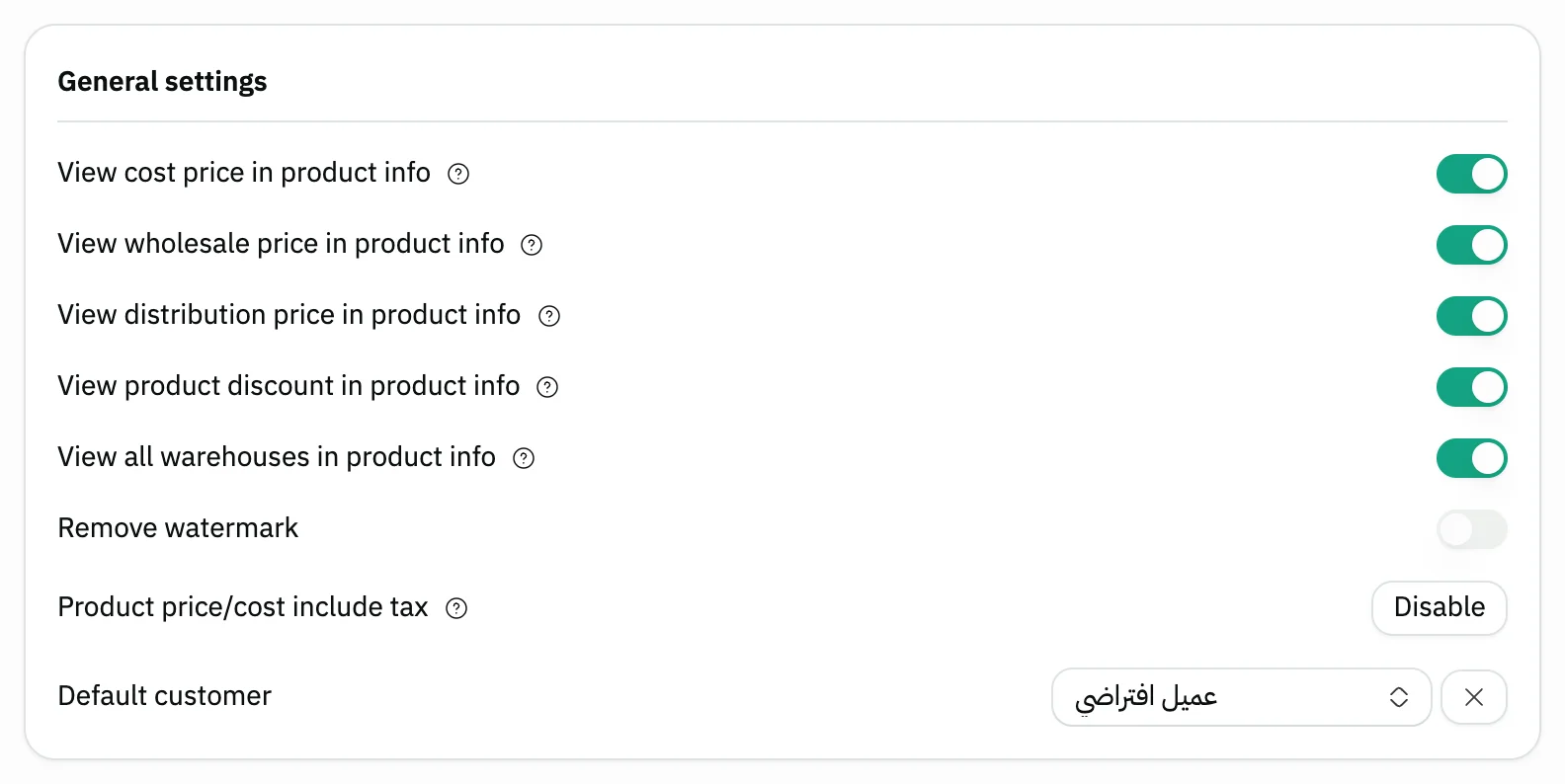
Image key - Switches for what product info shows
- The Default customer field
Step 2: Set the selling rules
In Sales settings, choose what a sale may do: sell stock that isn't there, price below cost, or end in a loss. Also set the return window. Details
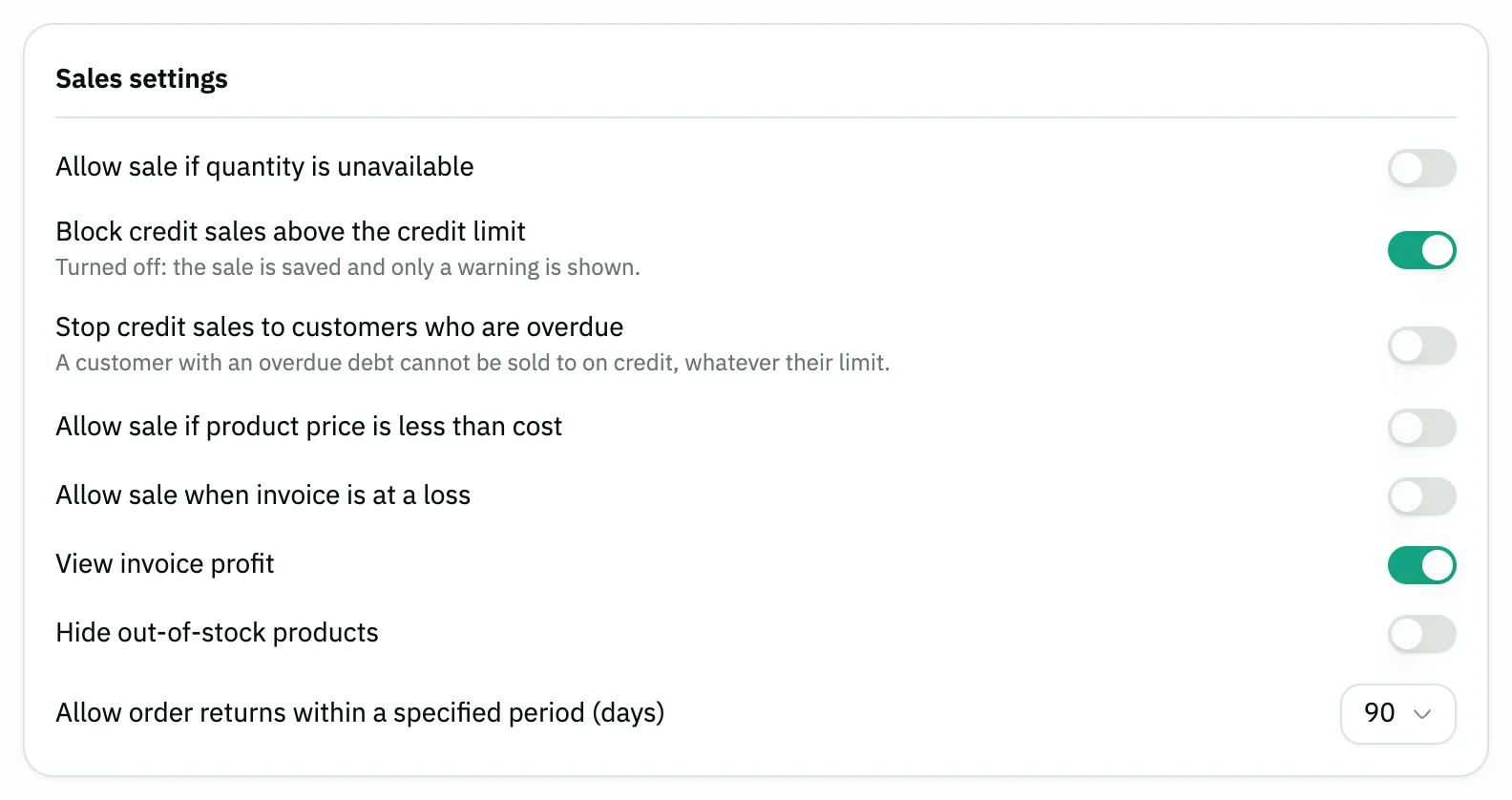
Image key - Allow sale if quantity is unavailable
- Allow sale if product price is less than cost
- View invoice profit
- Allow order returns within a specified period (days)
Step 3: Choose the payment methods
In Payment methods, turn on the methods you accept and off the ones you don't use. Then pick the Default payment method every new invoice opens with. For a new method, press Add a payment method in the block header (custom payment methods). Details
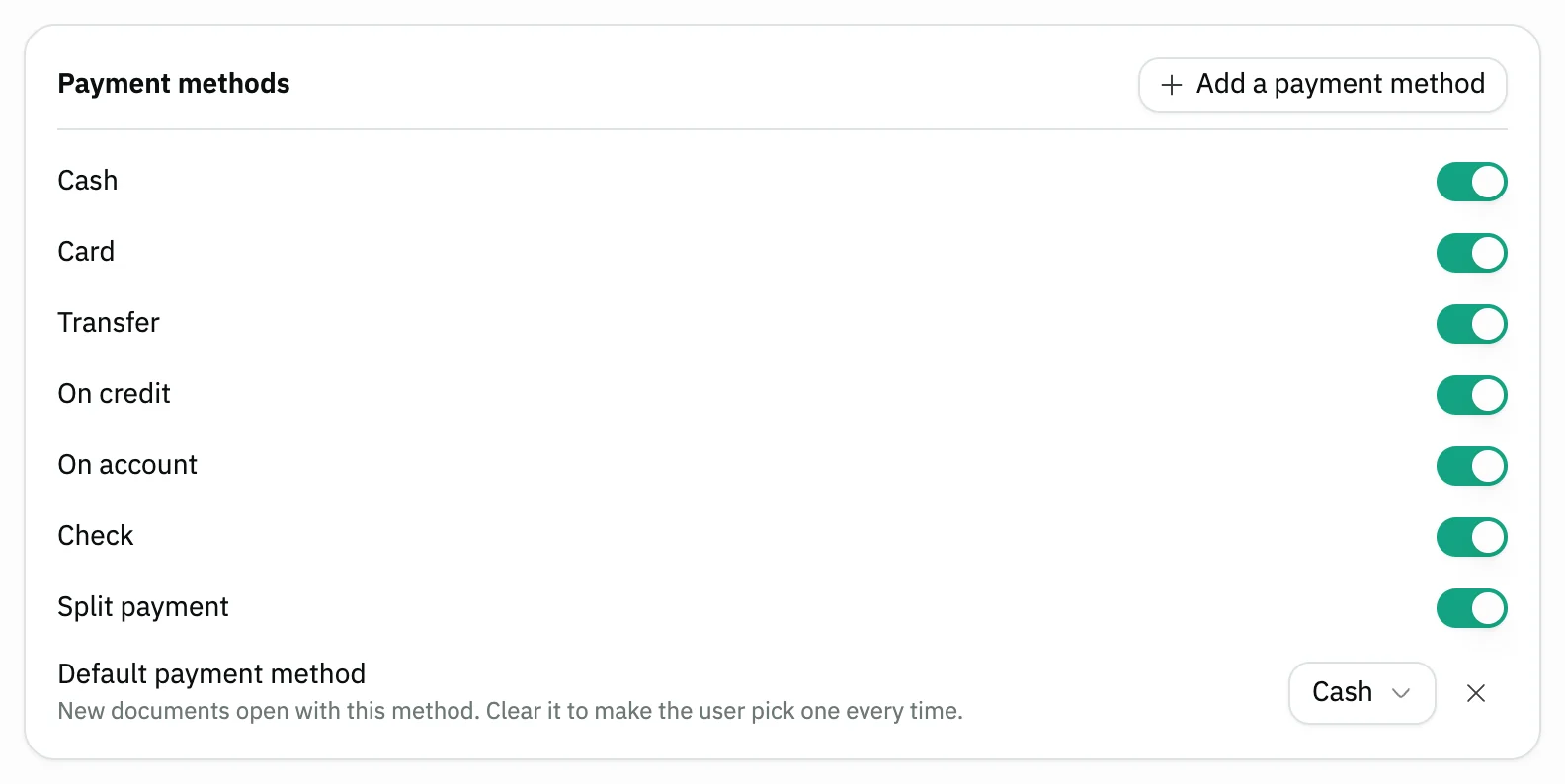
Image key - The Add a payment method button
- The seven payment method switches
- The Default payment method field
Step 4: Add preset notes
In Preset item notes, type a phrase you often write on invoice lines, then press Add. You can keep up to 20 notes. Details
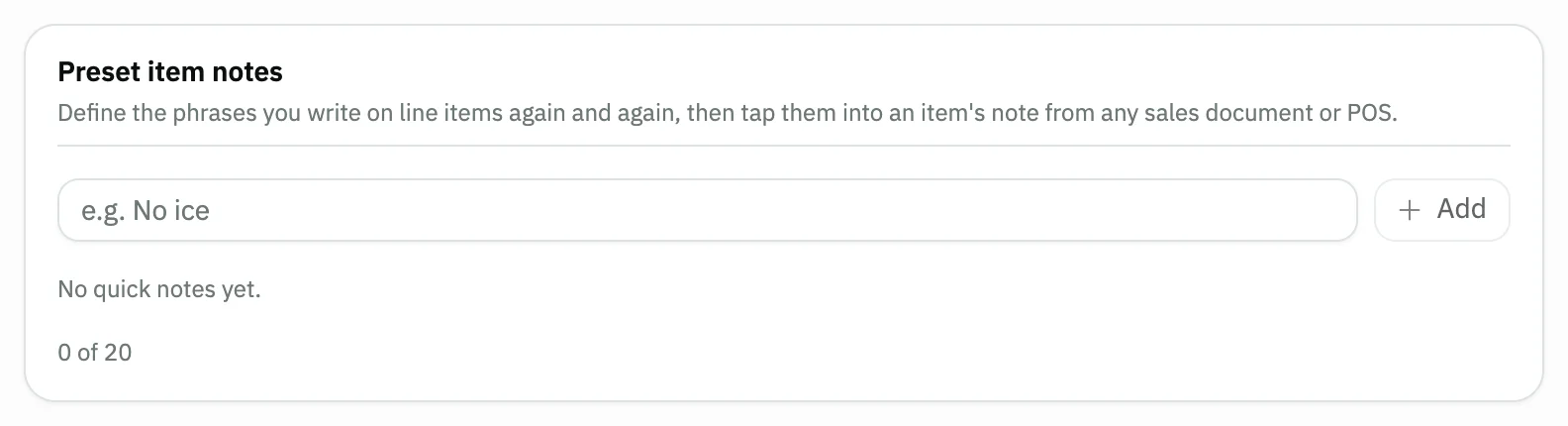
Image key - The note text field
- The Add button
Step 5: Turn on WhatsApp sending
In Auto-send to customers, turn on Send invoices, Send quotations or Send credit notes. The documents reach the customer over WhatsApp. Details
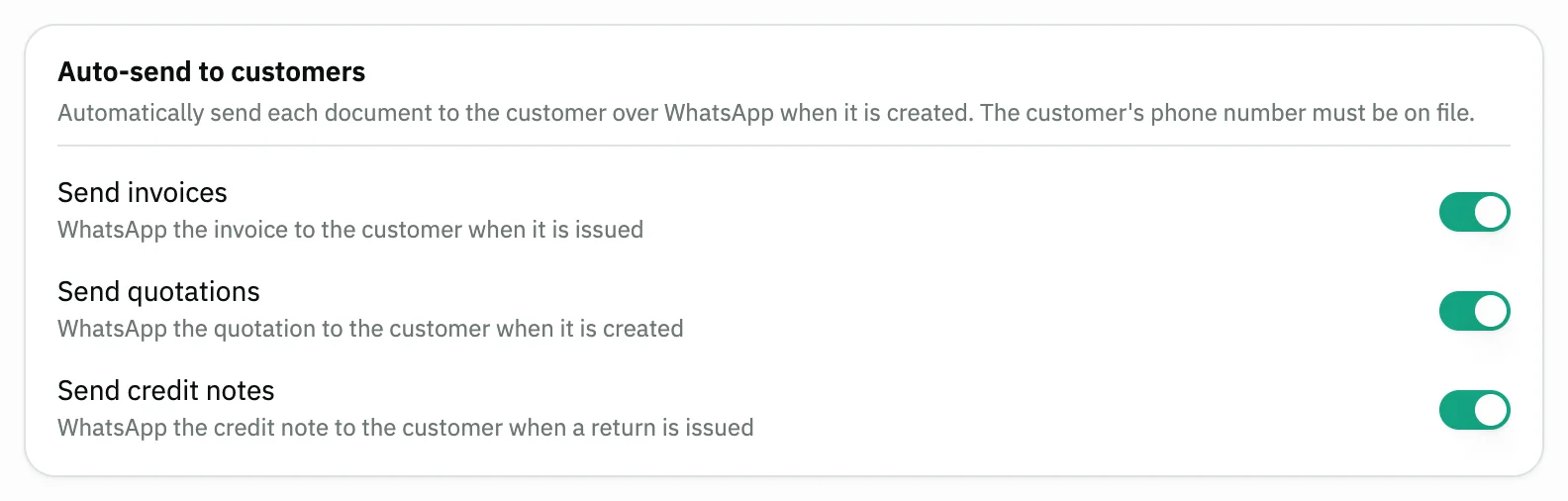
Image key - Send invoices
- Send quotations
- Send credit notes
Messages that block saving
If saving fails, one of these messages shows next to the field. The table gives the cause and the fix.
| Message | Cause | Fix |
|---|---|---|
| «Product quantity not available» | Allow sale if quantity is unavailable is off, and a line's quantity is more than the warehouse stock. | Lower the quantity on the invoice, or turn the switch on if you want to sell without stock. |
| «Product price is less than the cost» | Allow sale if product price is less than cost is off, and a line is priced below its cost. | Raise the price of the line named in the message, or turn the switch on. |
| «The invoice cannot be sold at a loss» | Allow sale when invoice is at a loss is off, and the invoice's net profit is negative. | Change the prices or the discount until the profit is zero or more, or turn the switch on. |
Advanced details
Each section here explains one point from the steps in depth. Every section has a fixed link you can share.
What the general settings do
The switches for cost price, wholesale price, distribution price, product discount and all warehouses decide what the product info window shows inside invoices.
The Default customer is picked automatically on a new sales invoice, quotation and sale order, and you can still change it on each document (quotation, sale order).
There is also a Remove watermark switch for printouts, and a button that sets whether product price and cost include tax. Change the second with care, since it changes how prices are entered.
This setting cannot be changed while the organization holds stock. The message says that tax settings (prices include tax, default tax rate) cannot be changed while stock is held, and to zero the stock or contact support. The lock also covers making a tax group with a different rate the default while prices include tax, as in tax settings.
Locking or unlocking the date field on new documents is a switch in the organization's general settings.
What the selling switches change
The first three switches act when you create a sales invoice. With one off, Snad refuses to save the invoice and shows a message. With it on, the invoice saves.
View invoice profit shows the profit in the invoice summary. Hiding out-of-stock products only removes them from the pickers, and doesn't block a sale.
On a sales return, if the invoice is older than the return window in days, the form is disabled and a warning shows.
Payment methods and the default method
The seven methods are Cash, Card, Transfer, On credit, On account, Check and Split payment. A method that is off shows disabled on payment forms, with a message that it is not enabled.
Split payment lets you divide a sales invoice between cash, card and transfer. It appears on invoices only if at least two of those three methods are on and its own switch is on. It is not an option for the Default payment method.
To add a method beyond these seven, such as Mada or Tabby, press Add a payment method in the block header, or use the Custom payment methods card below them: each method gets its own account, and may carry a fee percentage. They do not take part in Split payment and cannot be the default method (custom payment methods). They need the system settings permission, and the card may not show without it.
To take card payments from your customers, see connect the payment gateway.
New documents open with the default method. Press Clear to remove it, so the user picks a method every time.
Preset notes
You add a note with one tap from the item note editor in sales and POS. The limit is 20 notes, and a duplicate note is refused.
WhatsApp sending conditions
Snad sends the document to the customer when it is created (send documents on WhatsApp), as long as the customer's phone number is on file. Add the number on the customer page (how to add a customer).
POS has two matching switches in POS settings.
Common questions
- How do I set sales settings in Snad?
- Open Sales, then Settings, and flip the switches in the cards. Each switch saves as soon as you flip it, with no Save button.
- How do I make a customer appear on the invoice automatically?
- In General settings, pick a Default customer. That customer shows on every new sales invoice, quotation and sale order.
- Why won't Snad save my invoice?
- One of the Sales settings switches may be off: quantity unavailable, price below cost or a loss. Read the message, then change the invoice (how to create a sales invoice) or the switch.
- Can I turn a payment method off?
- Yes. In Payment methods, turn the method's switch off and it shows disabled on payment forms.
- Why can't I change the switches?
- Changing them needs permission to update sales settings. Ask your account admin to grant it in roles and permissions.