
How to get started with AI Mode in Snad
To start with AI Mode in Snad, press the AI Mode tab in the sidebar, then New conversation. Type your question or request in the composer, or pick a ready example and edit it, then press Send. Every request stays in your conversation list so you can return to it.
In this guide7
Steps
Step 1: Open AI Mode
At the top of the sidebar, press the AI Mode tab, then New conversation. The start screen opens with a greeting and a composer. Details
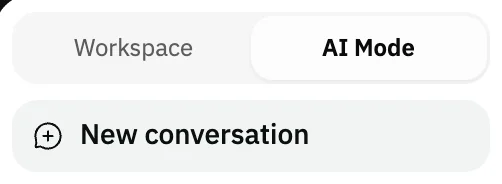
Image key - The AI Mode tab
- The New conversation button
Step 2: Read the start screen
The screen opens with a greeting by name, and the composer below it. That is all you need: no menus or settings before your first request.
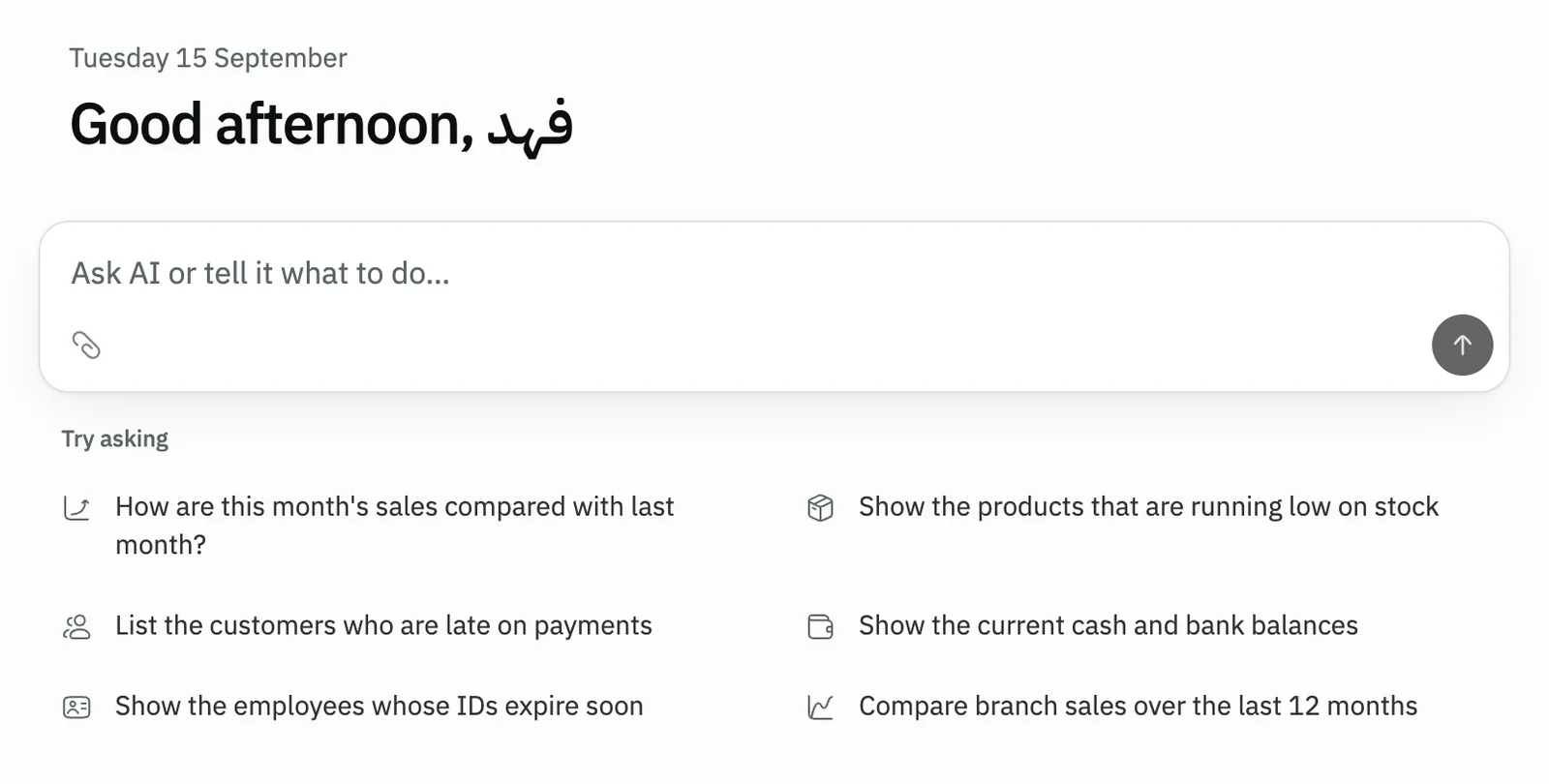
Image key - The greeting
- The composer
Step 3: Type your question or request
In the box that starts with Ask AI or tell it what to do…, write what you want in your own words. Enter sends, and Shift + Enter starts a new line. Details

Image key - The composer field
- The Send button
Step 4: Pick a ready example
Not sure where to start? Press one of the examples under the box. Its text goes into the box without being sent. Edit it as you like, then send it. Details
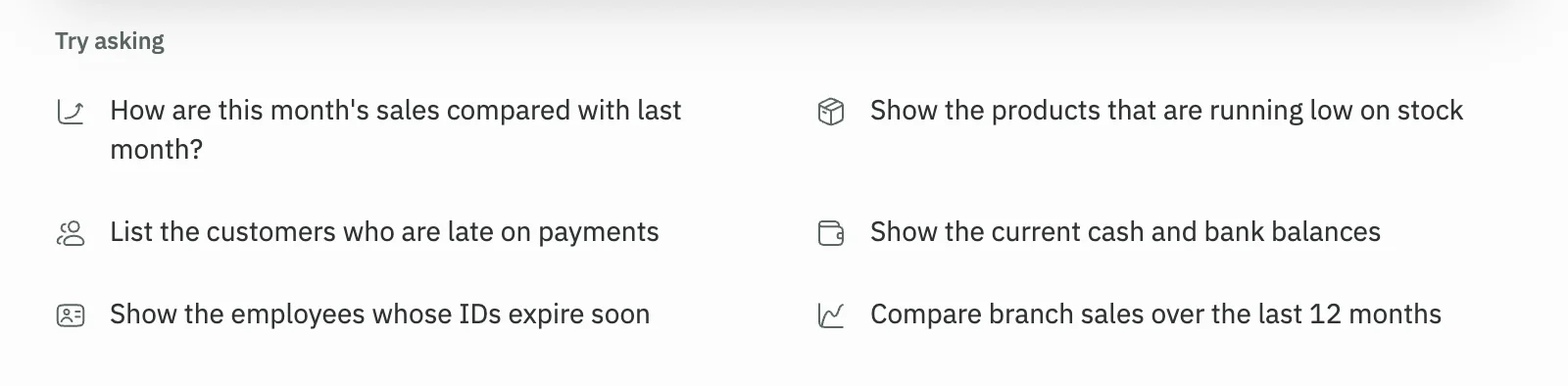
Image key - An example that goes into the box when pressed
Step 5: Attach a file if you need to
Press the attach button beside the box, or drop the file onto it, and the file becomes part of your message. Images, Excel and CSV sheets and text files are accepted. Details

Image key - The attach files button
Step 6: Send and read the reply
Press Send, and AI Mode writes its reply in the same conversation. Any operation that changes your data shows a preview first and runs only when you confirm (run an action). Details
Step 7: Come back to your conversations
Under New conversation your recent conversations appear, grouped by day; before the first one you read No conversations yet. Open any to continue it. Details

Image key - The New conversation button
- The No conversations yet. message before the first conversation
Messages that block saving
If saving fails, one of these messages shows next to the field. The table gives the cause and the fix.
| Message | Cause | Fix |
|---|---|---|
| «AI Mode can't answer right now. Try again in a moment.» | The service is busy or paused for a moment. | Wait a moment and try again. The dashboard stays available. |
| «Conversations with AI Mode aren't turned on for your organization.» | The feature is off for your organization. | Ask your Snad account admin to turn it on. |
| «Your organization has used up its usage allowance for this period.» | The AI Mode allowance for the current period is used up. | Follow the balance in track AI Mode credits. |
| «Your session expired. Reload the page to continue.» | Your sign-in session ended. | Reload the page, and sign in again if asked. |
| «The message is over the limit. You can shorten it, then send it.» | The message is longer than the maximum. | Shorten the text, or split it over two messages. |
Advanced details
Each section here explains one point from the steps in depth. Every section has a fixed link you can share.
Writing limits and permissions
When your message nears the maximum, a character counter shows under the box. If you go over it, sending is disabled until you shorten the text.
AI Mode shows only what your permissions allow, so some figures may not appear for you. It changes nothing in your data until you review the preview and confirm it, and it doesn't act on its own.
Examples follow your permissions
The examples under the box are picked from the parts of Snad you have access to, such as sales, stock, customers and employees.
Some ask for something to be created, such as a quotation, so AI Mode shows a preview before running it. Some import a file, with steps in import a file with AI Mode.
Attached files and attach errors
An attached file shows above the box with an upload progress bar. You can remove it or upload it again before sending.
The old .xls format isn't supported: save the file as .xlsx or CSV, then attach it. A file over the allowed size isn't attached, and a message tells you why.
Every file you attach appears later on the Files page. To import products, customers or suppliers from a sheet, follow import a file with AI Mode.
Reply tools: copy, rate, edit
Under each reply are the buttons Copy, Another answer, Helpful and Not helpful. Your rating is used to improve the replies.
To change a message you sent, press Edit message. Sending creates a new version, and the original message and its reply stay in the previous version.
If AI Mode read your organization's data for a reply, a Sources button shows what was read.
From Conversation options, you can download the conversation as Markdown, or print it or save it as PDF.
Rename, pin and delete
Each conversation has a ⋯ menu with Rename, Pin and Delete. Pinned ones stay at the top of the list under Pinned.
Deleting a conversation deletes its messages only. The files, reports and operations it produced are kept.
At the bottom of the sidebar open More actions to find Files, Reports, Running, History and Memory. They are covered in imports, reports and actions.
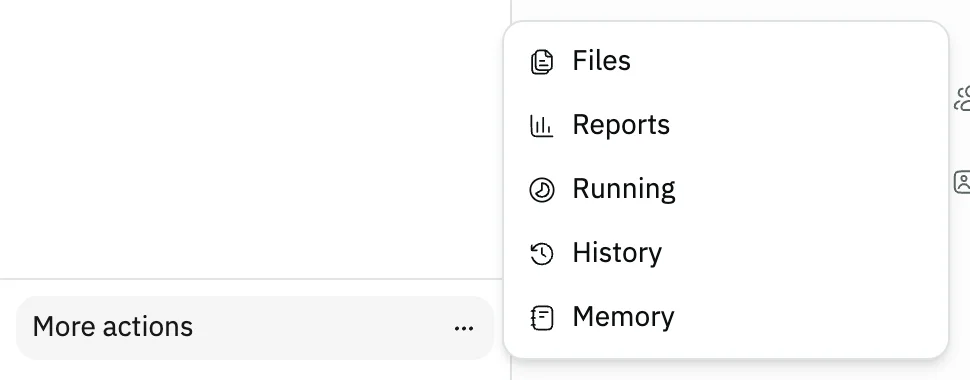
- Files
- History
Common questions
- How do I start with AI Mode in Snad?
- Press the AI Mode tab in the sidebar, then New conversation, write your request in the box, and press Send.
- Does AI Mode change my data on its own?
- No. AI Mode changes nothing until you review the preview and confirm it, and it sends no alerts on its own. It replies when you ask.
- Why can't I see some figures in AI Mode's replies?
- Because AI Mode shows only what your permissions allow. Ask your account admin for access to the section you need (roles and permissions).
- How do I get back to an earlier conversation?
- Open it from the conversations list under New conversation in the sidebar, where they are grouped by day.
- How do I delete a conversation?
- Open the ⋯ menu beside it and choose Delete, then confirm. Its messages are deleted, and the files, reports and operations it produced are kept.