
How to record asset maintenance in Snad
To record asset maintenance in Snad ERP, open Assets, then Maintenance, and press Add maintenance. Pick the asset in Asset name, then set the Maintenance type, Status, dates and cost. Choose the Cost treatment and press Save; at Completed the cost posts to the ledger.
In this guide7
Steps
Step 1: Open the maintenance page
In the sidebar open Assets, then Maintenance, and press Add maintenance above the list.
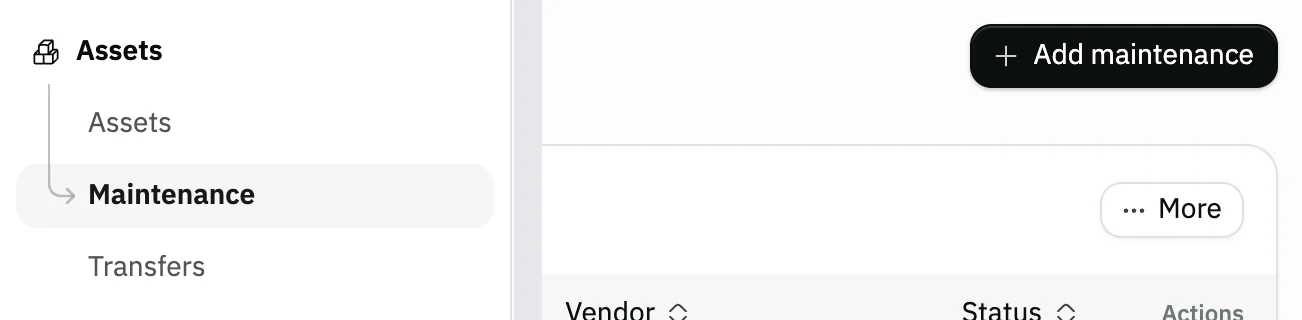
Image key - Maintenance in the sidebar
- The Add maintenance button
Step 2: Pick the asset
Open the Asset name field and pick the asset you are repairing or inspecting. Assets are listed by number and name.
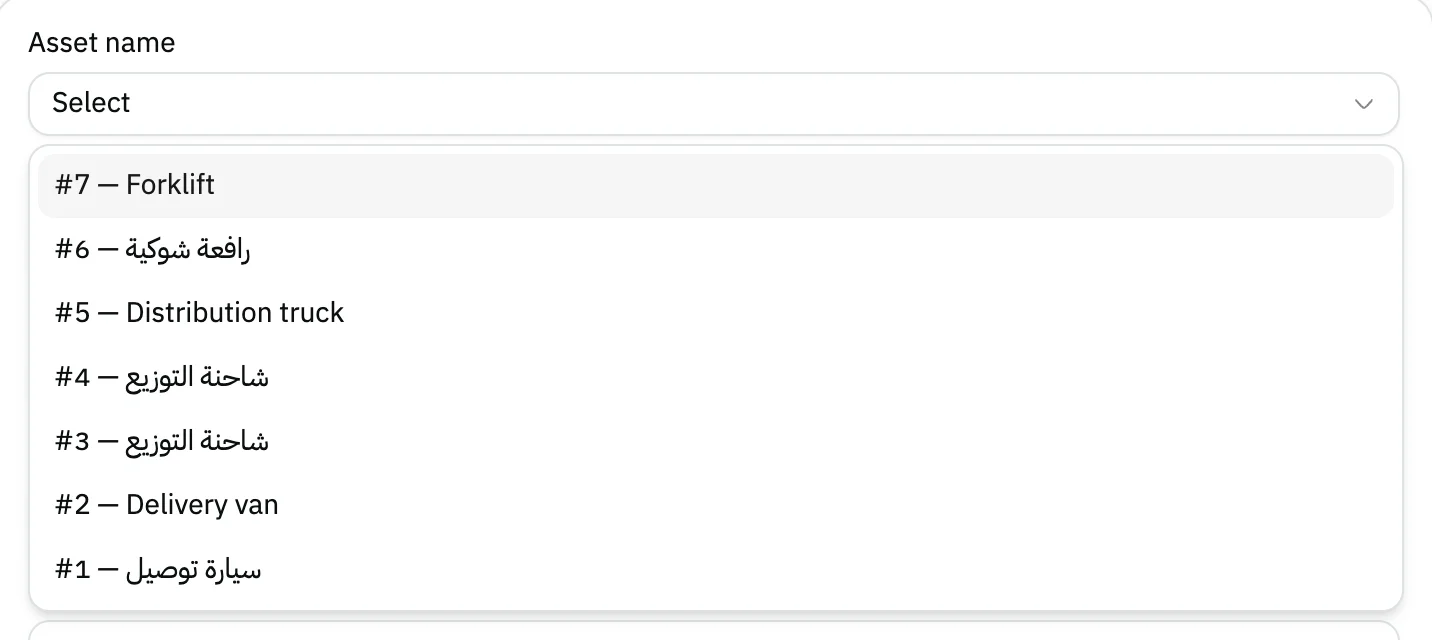
Image key - Asset name
- An asset in the list
Step 3: Set the type, status and dates
Choose the Maintenance type and Status, then the Scheduled date and Next service date. Both dates are optional. A new record starts as Preventive, Scheduled. Details
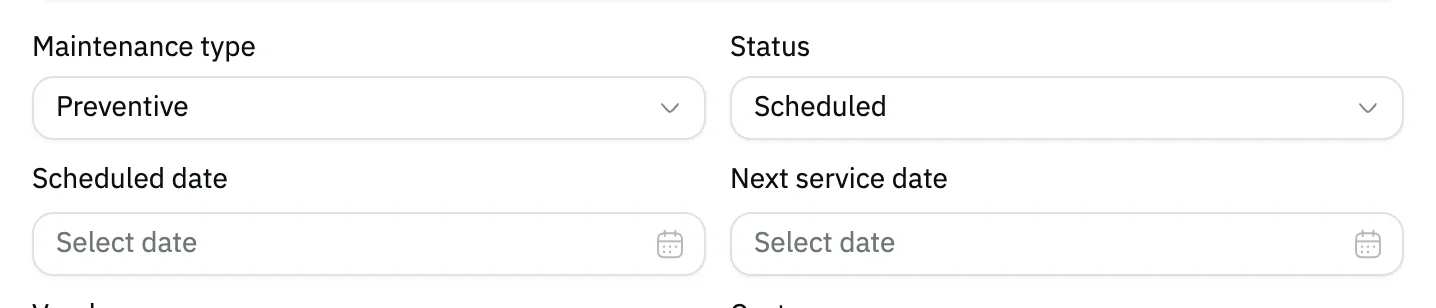
Image key - Maintenance type
- Status
- Scheduled date
- Next service date
Step 4: Enter the vendor and cost
Type the Vendor doing the work, the total Cost, and a Description if you like.
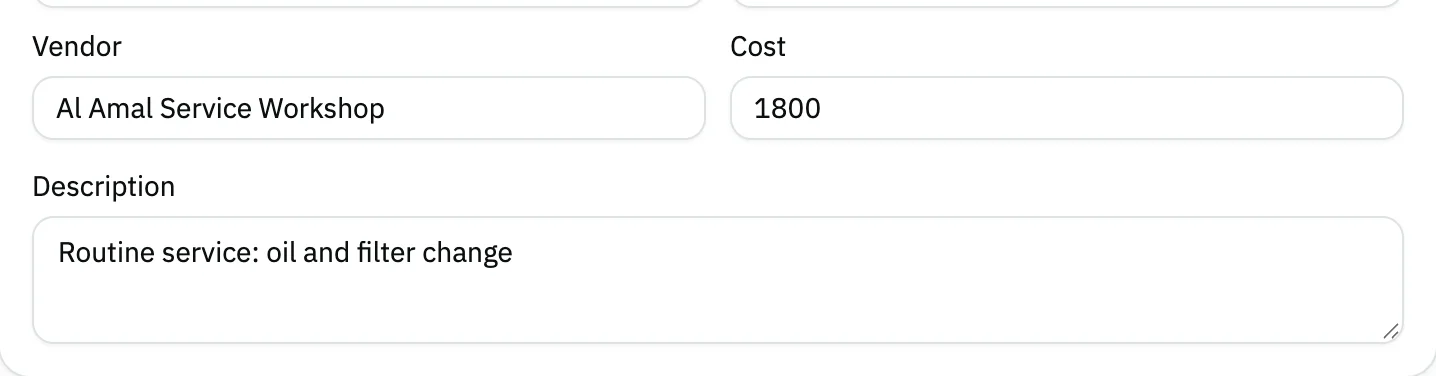
Image key - Vendor
- Cost
- Description
Step 5: Add parts and labour lines
To itemise the cost, press Add line in Cost details (parts / labour) and pick the type Part, Labour or Service. The Cost becomes the total of the lines. Details

Image key - The Add line button
- Type
- Qty
Step 6: Choose the cost treatment
Choose the Cost treatment: Expense or Capitalize. Then pick the Expense account and the Cash / source account (chart of accounts). Details
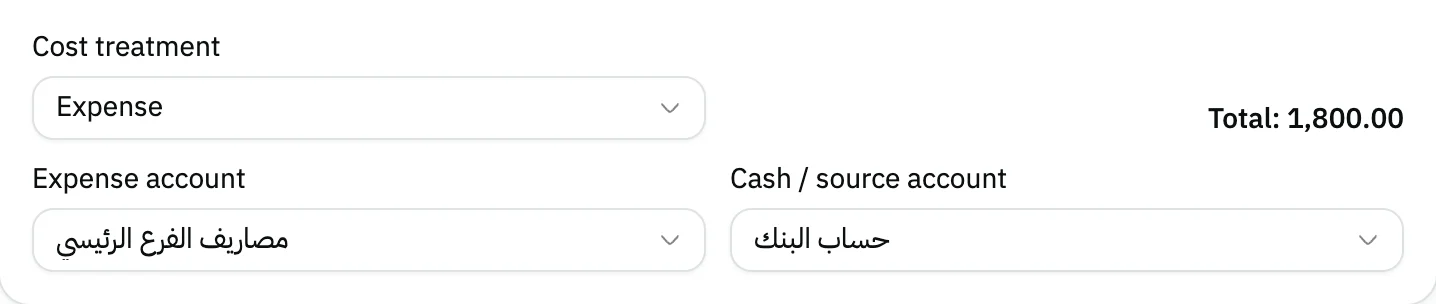
Image key - Cost treatment
- Expense account
- Cash / source account
Step 7: Save the maintenance
Press Save at the top of the form. You return to the list with the new record, marked Posted or Projected depending on whether its cost was posted. Details

Image key - The new record in the list
Messages that block saving
If saving fails, one of these messages shows next to the field. The table gives the cause and the fix.
| Message | Cause | Fix |
|---|---|---|
| «No data» | No asset is picked in Asset name. | Pick the asset, then save. |
| «Saved, but the cost was NOT posted to the ledger — Choose a maintenance expense account.» | The status is Completed and the Cost treatment is Expense, with no Expense account chosen. | Open the record, pick the Expense account, and save again. |
| «Saved, but the cost was NOT posted to the ledger — Choose a cash/source account for service cost.» | The cost has a service or labour part, and there is no Cash / source account and no default cash account for the organization. | Pick the Cash / source account and save again. |
| «Saved, but the cost was NOT posted to the ledger — Not enough stock of "…" in the selected warehouse.» | A spare part's quantity is more than its stock in the chosen Warehouse. | Lower the Qty or pick a warehouse with stock, then save again. |
| «This maintenance cost is already posted to the ledger and can no longer be edited. Reverse the posting first.» | You are editing a maintenance record whose cost is already posted. | Press Reverse ledger posting in the record's action menu, then edit it (reverse a posting). |
Advanced details
Each section here explains one point from the steps in depth. Every section has a fixed link you can share.
What the status does
There are four statuses: Scheduled, In progress, Completed and Canceled. Saving In progress sets the asset to In maintenance; saving Completed sets it back to Active.
The cost is posted to the ledger only when you save the record as Completed.
If you set a Next service date and the status stays Scheduled or In progress, users with asset access get a notification three days before the date.
Spare parts leave stock
On a Part line pick the Product, Warehouse and Qty. When the cost posts, the part is valued at the product's cost and leaves the stock of a warehouse linked to an inventory account. The cost is not posted if stock is too low or the product has no cost.
The Product field is a search list: open it and type part of the name. It shows active products only, and no services, because a service cannot be issued as a spare part.
A Labour or Service line takes a Description, a Qty and the cost per unit (Cost per asset), and is credited to the Cash / source account.
Set up the product and warehouse first: create a product and add a warehouse.
Expense or capitalize?
Expense posts the cost to the Expense account you chose. Capitalize adds it to the category's fixed asset account, which raises the asset's value, and it can't be used on a disposed asset.
The credit side in both cases is the parts' inventory at cost, and the rest from the Cash / source account. For accounting detail see create a journal entry.
Fixing a posted maintenance
Once the cost posts, the record shows Posted and can no longer be edited or deleted. To fix it, open the row's action menu, press Reverse ledger posting, and confirm.
Reversing cancels the entry, puts the consumed parts back into stock, and takes any capitalized cost off the asset.
Common questions
- How do I record maintenance for an asset in Snad?
- Open Assets, then Maintenance, and press Add maintenance. Pick the asset in Asset name, set the type, status and cost, then Save.
- When does the maintenance cost post to accounting?
- When you save the record as Completed. If it can't post because of a missing account or stock, Snad shows the reason in a warning after saving.
- Can I delete a maintenance record?
- Yes, as long as its cost hasn't been posted. If it shows Posted, reverse it first with Reverse ledger posting.
- Will Snad remind me of the next service date?
- Yes. If you set a Next service date and the record is Scheduled or In progress, users with asset access get a notification three days before.
- What is the difference between expense and capitalize?
- Expense charges the cost to a maintenance expense account; Capitalize adds it to the asset's own value in the fixed asset account.