
How to follow your notifications in Snad
To follow notifications in Snad, press the bell at the top to see the latest ones, and press a notification to open its page. Press View all notifications for the full page, and filter between Unread, Archived and Snoozed. From ⋮ you snooze, archive or delete.
In this guide7
Steps
Step 1: Open the bell
Press the Notifications icon at the top. A red badge shows the unread count, and the latest ten notifications are listed below it.
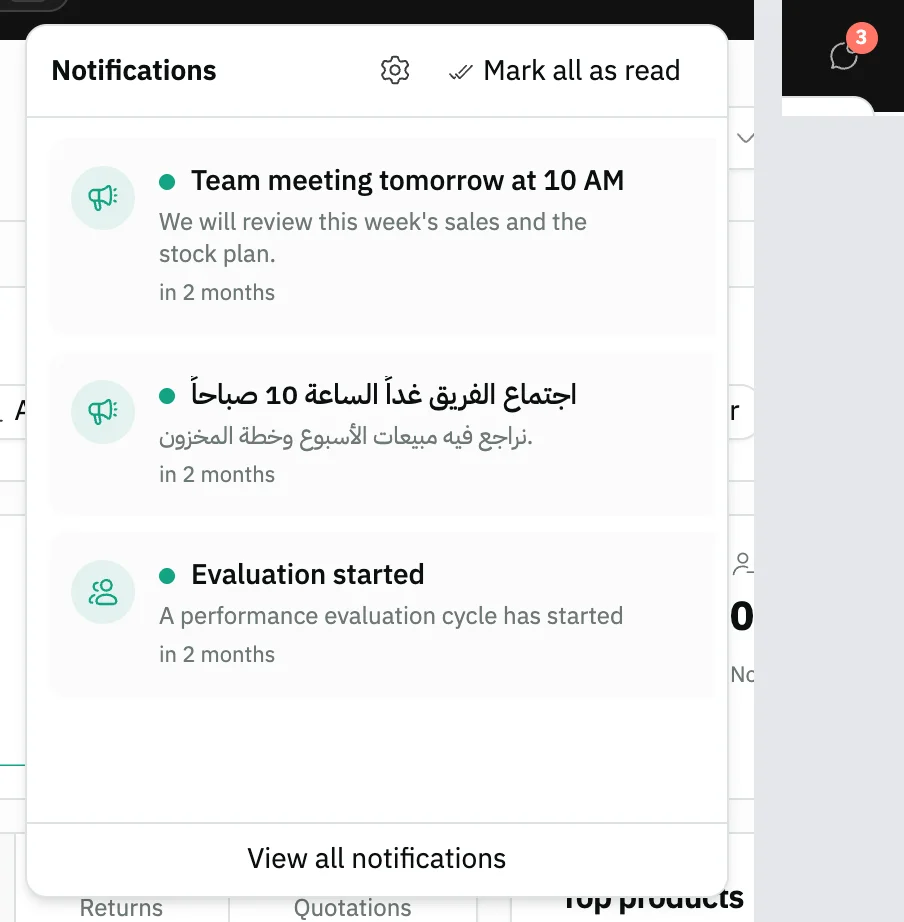
Image key - The Notifications icon
- The latest notifications, with unread ones shaded
- The View all notifications link
Step 3: Open the notifications page
Press View all notifications at the bottom of the list. To clear everything at once, press Mark all as read at the top.
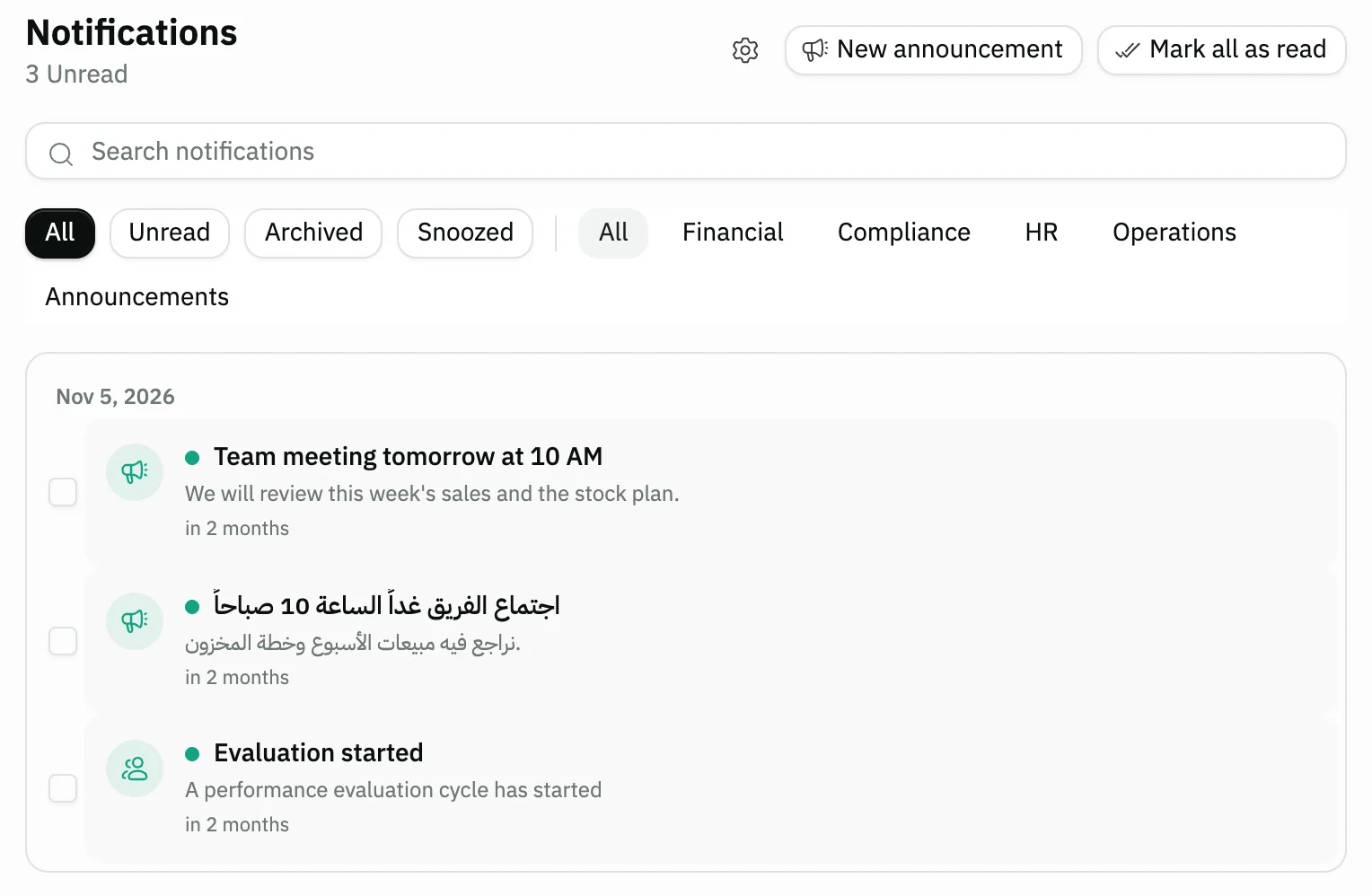
Image key - The Mark all as read button
- The Search notifications field
- Notifications grouped by day
Step 4: Filter the notifications
Switch between All, Unread, Archived and Snoozed. Then pick a type such as Financial or HR, or type in the search box.

Image key - The Unread tab among the tabs
- The Financial type among the types
Step 5: Act on one notification
Hover the notification and press ⋮ (Actions). Choose Mark as read, Snooze 1 hour, Snooze until tomorrow, Archive or Delete. Details
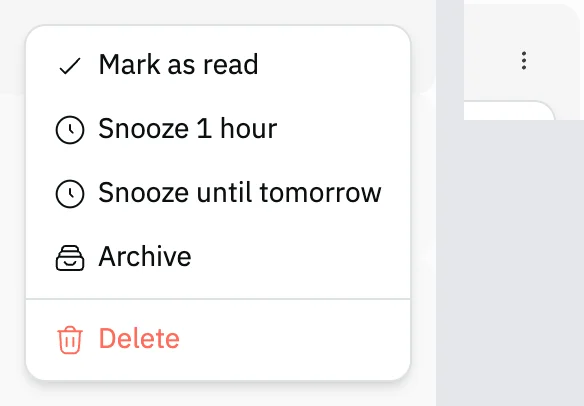
Image key - The ⋮ Actions button
- Snooze 1 hour
- Archive
- Delete
Step 6: Select several at once
Tick the Select box beside each notification. A bar shows the selected count, and from it you can Mark as read, Archive or Delete them all.
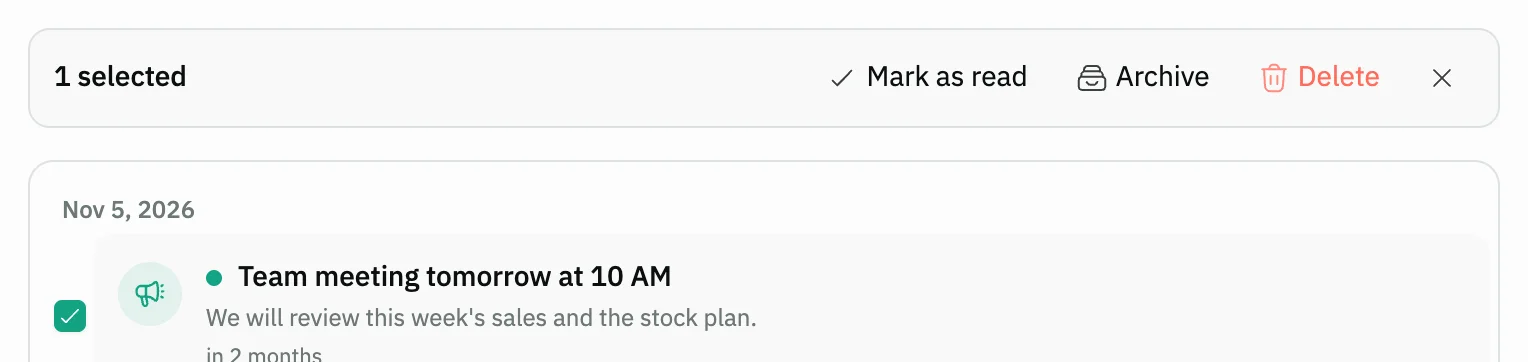
Image key - The Select box
- The action bar: Mark as read, Archive and Delete
Step 7: Set what reaches you
Press the gear (Preferences) at the top of the page. There you choose the channels and types you want, explained in notification settings.
Messages that block saving
If saving fails, one of these messages shows next to the field. The table gives the cause and the fix.
| Message | Cause | Fix |
|---|
Advanced details
Each section here explains one point from the steps in depth. Every section has a fixed link you can share.
Approve a request from the notification
A vacation request or new employee request notification carries Approve and Reject buttons under its text. Pressing one applies the decision and marks the notification read without opening the page.
For details see vacation requests and employee requests.
Snooze and archive: where the notification goes
You find snoozed notifications in the Snoozed tab and archived ones in the Archived tab.
Snooze 1 hour counts one hour from the moment you press it, and Snooze until tomorrow counts twenty-four hours from that moment.
Admins: send an announcement to the team
The New announcement button shows on the notifications page for the organization admin only. Write the Title and Message, then choose under Send to: All users, By role or Specific users.
Press Send. Before it you can tick Pin as banner to keep the announcement visible, or set a time under Schedule for (optional) to deliver it later.
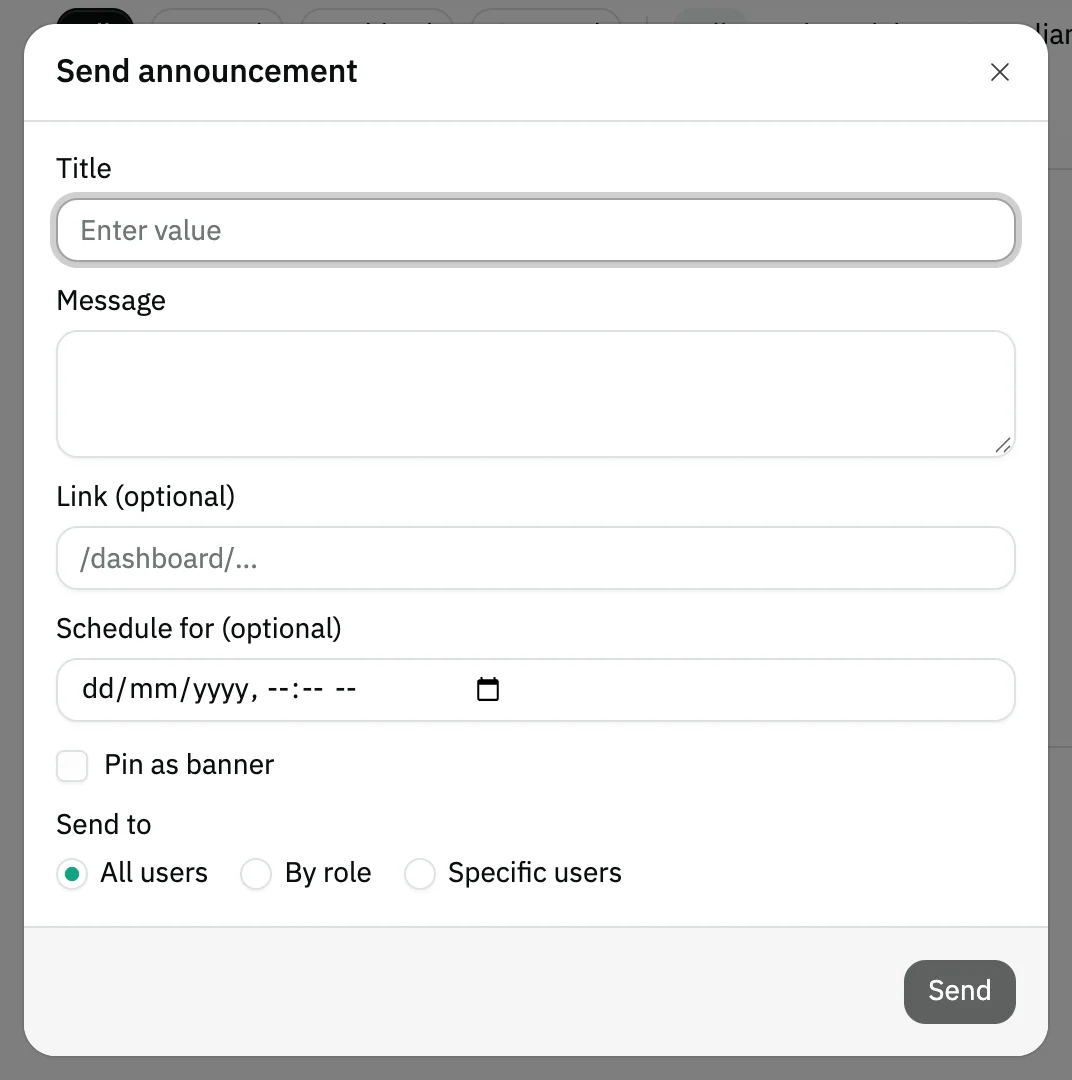
- The Title field
- The Send to options
- The Send button
Common questions
- Where do I find older Snad notifications?
- From the bell press View all notifications, then scroll down and press Load more. The Archived tab shows what you archived.
- How do I mark every notification as read?
- Press Mark all as read at the top of the bell list or the notifications page. The button shows only when you have unread notifications.
- Why can't I see the bell icon?
- The bell is hidden on small screens. Widen the window, use a larger device, or open the notifications page directly.
- What is the difference between snooze and archive?
- Snooze 1 hour and Snooze until tomorrow hide the notification for a while and list it under Snoozed. Archive moves it to Archived to keep the list clean.